
How do I manage TA Scanner alerts, filters, and shared strategies?
Once a TA Scanner strategy is running, matches show up as alerts in the widget list and as markers on your chart. You can right-click any match to exclude that market or mute it for a while, tune which markets a strategy scans with Global Filters, and share a strategy with another trader.
Viewing matched alerts
 🔍 Click the image to see a larger version
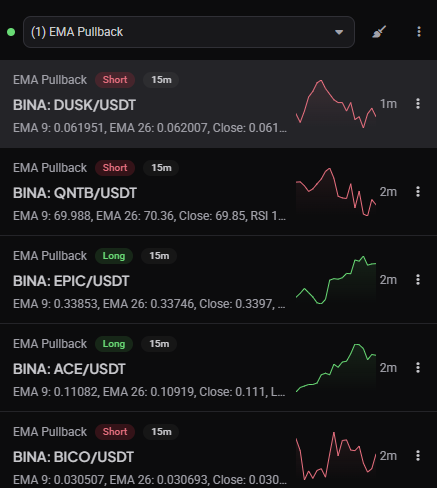
Every time a market matches one of your strategy’s rules, it appears as a row in the TA Scanner list, showing the market, timeframe and which rule fired. The list works the same way as the widget’s live feed: newest matches appear at the top, and you can scroll back through recent history.
🔍 Click the image to see a larger version
Every time a market matches one of your strategy’s rules, it appears as a row in the TA Scanner list, showing the market, timeframe and which rule fired. The list works the same way as the widget’s live feed: newest matches appear at the top, and you can scroll back through recent history.
To see matches directly on the chart as well, open the chart’s settings, find Alerts, and turn on Show TA scanner alerts under the TA Scanner section. This adds a marker at the candle where the match occurred, so you can see the setup in context instead of only reading it as a row in a list.
Excluding a market from a strategy
If a strategy keeps matching on a market you’re not interested in trading, right-click that row in the TA Scanner list and choose Exclude Market. The market is added to that strategy’s exclusion list, so the strategy stops scanning it. It’s a good option when a market is a permanent no for you (thin volume, wrong exchange, delisted pair) rather than something you just want quiet for a bit.
Muting a market temporarily
 🔍 Click the image to see a larger version
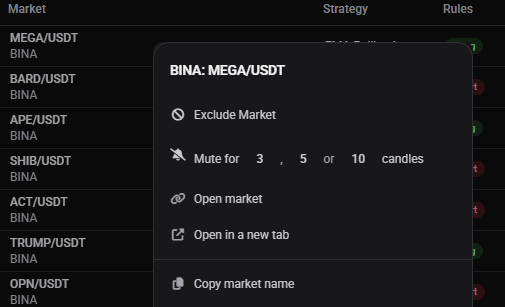
For a market you still want scanned later, right-click the row instead and choose Mute for, then pick 3, 5 or 10 candles. Altrady stops alerting on that market and timeframe until that many candles have closed, then it’s back in play automatically. This is the option to reach for after you’ve already acted on a match and don’t need to see it repeated every candle.
🔍 Click the image to see a larger version
For a market you still want scanned later, right-click the row instead and choose Mute for, then pick 3, 5 or 10 candles. Altrady stops alerting on that market and timeframe until that many candles have closed, then it’s back in play automatically. This is the option to reach for after you’ve already acted on a match and don’t need to see it repeated every candle.
While muted, the market appears dimmed in the results list, will not move to the top when new alerts arrive, and sound and push notifications are suppressed for it. The mute is resolution-specific — muting a market on the 15m resolution does not affect alerts for the same market on other resolutions.
If you change your mind early, right-click the same row and choose Unmute to lift the mute immediately.
Adjusting Global Filters
Each strategy has its own Global Filters that control which markets it scans, covering exchanges, quote currencies, timeframes, volume thresholds, flat-candle limits, and blacklist/whitelist settings. For a full breakdown of each filter, see How do I create a TA Scanner strategy?.
To change a running strategy’s filters, open the strategy in the editor and use Change filters to adjust any of them, or add filter to add a new condition.
Duplicating, sharing or exporting a strategy
 🔍 Click the image to see a larger version
Working strategies are worth reusing or handing to another trader:
🔍 Click the image to see a larger version
Working strategies are worth reusing or handing to another trader:
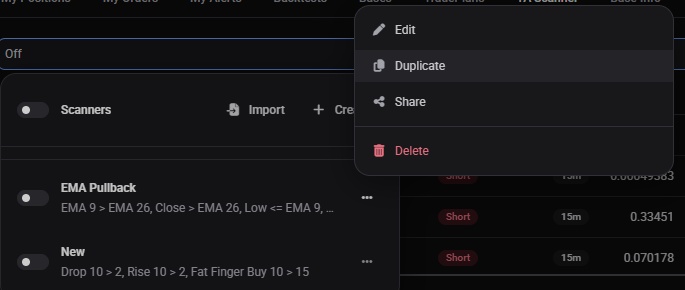
- Open the strategy’s menu from the preset selector.
- Choose Duplicate to make your own copy to adjust without touching the original.
- Choose Share to open the share dialog, where you can copy a share link for another trader to import, or download the strategy as a file.
- To bring in someone else’s strategy, choose Import and either paste their share link or upload the JSON file they sent you.
An imported strategy is added in a disabled state to prevent accidental activation. Review its rules and filters, then enable it when you’re ready.
Clearing the alert history
If the TA Scanner list is getting cluttered with old matches, open the widget’s menu and choose Clear history. This empties the list of past matches and also removes all active mutes. It doesn’t change your strategies, rules or filters, so scanning continues normally afterward.
Still stuck?
If alerts aren’t showing up the way you expect, or a strategy seems to have stopped matching, our support team can take a look at your setup directly. Start a chat from the help widget in Altrady and we’ll help you sort it out.