
Why isn't the TA Scanner triggering alerts?
If the TA Scanner is running but you’re not seeing alerts, the cause is almost always a strategy that’s switched off, a filter that’s excluding the market, or not enough time for a match to occur. Work through the checks below in order.
Check a strategy is actually turned on
 🔍 Click the image to see a larger version
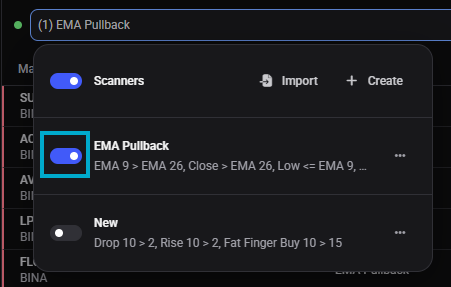
Open the scanner dropdown at the top of the widget. Each saved scanner has a toggle switch next to its name. If every scanner is off, the dropdown label reads Off and nothing will ever match. Turn on at least one scanner.
🔍 Click the image to see a larger version
Open the scanner dropdown at the top of the widget. Each saved scanner has a toggle switch next to its name. If every scanner is off, the dropdown label reads Off and nothing will ever match. Turn on at least one scanner.
Check the market isn’t muted or excluded
Right-click a market in the widget to see its context menu. You can Mute a market for a set number of candles, or Exclude Market entirely from the current strategy. A muted or excluded market won’t produce alerts even while everything else is running normally. The same menu lets you Unmute it again.
Check your Global Filters
Every strategy has its own Global Filters, and these narrow down which markets it even looks at. It’s easy to filter a market out without meaning to. Check:
- Exchange: is the exchange you’re trading on actually selected?
- Quote currency: if you filtered to USDT pairs only, a USDC or EUR market won’t be scanned.
- Minimum volume: a volume floor set too high silently drops thinner markets.
- Blacklist / whitelist: a market on the blacklist, or missing from a whitelist, is skipped.
- Timeframe: the strategy only evaluates the timeframe (or timeframes) selected here.
If a market you expect to see alerts on doesn’t match any of the criteria above, that’s the reason, not a scanner fault.
Give it time
Once a strategy and its filters look right, matches can still take a while to show up. Depending on the timeframe you chose, a genuine match against your rules might take anywhere from a few minutes to several hours to occur. A strategy built on a daily timeframe simply won’t fire as often as one built on a 15-minute timeframe. Zero alerts in the first few minutes after turning a strategy on isn’t a sign something’s broken.
Try a reload
If everything above looks correct and you’re still not seeing alerts:
- Toggle your scanners off and back on.
- Try a force reload (Ctrl+Shift+R on Windows/Linux, Cmd+Shift+R on Mac).
- If neither helps, restart the Altrady desktop app (close it fully and reopen).
Check your subscription and your plan’s limits
The TA Scanner needs either a running trial or an active plan. If you have no subscription, or your trial has expired, the widget shows an upgrade prompt instead of the scanning interface rather than simply going quiet.
If you do have access, your plan still controls how much you can run at once: how many strategies, rules and conditions you can have, which timeframes you can scan, how many exchanges and quote currencies you can select, and how many alerts you can receive per hour. If a strategy asks for more than your plan allows, Altrady shows an upgrade prompt. See What is the TA Scanner and how does it work? for the full table of limits.
Alert sound not playing
If alerts are appearing in the widget but you’re not hearing a sound:
- Check that your browser or system audio permissions allow Altrady to play sounds.
- Open the rule that should be making noise and verify Alert Sound is set to something other than No sound.
- Make sure your system volume isn’t muted.
- Try opening Altrady in an Incognito or Private window. If the sound works there, clear your cache and cookies in your main browser session, as a cached setting may be blocking audio.
Push notifications not showing
Push notifications for scanner alerts are not currently supported in the mobile app, so the steps below apply to desktop and web.
If you expected a desktop push notification but nothing appeared:
- Open the rule and confirm Push Notification is toggled on.
- Check that your browser allows notifications for the Altrady site. Most browsers show this in the address bar or under site settings.
- Check your Global Notification Settings inside Altrady (under Settings) to make sure scanner notifications aren’t disabled there.
- Go to the Devices section in notification settings and try sending a test alert. If the test doesn’t arrive, try deleting all registered devices and re-registering them by reloading the page.
Still stuck?
If you’ve confirmed a strategy is on, the market isn’t muted or filtered out, and you’ve waited a reasonable time with still no alerts, reach out through support chat in the app. Include which strategy and market you expected to see alerts on so the team can check it with you.