
How do I create a DCA position?
A DCA position is a smart position that enters a trade in stages. It opens straight away, then lines up further entries below your first one, so if price falls your average entry comes down with it. You create one from the Tools panel on the trading terminal, and it takes a couple of minutes. Because it is a smart position, it comes with the full set of position controls: you can adjust its take profit and stop loss, or add to it, like any other smart position.
A DCA position is not managed by a bot
This is the thing most worth knowing before you start. A DCA position is a single smart position with its entries planned in advance, not a bot:
- It starts as soon as you confirm it. There’s no signal to wait for.
- You create it from the Tools panel on the trading terminal, not from the Bots page.
- There’s no limit on how many you can create, or how many can run at the same time.
A signal bot is the opposite on all three counts: you create it on the Bots page, it sits idle until a signal arrives, and the number you can run at once depends on your plan. If you’re weighing one against the other, see Grid Bot, Signal Bot, or DCA Position: Which One Fits My Strategy?.
On a long, the first entry sits just above the current price so it fills straight away, and up to nine further entries (safety orders) line up below it.
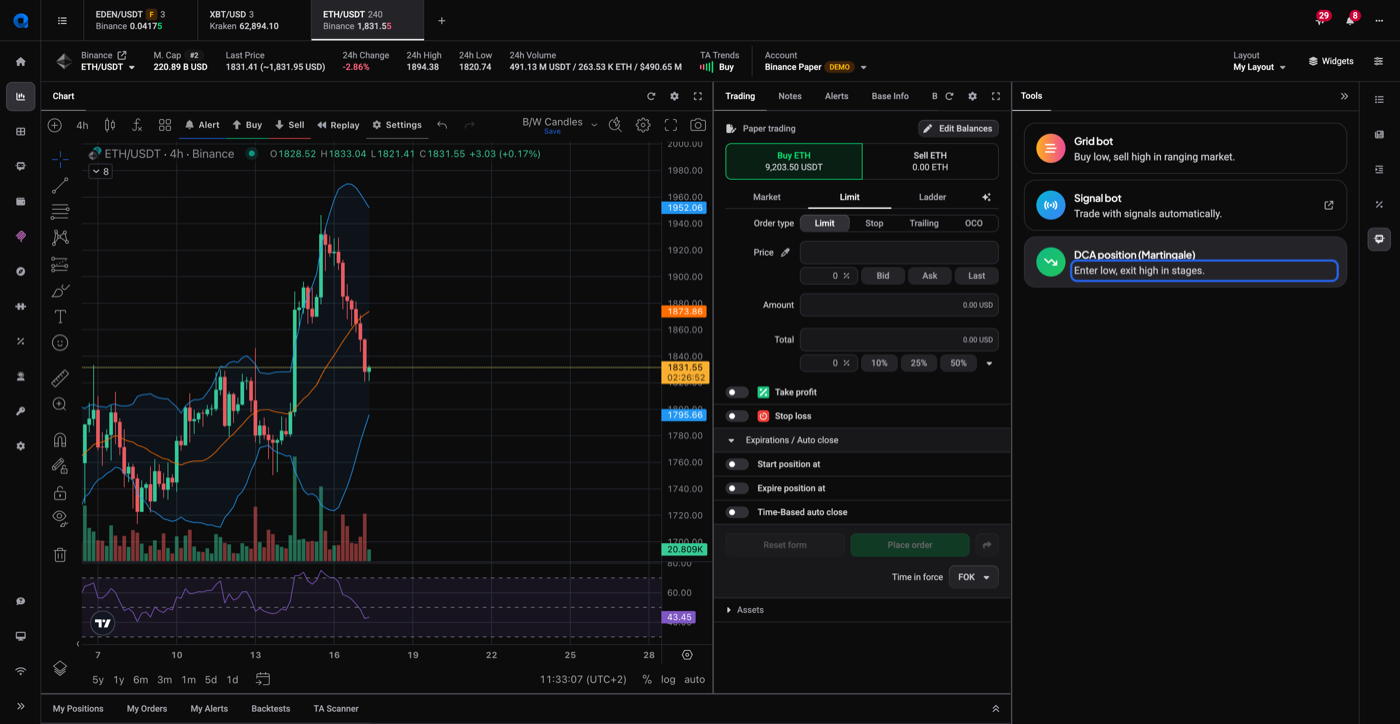
Open the Tools panel and choose DCA position
- Open the Tools panel on the right of the trading terminal.
- Choose DCA position (Martingale), shown with the description “Enter low, exit high in stages”. The same menu is also where Grid bot and Signal bot start.
 🔍 Click the image to see a larger version
## Pick a preset and set your investment
🔍 Click the image to see a larger version
## Pick a preset and set your investment
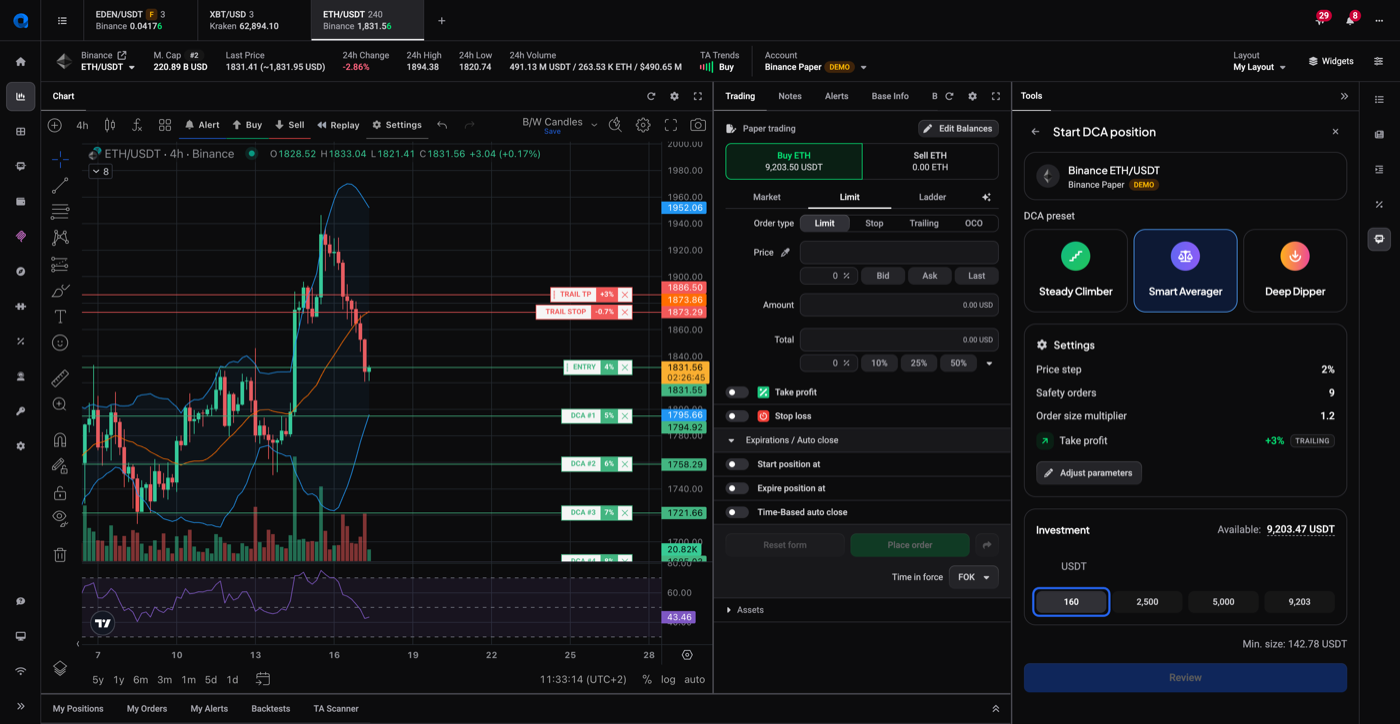
The configuration panel opens with three presets: Steady Climber, Smart Averager, and Deep Dipper. These are starting configurations, not picks: they differ in how far apart the entries sit and how each successive entry is sized, with Deep Dipper using a larger price multiplier so its entries spread further down. Every setting can be adjusted individually after you select a preset.
Set your Investment, the total amount the position may use across the initial entry and all its safety orders.
 🔍 Click the image to see a larger version
The settings you can change:
🔍 Click the image to see a larger version
The settings you can change:
- Price step: how far price has to fall before the next entry triggers.
- Safety orders: how many further entries line up below the first, to a maximum of nine.
- Multiplier: scales the size of each successive entry relative to the one before it.
- Trailing take profit: follows price up rather than closing at a fixed level.
Check the levels on the chart, then review
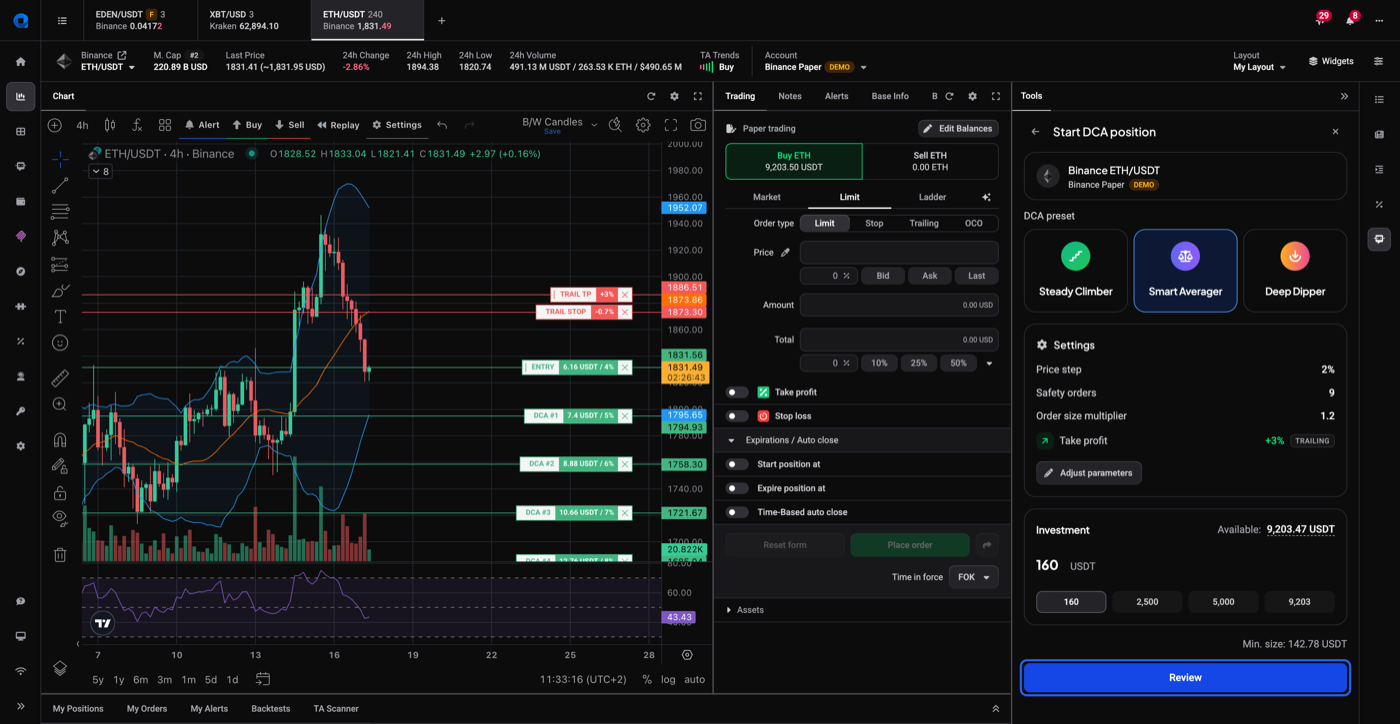
As you adjust the settings, Altrady draws the levels directly on the chart: your entry, each DCA order beneath it, and the trailing take profit and stop lines. This is the quickest way to see whether your entries reach as far down as you intended before you commit anything.
When the levels look right, click Review.
 🔍 Click the image to see a larger version
## Confirm and start
🔍 Click the image to see a larger version
## Confirm and start
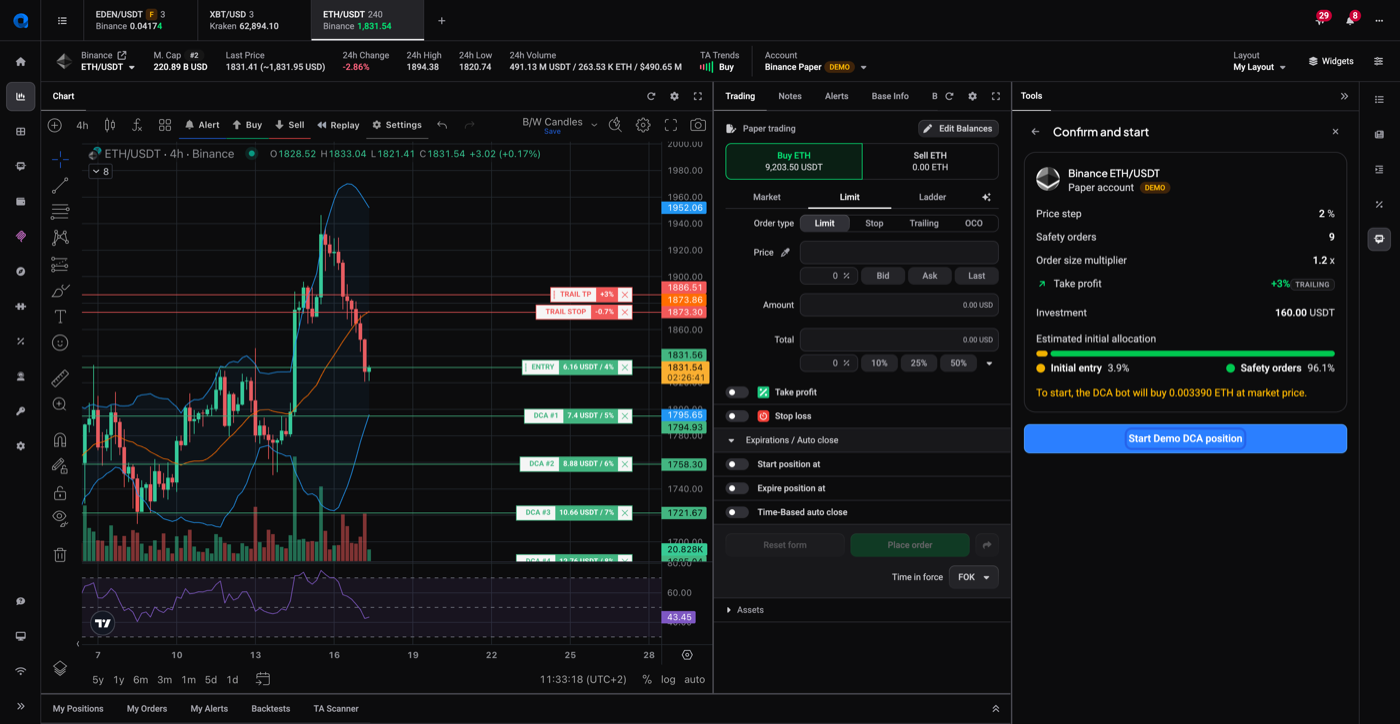
The summary repeats your price step, safety orders, multiplier, trailing take profit and investment, and shows how that investment splits between the initial entry and the safety orders held in reserve. It’s worth reading that split: it tells you how much goes in immediately and how much is only deployed if price falls.
On a demo account the button reads Start Demo DCA position.
 🔍 Click the image to see a larger version
Altrady confirms with DCA position is live! and offers Create another if you want to set up a second one.
🔍 Click the image to see a larger version
Altrady confirms with DCA position is live! and offers Create another if you want to set up a second one.
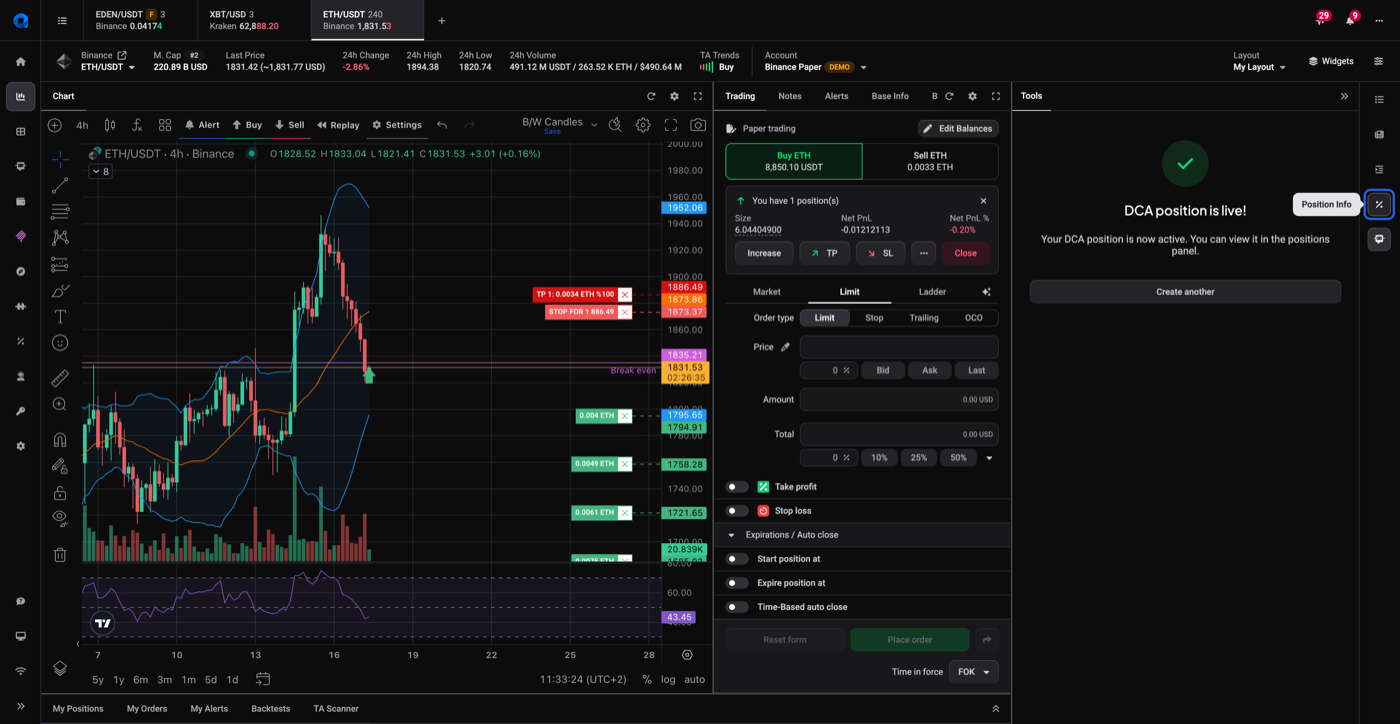 🔍 Click the image to see a larger version
## Track it once it’s running
🔍 Click the image to see a larger version
## Track it once it’s running
Open the position from My Positions and the Position Info widget shows Invested, Net PnL, Avg Entry, Break Even, and how many take-profit orders have filled. It’s normal to see only the first entry filled at the start: the rest fill as price reaches their levels.
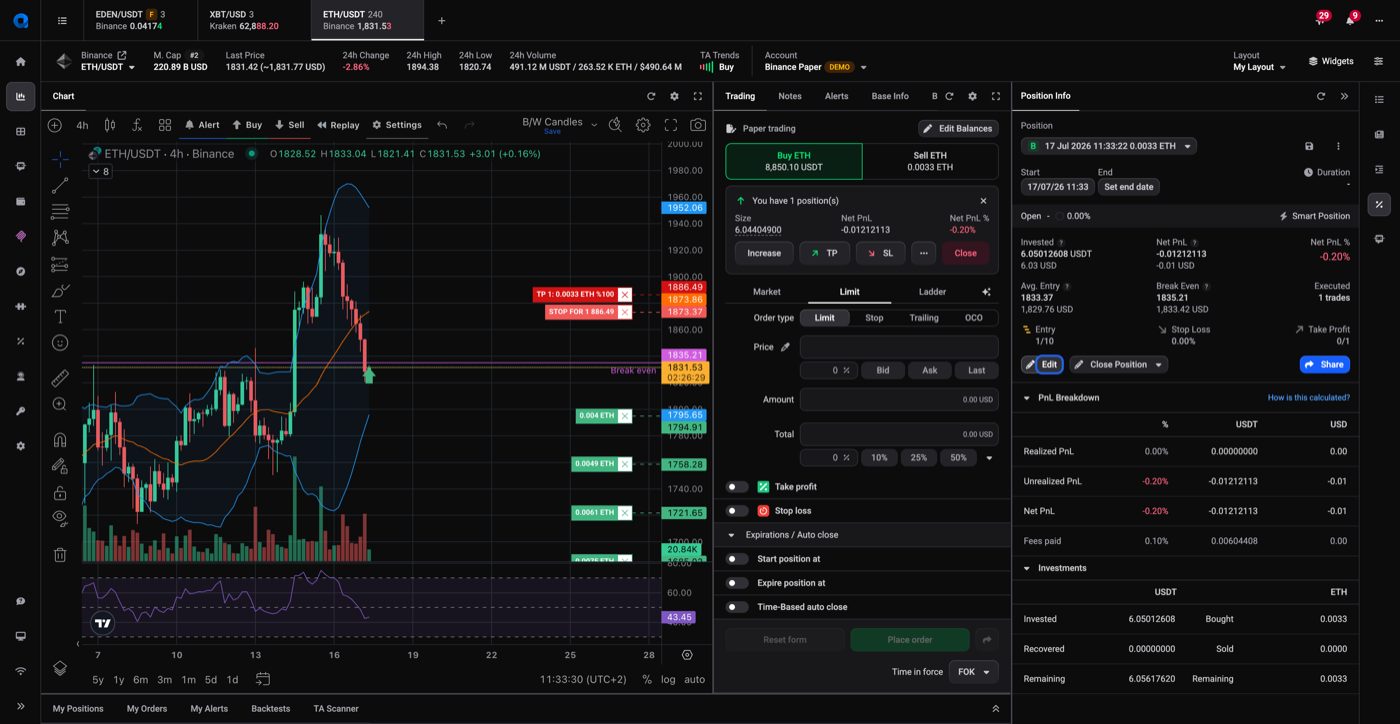 🔍 Click the image to see a larger version
Edit opens the position in the trade form if you want to change its take profit or stop loss later. For what each number means, see understanding your position numbers. To add to a position by hand instead of on a plan, see how to edit or scale into an open position.
🔍 Click the image to see a larger version
Edit opens the position in the trade form if you want to change its take profit or stop loss later. For what each number means, see understanding your position numbers. To add to a position by hand instead of on a plan, see how to edit or scale into an open position.
Still stuck?
If your DCA position doesn’t open, or the entries aren’t filling where you expected, reach out through support chat in the app with the market and the position open, and the team can look at it with you.