
How do I change my account email address?
You can change the email address Altrady uses for login and notifications from Settings > Account security. The change only takes effect once you confirm it with a code sent to the new address, so your old email keeps working until then.
Where to update your email
- Open Settings.
- Under Account & Security in the sidebar, select Account security.
- On the Account Security page, find the Change email address card in the right-hand column.
This is the same page you’d go to for changing your password, so you’ll see both settings side by side.
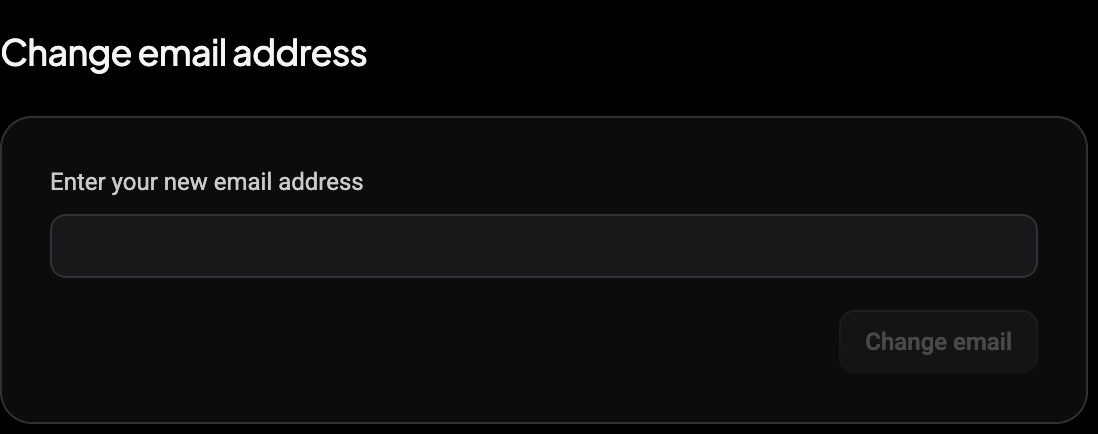
Enter your new email address
 🔍 Click the image to see a larger version
- In the Enter your new email address field, type the address you want to use going forward.
- Click Change email.
Altrady sends a confirmation code to the new address right away. Nothing about your account changes yet: this step only starts the process.
Confirm the new email
 🔍 Click the image to see a larger version
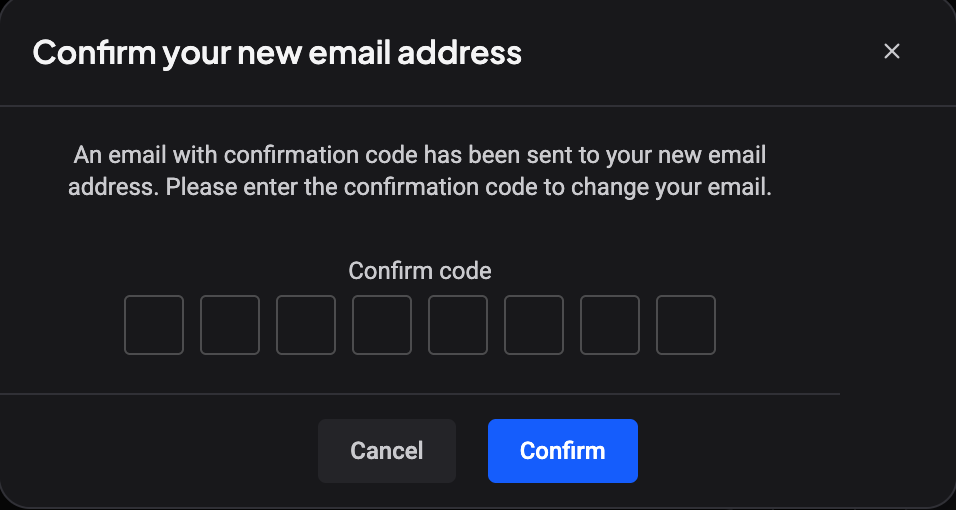
As soon as you click Change email, a Confirm your new email address dialog opens. It explains that an email with a confirmation code has been sent to your new email address, and shows a Confirm code field.
- Check the inbox for the new address and copy the code from that message.
- Enter the 8-digit code into the Confirm code field.
- Click Confirm.
Once the code is accepted, Altrady switches your login email over to the new address immediately.
Don’t see the code within a few minutes? Check the spam or promotions folder in the new inbox: confirmation emails occasionally land there. If it still hasn’t arrived, go back to Account security and submit the new address again to get a fresh code.
Why it isn’t instant
Altrady waits for confirmation before switching your email so a mistyped address, or someone else briefly getting access to your account, can’t lock you out or hand your account to the wrong inbox. Until you enter the code, your current email address keeps working for login, notifications, and password resets exactly as before.
Cancel before confirming
If you change your mind after clicking Change email but before entering the code, click Cancel in the dialog or close it. Since the switch only happens after confirmation, your account keeps using the original email address and no further action is needed.
After the change
Once confirmed, use your new email address to log in going forward, and expect future notifications and receipts at that address. If you also want to update your password or notification settings, those live on the same page and under Notifications in the Settings sidebar:
Still stuck?
If the confirmation code never arrives even after checking spam, or the Change email button stays disabled, reach out through support chat in the app and the team will help sort it out.