
How do I change my Altrady password?
You change your password from Settings > Account security, in the Change password card on the Account Security page. Enter your current password, then a new one at least 8 characters long, and repeat it to confirm before Altrady saves the change.
Where to find it
 🔍 Click the image to see a larger version
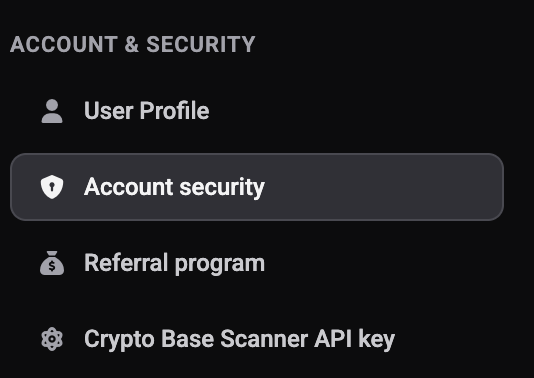
Open Settings, then select Account security under Account & Security in the sidebar. The page is titled Account Security and holds all your login settings: two-factor authentication, passkeys and social logins on the left, Change email address and Change password on the right.
What each field does
 🔍 Click the image to see a larger version
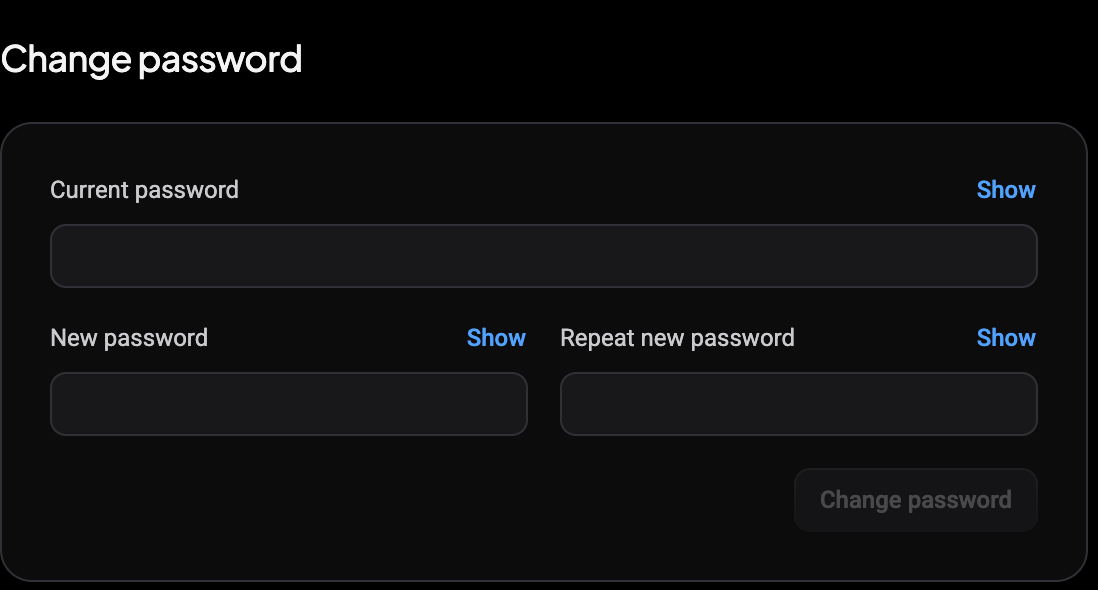
The Change password card has three fields:
- Current password: your existing login password, so Altrady can confirm it’s really you making the change.
- New password: the password you want to switch to.
- Repeat new password: type the new password a second time to confirm you typed it correctly.
Each field has a Show link next to it if you want to check what you typed.
The requirements
 🔍 Click the image to see a larger version
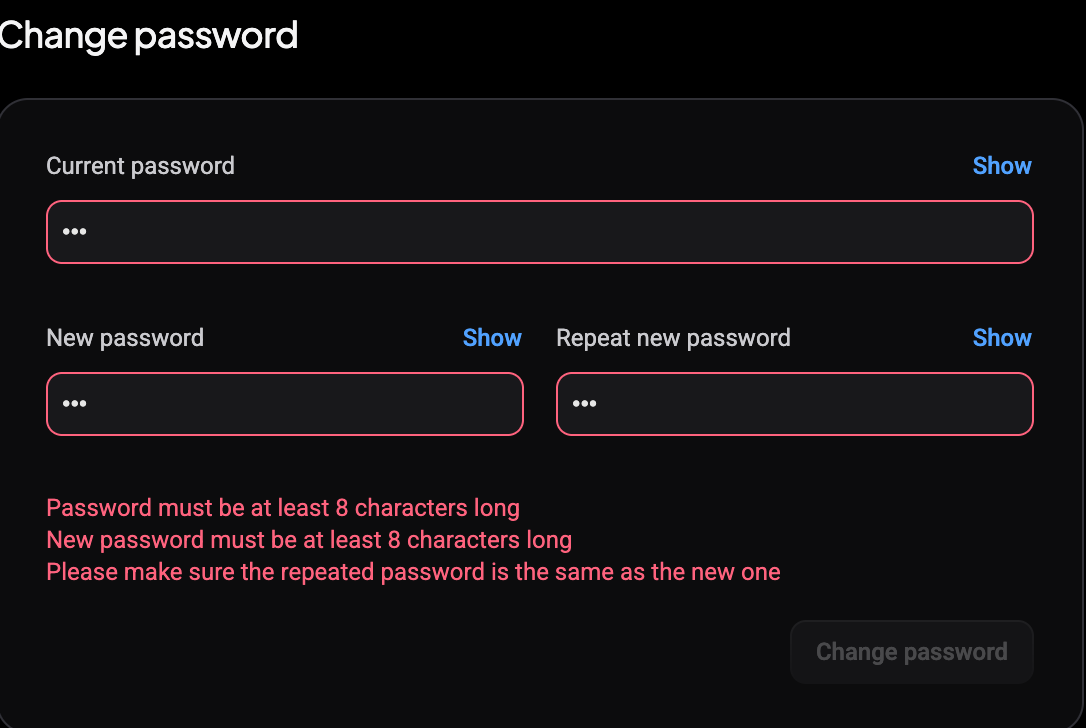
Both Current password and New password need to be at least 8 characters long. If either one is shorter, Altrady shows a message below the fields (“Password must be at least 8 characters long” or “New password must be at least 8 characters long”) as soon as you start typing.
Repeat new password has to match New password exactly. If it doesn’t, you’ll see “Please make sure the repeated password is the same as the new one”.
Don’t worry if you see these messages while you’re still typing: they’re live validation, not an error you did something wrong. They clear on their own once the field meets the requirement.
Saving the change
The Change password button stays disabled (greyed out) until all three fields pass validation: current password long enough, new password long enough, and the repeat matching exactly. Once all three are satisfied, the button becomes clickable. Click it to save your new password.
There’s no separate confirmation step: once the button accepts your click, your password is changed, and you’ll use the new one the next time you log in.
A quick tip for choosing a new password
Pick something you don’t use anywhere else, and long enough that it’s hard to guess: 8 characters is the minimum Altrady enforces, not a target to aim for. A password manager makes this easier if you don’t already use one.
What this page doesn’t cover
This card is only for your login password. Two-factor authentication, passkeys, and connected social logins live on the same Account Security page, but they’re separate settings with their own buttons: changing your password here doesn’t affect them.
If you’re trying to change the email address on your account instead, that’s the Change email address card just above. See How do I change my account email address?.
Still stuck?
If the Change password button won’t enable even though your fields look right, double-check for a stray space at the start or end of a field, that’s a common cause of a “doesn’t match” error that isn’t obvious at a glance. If it’s still not working, reach out to Altrady support through the chat widget in the app and the team will help you sort it out.