
How do I manage my notification preferences?
Altrady’s notification settings let you choose whether trade and custom alerts arrive as push notifications, email, or both, and let you pick and tune the sound each type of alert plays. You control all of it from one page: Settings > Global Notification Settings.
Find your notification settings
Open Settings, then choose Global Notification Settings under Notifications in the sidebar. The page is split into two columns: on the left you turn alerts on or off and pick their sounds, on the right you manage custom sounds and delisting subscriptions.
One thing worth knowing up front: this page controls what an alert says and sounds like, not whether your browser or device is allowed to show notifications at all. Enabling push notifications at the browser or OS level is a separate, one-time permission you grant outside Altrady. If push notifications never appear even though everything here is switched on, that permission is usually the reason, not a setting on this page.
Choose push or email for Trade Alerts and Custom Alert
 🔍 Click the image to see a larger version
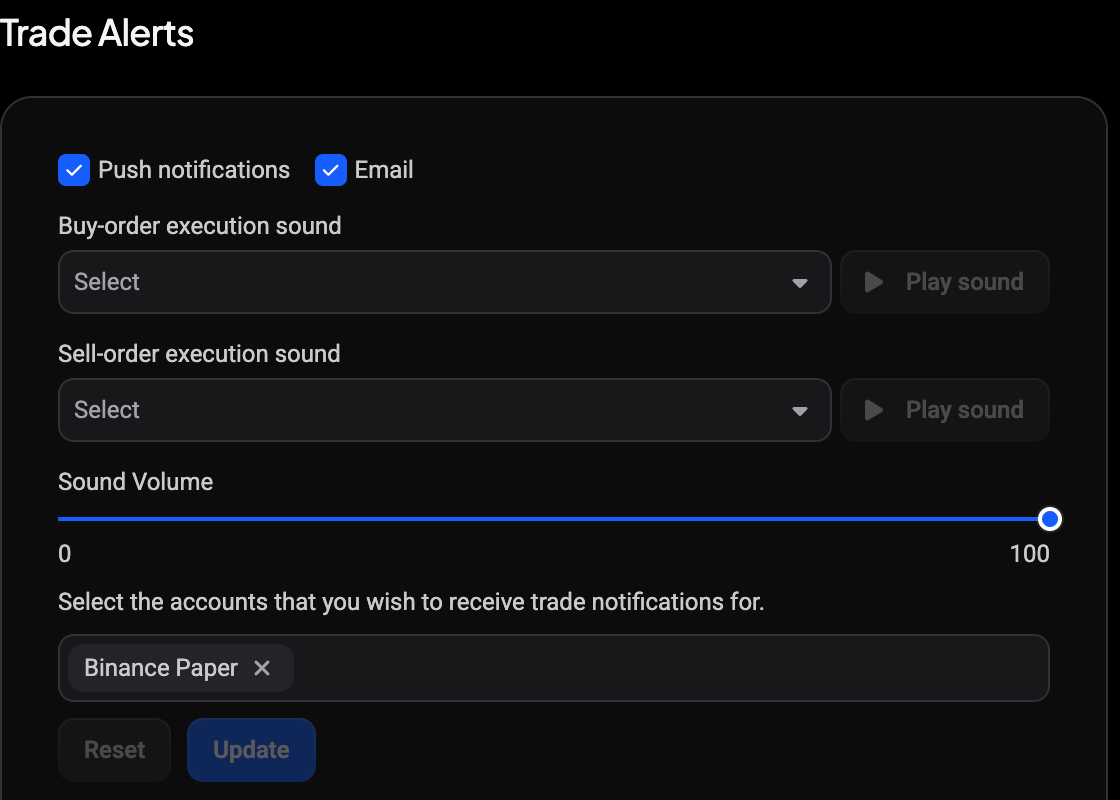
Under Trade Alerts and Custom Alert, you’ll see two checkboxes each: Push notifications and Email. Tick or untick either one independently, so you can, for example, get trade alerts by email only and skip the push notification, or the other way around.
Set alert sounds and volume
 🔍 Click the image to see a larger version
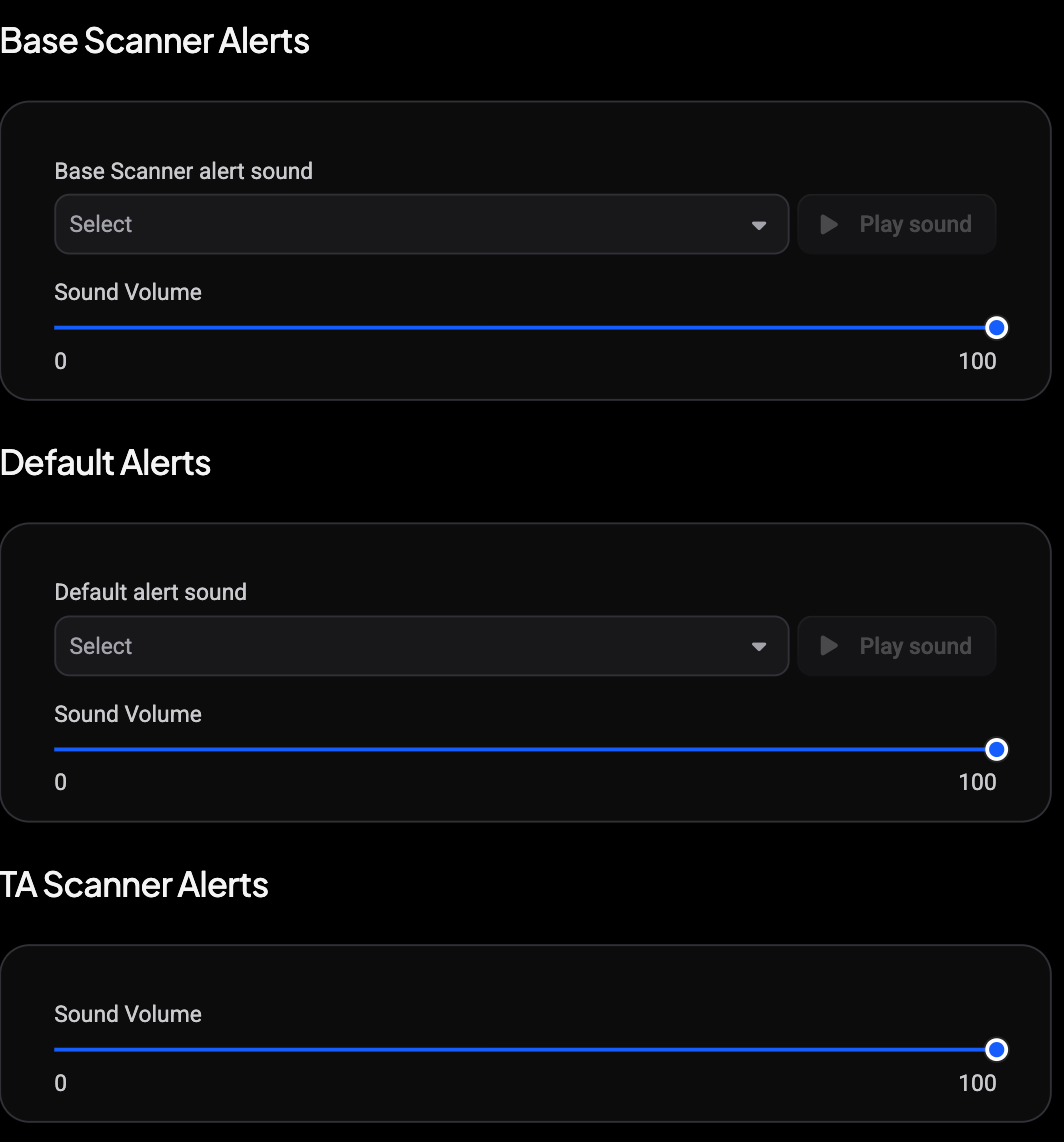
Altrady plays a sound whenever certain alerts trigger, and you can pick a different sound for each type:
- Buy-order execution sound and Sell-order execution sound, under Trade Alerts.
- Custom alert sound, under Custom Alert.
- Base Scanner alert sound, under Base Scanner Alerts.
- Default alert sound, under Default Alerts.
Each has its own dropdown of sounds (built-in ones plus any you’ve uploaded) and a Play sound button next to it so you can preview a sound before committing to it. Each section also has its own Sound Volume slider, so trade sounds, custom alert sounds, Base Scanner sounds and default sounds can all be tuned separately. Depending on your plan you may also see a TA Scanner Alerts section with its own volume slider.
Upload a custom sound
 🔍 Click the image to see a larger version
 🔍 Click the image to see a larger version
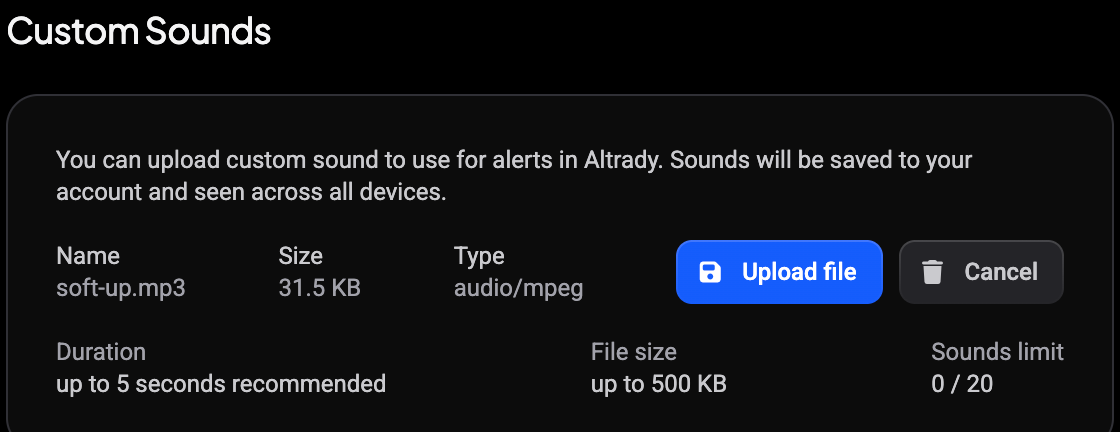
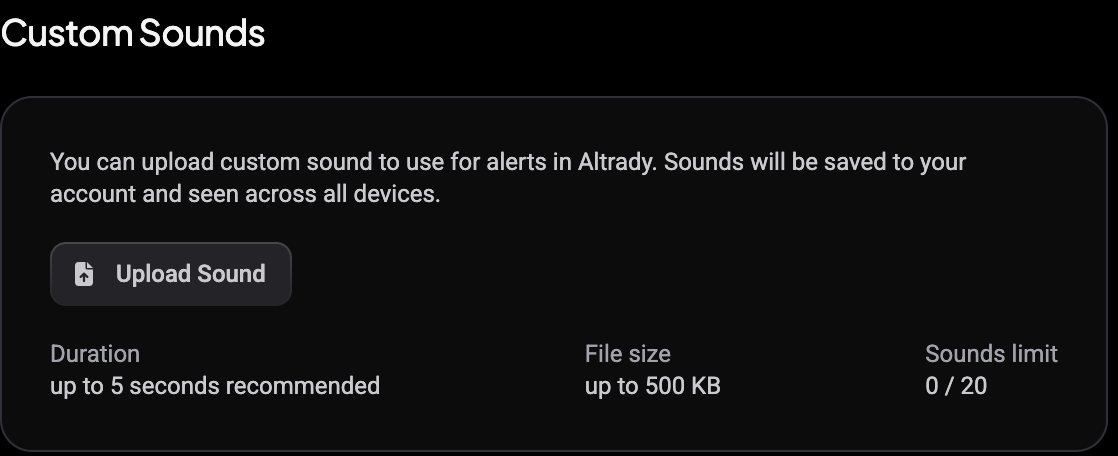
If none of the built-in sounds fit, click Upload Sound in the Custom Sounds card and pick an audio file. The card lists the limits right below the button: duration up to 5 seconds recommended, file size up to 500 KB, and a sounds limit shown as a count out of 20.
Nothing is uploaded the moment you pick the file. The card first shows the file’s Name, Size and Type so you can check you chose the right one, then click Upload file to confirm or Cancel to back out and pick a different file.
Uploaded sounds are saved to your account and available on every device you use Altrady on, and they show up in the sound dropdowns above alongside the built-in options.
Choose which exchange accounts send trade notifications
If you’ve connected more than one exchange account, you don’t have to get trade notifications for all of them. Under Select the accounts that you wish to receive trade notifications for. in the Trade Alerts card, pick the accounts you want, then click Update to save. Reset discards unsaved changes and returns to your last saved selection.
Subscribe to delisting notifications
 🔍 Click the image to see a larger version
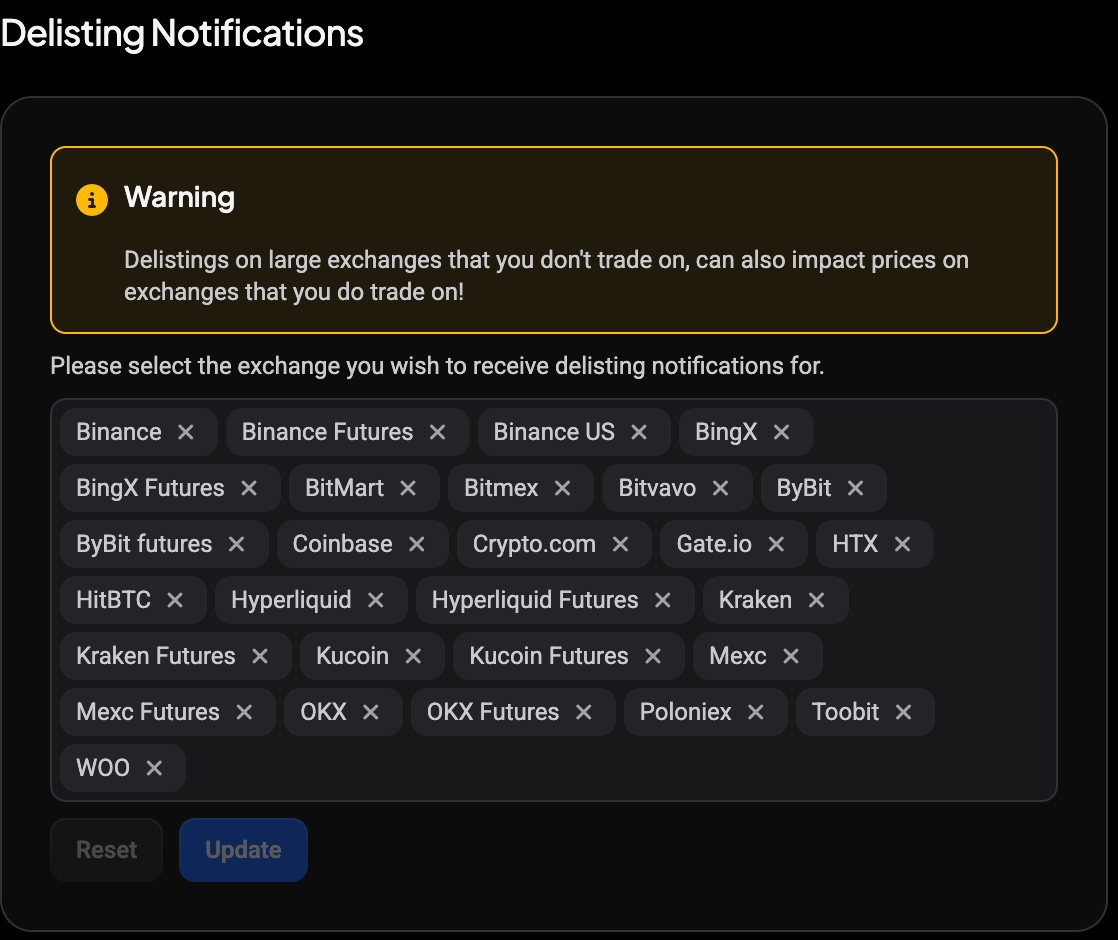
In the Delisting Notifications card, select the exchanges you’d like a heads-up about when a coin gets delisted, then click Update. Altrady shows a warning here worth reading: delistings on large exchanges that you don’t trade on can also impact prices on exchanges that you do trade on. Reset discards unsaved changes.
Still stuck?
If your alerts still aren’t arriving the way you’d expect after checking these settings, reach out through Altrady’s support chat and a member of the team will take a look with you.