
How do I use a TWAP entry?
A TWAP entry (time-weighted average price) splits one market entry into equal slices and places them one after another over a time you set, instead of buying or selling everything in one go. It takes about a minute to set up in the Trading widget, and Altrady’s servers place the slices for you.
What a TWAP entry does
You enter the total size once, then choose how many slices it is cut into and over how many minutes they are placed. Each slice is a market order, so every slice fills at the price of the moment it is placed. Your stop loss and take profit, if you add them, apply to everything the slices have filled so far.
A TWAP entry isn’t available on the Basic plan. It only shows for markets where the exchange accepts market orders, and not in Replay mode, where the order form is switched off.
Set up a TWAP entry
 🔍 Click the image to see a larger version
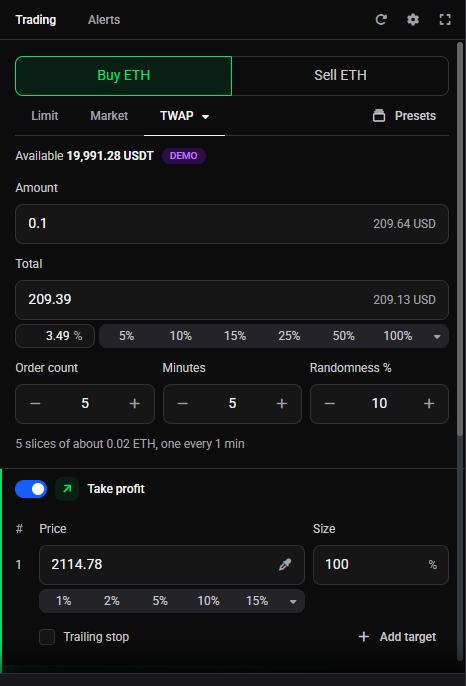
- Open the Trading widget on the market you want and choose Buy or Sell (on futures, Long or Short). On a spot market, Sell works with coins you already hold.
- Open the dropdown next to the Limit and Market tabs and choose TWAP. The tab then shows TWAP instead of the order type it showed before.
- Enter the size in the size field, as a Total or an Amount. This is the whole amount across all slices, not the size of one slice.
- Set Order count, Minutes and Randomness % (explained below). A line under the fields sums it up, for example “10 slices of about 0.01 BTC, one every 1 min”, so you can check it before you place anything.
- Optionally switch on Take profit and Stop loss to set your exits in the same order.
- Click the Buy or Sell button at the bottom of the widget (for example Buy BTC), then click Confirm. The Confirm orders window shows the total size, not the individual slices.
The slices are then placed on schedule. Don’t worry if the position looks small at first: it fills up slice by slice.
The three settings
- Order count: how many slices, from 2 to 100. The default is 10. A higher number is lowered to 100.
- Minutes: how long the whole entry takes, up to 1,440 minutes (24 hours). Decimals are allowed, so 0.5 means 30 seconds. The default is 10 minutes. A higher number is lowered to 1,440. Each slice needs at least 10 seconds, so a long list of slices needs a longer duration. The real gaps can come out slightly longer than the summary line says.
- Randomness %: from 0 to 50. At 0 the slices are equal and evenly spaced. A higher value varies both the size and the timing of each slice, so they are not placed at perfectly regular intervals. The total amount stays the same. A higher number is lowered to 50. If your slices are close to the market’s minimum or maximum order size, keep the randomness small, because Altrady doesn’t check the randomised sizes in advance and a slice outside the limits can be rejected by the exchange.
If a setting is too low, the slices would be closer together than 10 seconds, or a slice would be smaller than the market’s minimum order size, Altrady shows a message under the field and an Auto-fix values button. For example: “Must be between 2 and 100”, “Allow at least 10 seconds per slice” or “Each slice would be below the market minimum of 5 USDT” (the minimum depends on the market). Click Auto-fix values and it moves the order count and the duration to the nearest values that work.
Follow or stop a running TWAP
 🔍 Click the image to see a larger version
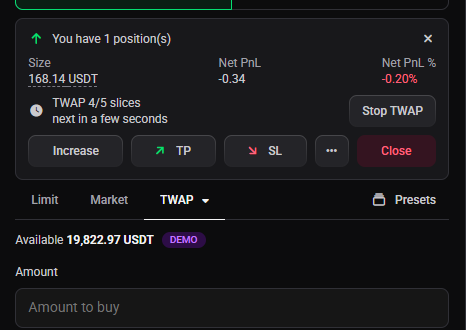
Once the TWAP has started, the position panel in the Trading widget shows its progress, such as “TWAP 3/10 slices”, and when the next slice is due, such as “next in a few seconds”. On the chart, each filled slice gets its own arrow. If you don’t see the panel, check that Show position controls is set to Yes in the widget settings (the cog icon). When the last slice is placed, the line reads “Completed”.
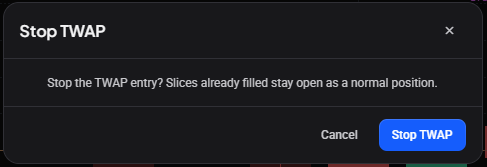
While a TWAP is running you can’t change its order count or duration. If you click Edit, those fields are replaced by a note saying they can’t be changed while the TWAP is running. You can still change the take profit and stop loss. To end it early, click Stop TWAP and confirm. The slices that already filled stay open as a normal position, no more are placed, and the progress line disappears.
 🔍 Click the image to see a larger version
Good to know
- A TWAP can’t be combined with an Expire at price. If you add one, Altrady shows “TWAP cannot be combined with an entry expiration price” and the Buy or Sell button stays off until you remove it. Use a time-based expiry or none.
- Slippage still applies, because every slice is a market order.
- To spread a limit entry over a price range instead of over time, see how do I place ladder orders?. For the other order types in the dropdown, see a quick tour of the trading widget order form.
Still stuck?
If TWAP isn’t in the dropdown, check your plan, whether the exchange supports market orders on that market, and that you’re not in Replay mode. Otherwise reach out through support chat in the app with the market and the position, and the team can take a look.