
How do I install the Altrady mobile app and sign in?
Get the app from altrady.com/download, then sign in with the same email and password you use on desktop. Your exchange connections, positions and watchlists sync in automatically, so there is nothing to reconnect.
Where to get the app
Altrady’s download page lists every version of the app, including the one for your phone. Open altrady.com/download in your phone’s browser and follow the link for your device.
If you are already signed in on desktop, you may see a Get the mobile app card during onboarding, with the line “Monitor your trades and get alerts on the go”. Tapping it opens the same download page. That card is also a good hint about what the app is for: keeping an eye on your trading and getting notified, not a separate product you set up from scratch.
Install it the way you install any app, then open it. There is nothing to configure before your first launch.
Signing in
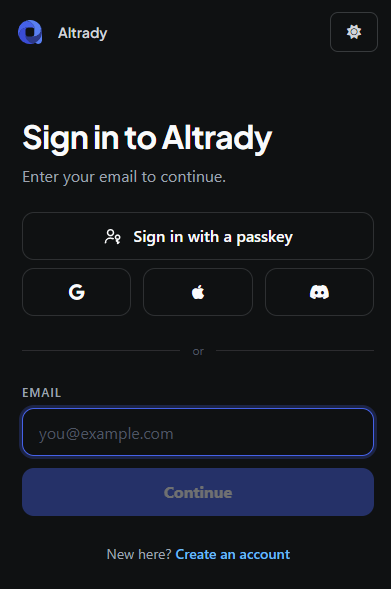 🔍 Click the image to see a larger version
Sign in with the same email and password you use for Altrady on desktop or the web. There is no separate mobile account to create.
🔍 Click the image to see a larger version
Sign in with the same email and password you use for Altrady on desktop or the web. There is no separate mobile account to create.
- Open Altrady on your phone.
- Enter your account email and password.
- Confirm to sign in.
If you use two-factor authentication or a passkey on your account, you will be asked for it here exactly as you would be on desktop.
Your setup comes with you
Because it is the same account, everything you have already done carries over: connected exchanges, open positions, watchlists, alerts and bot activity all appear once you are signed in. You never re-enter API keys on your phone, and you never reconnect an exchange a second time.
If your positions look empty right after signing in, give it a moment to finish syncing before assuming something is wrong.
Your phone is registered as a device
The first time you sign in, Altrady registers your phone as a device on your account. This happens quietly in the background and needs nothing from you. It is what lets Altrady send push notifications to that specific phone, separately from any browser or desktop session you have open.
If notifications stop arriving later, signing out and back in re-registers the device and usually fixes it.
Getting alerts on your phone
Installing the app does not switch alerts on by itself. See How do I turn on push notifications on my phone? for which switches to set and where.
What stays on desktop
Almost everything works on a phone, including placing trades and setting up bots. The main exception is MCP, the connection between Altrady and an external AI assistant: it runs locally on your machine and needs the Altrady desktop app. For the full picture of what each screen size is built for, see What can I do in the Altrady mobile app compared to desktop?.
Still stuck?
If the app will not install, sign-in fails, or your positions are not showing up after logging in, reach out through support chat in the app or from your desktop dashboard. Mentioning your phone’s operating system helps the team look into it faster.