
What can I do in the Altrady mobile app compared to desktop?
On a phone, Altrady is not just a viewer: you can check balances, watch your open positions, place trades, and set up bots. Desktop stays the place for the wide multi-chart workspace and for connecting an external AI assistant. Everything runs on the same account, so whatever you set up in one place shows up in the other.
What the mobile app covers
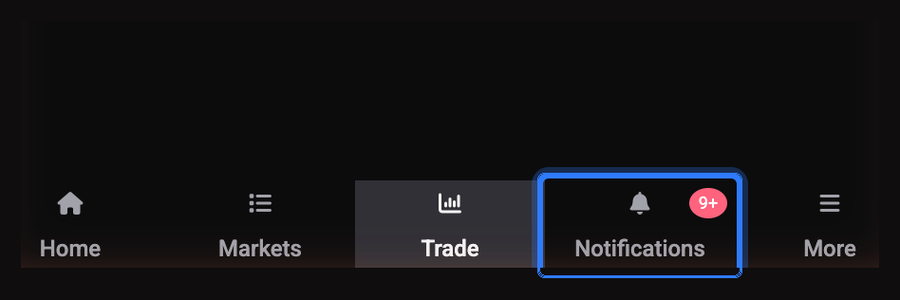
On a phone screen, Altrady swaps the desktop sidebar for a bottom navigation bar with five tabs: Home, Markets, Trade, Notifications and More.
 🔍 Click the image to see a larger version
- Home opens your dashboard: balances and account summary at a glance.
- Markets is the market list, for browsing prices and opening a chart.
- Trade is the trading screen, where you place orders and work with open positions.
- Notifications collects your alerts and push messages, with a badge showing how many are unread.
- More opens the rest of the app, which is the part most people underestimate.
The More tab holds the rest of the app
 🔍 Click the image to see a larger version
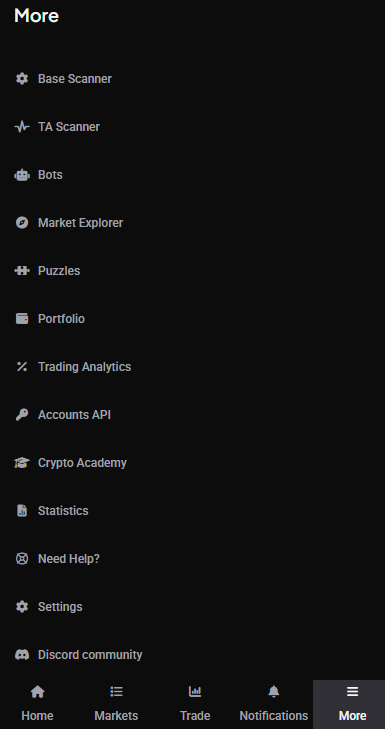
More is not just a settings drawer. Depending on your plan and enabled features, it lists Base Scanner, TA Scanner, Bots, Market Explorer, Puzzles, Portfolio, Accounts & API, Statistics, the Partner program, Help, and Settings. Below that sit the app preferences: Fiat currency, Language, Theme and Log out.
Some entries only appear when your plan includes that feature, so a shorter list than a friend’s is normal rather than a fault.
Bots work on your phone too
Grid bot and signal bot creation runs on a phone as well: opening the bot wizard hides the bottom bar so the form gets the full screen. You can start a bot, check on a running one, and get a push notification when it opens or closes a position, without going back to your desk.
Signal bots need a paid plan, and grid bots run on spot markets only. Those rules are the same on every device.
What stays on desktop
Two things are genuinely desktop-only:
- The wide multi-chart workspace. The freely arranged widget layout with several charts side by side is built for a large screen and a mouse. On a phone you get one screen at a time instead.
- MCP, the connection to an external AI assistant. If you connect Altrady to an assistant such as Claude, that bridge runs locally on your machine and needs the Altrady desktop app installed. There is no phone equivalent.
Don’t worry about switching between them. It is the same account, so a bot you started on desktop reports back on your phone right away.
Placing trades and managing positions from your phone
The Trade tab covers opening a new position and managing or closing what you already have. The step-by-step walkthroughs are the same as on desktop:
Still stuck?
If you cannot find something on your phone, check the More tab first: most screens that are not one of the four other tabs live there. If it is genuinely missing, reach out through support chat and the team will point you to the right place.