
How do I turn on push notifications on my phone?
Push notifications are switched on per alert type in Global Notification Settings, and your phone has to be registered with Altrady before anything can reach it. Base Scanner rules are the exception: each rule carries its own Mobile switch. Here is how to set all of it, and what to check when a push does not arrive.
Turn push on in Global Notification Settings
 🔍 Click the image to see a larger version
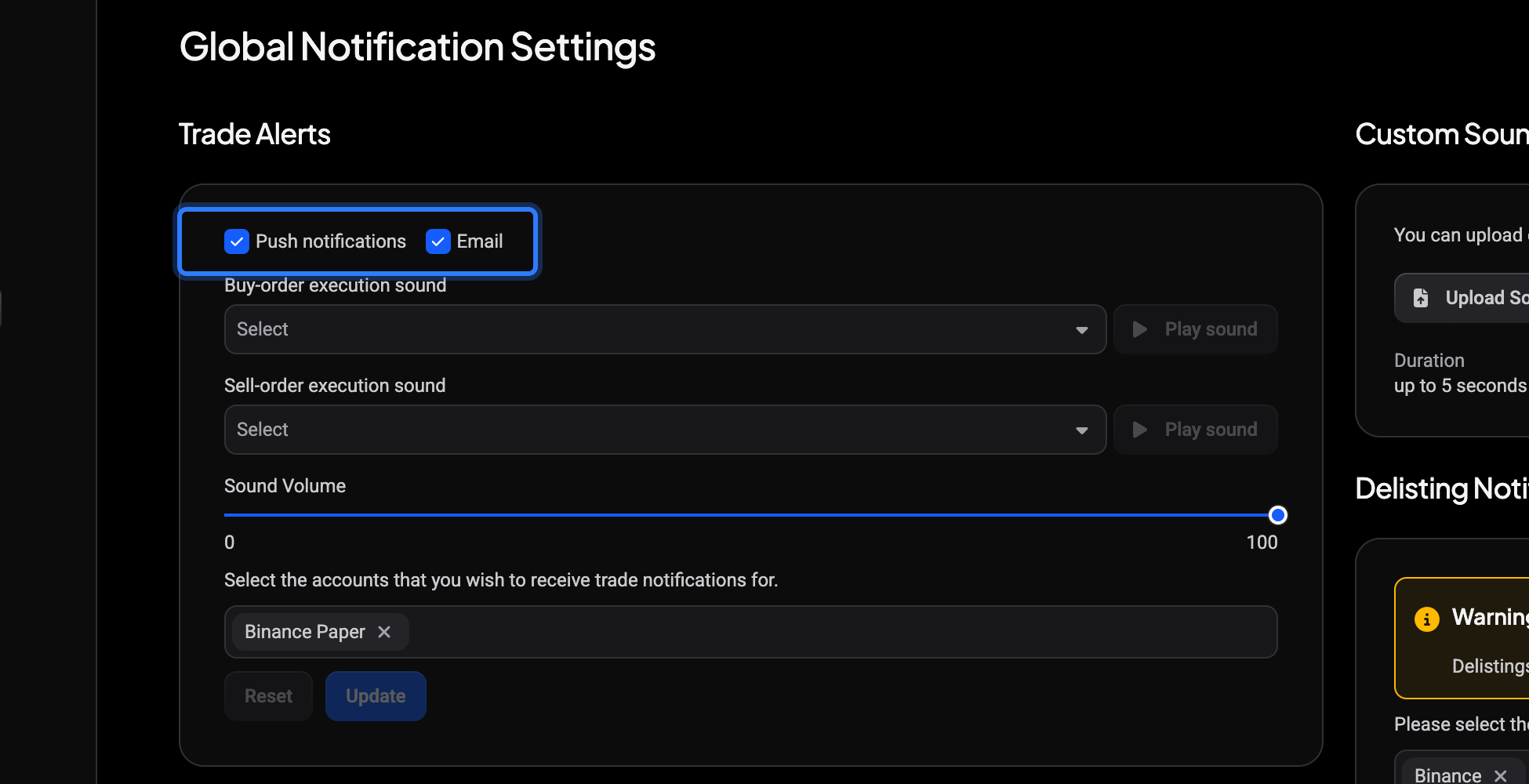
Open Settings, then Global Notification Settings. Each alert type has its own delivery row:
- Under Trade Alerts, tick Push notifications (and Email if you want both). This covers order fills on the accounts you list underneath.
- Under Custom Alert, tick Push notifications for your price, time and trendline alerts.
- Pick the accounts you want trade notifications for in Select the accounts that you wish to receive trade notifications for.
- Click Update to save the section you changed.
Push here means the notification goes to every device signed in to your account, phone included.
Base Scanner rules have their own Mobile switch
 🔍 Click the image to see a larger version
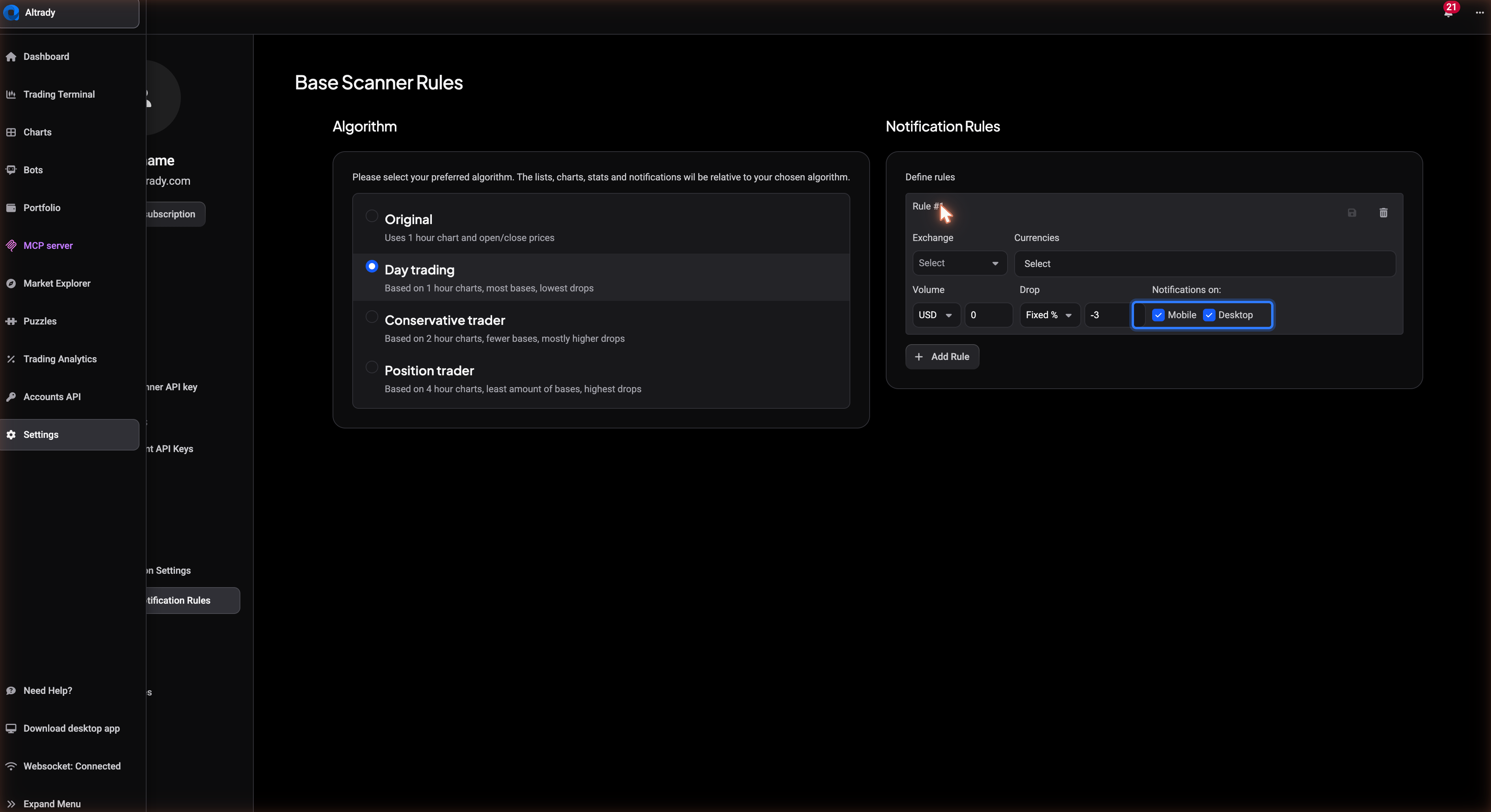
Base Scanner signals are not covered by the switches above. They are delivered per rule, under Settings > Base Scanner Notification Rules, and every rule has a separate Mobile and Desktop checkbox.
Because the two are independent, turning notifications on in the desktop app does not turn them on for your phone. If one particular scanner rule never reaches you, open that rule and check Mobile specifically.
Where the alerts appear on your phone
 🔍 Click the image to see a larger version
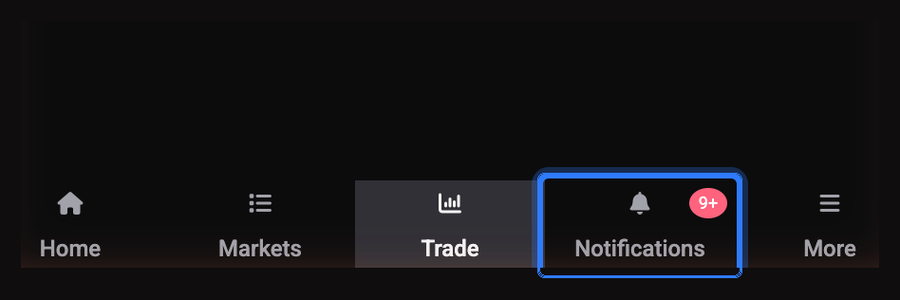
In the mobile app, tap Notifications in the bottom navigation bar (it sits between Trade and More). Everything Altrady has sent you is listed there, so it is the quickest way to tell whether alerts are being sent and you are missing them, or not being sent at all.
If pushes still do not arrive
Your phone registers itself with Altrady’s push service in the background. If that registration failed, notifications go nowhere and nothing on screen tells you why: the alert still looks switched on everywhere you check.
- Fully close the Altrady app and reopen it. This re-registers the device.
- Check your phone’s own settings to confirm notifications are allowed for Altrady at the operating system level. This is separate from anything inside the app.
- Still nothing after a day or two? Uninstall the app, reinstall it and sign in again, which forces a fresh registration.
It is a normal part of how mobile push works, so reopening or reinstalling is the standard fix rather than a sign something is broken.
A burst of alerts can look delayed
To keep your phone from being flooded, Altrady limits how many pushes a single device receives in a short window. When several alerts trigger at once, during a sharp move for example, they arrive a few seconds apart instead of all together. That is the spacing at work, not a failure to send, so give it a minute before assuming one went missing.
Mute notifications for a while
If you want quiet for a set period, overnight or while travelling, mute notifications on the device from the Notifications tab instead of switching off each alert. Muting is temporary: delivery resumes on its own when the period ends, for everything still turned on.
Still stuck?
If push is ticked in Global Notification Settings, Mobile is on for the rule, and you have reopened or reinstalled the app but nothing arrives, reach out through support chat in the app or at help.altrady.com. Have the alert or rule name ready so the team can check its delivery settings.