
How do I connect Claude or another AI assistant to Altrady with MCP?
MCP lets an AI assistant like Claude Code, Cursor, Codex, or Claude Desktop read your Altrady account, analyze your charts, and prepare actions for you. Turn it on in the desktop app, hand your assistant the connection details, and you’re ready to go.
Before you start
MCP is a desktop-only feature. It runs locally on your computer and needs the Altrady desktop app open to work. If you haven’t installed the desktop app yet, see Install Altrady first.
You also need an AI assistant set up on your machine. The rest of this article covers two paths:
- Claude Code, Cursor, or Codex: copy one install prompt from Altrady, paste it in, done.
- Claude Desktop: a few more steps because you edit a config file by hand. Claude Desktop also needs Node.js installed (see below).
A free Claude account works for either path; usage limits reset every 5 hours. Upgrade to Claude Pro inside the app for more capacity.
Check if Node.js is installed (Claude Desktop only)
Claude Desktop uses a tool called mcp-remote to talk to Altrady’s MCP server, and that tool needs Node.js. If you’re using Claude Code, Cursor, or Codex you can skip this.
Open a terminal: Command Prompt on Windows (Start menu, type cmd) or Terminal on Mac (Spotlight, type Terminal), and run:
node --version
If you see a version number (for example v22.11.0), Node.js is already installed and you’re good to go. If you see “command not recognized” or similar, download the installer from nodejs.org/en/download and run it.
On Windows, accept the defaults and skip extras like Chocolatey. On Mac, open the .pkg file and accept the defaults. After installing, close any open terminal windows, open a fresh one, and run node --version again to confirm. If it still isn’t found, restart your computer: sometimes a reboot is needed to pick up the new PATH.
Turn on the MCP server
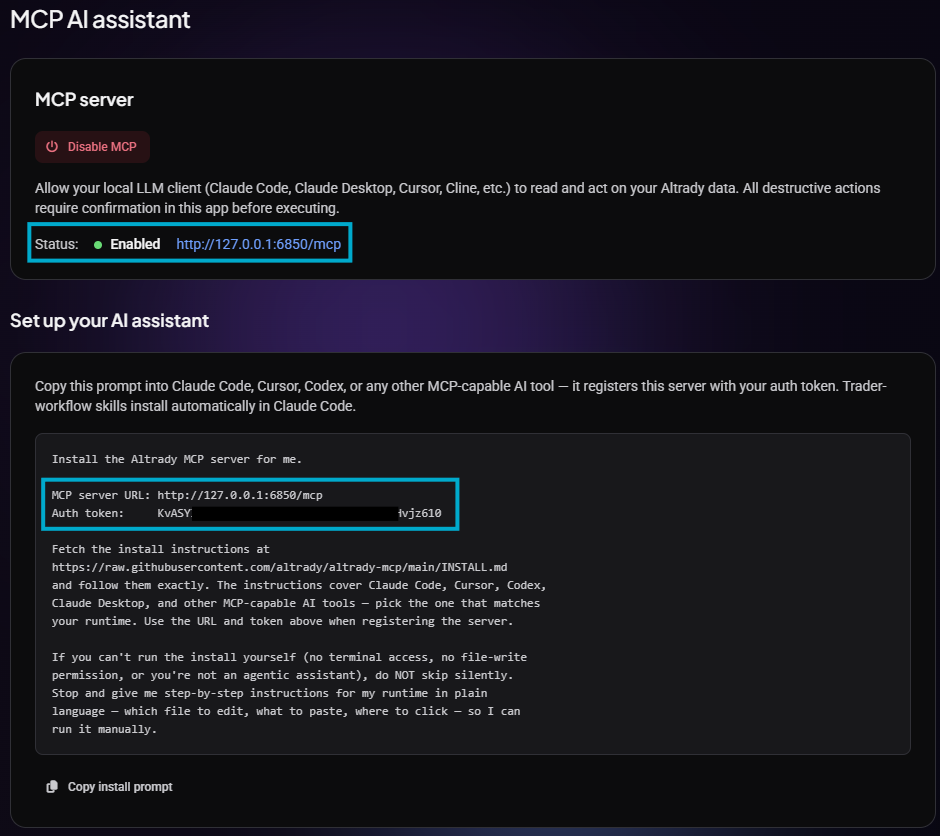 🔍 Click the image to see a larger version
1. Open the Altrady desktop app and go to Settings > MCP server.
🔍 Click the image to see a larger version
1. Open the Altrady desktop app and go to Settings > MCP server.
2. Click Enable MCP.
3. Once it’s on you’ll see a Status line with a green dot marked Enabled, your server URL, and a unique Auth token.
Keep your Auth token private. You can regenerate it at the bottom of the page if it’s ever compromised.
Connect Claude Code, Cursor, or Codex
This is the quick path. On the same Settings > MCP server page, Altrady shows a Set up your AI assistant card with a ready-made block of text and a Copy install prompt button.
- Click Copy install prompt.
- Paste it into a new chat in Claude Code, Cursor, or Codex.
- Send it. The prompt contains your local server URL, auth token, and a link to setup instructions. Your assistant fetches the instructions and follows the steps for its runtime.
If you’re using Claude Code, it also installs a set of trader-workflow skills automatically (more on skills below).
Don’t worry if your assistant asks a follow-up question or two during setup, like where to save a config file. That’s normal; just answer and let it continue.
Connect Claude Desktop
Claude Desktop doesn’t support the one-click install prompt, so you set it up by editing a config file. It takes about five minutes.
Open the Claude Desktop config file
 🔍 Click the image to see a larger version
 🔍 Click the image to see a larger version
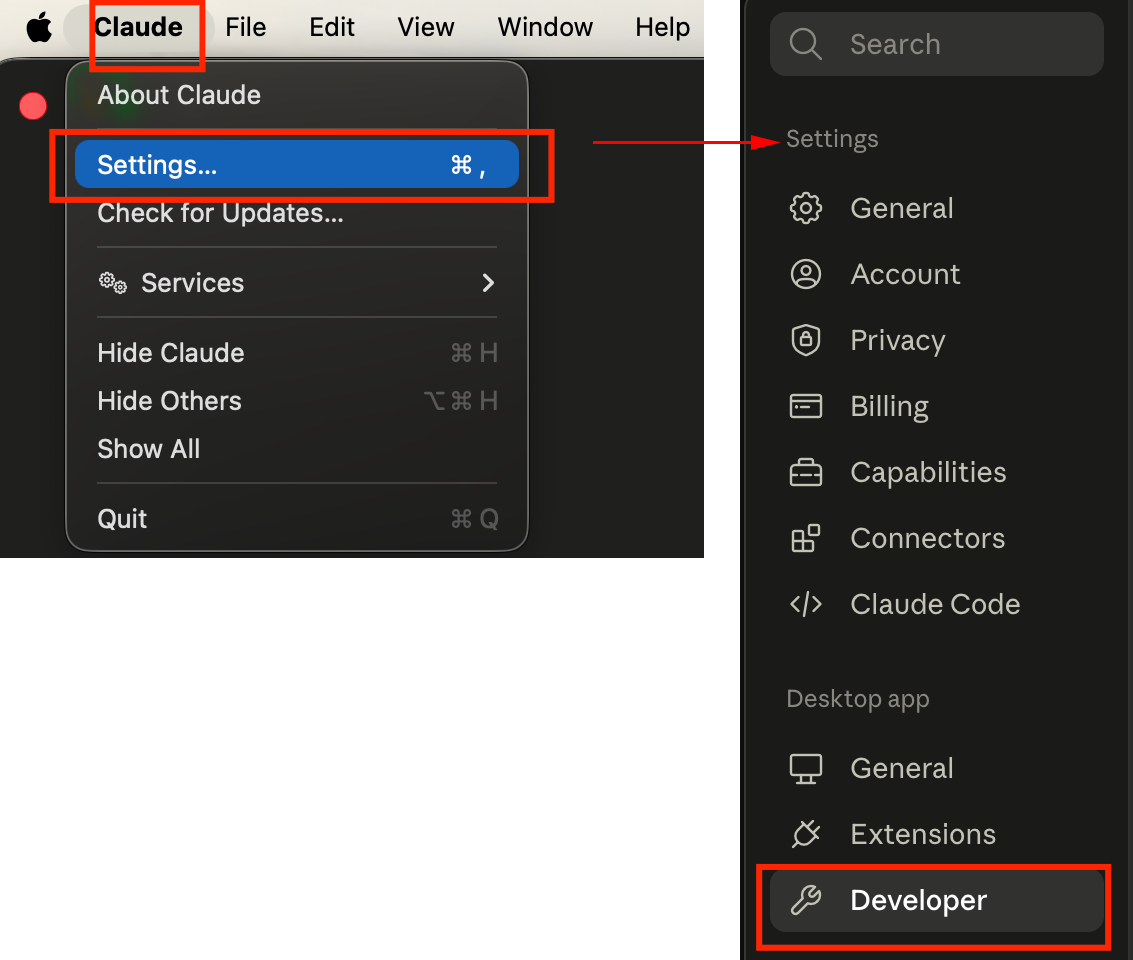
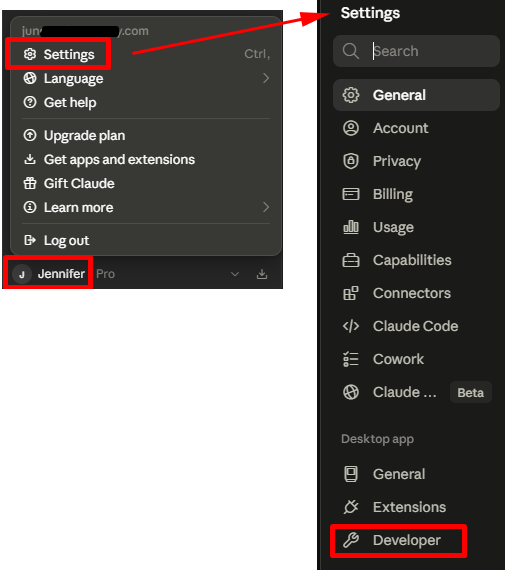
1. In Claude Desktop, go to Settings > Developer.
🔍 Click the image to see a larger version
1. In Claude Desktop, go to Settings > Developer.
-
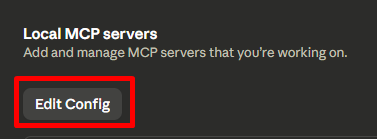
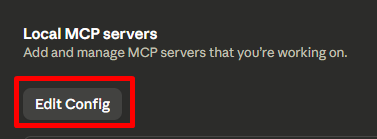
Click Edit Config.
 🔍 Click the image to see a larger version
This opens your file manager with the Claude config file selected.
-
Open the file in a plain text editor. On Windows, double-click and choose Notepad if prompted. On Mac, right-click the file, choose Open With > TextEdit, then go to Format > Make Plain Text so TextEdit doesn’t insert smart quotes that break the JSON.
 🔍 Click the image to see a larger version
Add the Altrady MCP block
You need to paste a block of JSON into the config file. The exact code differs between Windows and Mac.
Windows:
"mcpServers": {
    "altrady": {
      "command": "cmd",
      "args": [
        "/c",
        "npx",
        "-y",
        "mcp-remote",
        "URL-HERE",
        "--header",
        "Authorization:${AUTH_HEADER}"
      ],
      "env": {
        "AUTH_HEADER": "Bearer BEARER-TOKEN-HERE"
      }
    }
  }
The separate env block is a Windows-specific workaround for how Claude Desktop passes arguments containing spaces. Leave it as-is; moving the token directly into the --header line will cause the connection to fail silently.
Mac:
{
  "mcpServers": {
    "altrady": {
      "command": "npx",
      "args": [
        "-y",
        "mcp-remote",
        "URL-HERE",
        "--header",
        "Authorization: Bearer BEARER-TOKEN-HERE"
      ]
    }
  }
}
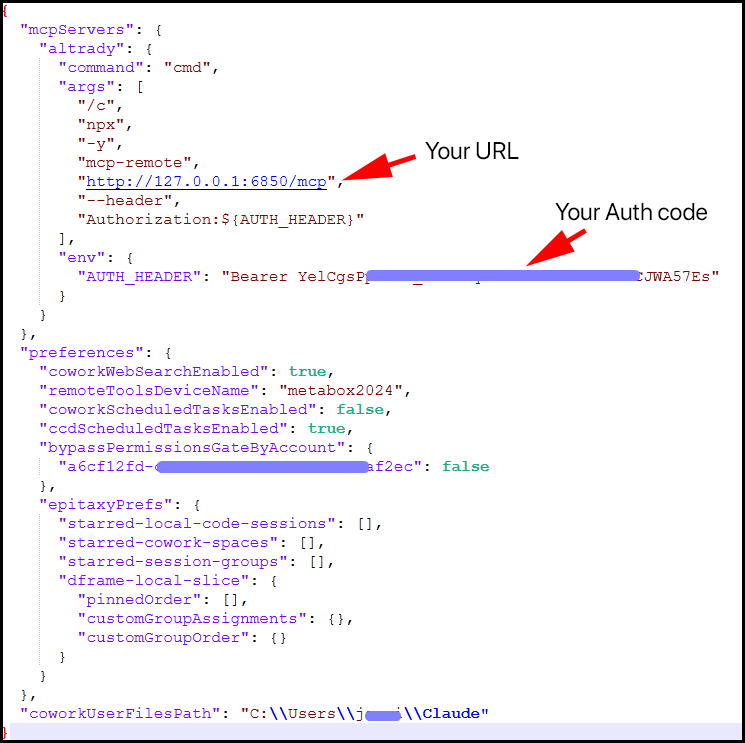
In either version, replace URL-HERE with your server URL from the MCP settings page and BEARER-TOKEN-HERE with your Auth token.
If your config file already has content (for example, other MCP servers), you need to merge the new Altrady block into the existing JSON. A quick way: paste both the existing config contents and the new block into a Claude chat and ask it to merge them for you. Copy the result back into the config file, replacing everything.
The finished file will look something like this:
 🔍 Click the image to see a larger version
Save the file (Windows:
🔍 Click the image to see a larger version
Save the file (Windows: Ctrl+S, Mac: Cmd+S).
Restart Claude Desktop
Closing the window isn’t enough: you need a full quit so Claude picks up the new config.
-
On Windows: Find Claude in the system tray (bottom-right; you may need to click the
^arrow to expand), right-click, and select Quit.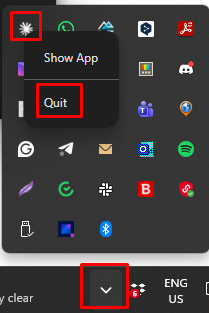 🔍 Click the image to see a larger version
-
On Mac: Use Cmd+Q while Claude is the active app, or right-click the Dock icon and select Quit.
Reopen Claude Desktop.
Confirm the connection
In Claude Desktop, go to Settings > Developer. You should see Altrady listed with a status of running.
In Altrady, go to Settings > MCP server > Active sessions. You should see at least one active session.
If the status in Claude Desktop shows Failed, the config file most likely has a syntax error. Click View Logs, copy the text, and ask Claude to diagnose the issue.
For Claude Code, Cursor, or Codex, the session should appear in Altrady’s Active sessions list as soon as the install prompt finishes. If nothing shows up after a minute, make sure the Altrady desktop app is still open and try asking your assistant something simple, like “what exchange accounts do I have in Altrady”, to trigger a fresh connection attempt.
Daily use
Always start Altrady before opening Claude Desktop. Claude Desktop only checks for MCP connections at startup and won’t reconnect automatically if Altrady isn’t available.
If Altrady closes or restarts while Claude Desktop is open, the connection will drop silently. To reconnect:
- Make sure Altrady is open and MCP is still enabled.
- Fully quit Claude Desktop (system tray on Windows, Cmd+Q on Mac).
- Reopen Claude Desktop.
Restarting Altrady alone isn’t enough: Claude Desktop also needs to restart.
Claude Code, Cursor, and Codex handle reconnection on their own and don’t need this manual restart cycle.
What it can and can’t do
Your AI assistant can read things like your positions, alerts, bots, watchlists, and market data, and it can analyze charts and draw levels. It can also create and manage bots, alerts, and watchlists, and close or cancel existing positions.
Every action that changes your account shows a confirmation popup in the Altrady app summarizing what it’s about to do. Nothing happens until you click confirm, and an unanswered popup cancels itself after 5 minutes. The one exception is opening a new trade: the assistant loads it into Altrady’s Trade panel, and you review the fields and click Submit yourself.
Some capabilities depend on your subscription. Reading alerts, market data, and watchlists works on any plan; other actions may need a matching paid feature. If you’re not sure what your plan includes, see Choose your plan.
What you can ask
Once connected, you can have natural conversations with your assistant about your Altrady data. No copy-pasting or exporting needed. Try a simple read query first to confirm things are working:
Use the Altrady MCP to call
get_session_contextand tell me which exchange account is active.
If that returns your account info, you’re set. Here are some examples without any skills installed:
Positions: “Show me my open positions.” / “What’s my P&L on the ETH-USDT position?” / “Have any of my positions been open more than 48 hours?”
Bots: “List my signal bots and grid bots.” / “How is my BTC grid bot performing?”
Markets and prices: “What’s the current price of SOL-USDT?” / “Show me the last 100 1h candles for ETH-USDT.”
Alerts and watchlists: “What alerts do I have set?” / “What’s in my Layer 1s watchlist?”
Backtests: “List my recent backtests.” / “Show me the summary stats for my latest backtest.”
For guided workflows like daily check-ins, market scans, technical analysis, and position management, install the skills below.
Adding skills
Skills are guided workflows that help your AI assistant perform specific Altrady tasks. They’re optional but make the integration much more useful.
If you connected with Claude Code, skills were installed automatically with the install prompt. For Claude Desktop, you upload them individually; it’s quick once you know the steps.
What each skill does
Pick the ones that match how you trade, or install all twelve.
- altrady-morning-check: a daily account briefing. Summarizes open positions, recently triggered alerts, bot performance, and watchlist movers.
- altrady-market-scanner: finds trade candidates by criteria like breakouts, volume spikes, trend strength, or mean reversion, and returns a ranked shortlist.
- altrady-technical-analysis: a multi-timeframe read of a chart. Identifies trend, support/resistance, and structure; applies indicators; draws levels on the active chart.
- altrady-risk-sizer: calculates position size from your risk percentage. You provide risk %, entry, stop loss, and leverage; it returns size and required margin.
- altrady-backtest-analyzer: analyzes a replay backtest with win rate, drawdown, fee drag, and (if you share your rules) per-trade deviations from your stated strategy.
- altrady-trade-review: reconstructs the chart context of a closed trade, summarizes what happened (R-multiple, hold time, max drawdown), and asks one targeted question about the lesson.
- altrady-smart-entry: turns a trade idea into a sized, multi-take-profit setup. Calculates size, places stop loss at structure, staggers take-profits, and pre-fills the trade panel for your review.
- altrady-position-manager: reviews each open position and flags actions to consider: move stop loss to break-even, set a trail, take partial profit, close stagnant positions. Confirms each one with you individually.
- altrady-alert-manager: creates alerts anchored to chart structure rather than arbitrary prices, or audits existing alerts and prunes stale or duplicate ones.
- altrady-watchlist-curator: builds themed watchlists, scans an existing list for today’s movers, or prunes stagnant and illiquid tickers.
- altrady-signal-bot-builder: walks through a DCA signal bot setup interview (capital, safety orders, deviation, take profit), computes the full ladder, and presents a configuration to confirm.
- altrady-grid-bot-builder: derives a grid bot configuration for the current market regime from recent price action and volatility, and presents it for your confirmation.
Download the skills
-
Click the green Code button, then Download ZIP.
-
Extract the ZIP to a folder you can find easily, for example
Documents\altrady-mcp. -
Inside the extracted folder, open the skills subfolder. You’ll see one folder per skill, each containing a
SKILL.mdfile.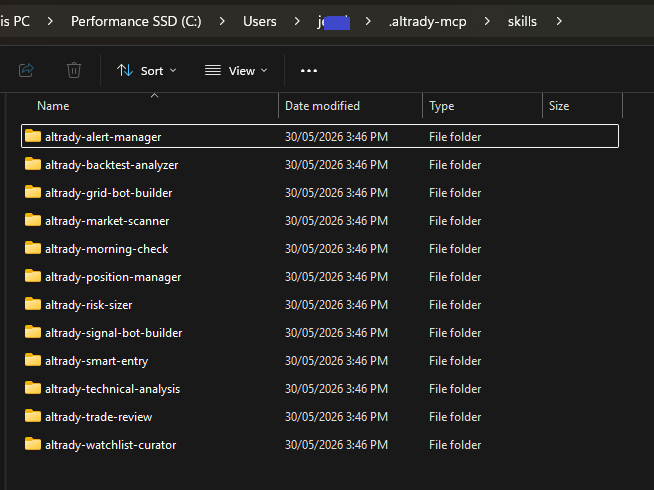 🔍 Click the image to see a larger version
Upload each skill to Claude Desktop
-
In Claude Desktop, navigate to Customize.
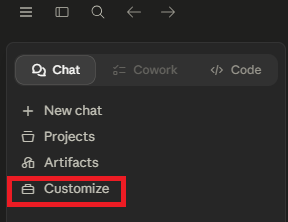 🔍 Click the image to see a larger version
-
Select Create New Skills.
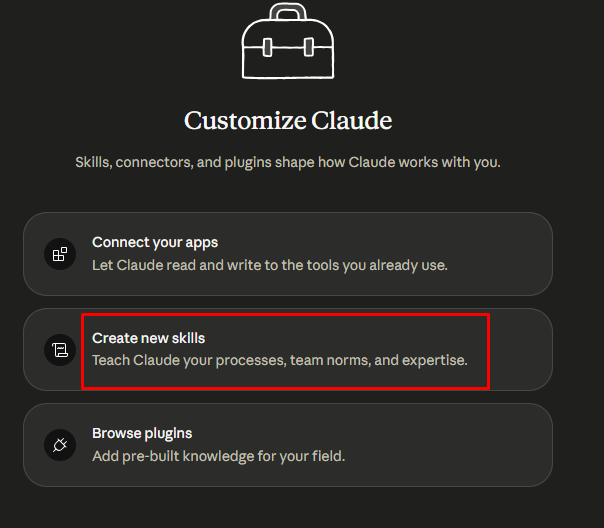 🔍 Click the image to see a larger version
-
Click the + to add a new skill, then + Create Skill, then Upload a skill.
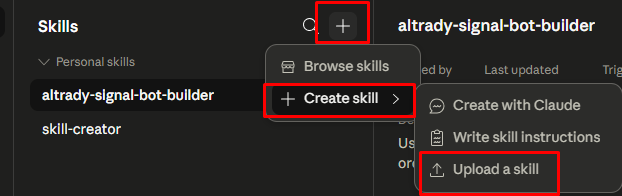 🔍 Click the image to see a larger version
-
Drag the
SKILL.mdfile from one of the skill folders, or click to browse and select it.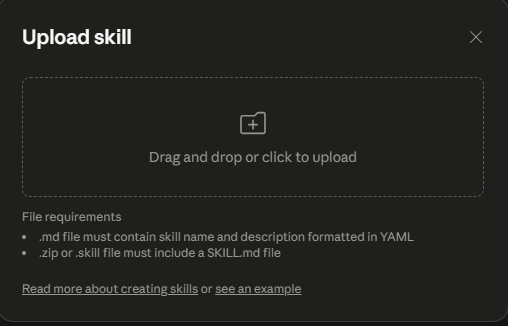 🔍 Click the image to see a larger version
-
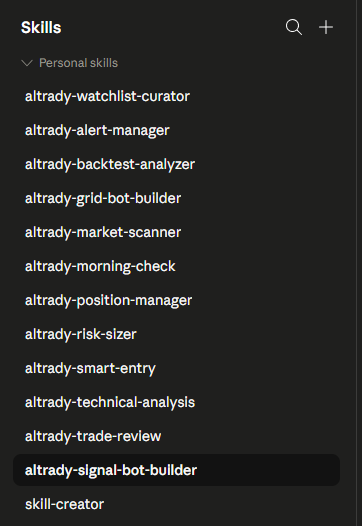
Repeat the previous two steps for each skill you want to upload. After uploading all of them, the list will look like this:
 🔍 Click the image to see a larger version
Try them out
Go back to the chat and start using the skills. A good first prompt:
Tell me about the Altrady MCP skills you have available.
Or trigger one naturally:
Do a morning check on my Altrady account.
Run technical analysis on BTC-USDT.
Things to know about skills in Claude Desktop
- On the free Claude plan, multi-step skills use your tokens quickly. Usage resets every 5 hours.
- Read and analysis skills work well in Claude Desktop: daily check-ins, market scanning, technical analysis, risk sizing, backtest analysis, and position monitoring.
- Skills that perform write actions in Altrady (creating alerts, editing watchlists, modifying positions, setting up bots) haven’t been fully verified in Claude Desktop yet. Use the Altrady app directly for those for now.
- The
altrady-trade-reviewskill normally saves journal entries to a file on your computer, which Claude Desktop can’t do by default. The skill still produces the journal entry in chat; you can copy it to your own file.
Still stuck?
If your assistant can’t reach Altrady, double-check that the desktop app is open and that MCP still shows Enabled in Settings. To manage or disconnect active sessions, go to Settings > MCP server > Active sessions in the Altrady desktop app. If none of that clears it up, reach out through Get help; we’re happy to walk through it with you.