
How do I turn on delisting alerts for an exchange?
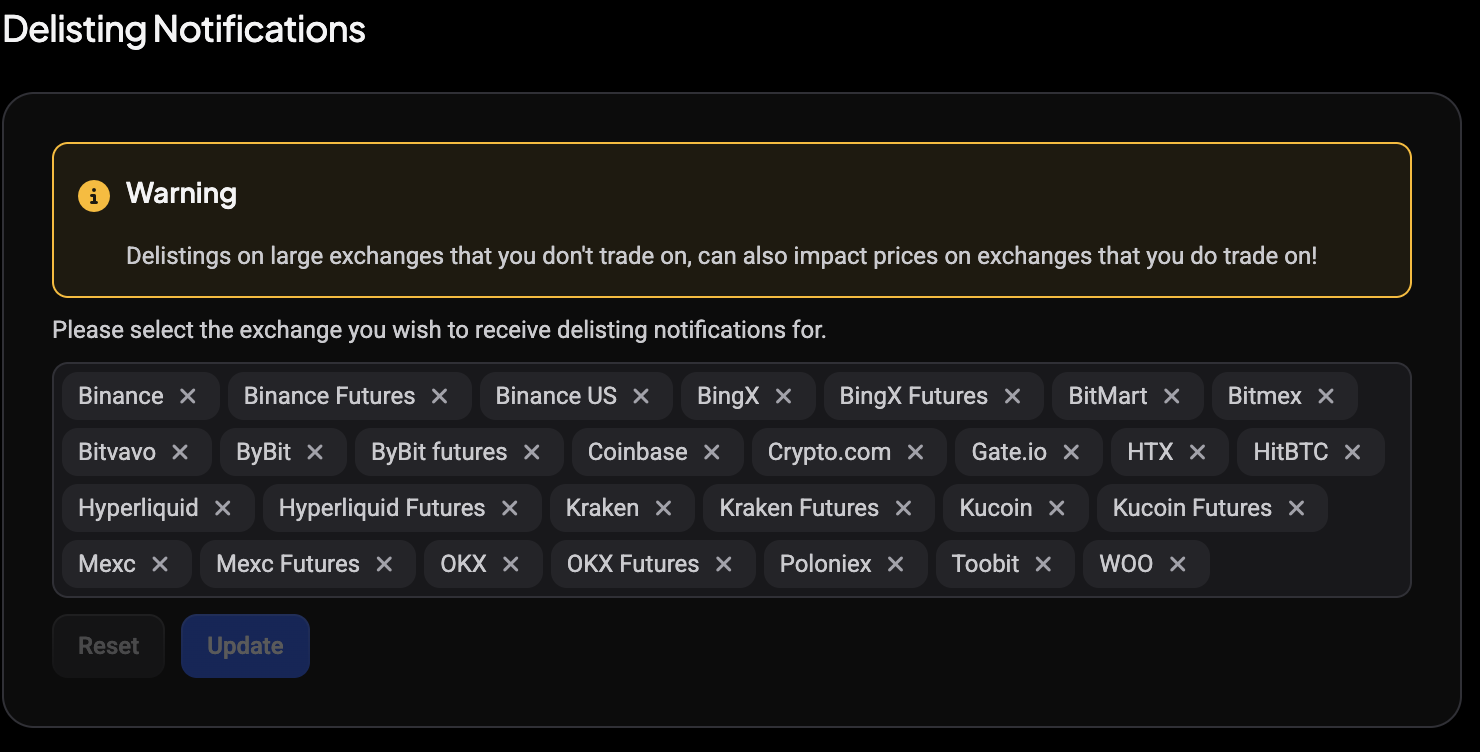
Delisting alerts are already on for every exchange: there is nothing to switch on. Your job is only to remove the exchanges you would rather not hear about. You do that in Settings > Notifications > Global Notification Settings, in the Delisting Notifications card.
Open Global Notification Settings
- Open Settings from the sidebar.
- Under the Notifications group, click Global Notification Settings.
Notifications is a group heading, not a button, so you click Global Notification Settings directly underneath it. On desktop the Delisting Notifications card sits at the bottom of the right-hand column, below Custom Sounds.
 🔍 Click the image to see a larger version
Read the warning first
The card opens with a Warning box:
Delistings on large exchanges that you don’t trade on, can also impact prices on exchanges that you do trade on!
That is worth a moment. A delisting on a large exchange can move a coin’s price everywhere it trades, including the exchange where you actually hold it. So an exchange you never connect to Altrady can still be the one that tells you something useful. Most traders leave everything selected and only remove an exchange when its alerts genuinely add nothing for them.
Change the exchange selection
 🔍 Click the image to see a larger version
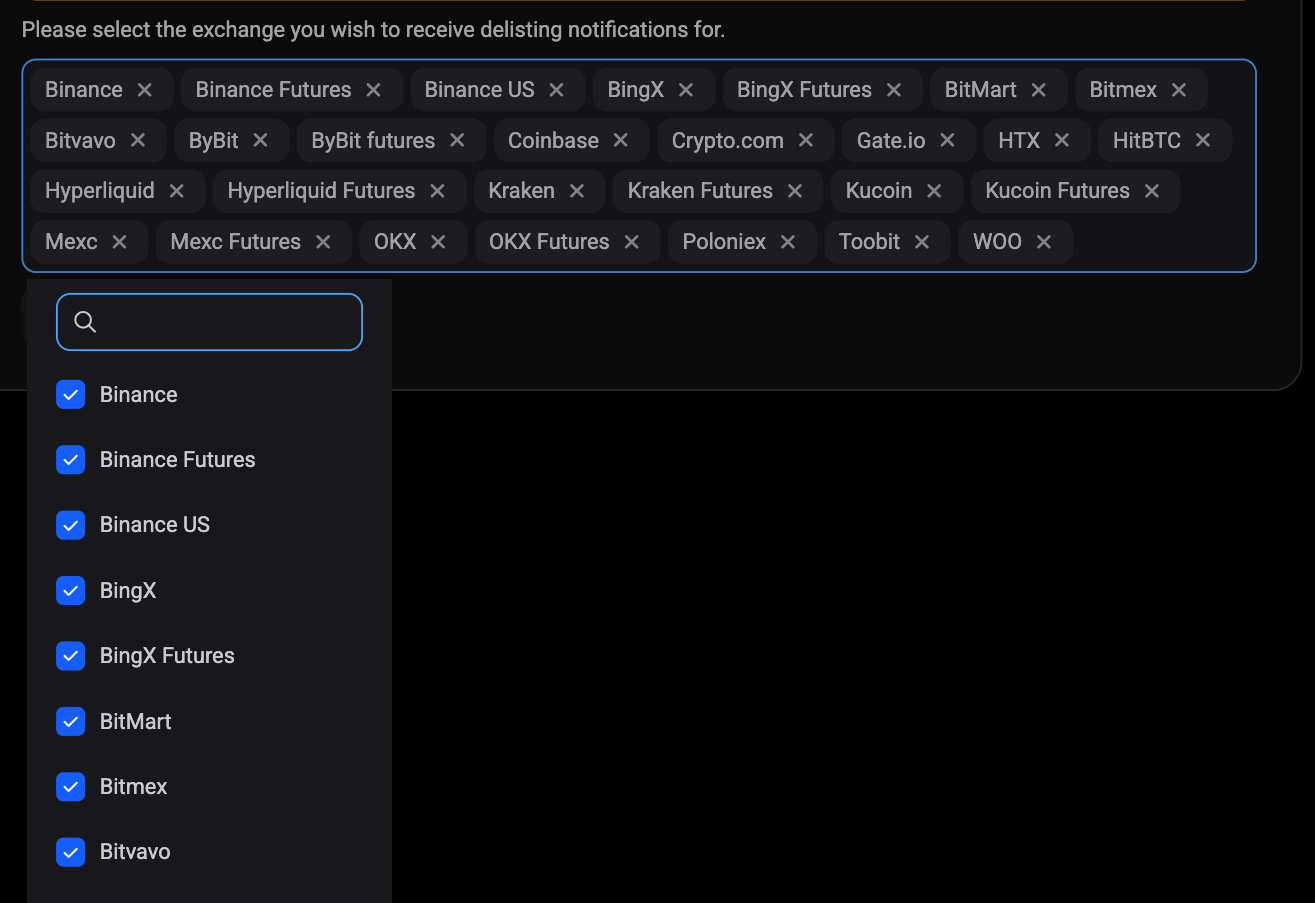
Under the helper line Please select the exchange you wish to receive delisting notifications for. you will find a multi-select. Each exchange you currently receive alerts for shows as a chip with a small x on it.
- Click the x on a chip to remove that exchange and mute its delisting alerts.
- To add an exchange back, click the control to open the selection popup.
- Type in the search box to narrow the list, then tick the checkbox next to the exchange you want.
- Click outside the popup to close it.
The chips are the live picture of your selection, so you can always tell at a glance which exchanges are still alerting you.
Remember that this is opt-out, not opt-in
Every active exchange starts selected. Removing one is how you stop hearing about it; adding it back is how you resume. There is no separate subscription to create, which is why you will never find an “enable delisting alerts” switch anywhere in the app. If your list looks emptier than you expected, someone removed those exchanges at some point, and adding them back restores the alerts immediately.
Save with Update, or undo with Reset
Two buttons sit at the bottom of the card:
- Update saves the selection you can see.
- Reset throws away your unsaved edits and puts the chips back to what is currently saved.
Both stay disabled until your selection actually differs from what is saved, so you cannot save an empty change by accident. Nothing takes effect until you click Update. Navigate away first and your edits are simply discarded.
What changes once you click Update
The change applies straight away, with no confirmation step and no waiting period. Exchanges you removed stop reaching you on every channel: the in-app notification row, the mobile push, and the desktop broadcast. Exchanges still shown as chips keep alerting you whenever a delisting is recorded for a market on that exchange.
One thing to keep in mind while you choose: these alerts are exchange-wide, not tied to your positions. Altrady does not check what you hold before sending, so every account that has kept an exchange selected gets the same alert. That is by design, and it is covered in What happens when a delisting alert triggers.
If your selection looks right but alerts still are not arriving, work through Why am I not getting delisting alerts?.
Still stuck?
If the Delisting Notifications card is not showing the exchanges you expect, or Update will not save, reach out through the in-app support chat and the team can look at your notification settings directly.