
Why can't I post or see messages in Community Chat?
Most posting problems in Community Chat come down to one of a few things: you’re only previewing the channel, a ban, a read-only or archived channel, slow mode, a plan-locked channel, a muted channel, or old messages that auto-deleted. Each shows its own notice right in the chat so you can tell at a glance what is going on.
You’re previewing, not joined
If a bar above the message box says You’re previewing #channel with a Join button, you can read but you haven’t joined yet. Click Join, or just send a message: sending joins you automatically. Nothing else is wrong.
“You are banned from chat”
If you see the notice You are banned from chat, a moderator has restricted your account from posting, either permanently or until a set date. This isn’t something support chat can lift on the spot: it was applied by the Community team after a review, and the notice itself doesn’t tell you the reason or duration.
If you think a ban was applied unfairly, or you’d like the reason explained, reach out through Need Help? in the main menu so the team can look at your account specifically.
If instead you saw content from someone else that shouldn’t be there (spam, abuse, scams), you don’t need to wait for a moderator to notice it. Hover the message, open its ⋯ menu and choose Report message, then confirm with Report in the Report this message to the moderators? dialog. That sends it straight to the moderation queue.
“Only admins can post here”
 🔍 Click the image to see a larger version
Some channels are announcement-only. If the message box is replaced by a lock icon and Only admins can post here, the channel is read-only by design: regular members can read every message but can’t add new ones. This is normal for channels like official updates or rules, not a sign that something is broken with your account.
You can still browse and react to messages there; if you want to discuss something you read, look for a general or discussion channel in the same group and post there instead.
Archived channels
A channel that shows This channel is archived (and a box icon in the sidebar) has been closed by the team and no longer accepts new messages. Archiving happens when a topic or channel has run its course; the message history stays visible so you can still search or reference old conversations, you just can’t add to it.
If the topic is still relevant, check whether there’s a newer channel covering the same subject in the sidebar.
Slow mode
If you try to send a message and get a Slow mode, wait N seconds notice (or see a Slow mode: [duration] badge near the top of the channel), the channel has a short cooldown between messages for every member. This is intentional, usually turned on in busy channels to keep the conversation readable. There’s nothing wrong on your end: just wait out the countdown and send again. It resets after each message you post, not just once.
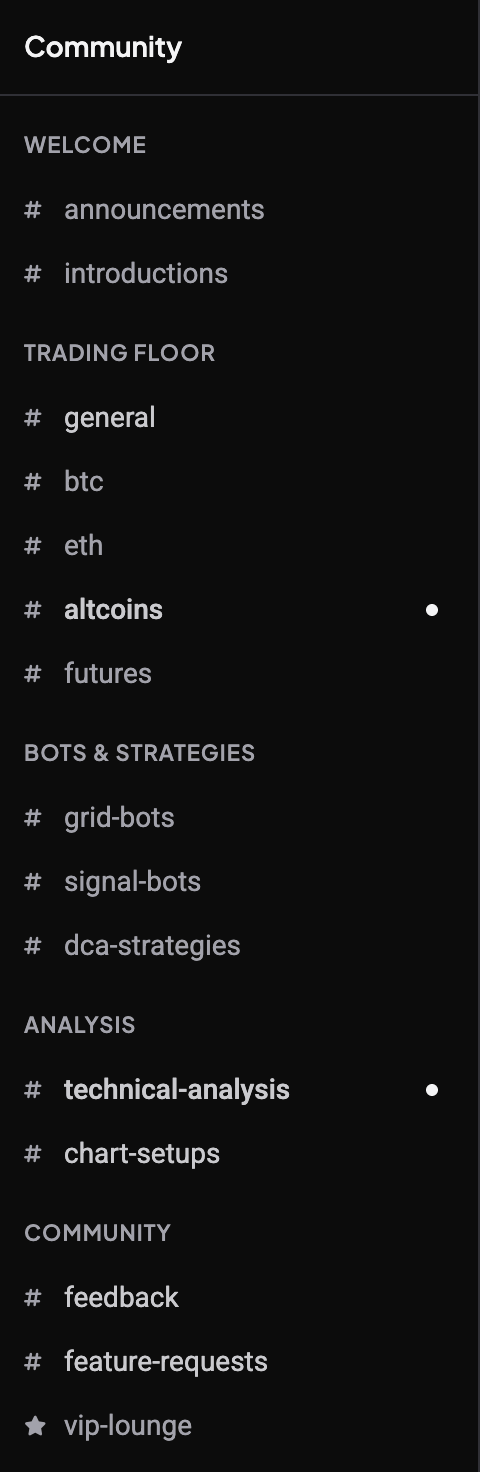
A channel locked with a star icon
 🔍 Click the image to see a larger version
Some channels require a specific plan or feature to join, and they show with a star icon in the sidebar instead of the usual #. These are gated so only accounts with the matching subscription feature can take part. If you open one and can’t get in, your current plan doesn’t include the feature tied to that channel.
To check what your plan unlocks or to upgrade, see How do I manage my Altrady subscription plan or billing?.
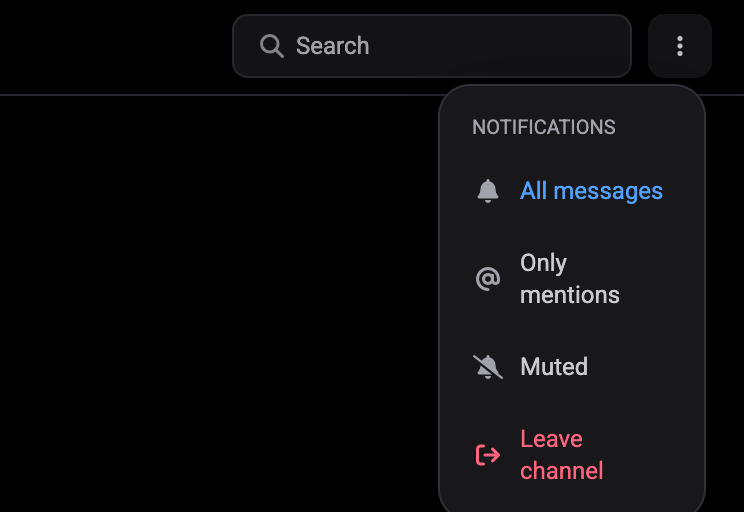
No unread dot, no notifications: the channel is muted
 🔍 Click the image to see a larger version
If a channel never lights up even though people are posting, check its notification setting. Open the channel, click the ⋮ menu at the top right, and look under Notifications: if it says Muted, switch it to All messages or Only mentions. Messages were arriving all along; the channel was just told to stay quiet.
Messages that seem to disappear
Every channel has a message retention setting, and older messages are removed automatically once they pass it. You’ll see a note like Messages auto-delete after N days in the channel. This is per channel: a busy trading-chat channel might clear after a shorter window while a general channel keeps history much longer. If a message or thread you were looking for is gone, it’s very likely retention, not a bug or a deleted account.
Use Search at the top of the channel if you’re trying to find something specific before it ages out: it covers the last 90 days regardless of a channel’s own retention setting, so recent messages are usually still searchable even after they’ve scrolled out of view.
A quick way to tell what’s happening
Whatever notice you’re seeing sits right in the channel itself, so before assuming something is wrong, check for:
- A bar above the message box (previewing, banned, archived, read-only).
- A star, lock, or box icon next to the channel name in the sidebar.
- A countdown next to the message box (slow mode).
- The channel’s notification setting in the ⋮ menu.
- A retention line under the channel description.
Between those, almost every “why can’t I post” or “why did my messages vanish” question has a plain answer, no digging required.
If you’re new to Community Chat, Getting started with Community Chat covers finding and joining channels, and Send messages, polls, and share trades in Community Chat covers the actual posting features once you’re in.
Still stuck?
If none of the above matches what you’re seeing, or you believe a ban, lock, or missing messages is a mistake, open Need Help? from the main menu to reach support chat. Include the channel name and a screenshot of the notice: it helps the team pinpoint the issue faster.