
How do I use Community Chat in Altrady?
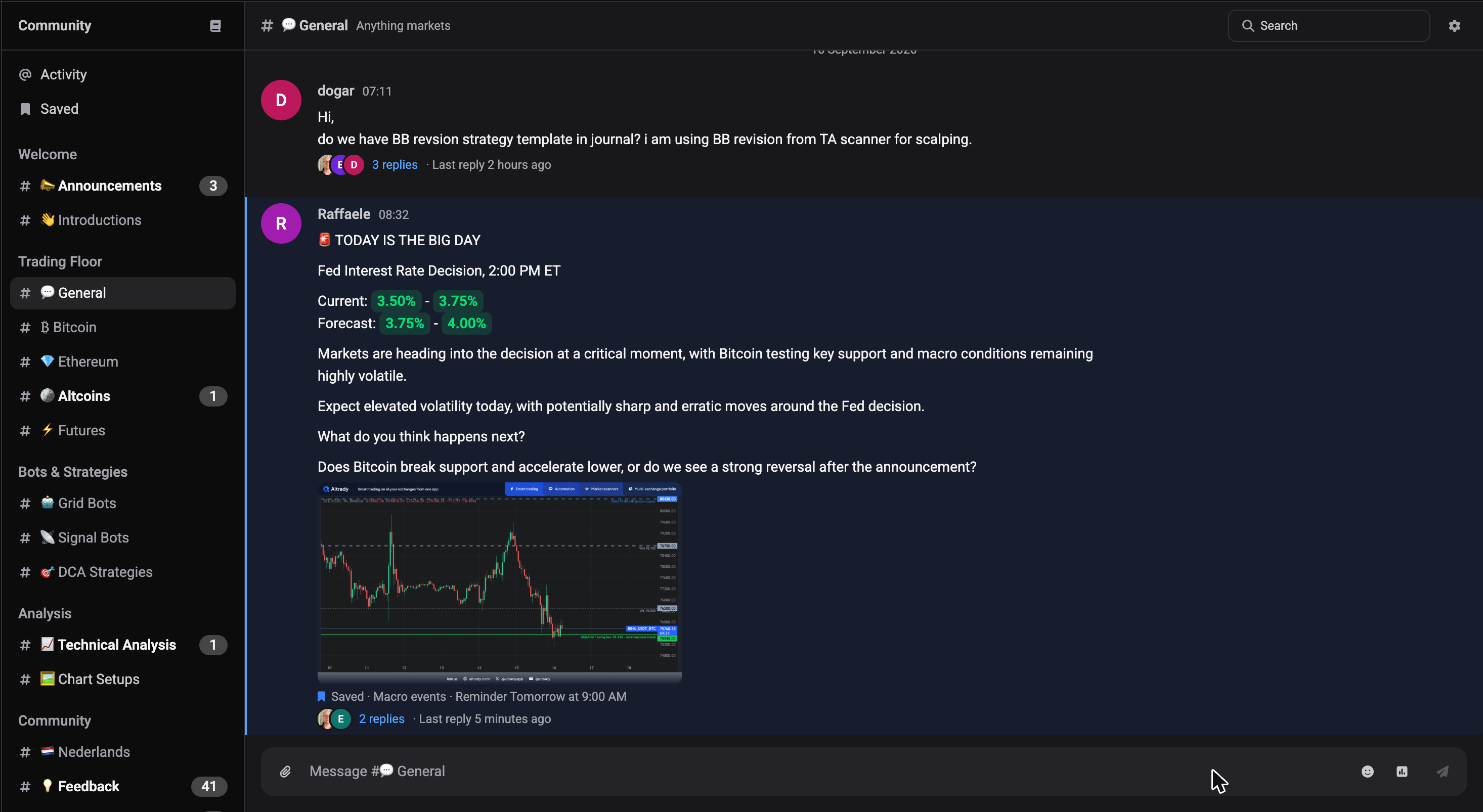
Community Chat is Altrady’s built-in chat, where traders talk in topic channels without leaving the app. Open the main menu and click Chat (the screen itself is titled Community) to get there.
Find Community Chat
 🔍 Click the image to see a larger version
Community Chat lives in the main menu on the left side of Altrady. Click Chat and the Community screen opens, with a list of channels on the left and the conversation on the right. You don’t need to install or connect anything extra: it’s part of your Altrady account already.
When a channel you’ve joined has new messages, its name turns bold with a dot next to it, and the Chat icon in the main menu shows a small badge. Once you’ve read them, both clear.
Set up your profile the first time
Before your first message, Altrady asks you to set up your profile. This is a one-time screen titled Set up your profile. Pick a username so other members know who you are: your username and photo are visible on every message you send. Once you’re happy with both, click Save and start chatting and you’re in.
Don’t worry about getting this perfect on day one: you can revisit your chat profile later if you want to change your photo or username.
Pick a channel
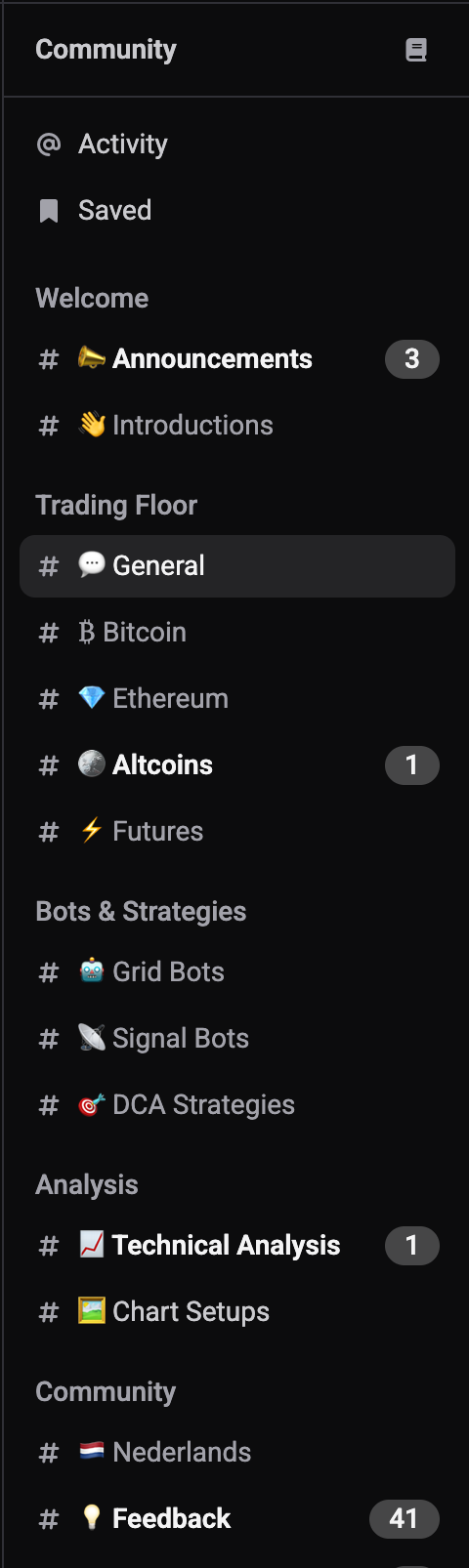
Once your profile is set, the sidebar lists the available channels, grouped by topic (Welcome, Trading Floor, Bots & Strategies, Analysis, Community, and so on). Altrady shows Select a channel to start chatting: click any channel name to open it. Skim the groups for one that matches what you’re after.
Understand what each channel icon means
 🔍 Click the image to see a larger version
Not every channel is open the same way. Look at the small icon in front of the channel name:
- A # sign: a public channel. Anyone can open it and read or post right away.
- A lock icon: an invite only channel. You need an invite from a member or moderator to join.
- A star icon: a channel that requires a feature. It’s tied to a specific subscription plan or feature, so it only opens for accounts that have it.
- A box icon: an archived channel. You can still read it, but nobody can post there anymore.
If a channel needs an invite or a feature you don’t have, it’s not a bug: it’s gated on purpose, the same way some tools in Altrady are tied to a plan.
Preview a channel before you join
 🔍 Click the image to see a larger version
You can open most channels and read along before joining. While you’re browsing, a bar above the message box says You’re previewing #channel and offers a Join button. Either click Join, or simply send a message: sending joins you automatically. Joining doesn’t cost anything and doesn’t change your subscription.
Choose how a channel notifies you
 🔍 Click the image to see a larger version
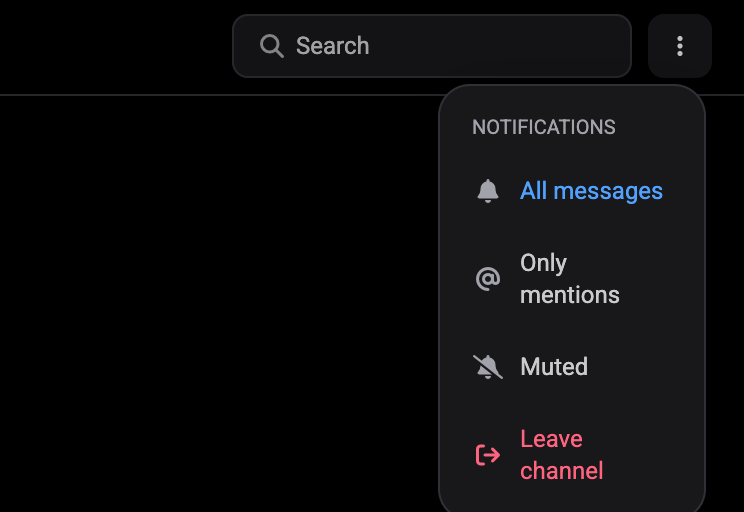
Every channel you’ve joined has its own notification setting, so a busy channel doesn’t have to interrupt you. Open the channel, click the ⋮ menu at the top right, and pick one under Notifications:
- All messages: every new message counts as unread and can notify you.
- Only mentions: you’re only notified when someone mentions you.
- Muted: the channel stays quiet. You can still open it and read whenever you like.
The same menu holds Leave channel if you’re no longer interested. You can also right-click a channel in the sidebar to leave it from there. Leaving removes you from that channel only: your profile, username, and photo stay the same everywhere else in Community Chat.
Catch up on what was addressed to you
 🔍 Click the image to see a larger version
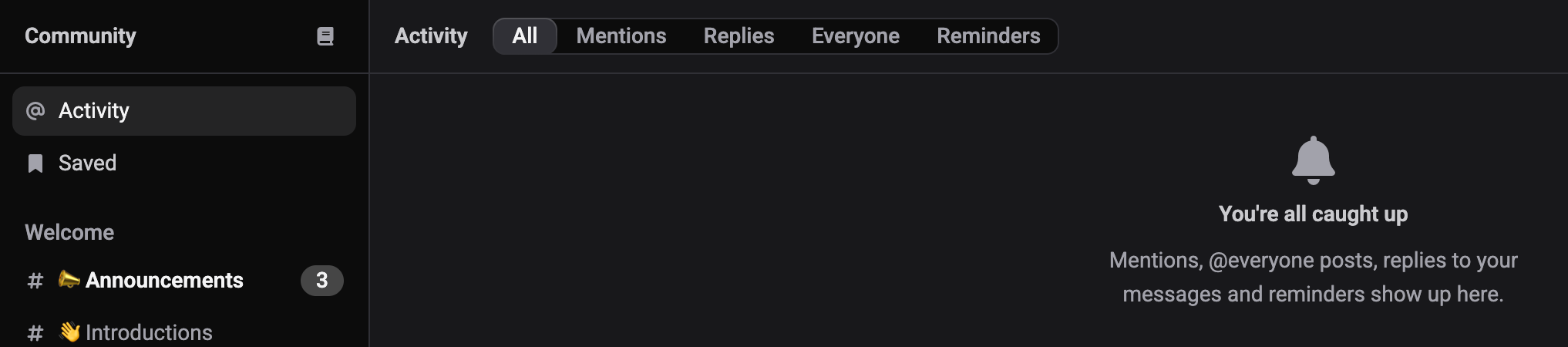
Above the channel groups, the sidebar has two views of your own: Activity and Saved.
Activity collects everything that was aimed at you, across all channels: mentions of your name, @everyone posts, replies in threads you took part in, and reminders for messages you saved. Its badge counts what you haven’t seen yet. Inside, messages are grouped under Today, Yesterday and Earlier, and each one says where it came from, for example “mentioned you in #general”. Use the filter at the top to show only Mentions, Replies, Everyone or Reminders, and Mark all as read to clear the badge in one go.
Saved lists the messages you bookmarked for later, with the label and reminder you gave each one. See how do I send messages, polls, and share a trade for how to save a message.
Catch up on older messages
Community Chat only loads recent messages at first to keep things fast. Scroll to the top of a conversation and click Load older messages to pull in earlier history. You can keep doing this to work your way further back. If new messages arrive while you’re scrolled up, a small arrow button appears at the bottom: click it to jump back to the latest message.
Still stuck?
If a channel you expect to see isn’t showing up, or something in Community Chat looks off, reach out through Altrady’s support chat and the team will take a look.