
How do I send messages, polls, and share a trade to Community Chat?
Once you have joined a channel in Community, you can post text and images, reply in a thread, react to messages, save a message for later, link a market or mention a coin in your message, create a poll, and share a position or chart straight from your trade tools into chat.
Send a text or image message
 🔍 Click the image to see a larger version
Open a channel and type in the message box at the bottom (it shows Message #channelname). Press Enter to send, or click the send button on the right. Shift+Enter adds a line break without sending.
To add a picture, click the paperclip (Attach image) to the left of the message box, pick a file, and send it along with your text or on its own.
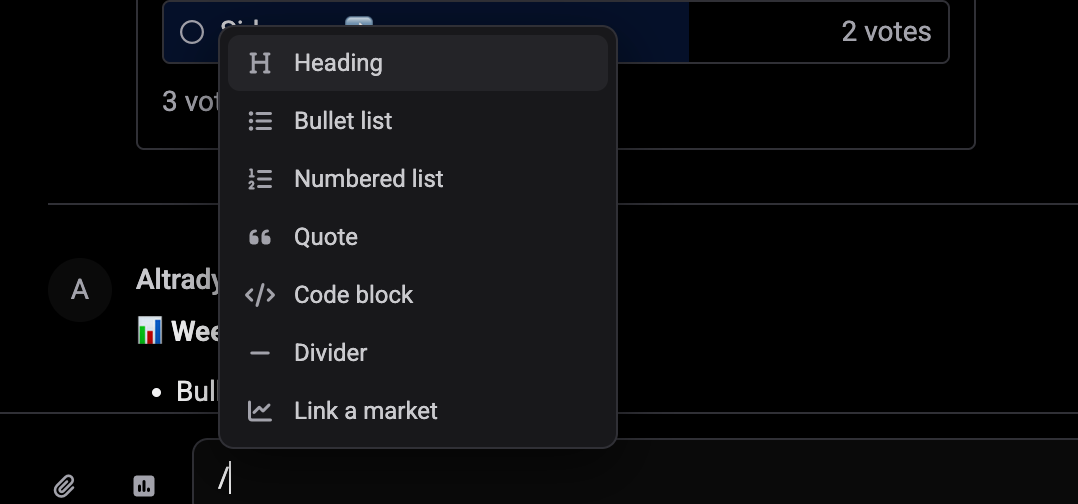
For a bit of structure, type / at the start of a line: a small menu offers Heading, Bullet list, Numbered list, Quote, Code block, Divider, Link a market and Post a chart.
Community keeps messages for a limited time depending on the channel, so don’t rely on chat as a permanent notebook: if a setup matters to you, save it (a note, a screenshot, or your journal) somewhere you control too.
React, reply, and manage a message
 🔍 Click the image to see a larger version
 🔍 Click the image to see a larger version
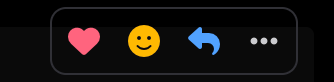
Hover over any message and a small toolbar appears at its right: a heart to Like it, a smiley to add an emoji reaction, an arrow to Reply in thread, a bookmark to save it (see below), and a ⋯ menu.
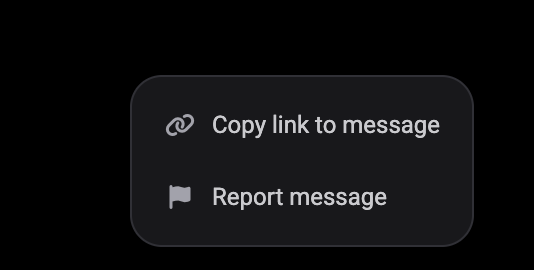
The ⋯ menu offers Copy link to message, Saved and Report message on any message. On your own messages it also offers Edit message and Delete message. Edited messages show a small (edited) tag so nobody is confused about what changed. Deleting is permanent: Altrady asks you to confirm before removing it for good.
Save a message for later
 🔍 Click the image to see a larger version
 🔍 Click the image to see a larger version
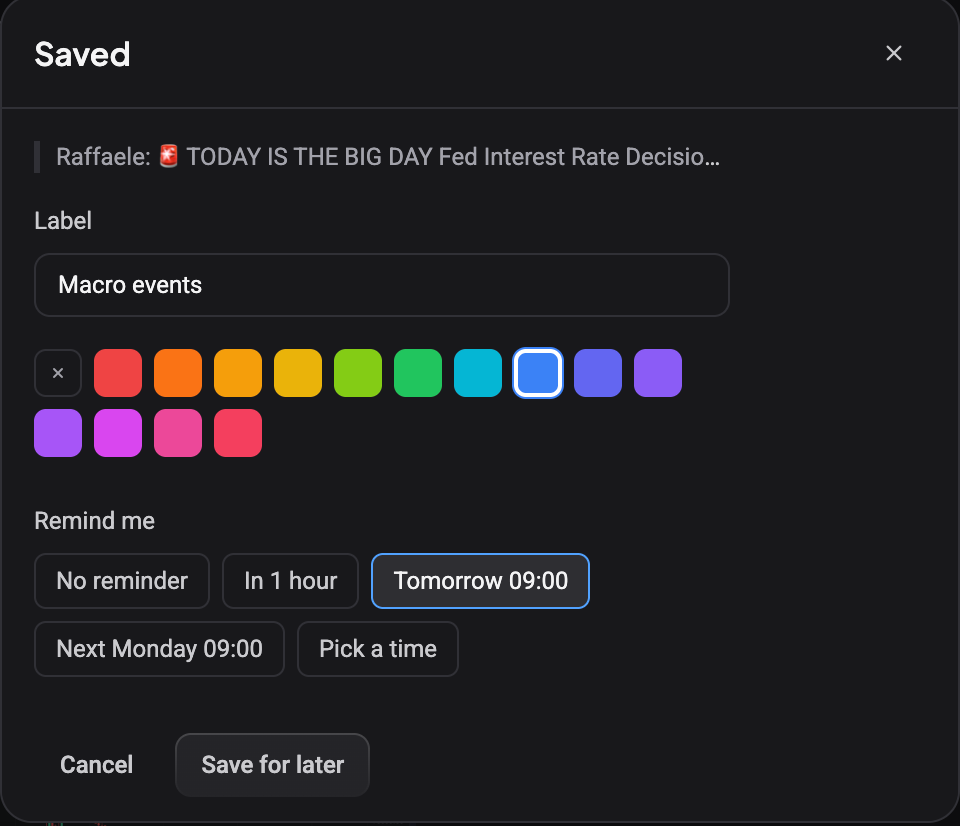
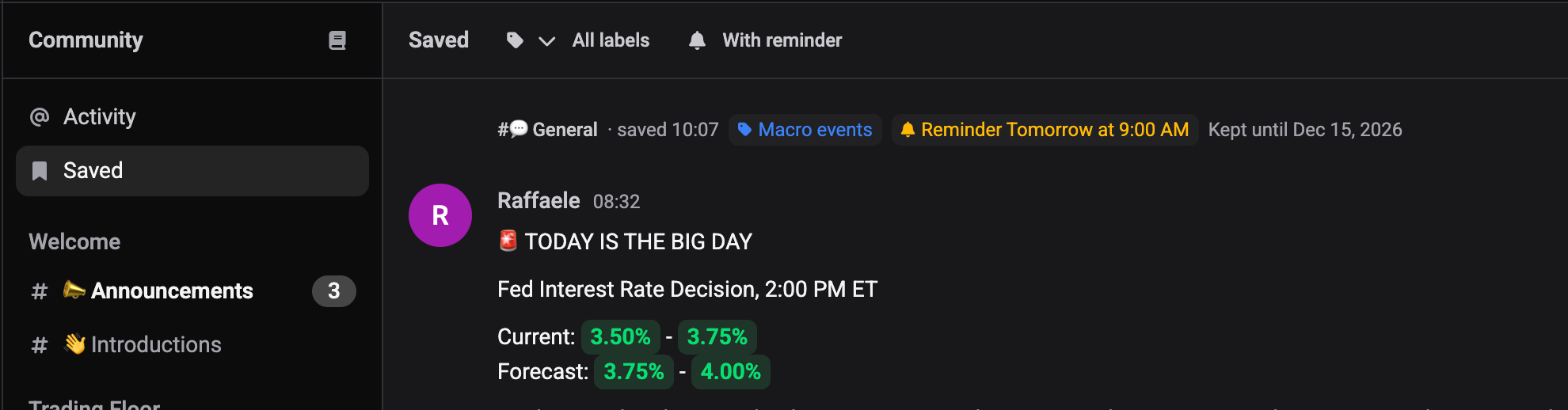
Spotted a setup or a tip you want to come back to? Hover the message and click the bookmark icon (or pick Saved from the ⋯ menu). A small dialog opens:
- Add a Label if you like, for example “BTC setups”, so you can filter by it later, and pick a colour for it from the swatches that appear. Both are optional.
- Under Remind me, choose No reminder, In 1 hour, Tomorrow 09:00, Next Monday 09:00, or Pick a time for your own moment.
- Click Save for later.
The message now shows a Saved marker with its label and reminder, and it appears in the Saved view at the top of the sidebar, where you can filter by label or show only the ones With reminder. When a reminder comes due, it lands in your Activity view. Only you can see what you saved. To change the label or reminder, click the bookmark again; Remove from saved takes it off the list.
Saving keeps the message on your list only as long as the channel keeps the message itself: each saved entry says Kept until a date, or Kept forever, so you know how long you have.
Reply in a thread
 🔍 Click the image to see a larger version
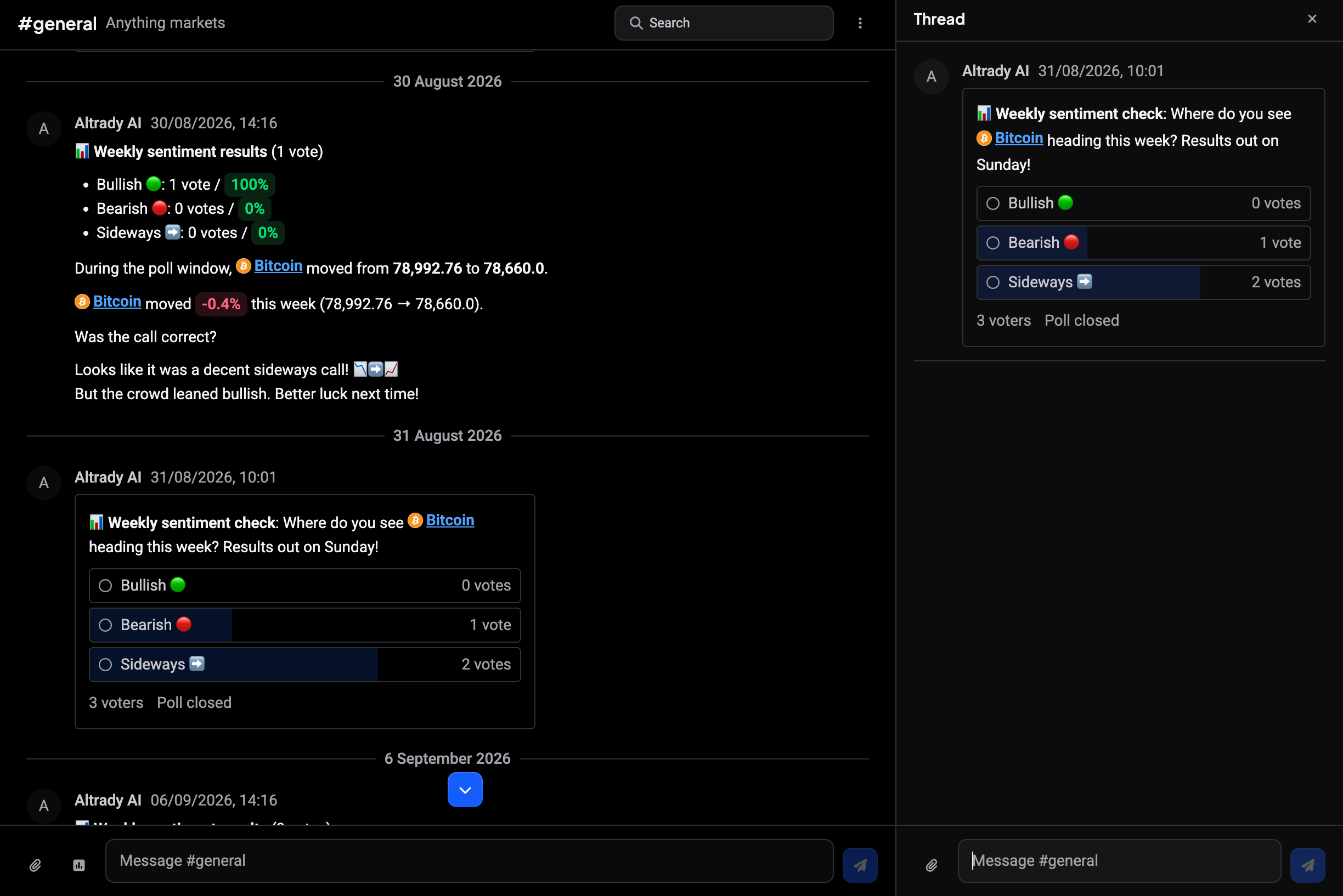
To keep a side conversation from cluttering the main channel, hover over a message and click Reply in thread. A Thread panel opens on the right with the original message at the top and its own message box at the bottom; replies stay grouped there. Anyone in the channel can open the thread by clicking the reply count under the original message. Close the panel with the × at any time and come back to it later.
Mention a coin
 🔍 Click the image to see a larger version
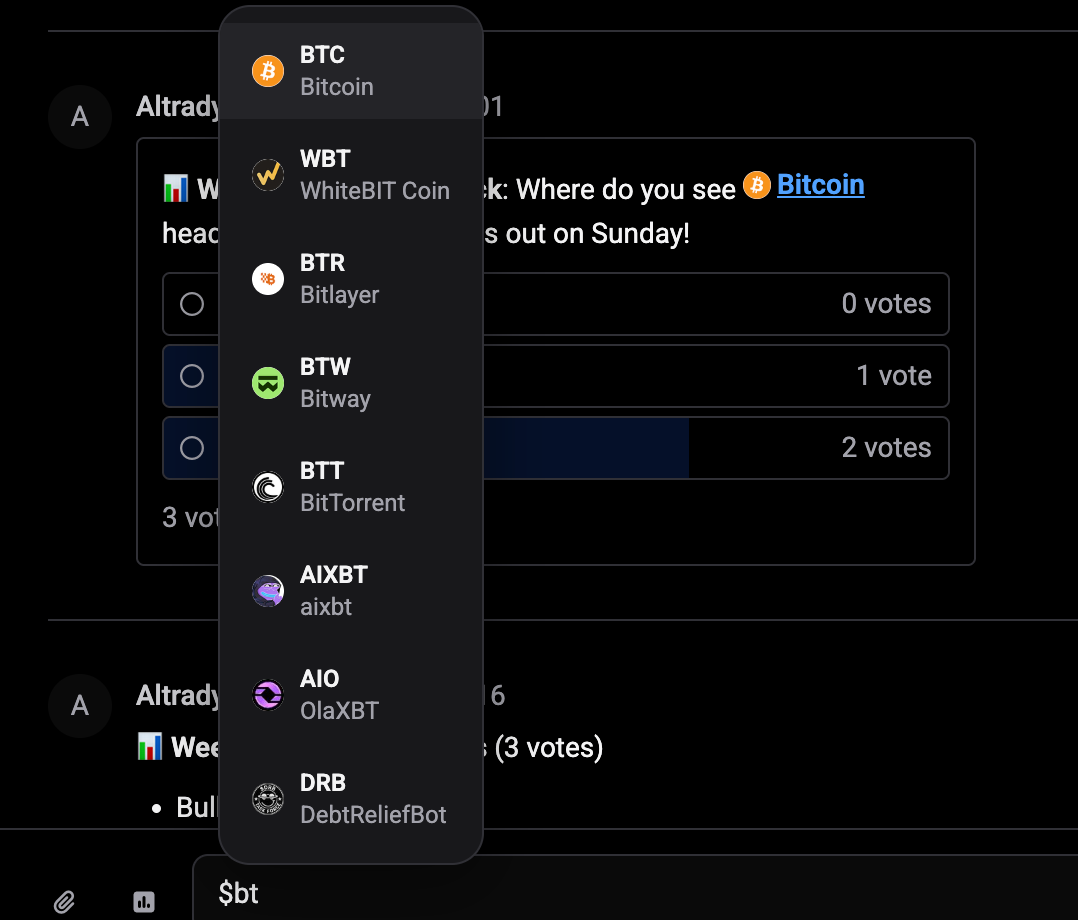
Type $ followed by a ticker (for example $btc) and pick the coin from the list that pops up. It lands in your message as a coin chip that others can click to jump to that market.
Link a market to your message
 🔍 Click the image to see a larger version
 🔍 Click the image to see a larger version
 🔍 Click the image to see a larger version
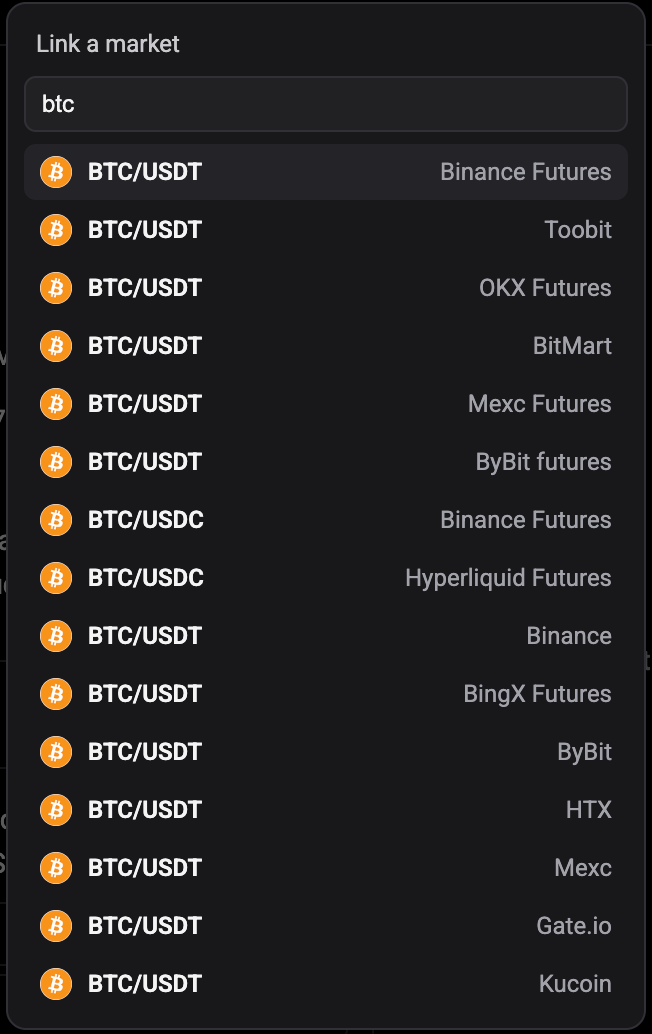
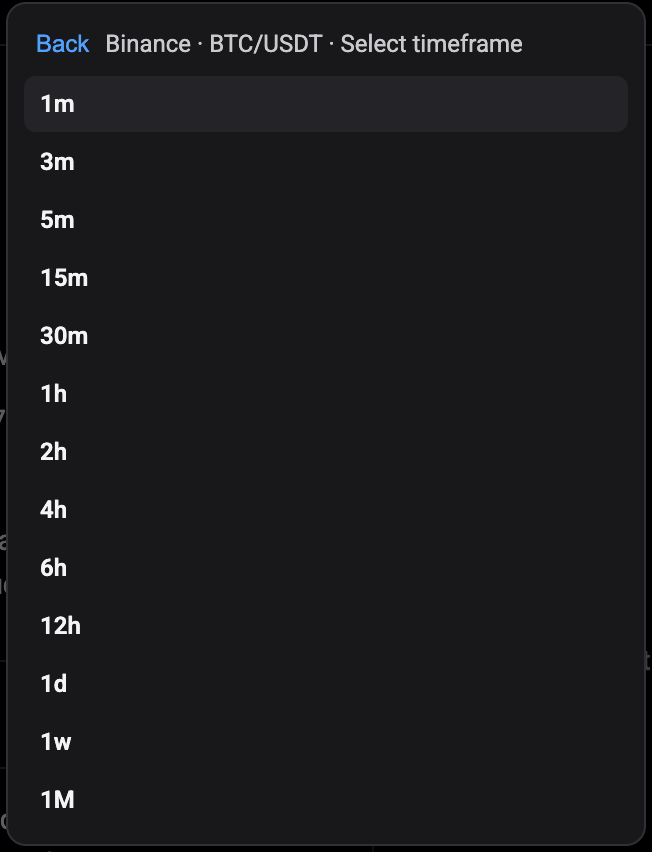
To point people at a specific chart rather than just a coin, type / in the message box and choose Link a market. Search a coin in Search a coin, pick the market you mean from the list (each row shows the pair and its exchange, for example BTC/USDT on Binance), then choose a timeframe. A chip like BTC/USDT · 1h is added to your message, and anyone reading it can open that exact chart from it.
Create a poll
 🔍 Click the image to see a larger version
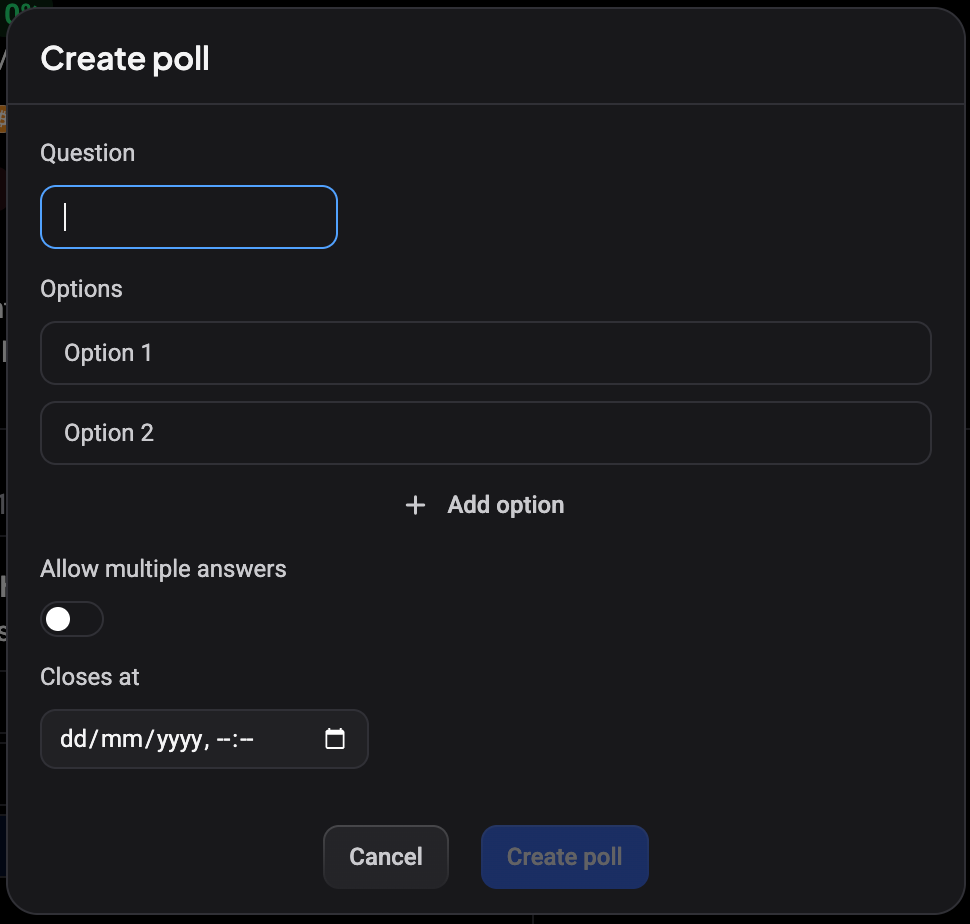
Click the poll icon next to the paperclip (Create poll) to open the poll builder. Fill in the Question, then your answer Options; use Add option for more than two. Turn on Allow multiple answers if people may pick more than one option. Set a Closes at time so the poll stops accepting votes automatically, then click Create poll. Everyone in the channel can vote until the poll closes.
Share a position or chart to chat
 🔍 Click the image to see a larger version
 🔍 Click the image to see a larger version
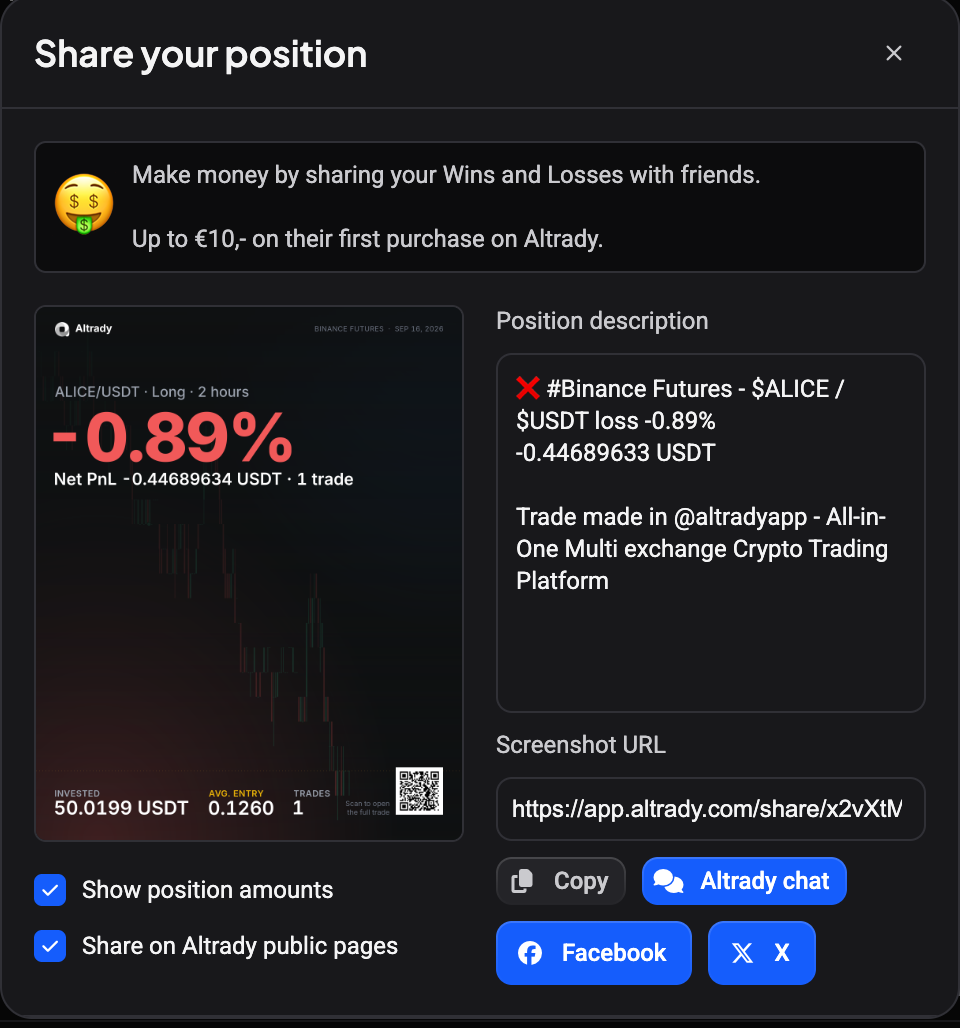
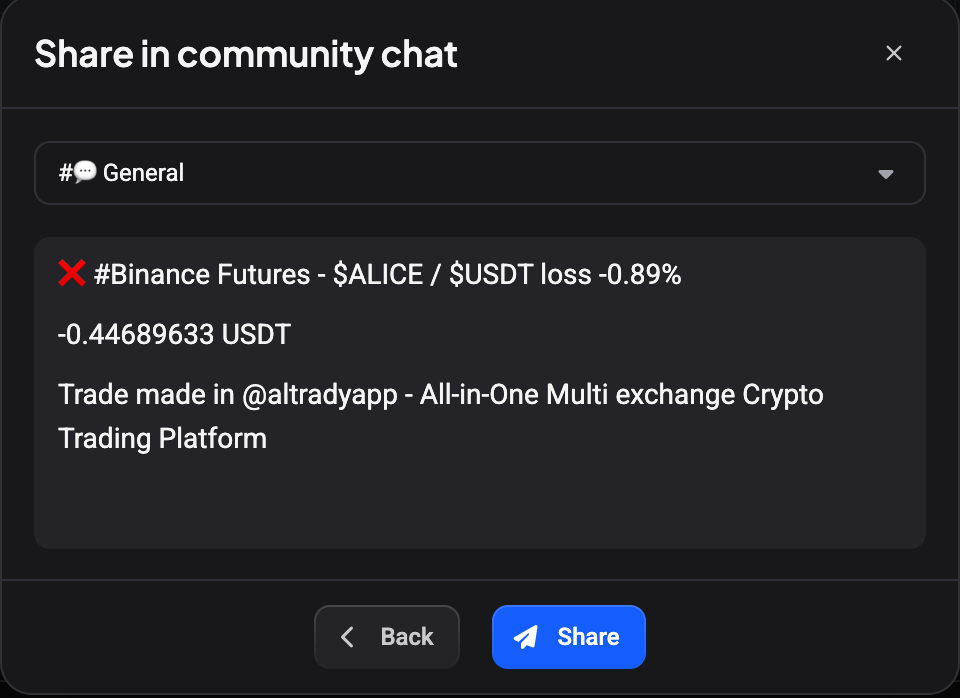
From a position’s … menu choose Share position (a chart screenshot has a share button too). The Share your position dialog shows the card that will be posted; click Altrady chat in it. Share in community chat then lets you pick the channel and edit the text of the post before you click Share. The post appears in chat labeled with the channel it was shared to, so everyone sees where a setup came from.
Opening a shared link
When someone shares a trade setup or a market link in chat, clicking it doesn’t send you straight to a browser. Altrady asks first: for a shared trade setup you’ll see Open trade setup, for a shared market you’ll see Open market. Either brings it into the app for you. If you’d rather see the page as a normal web page instead, choose Open in browser.
Search old messages
 🔍 Click the image to see a larger version
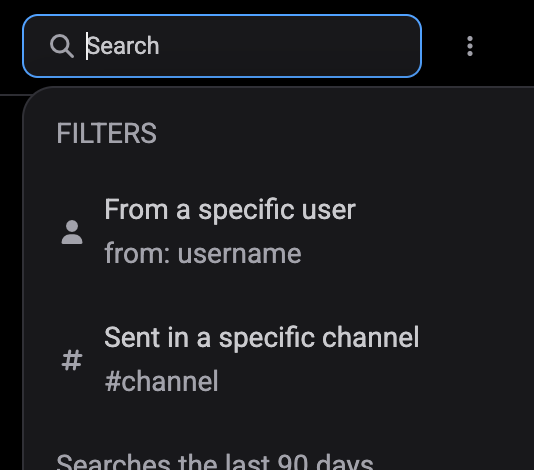
Click the Search box at the top right of the channel to find past messages. Two filters make it faster: type from: username to see only messages from one person, or #channel to narrow to a specific channel. Search only looks back over the last 90 days, so very old messages won’t turn up even if the channel itself keeps a longer history.
Still stuck?
If a message, poll, or share isn’t behaving the way this guide describes, reach out through support chat inside Altrady and the team will take a look.