
How do I create and manage watchlists?
Watchlists let you group the markets you care about so you’re not scrolling through every exchange to find them. You create a list from the Markets panel, add or remove markets with a couple of clicks, give each list its own color, and drag them into the order you want. Adding or removing markets only changes the watchlist’s labels, it never touches your markets or exchange data.
Create a new watchlist
- Open the Markets panel in the trading terminal.
- Scroll to the bottom of your watchlist list and click the + Watchlist button (you can also open the Markets panel settings and use New Watchlist there).
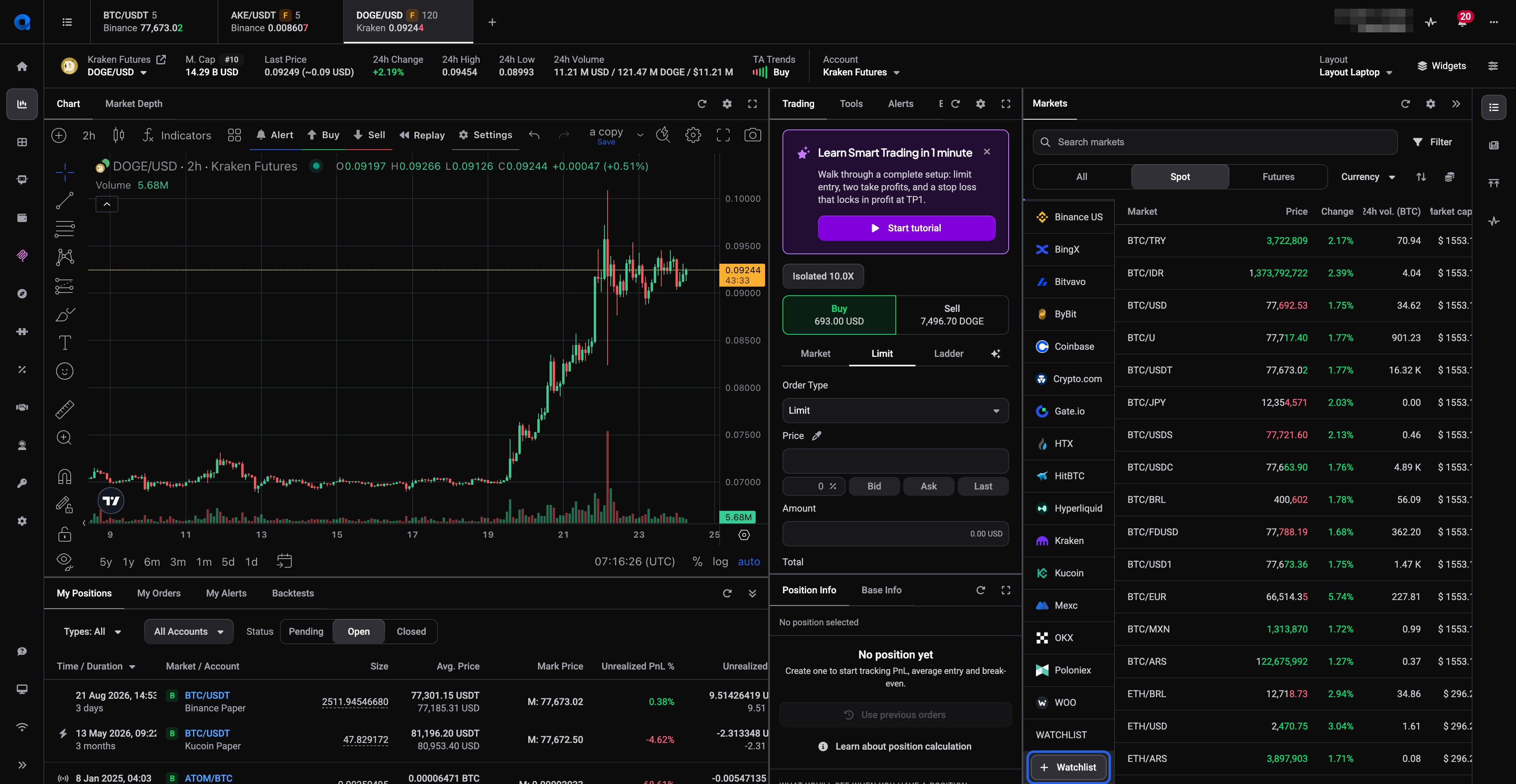 🔍 Click the image to see a larger version
- Fill in the Full name (2-24 characters) and a Short name (up to 12 characters, used where space is tight).
- Pick a Color from the default colors, or click the + under My colors to mix your own.
- Click Save. Your new list appears in the Markets panel next to your Exchanges.
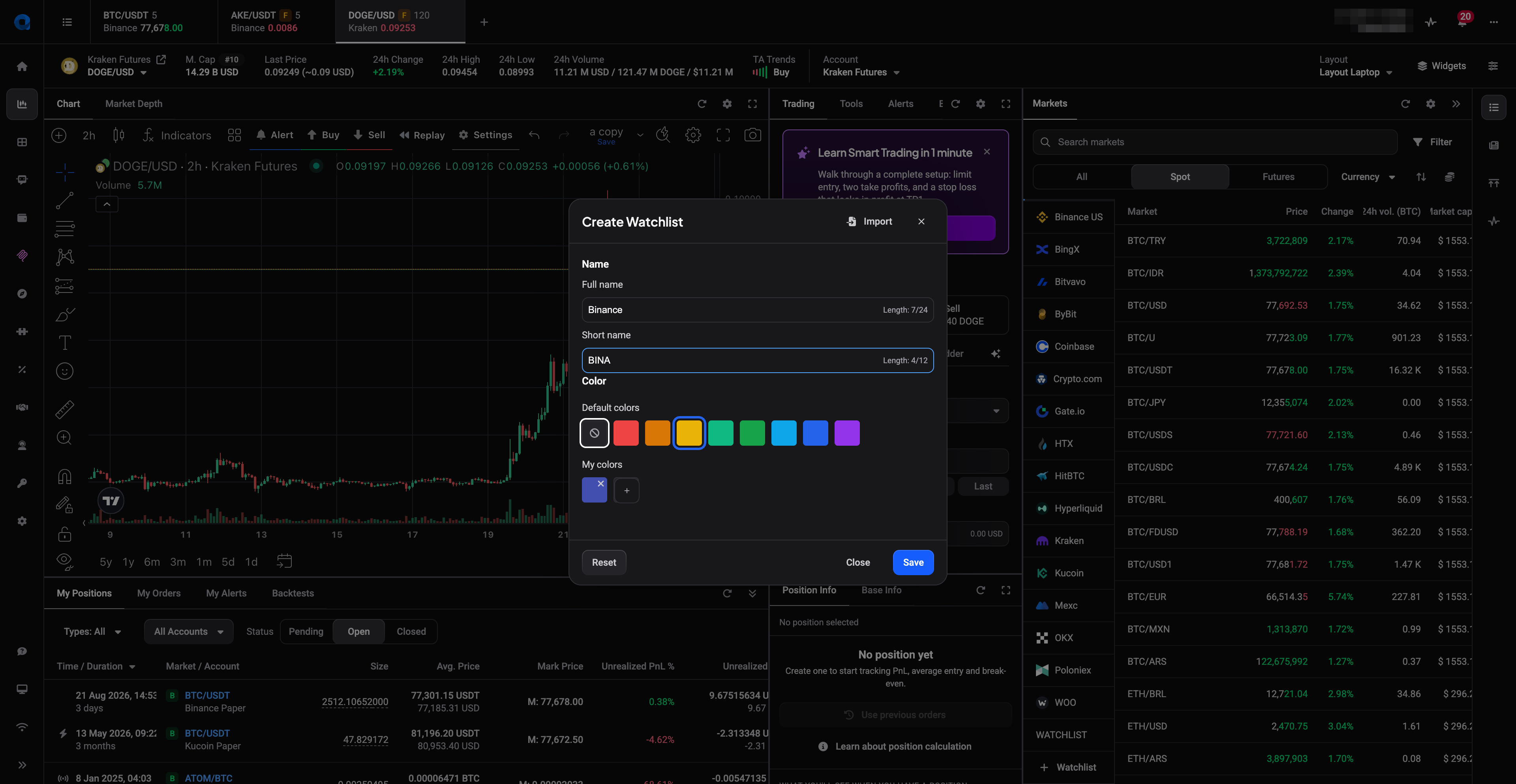 🔍 Click the image to see a larger version
The color is worth a moment’s thought: it is what makes a list recognizable at a glance later on.
How many lists you can keep, and how many markets each one holds, depends on your plan:
| Basic | Essential | Premium | |
|---|---|---|---|
| Number of watchlists | 5 | 20 | Unlimited |
| Symbols per watchlist | 50 | 200 | Unlimited |
Everything else described in this article, organizing lists, sorting and filtering, color coding, and import and export, is available on every plan.
Add or remove markets
The fastest way is right from a market row:
- Right-click any market in the Markets panel (or in a chart tab).
- Under WATCHLISTS, click a list name to add that market to it. Click it again to remove it. A search box lets you find a specific list quickly if you have several.
- Don’t see the list you want? Click Create new watchlist right from that same menu.
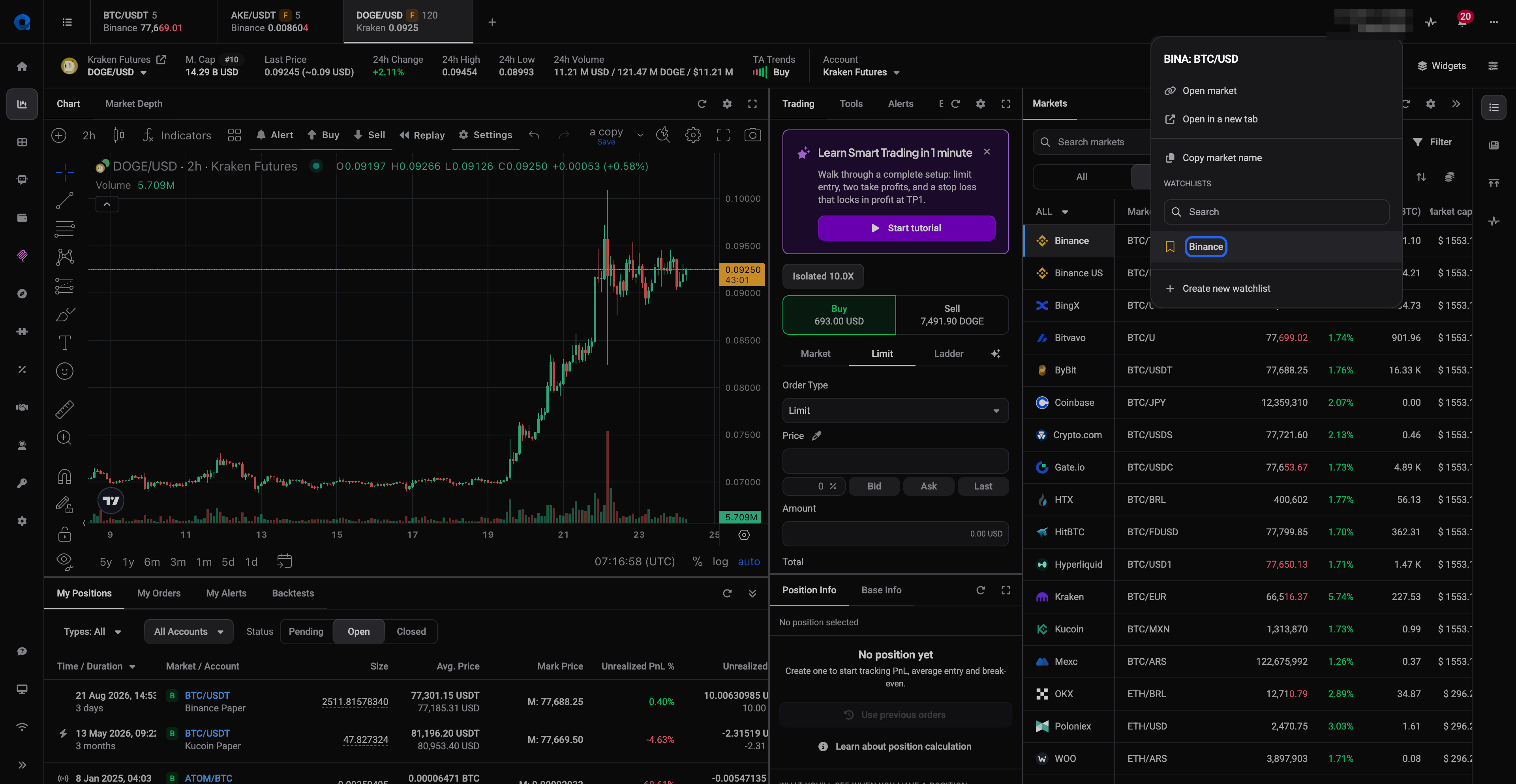 🔍 Click the image to see a larger version
A filled bookmark icon means the market is already on that list, an empty one means it isn’t. And this is where the colors pay off: every market that belongs to a watchlist carries that list’s colored label and short name next to its name in the Markets table, so you can spot which lists a market is on without opening any menu.
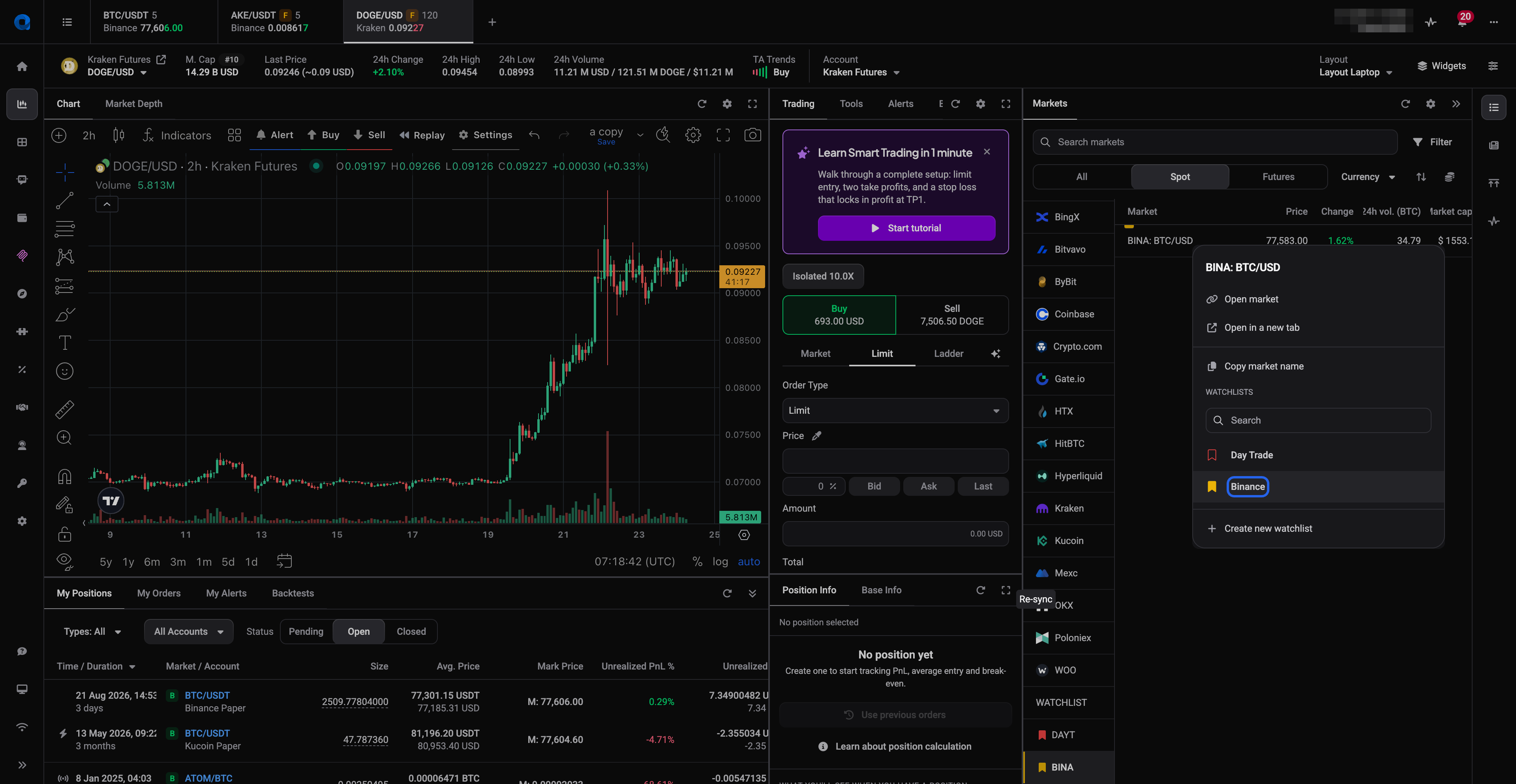 🔍 Click the image to see a larger version
Use a watchlist
Once a list has markets in it, click its name in the Markets panel to filter the Markets table down to just that list, and click it again (or click an exchange instead) to go back to seeing everything. Need to work with every market on the list at once? Right-click the watchlist name and choose Open all markets to open them all as chart tabs in one go.
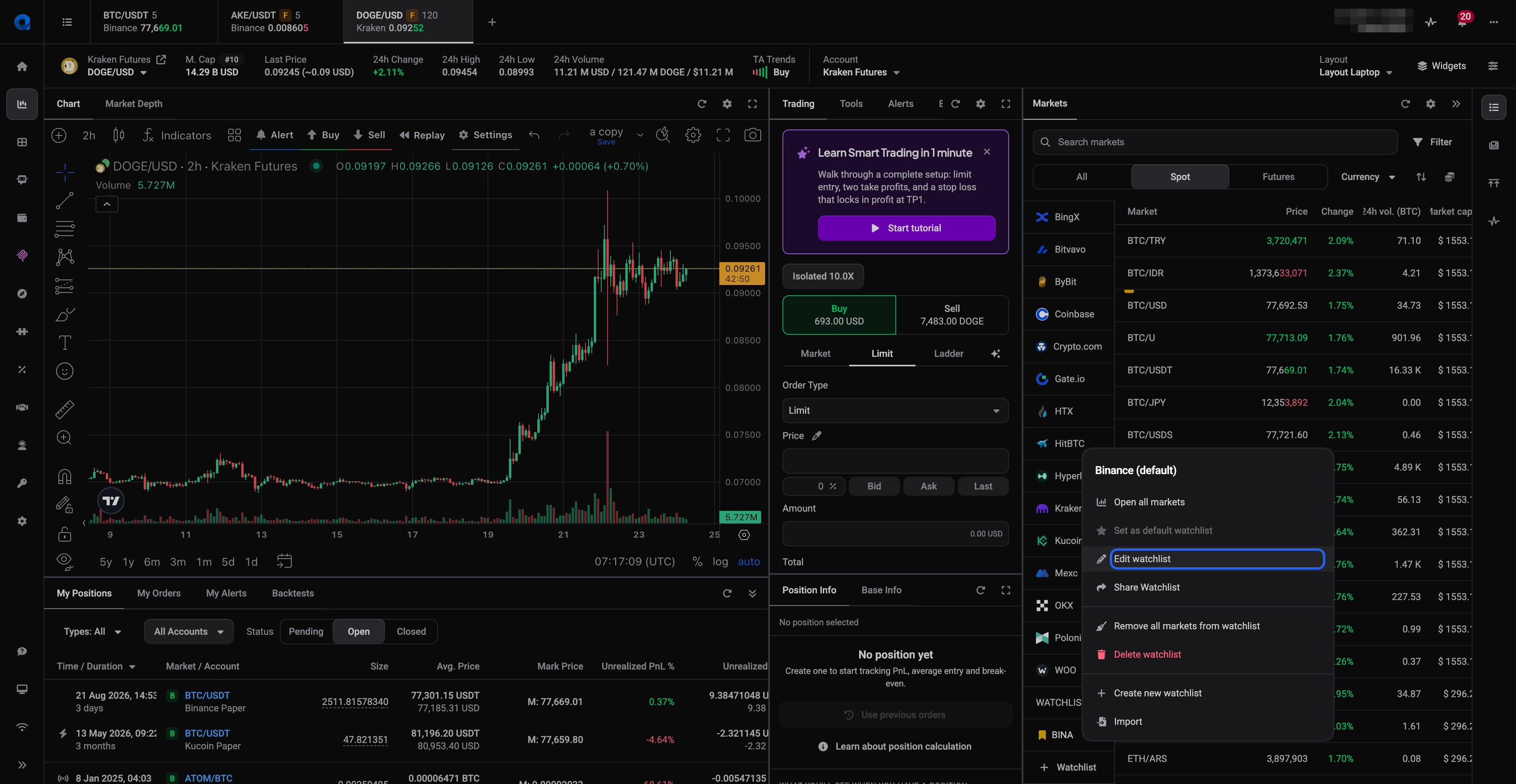 🔍 Click the image to see a larger version
One watchlist can also be your default: the list that shows on your Dashboard’s Markets widget. Right-click the watchlist name and click Set as default watchlist. The option is greyed out once a list is already the default (you’ll see “(default)” next to its name), so you always know which one is active.
Rename or recolor a watchlist
Changed your mind about a name or color? No need to start over.
- Right-click the watchlist and choose Edit watchlist.
- Update the Full name, Short name, or Color.
- Click Save. The markets already in the list stay exactly where they are, they just pick up the new label.
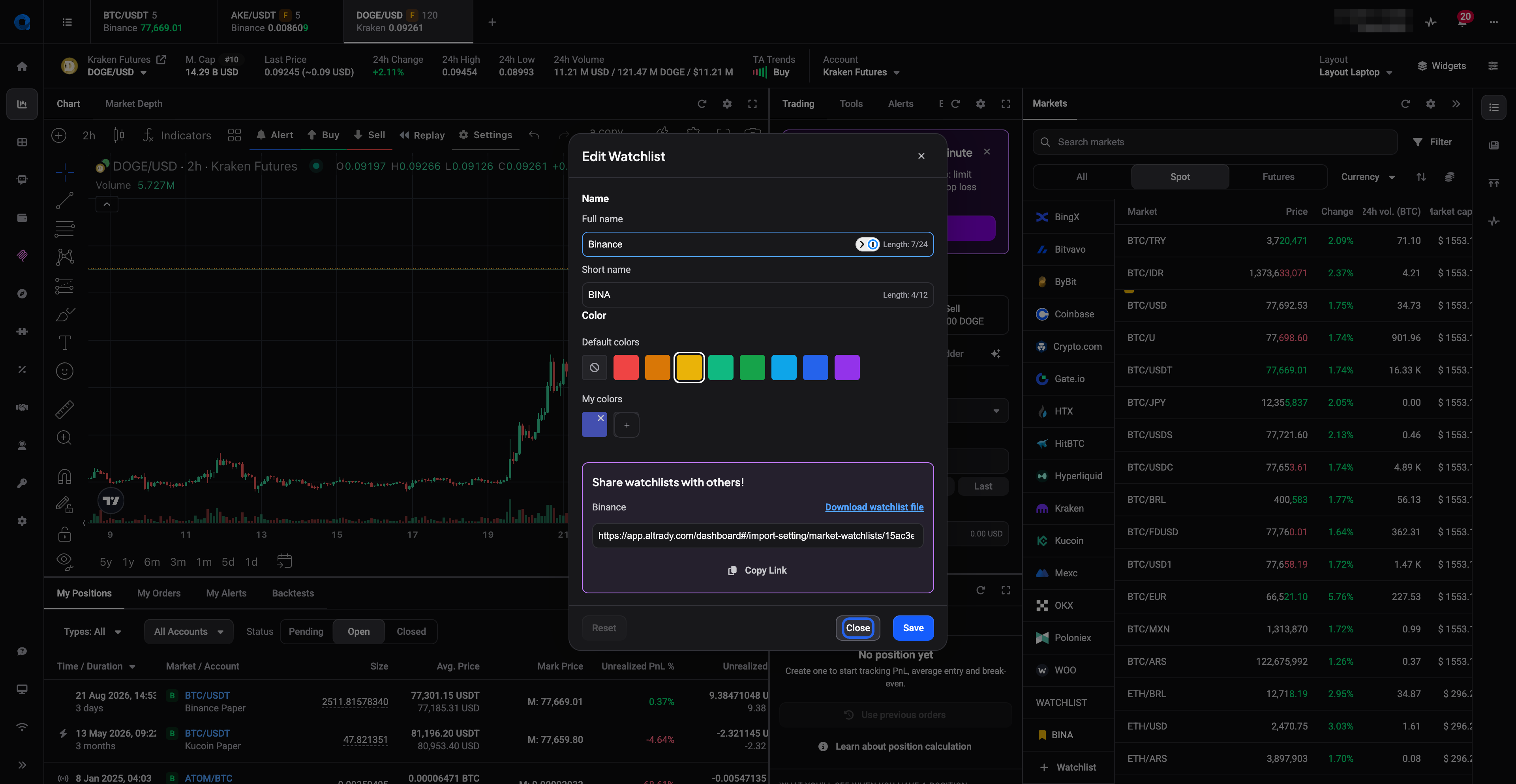 🔍 Click the image to see a larger version
Reorder or hide your watchlists
New watchlists are added to the bottom of the list, but the order is yours to change, so the list you check every morning can sit at the top.
- Click the settings (gear) icon at the top of the Markets panel to open Markets Settings.
- Find the Watchlists section.
- Grab the handle on the left of a watchlist row and drag it up or down.
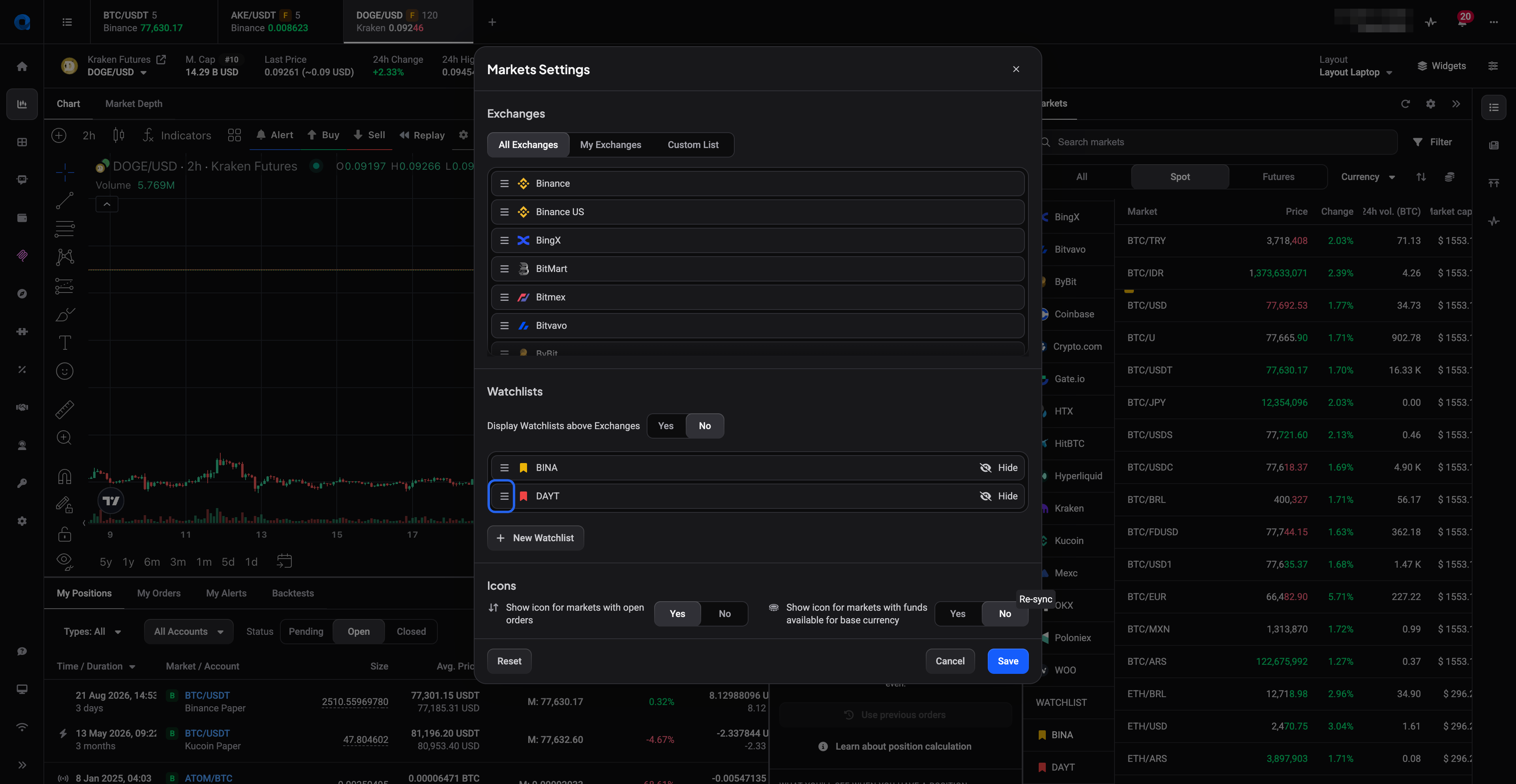 🔍 Click the image to see a larger version
- Click Save. The Markets panel picks up the new order right away.
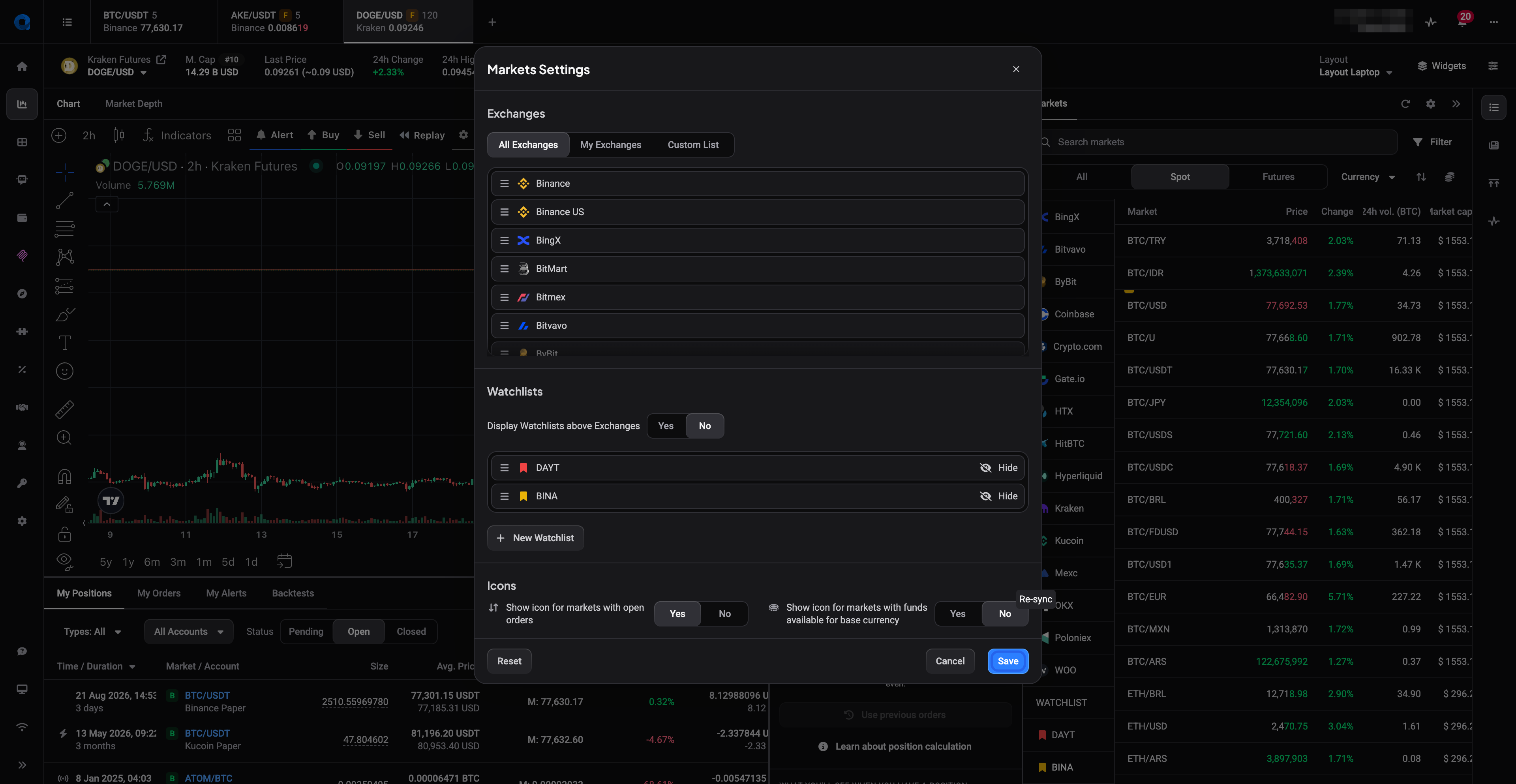 🔍 Click the image to see a larger version
Two more layout options live in the same place. Hide on a watchlist row keeps the list intact but takes it out of the Markets panel, handy for lists you only use now and then. And Display Watchlists above Exchanges pushes your watchlists to the top of the panel, above the exchange list. Both are display preferences: neither one changes what’s in a list.
Share a watchlist, or import one
A watchlist can travel to someone else, or to your own second account.
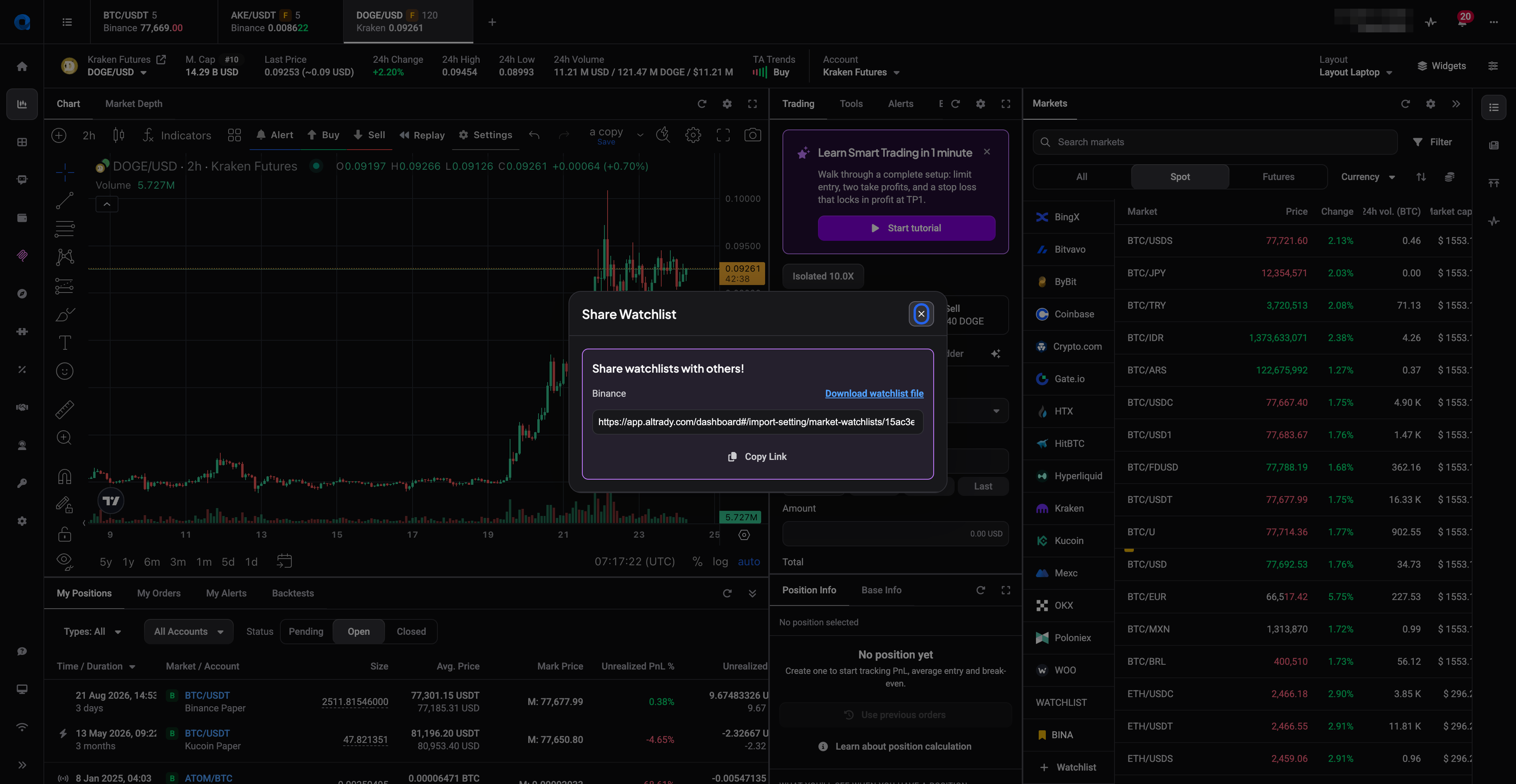
To share, right-click the watchlist and choose Share Watchlist. You get a link you can hand out with Copy Link, and a Download watchlist file option that saves the list as a file. The same panel sits at the bottom of the Edit Watchlist modal.
 🔍 Click the image to see a larger version
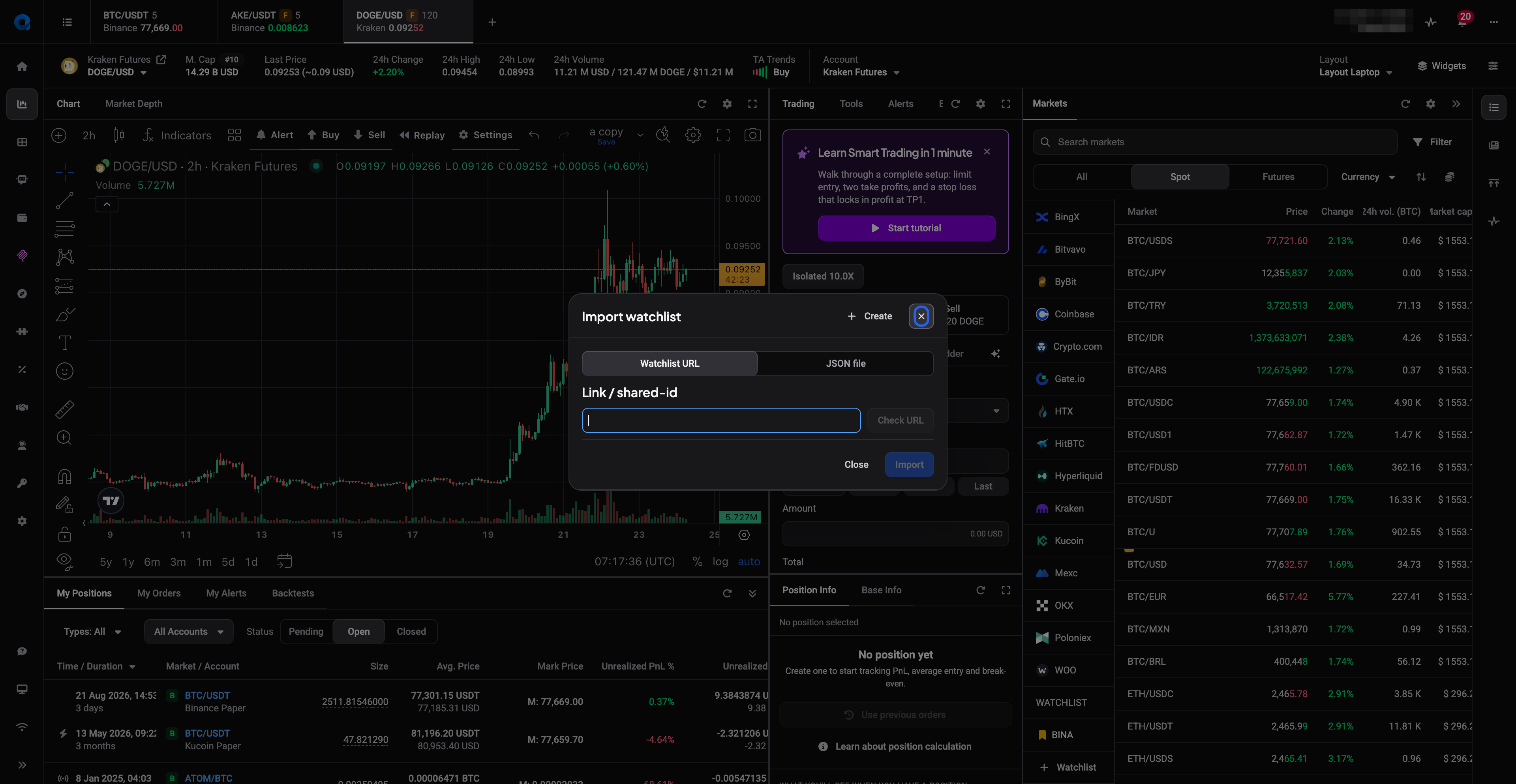
To bring a list in, right-click any watchlist and choose Import (the Create Watchlist modal has an Import link in its header too). Paste a share link or shared-id on the Watchlist URL tab and click Check URL, or switch to the JSON file tab to pick up a downloaded watchlist file. Then click Import, and the list is added alongside your own.
 🔍 Click the image to see a larger version
A share link is public: anyone who has it can see the markets on the list. Your balances, positions, orders and API keys are never part of it. There’s more to sharing than the link itself, so it’s worth reading Share a watchlist before you send one out.
Clear a watchlist vs. deleting it
These do different things, so pick the one you actually want:
- Remove all markets from watchlist empties the list but keeps it around, ready to fill again.
- Delete watchlist removes the list itself.
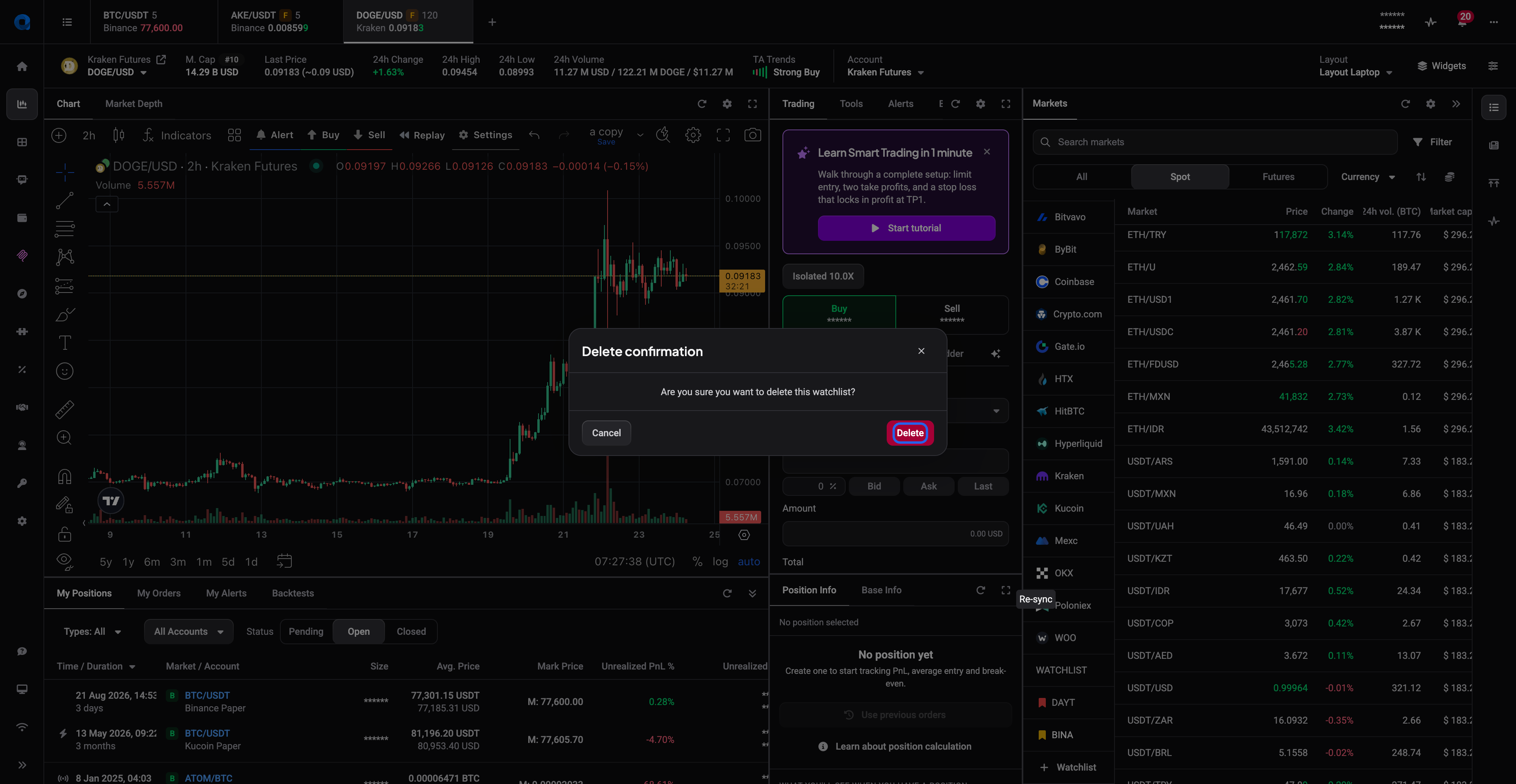
If the watchlist still has markets in it, both ask you to type the watchlist’s name to confirm, so a stray click never wipes a list by accident. An empty watchlist skips that step, you just get a plain “Are you sure?” confirmation. Deleting a watchlist only removes its colored labels from your markets, it does not touch the markets or your exchange data in any way.
 🔍 Click the image to see a larger version
Still stuck?
If a watchlist isn’t behaving the way you expect, reach out through support chat inside Altrady and we’ll take a look with you. Keep in mind that deleting a watchlist is permanent, we can’t restore it on our end. If you want a safety net before making changes, use Download watchlist file in the Share Watchlist panel to save a copy you can re-import later.