
How do I organize accounts and wallets into portfolio folders?
Folders let you group your exchange accounts and external wallets in the My Accounts sidebar on the Portfolio page, so a long list of connections becomes easier to scan. They are purely organizational: a folder does not merge balances or change what an API key can do.
Create a folder
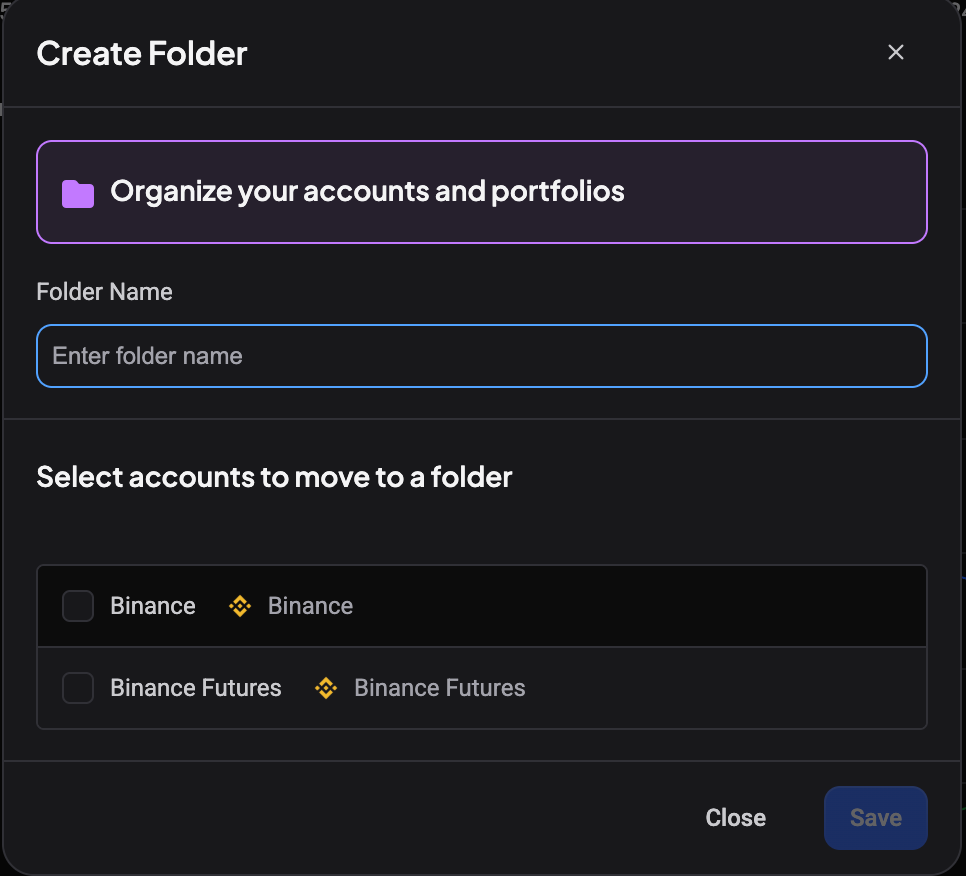 🔍 Click the image to see a larger version
- Open the Portfolio page and look at the My Accounts sidebar.
- Select the arrow next to + Add, then choose Folder. The Create Folder dialog opens.
- Type a name in Folder Name.
- Optionally, under Select accounts to move to a folder, tick the accounts you want to place inside it right away.
- Select Save.
That is all a folder needs. There is no limit on how many accounts or wallets you can put in one, and no separate settings to configure.
Move an account or wallet into a folder later
 🔍 Click the image to see a larger version
You do not have to decide when you create the folder. To move a connection in afterwards:
- In the My Accounts sidebar, find the account or wallet.
- Select its ⋮ menu and choose Move to folder.
- Pick the folder, then confirm.
The account or wallet now appears nested under that folder in the sidebar. Repeat for as many as you like: each one can belong to only one folder at a time.
Take something out of a folder
Open the same Move to folder menu on that account or wallet and choose None (or the empty option) from the folder list. That moves it back out to the main, ungrouped list. Its balances and history are untouched, since a folder is only a grouping.
What folders don’t do
It is worth being clear about this, since the name can be misleading: a folder is a view. It groups items in the sidebar so you can read your totals per group and keep the list tidy. It does not:
- Merge balances from separate accounts into one number.
- Change trading permissions on an API key.
- Affect what an external wallet can see (wallets are watch-only regardless of folder).
If you are trying to see one combined balance for multiple accounts on the same exchange (for example, two Binance sub-accounts), that is a different feature: connecting multiple API keys for the same exchange. See Run multiple accounts on the same exchange for how that works.
Rename or remove a folder
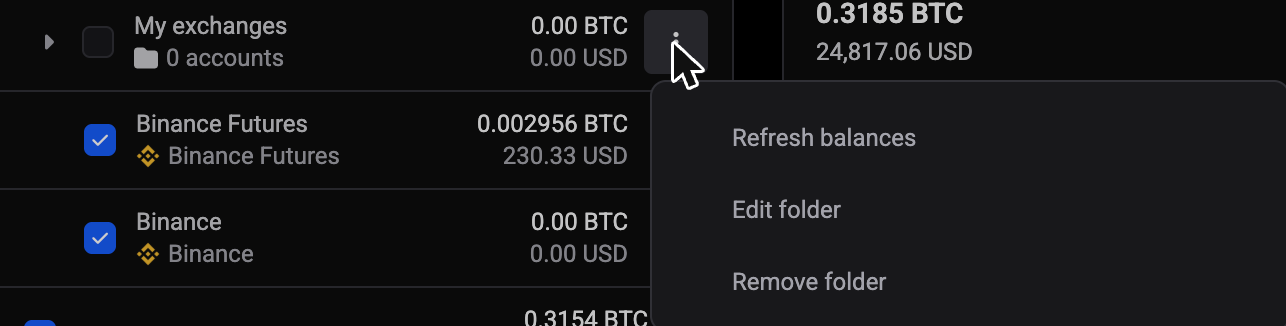 🔍 Click the image to see a larger version
Open the folder’s ⋮ menu in the My Accounts sidebar to rename it or remove it. Removing a folder deletes only the folder: the accounts and wallets that were inside it are not removed, they simply drop back to the main list.
Still stuck?
If a folder is not showing the accounts or wallets you expect, or an item will not move, reach out through support chat in the app and the team can take a look.