
Entering a position at a trendline
You can tell Altrady to place your entry only when price reaches a trendline you drew on the chart, or to cancel a waiting entry if price reaches a line first. Because the line is sloped, the trigger price moves along with it. Setting it up takes about a minute.
Send a trendline to the Trading widget
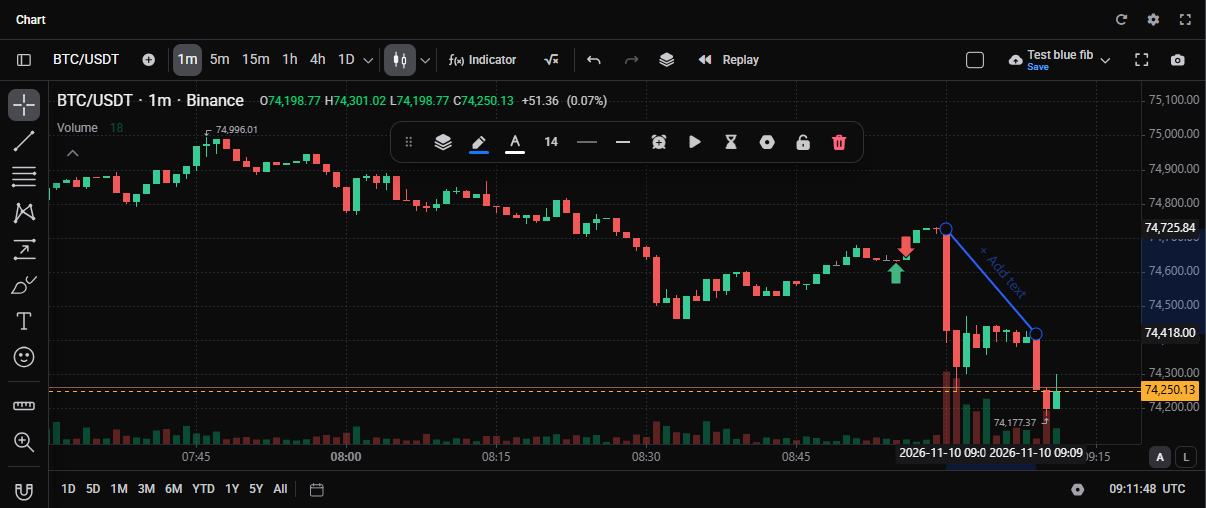 🔍 Click the image to see a larger version
- Open the chart of the market you want and draw a line with the drawing tools. A trend line, a ray and an extended line all work.
- Click the line to select it. A small toolbar appears next to it.
- Click Start position at this line (the play icon) to wait for price to reach the line before the entry is placed. Or click Cancel entry at this line (the hourglass icon) to cancel a pending entry if price reaches the line first.
The Trading widget comes to the front with a copy of your line in a Start position at card (or an Expire position at card, if you used the hourglass). The two buttons only show while trading is available on the chart, and the line needs two points at different times.
Finish the order
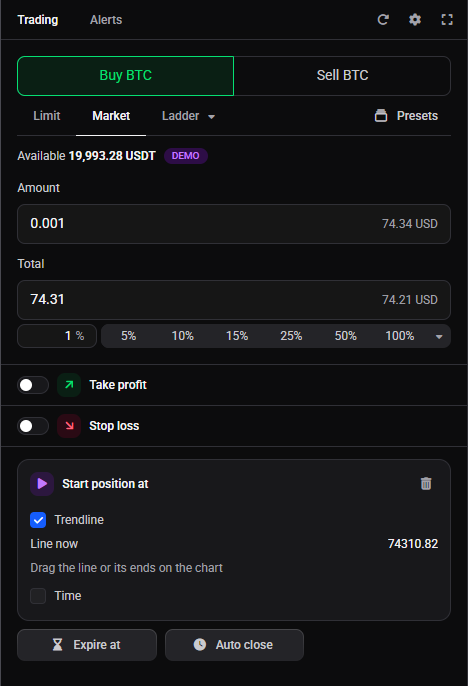 🔍 Click the image to see a larger version
In the Trading widget, the Start position at card shows Trendline ticked. Line now is the price of the line at this moment, and it changes as time passes. Once you click out of the card, it collapses to a summary such as Start position at with “trendline, 64,250 now” underneath. Click the summary to open it again.
- Choose the order type (Limit or Market), the side and the size, as you would for any order.
- Optionally switch on Take profit and Stop loss.
- Click the Buy or Sell button at the bottom of the widget (for example Buy BTC), then click Confirm in the Confirm orders window.
Until price reaches the line, the position waits. In My Positions you find it under the Pending filter. The entry order is not on the exchange yet, so your available balance does not change, even though the position lists its amount under Reserved. The trigger can sit above or below the current price. For how a pending start behaves in general, see Smart order timing: Start position at, expiry, and auto-close.
Start from the Trading widget instead
You don’t need a drawn line first. In the Trading widget, click Start at under Stop loss, then tick Trendline in the Start position at card that opens. Altrady puts a flat line on the chart at the current price, running over the last 30 candles. Drag the line, or either end of it, to where you want it. The chart labels it Start at line.
Cancel an entry at a trendline
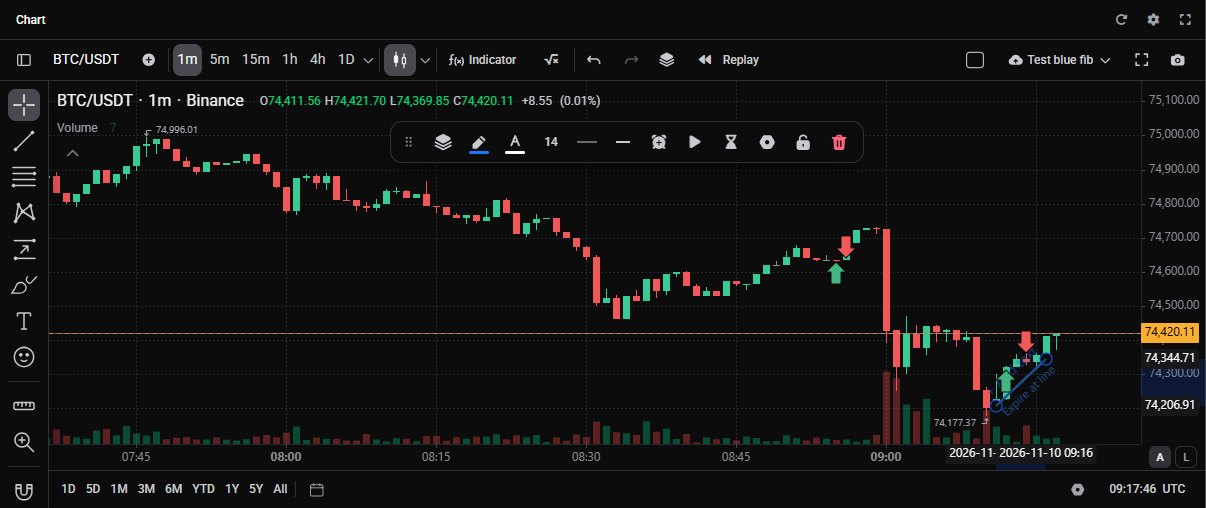 🔍 Click the image to see a larger version
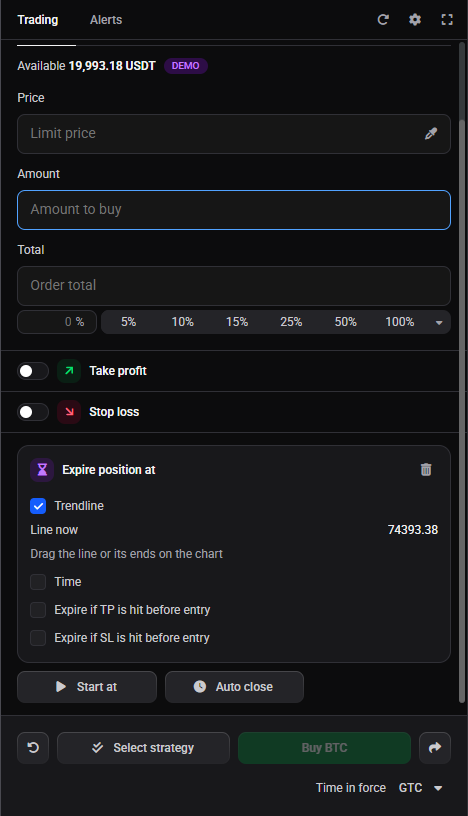 🔍 Click the image to see a larger version
If your entry has not filled yet, a trendline can cancel it. Click Expire at under Stop loss, then tick Trendline in the Expire position at card. The card starts with Price ticked, so switch to Trendline. You can also use Cancel entry at this line on a drawn line, which ticks it for you. The chart labels the line Expire at line. If price reaches it before the entry fills, Altrady cancels the pending entry.
Once an entry has filled, or partly filled, the expiry no longer applies. You can also tick Expire if TP is hit before entry or Expire if SL is hit before entry in the same card.
Combine a line with a time
In the Start position at card you can tick Time next to Trendline. Pick the date and time, or next to In enter a number of Minutes, Hours or Days from now. Then choose the Operator: AND starts the position only when both are met, OR as soon as either is. OR is the default.
Good to know
- The line continues past both of its points at the same slope, so the trigger keeps following it as time passes.
- If you see “Draw the trendline with two points at different times and prices above 0”, move the ends of the line apart.
- Once a position has started, its start trigger can’t be changed. To drop a trigger before that, click the bin icon on its card.
- A trendline start uses price reaching the line. If you want a candle to close beyond a fixed price first, tick Candle close on a Price start instead.
Still stuck?
If the buttons don’t show on your line, check that the Trading widget is part of your layout and that the line has two points at different times. Otherwise reach out through support chat in the app and the team can take a look.