
Connect KuCoin
Linking your KuCoin account lets Altrady see your balances and place trades on your behalf. You have two ways to do this: the easy way (Fast Connect) and the manual way (creating an API key yourself in KuCoin). We recommend Fast Connect if it’s available to you; it takes care of everything automatically.
Before you start, it helps to know what an API key actually does. If you’d like the background, read API Keys Explained.
Before you trade KuCoin Futures
KuCoin Futures has a couple of essential setup steps — especially setting your margin mode on KuCoin first. See Trading Futures on KuCoin at the end of this guide before your first futures trade.
The easy way: Fast Connect
Fast Connect logs you into KuCoin securely and automatically creates and configures the API key for you, with the right permissions and Altrady’s IP whitelist already applied. You don’t need to copy or paste anything.
Fast Connect only works for new trading accounts. If you’re updating an API key on an account you already connected, skip down to the Manual Connection steps below (Step 7 onward).
-
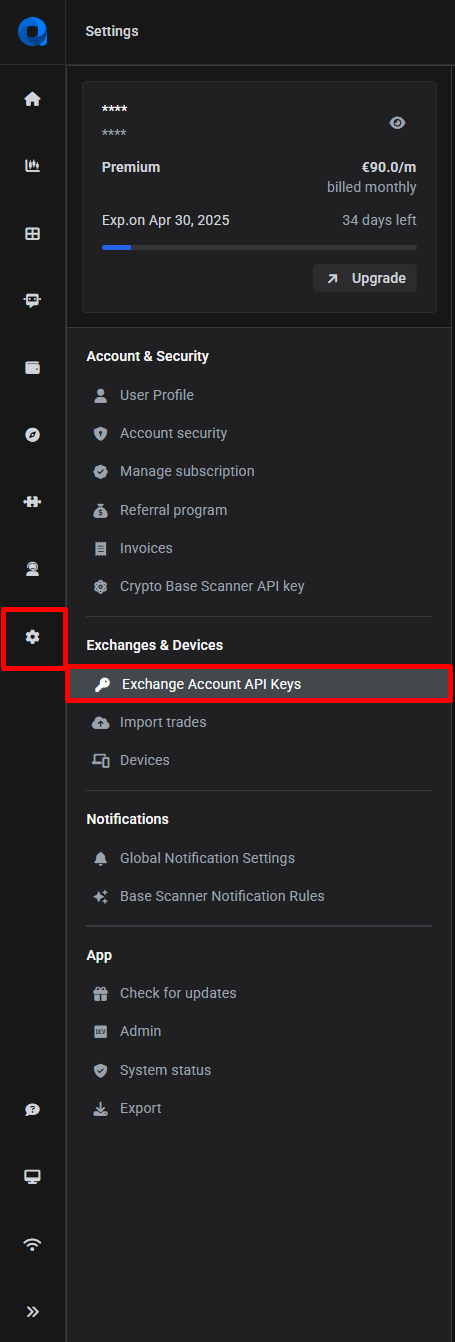
In Altrady, click Settings in the left side panel, then click Exchange Account API Keys.
 🔍 Click the image to see a larger version
-
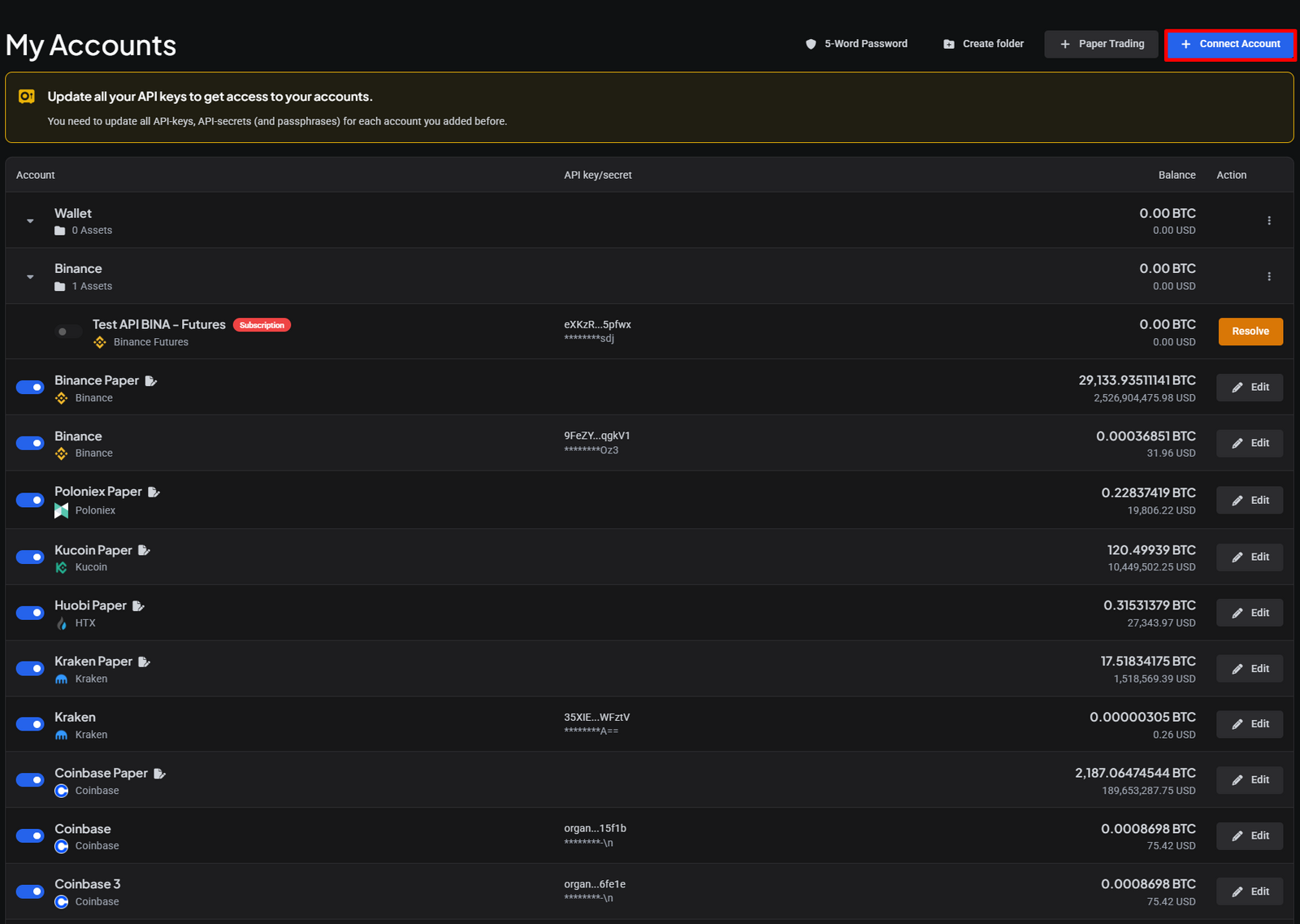
Click +Add Account.
 🔍 Click the image to see a larger version
-
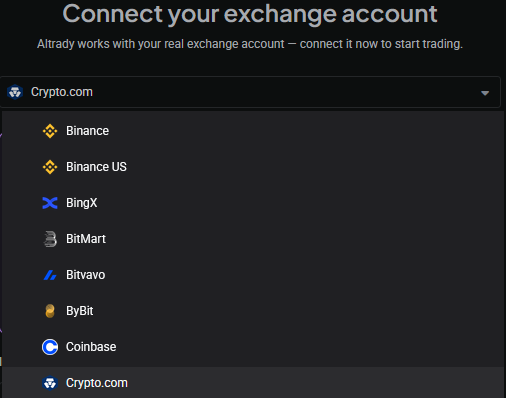
Select KuCoin from the dropdown list.
 🔍 Click the image to see a larger version
-
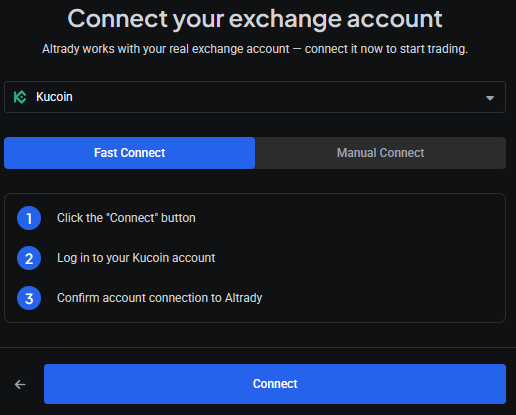
Make sure Fast Connect is selected, then click Connect. You’ll be redirected to the KuCoin login page. If you’re already logged into KuCoin in the same browser, you won’t need to log in again.
 🔍 Click the image to see a larger version
While you’re being redirected, you may briefly see a screen like this. If it doesn’t redirect automatically, or takes a while, just click the KuCoin Fast Connect button on it to move things along.
🔍 Click the image to see a larger version
While you’re being redirected, you may briefly see a screen like this. If it doesn’t redirect automatically, or takes a while, just click the KuCoin Fast Connect button on it to move things along.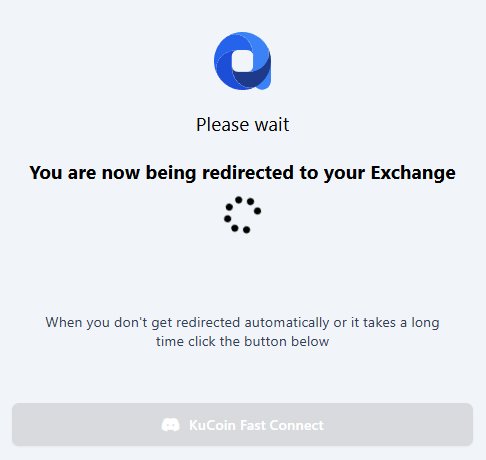 🔍 Click the image to see a larger version
-
Choose your login method, enter your details, and click Next. If you log in with email/phone or a sub-account, you’ll also need to enter your password.
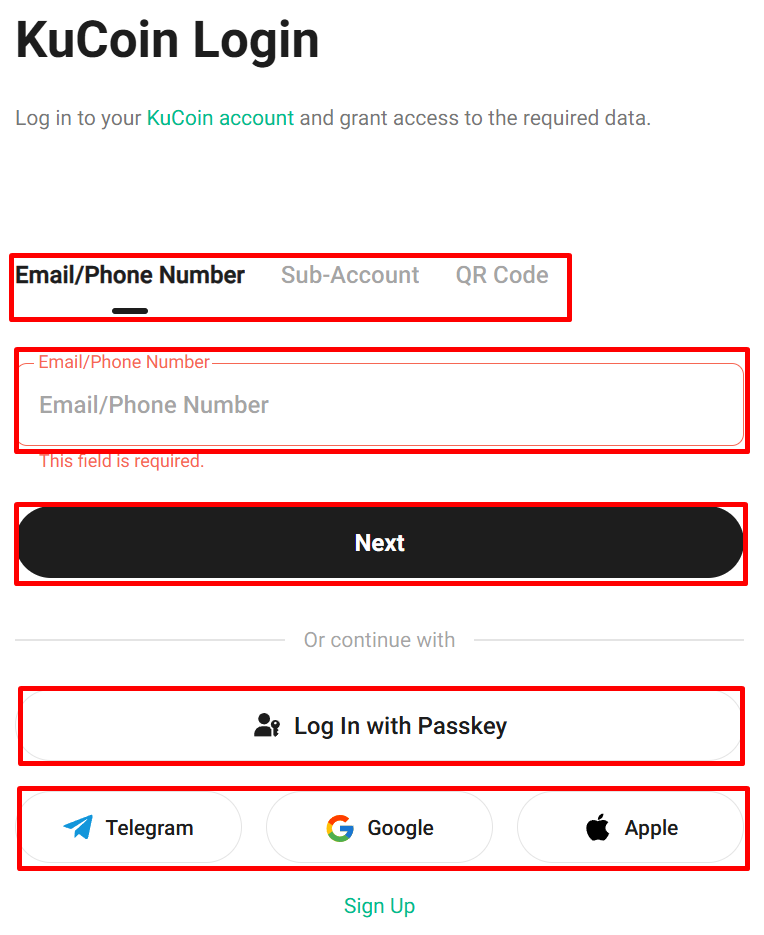 🔍 Click the image to see a larger version
-
After you complete verification, KuCoin will ask you to grant Altrady access to create the Fast Connect API key. Tick the box shown, then click Confirm.
A Spot trading account is created in Altrady automatically, with the correct permissions. A Futures account is created too if your KuCoin account has Futures trading enabled. Altrady’s IP whitelist is applied automatically; you don’t have to do anything for that part.
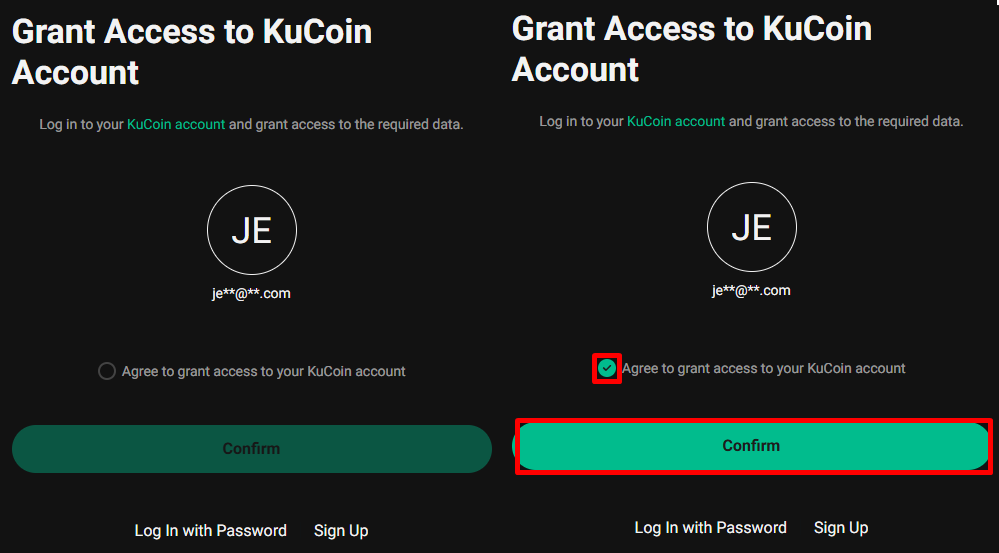 🔍 Click the image to see a larger version
-
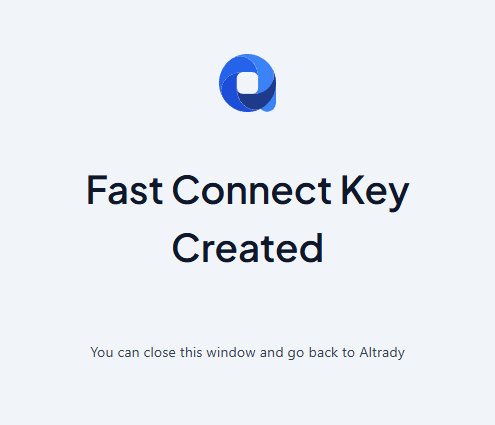
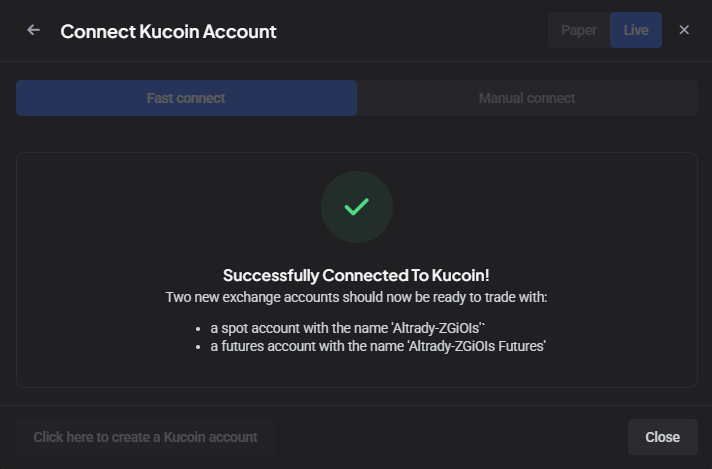
When the key is created successfully, you’ll see confirmation messages: first on the KuCoin page, then in Altrady. You can safely close that window.
 🔍 Click the image to see a larger version
 🔍 Click the image to see a larger version
-
Your new KuCoin trading account now appears on the Exchange Account API Keys page. You can rename it any time by clicking Edit and changing the Account Label.
 🔍 Click the image to see a larger version
-
If your balance doesn’t show up right away, see the Syncing Balances section near the bottom of this article.
The manual way: creating an API key yourself
Prefer to do it step by step? Here’s how to create the key in KuCoin and add it to Altrady yourself.
-
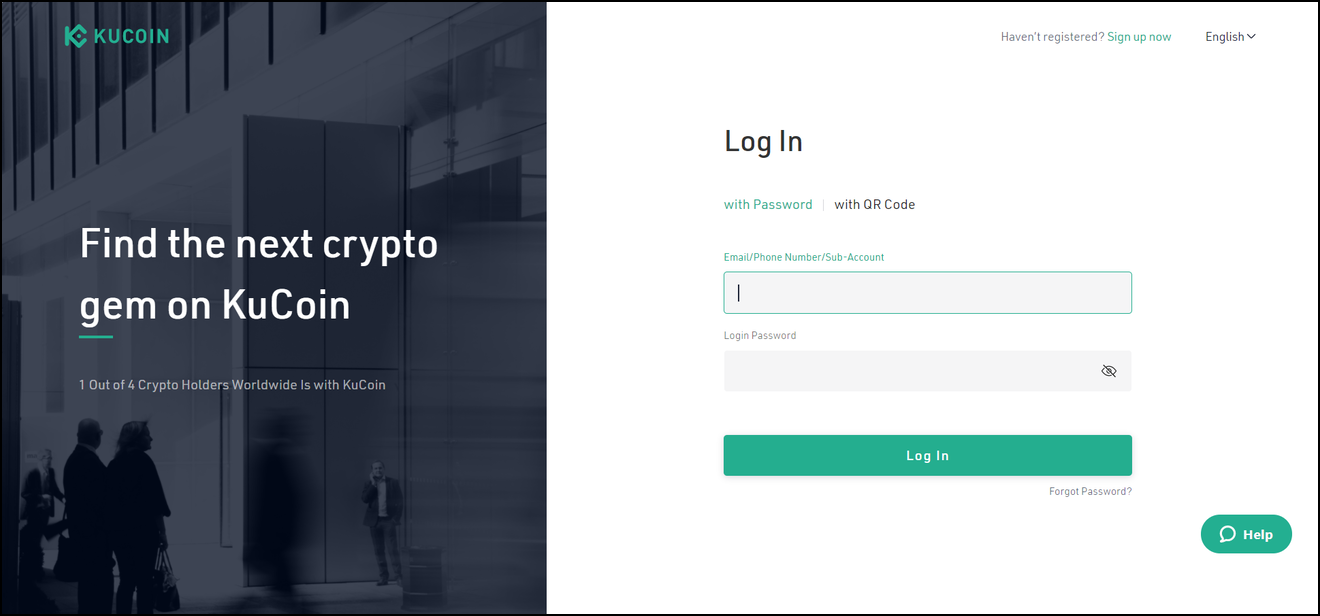
Log into KuCoin.
 🔍 Click the image to see a larger version
-
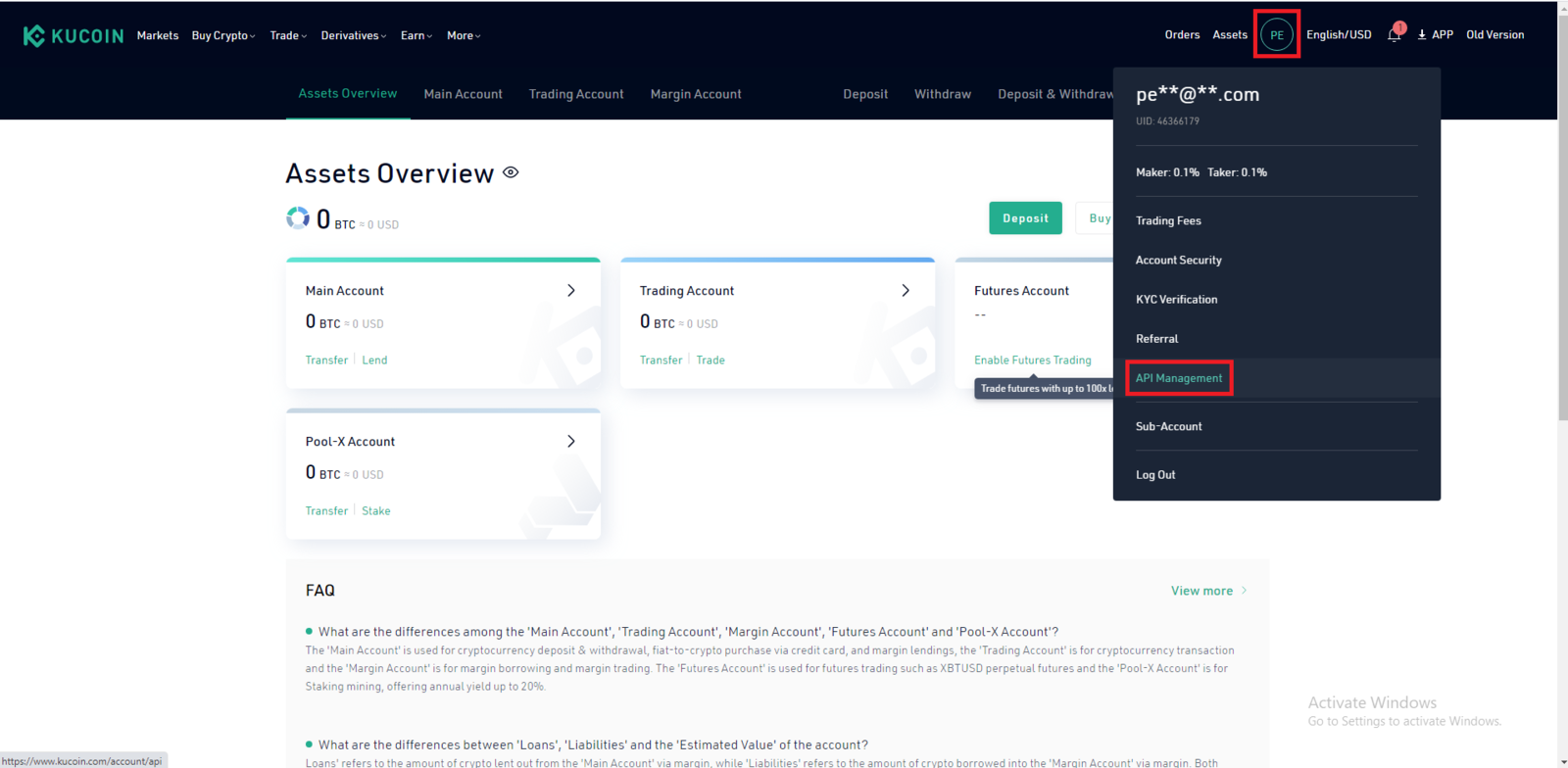
Click your profile icon in the top-right corner, then select API Management from the dropdown menu.
Before you can create an API key, KuCoin requires you to turn on two security features: SMS Verification or Google Verification, and a Trading Password.
 🔍 Click the image to see a larger version
-
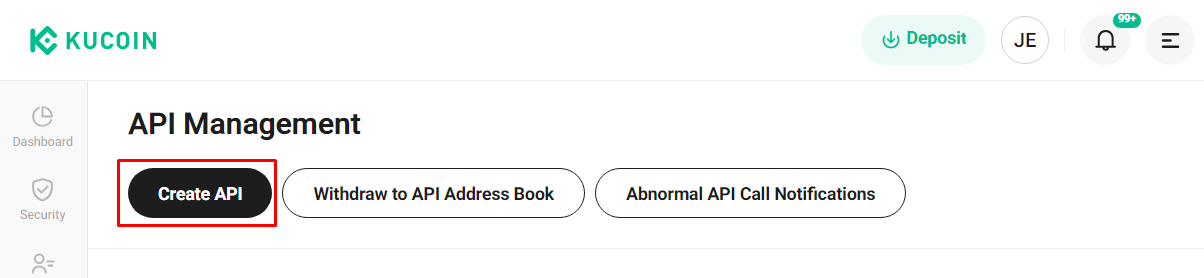
Click Create API.
 🔍 Click the image to see a larger version
-
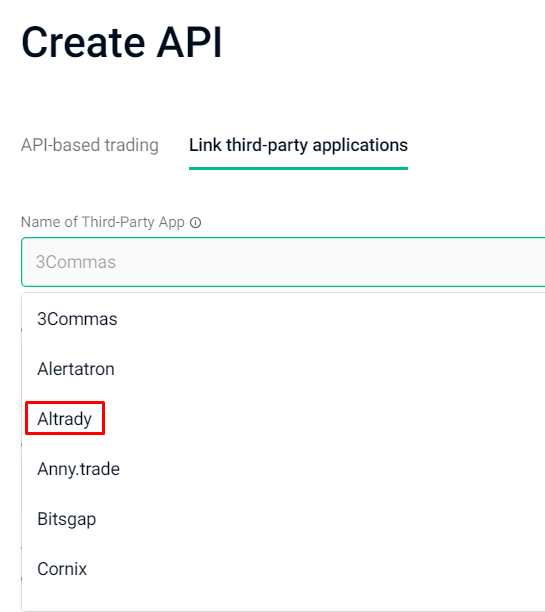
Select Link Third-party applications, then choose Altrady from the dropdown list.
Using the Third-Party Application option automatically applies Altrady’s IP whitelist to your account, one less thing to set up. If you’d rather do it the standard way, you can copy the IP whitelist addresses from Altrady into KuCoin instead; see API Keys Explained for details on IP whitelisting.
 🔍 Click the image to see a larger version
-
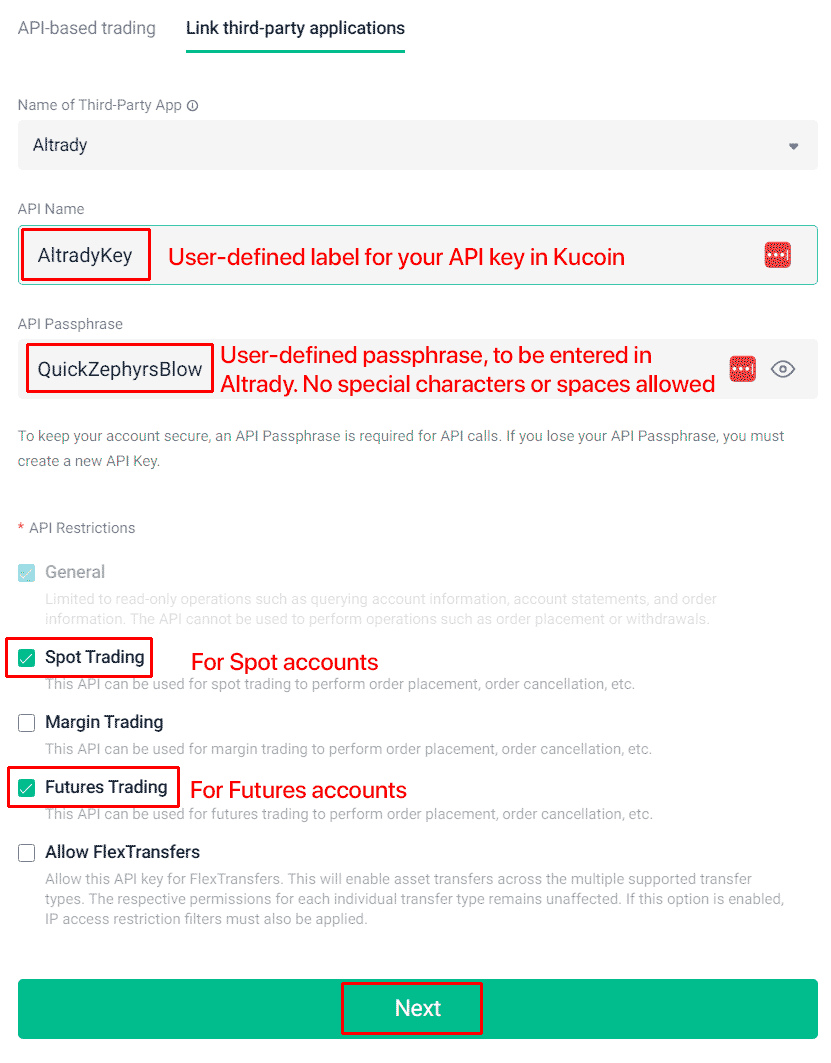
Enter a label for the API key and set a Passphrase. You’ll need this passphrase again when you add the key to Altrady, so keep it handy. The passphrase can only contain letters and numbers; no spaces or special characters.
Enable either Spot or Futures trading permissions, depending on what you want to trade. Altrady never needs withdrawal permission to work, so you can safely leave any withdrawal-related permission switched off.
 🔍 Click the image to see a larger version
-
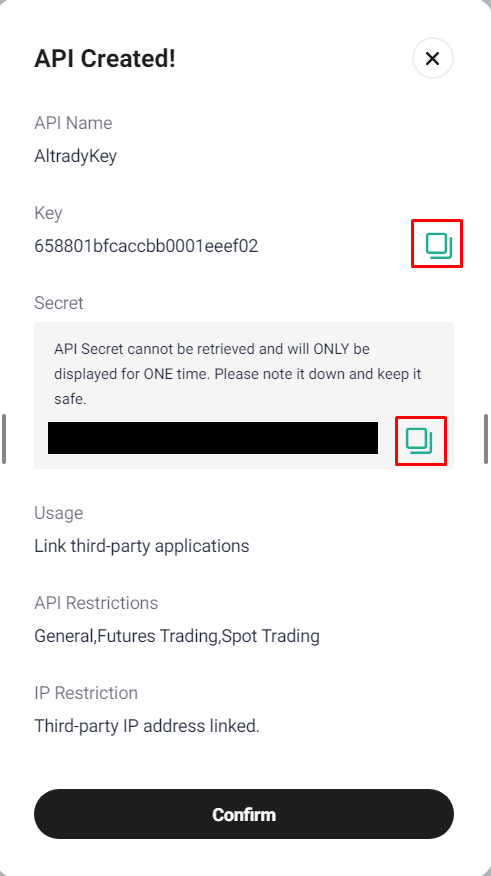
KuCoin will show you your API key and Secret key in a pop-up window. Copy both somewhere safe, or just keep this window open; you’ll need them in the next step.
 🔍 Click the image to see a larger version
-
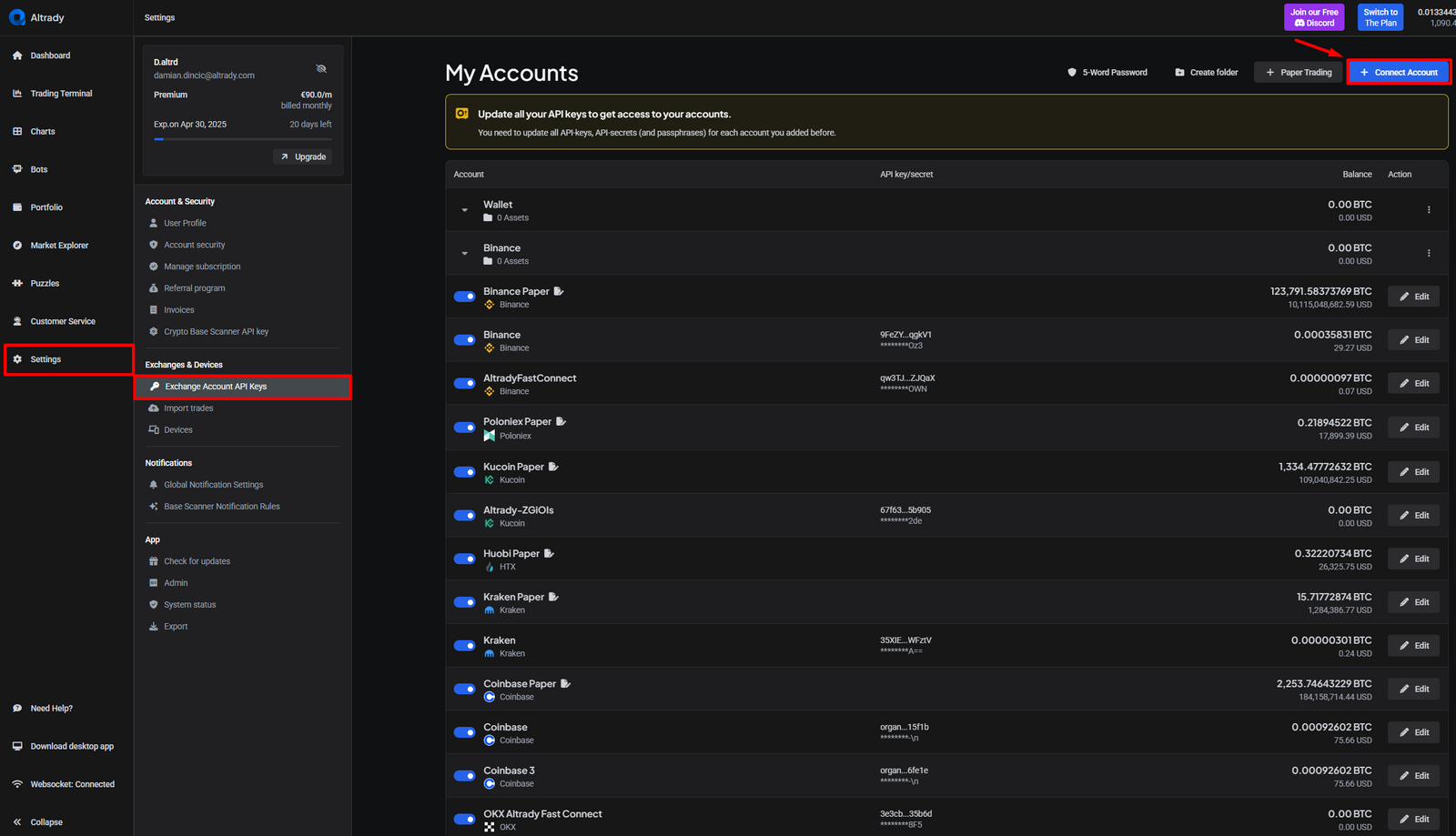
In Altrady, go to Settings > Exchange account API Keys in the left sidebar.
If you’re changing or deleting an existing KuCoin key, skip ahead to Step 12 below. To add a new key, keep following these steps.
Click +Connect Account in the top-right corner.
 🔍 Click the image to see a larger version
-
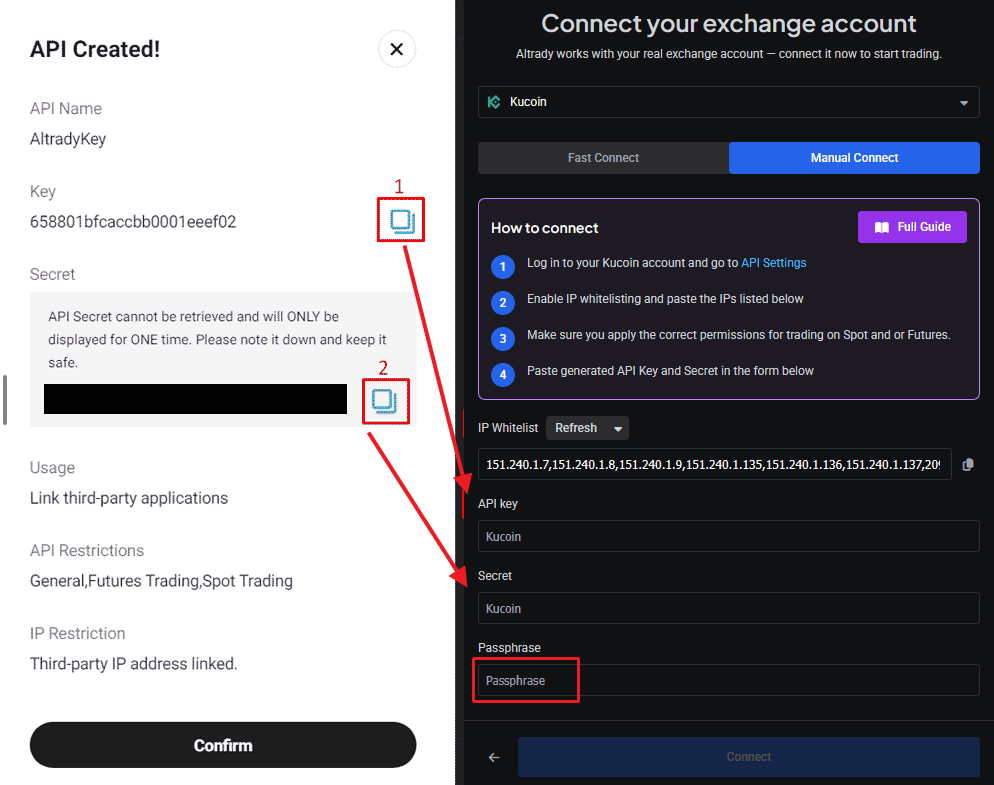
In the window that appears, give your API key a label and select KuCoin or Kucoin Futures from the exchange dropdown. Then enter the API Key and Secret key from Step 6, and the Passphrase you created in Step 5.
Click Connect in Altrady, then click Confirm in KuCoin.
 🔍 Click the image to see a larger version
If Futures permissions weren’t enabled on the key in KuCoin, adding a Futures account here won’t work.
🔍 Click the image to see a larger version
If Futures permissions weren’t enabled on the key in KuCoin, adding a Futures account here won’t work. -
In Altrady, click Add.
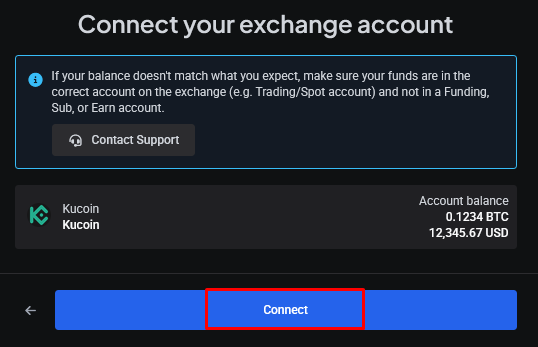 🔍 Click the image to see a larger version
-
Click Next to finish.
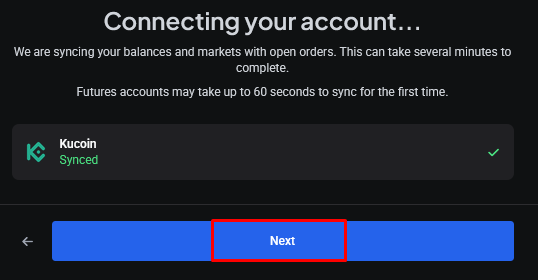 🔍 Click the image to see a larger version
-
That’s it: your KuCoin account is connected. You can edit the details at any time using the Edit button.
 🔍 Click the image to see a larger version
-
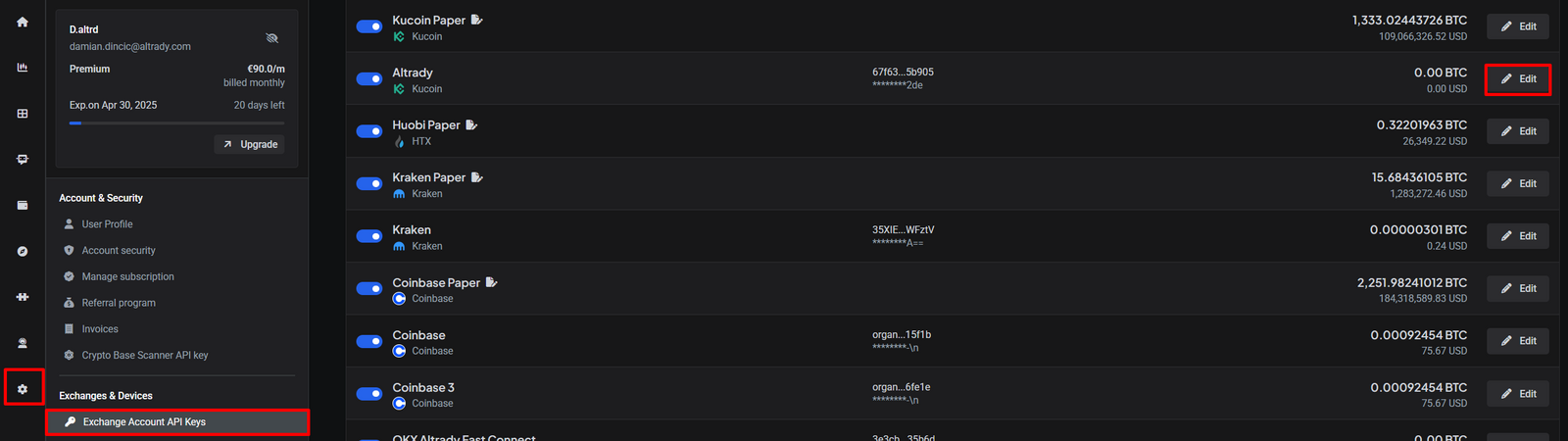
If you need to replace your existing KuCoin API key, use Edit rather than deleting and re-adding; deleting permanently erases your trade history and positions. Click Edit next to the key, replace the API key, secret, and passphrase with the new ones, then click Update.
 🔍 Click the image to see a larger version
Syncing balances
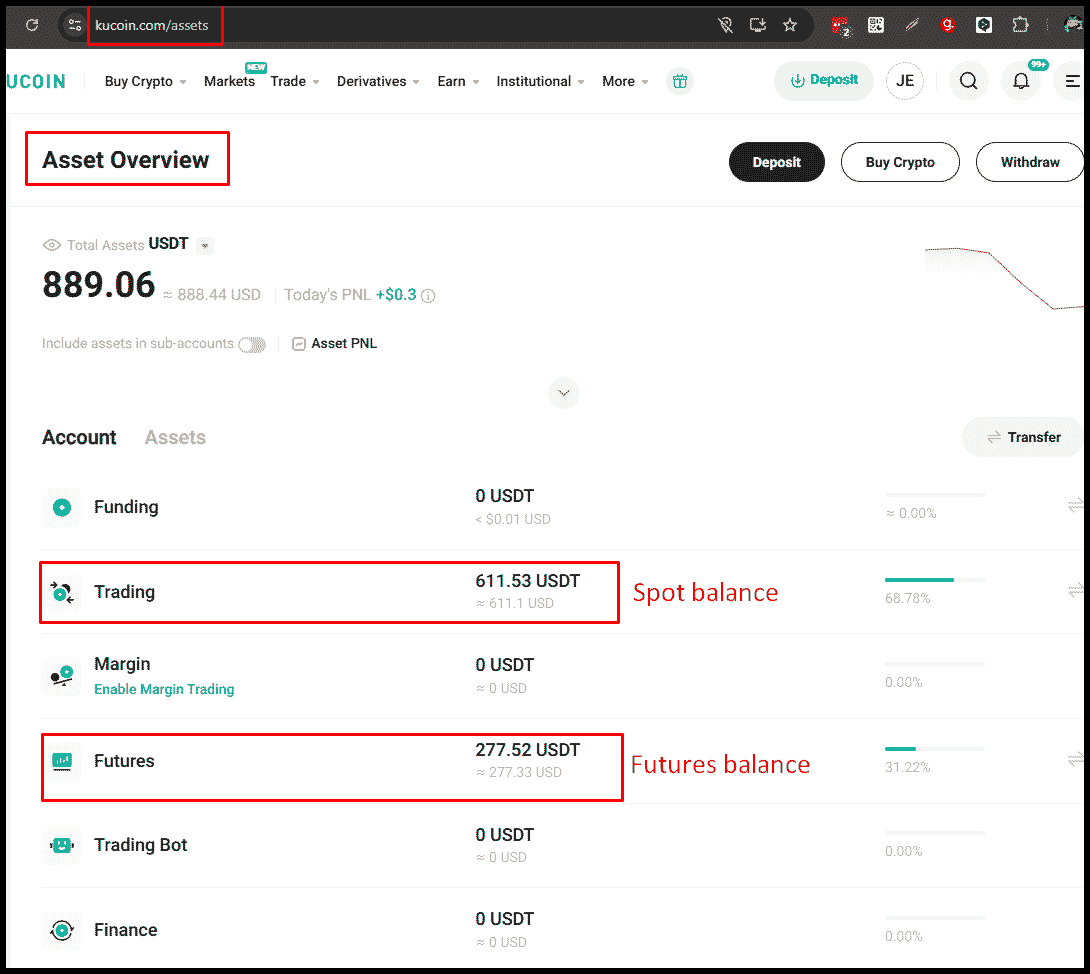
If you can’t see your balance in Altrady, make sure your funds are in your KuCoin Trading account. Funds you’ve just transferred to KuCoin land in the Main account first, not the Trading account.
Still no balance? Check that your funds aren’t sitting in the Funding account instead; assets there aren’t available for trading.
 🔍 Click the image to see a larger version
## Trading Futures on KuCoin
🔍 Click the image to see a larger version
## Trading Futures on KuCoin
Trading KuCoin Futures through Altrady needs a couple of KuCoin-specific steps — do these before your first futures trade.
Set your margin mode to Isolated on KuCoin first. KuCoin’s API can’t switch a market from Cross to Isolated the first time, so you have to do it once on the exchange; after that you can change margin mode freely from within Altrady. (Skip this and changing margin mode in Altrady won’t take effect.)
-
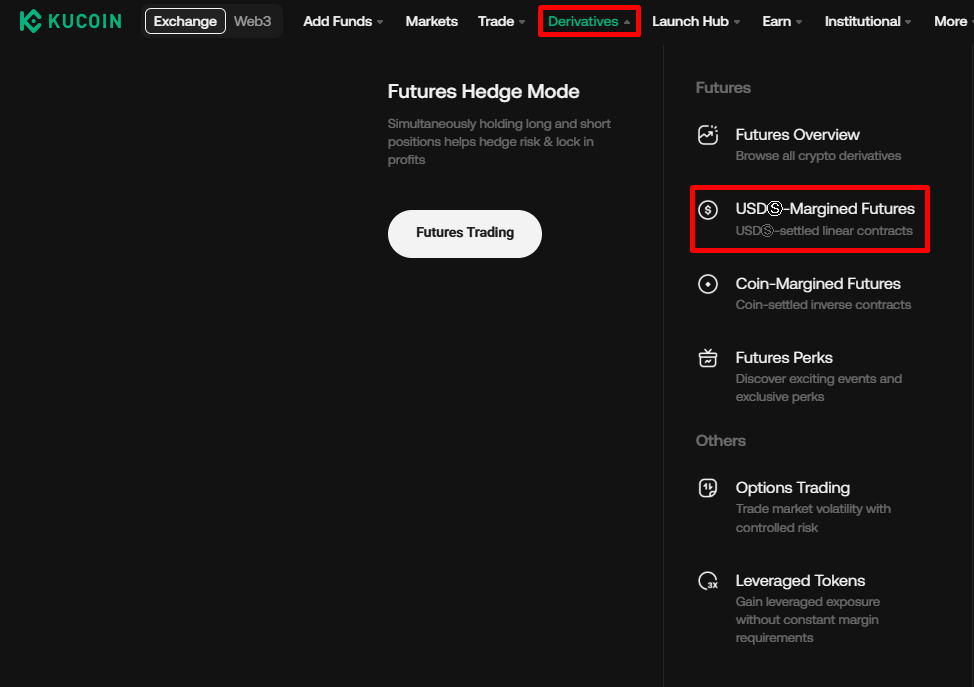
Log into KuCoin and open the derivatives (Futures) trading section.
 🔍 Click the image to see a larger version
-
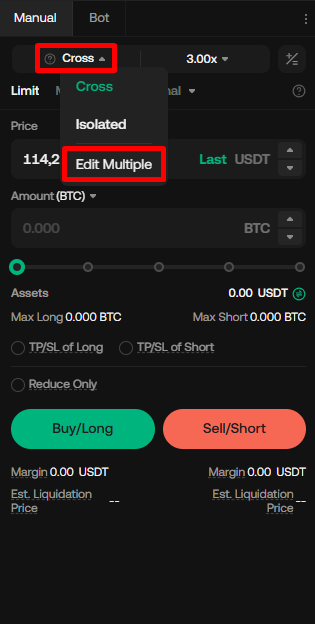
Hover over the current margin mode to reveal its dropdown, and choose Edit Multiple.
 🔍 Click the image to see a larger version
-
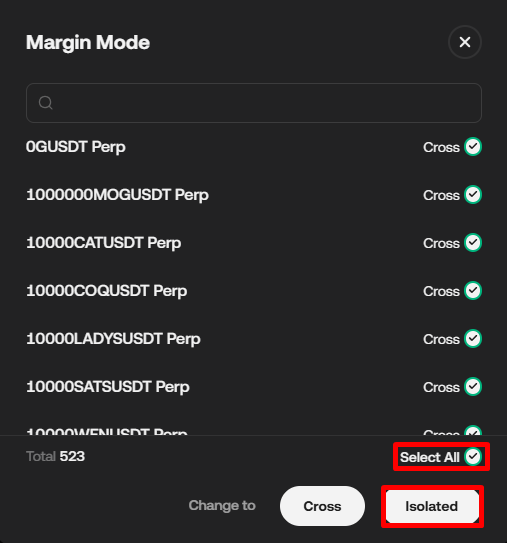
Tick Select All, then click Isolated.
 🔍 Click the image to see a larger version
From then on, only change margin mode within Altrady — change it on KuCoin again and you’ll have to repeat these steps.
Leverage. The maximum leverage when trading by API is 10x. An open KuCoin Futures position’s leverage changes constantly as its PnL changes, so it can read above 10x, which makes the position uneditable by API. If that happens, either wait for the leverage to fall as PnL changes, or edit the position on the exchange directly — but editing on the exchange breaks a smart position, so once leverage is back under 10x, convert the smart position to manual and back to smart to pull the change in.
KuCoin Futures supports one-way mode only (hedge mode is unsupported), with both Cross and Isolated margin.
Having trouble?
If your account still won’t connect or sync, see Connection Problems.