
The bot page: stats, positions and settings on desktop and mobile
Every bot has its own page with its stats, positions, errors and settings. Open it by clicking a bot on the Trading Bots page. The page works the same on desktop and on your phone, with a layout that fits the screen.
The bot page on desktop
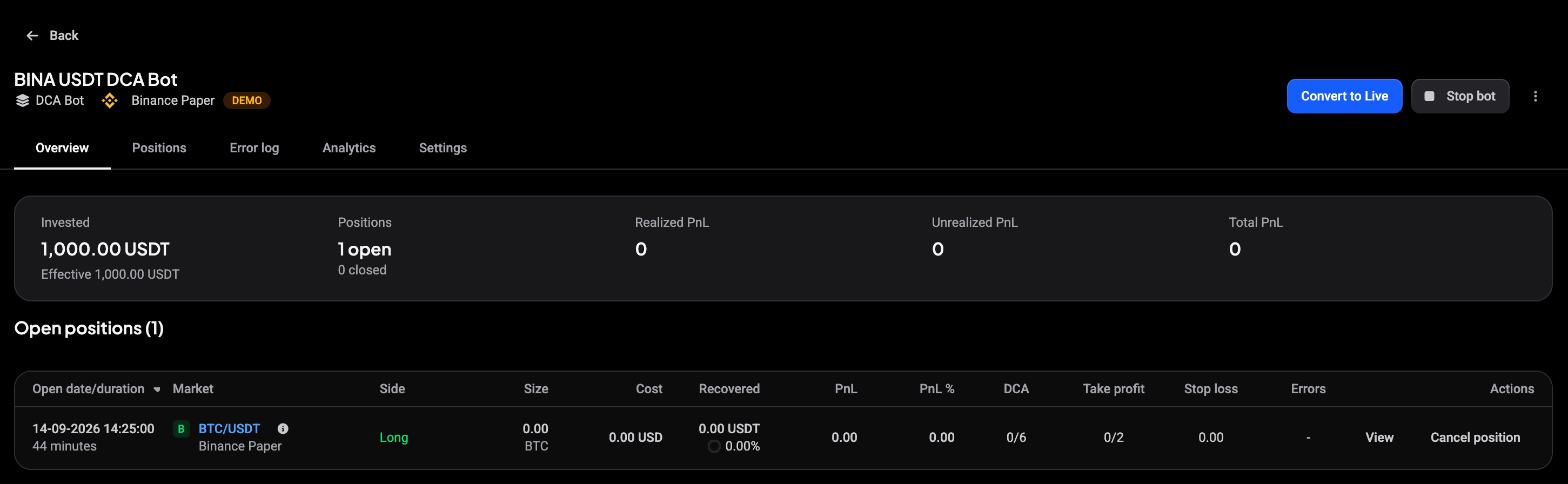
The header shows the bot’s name, its kind, the account and whether it’s a demo. On the right are Convert to Live (for demo bots), Stop bot and a menu with Share, Duplicate and Delete.
The Overview tab starts with the stats: Invested, Positions (open and closed), Realized PnL, Unrealized PnL and Total PnL. Below them, Open positions lists each position with its size, cost, PnL, DCA and take profit progress, stop loss and errors, with View and Cancel position buttons.
 🔍 Click the image to see a larger version
The other tabs:
- Positions: open and closed positions.
- Error log: rejected signals and failed orders.
- Analytics: the bot’s performance over time.
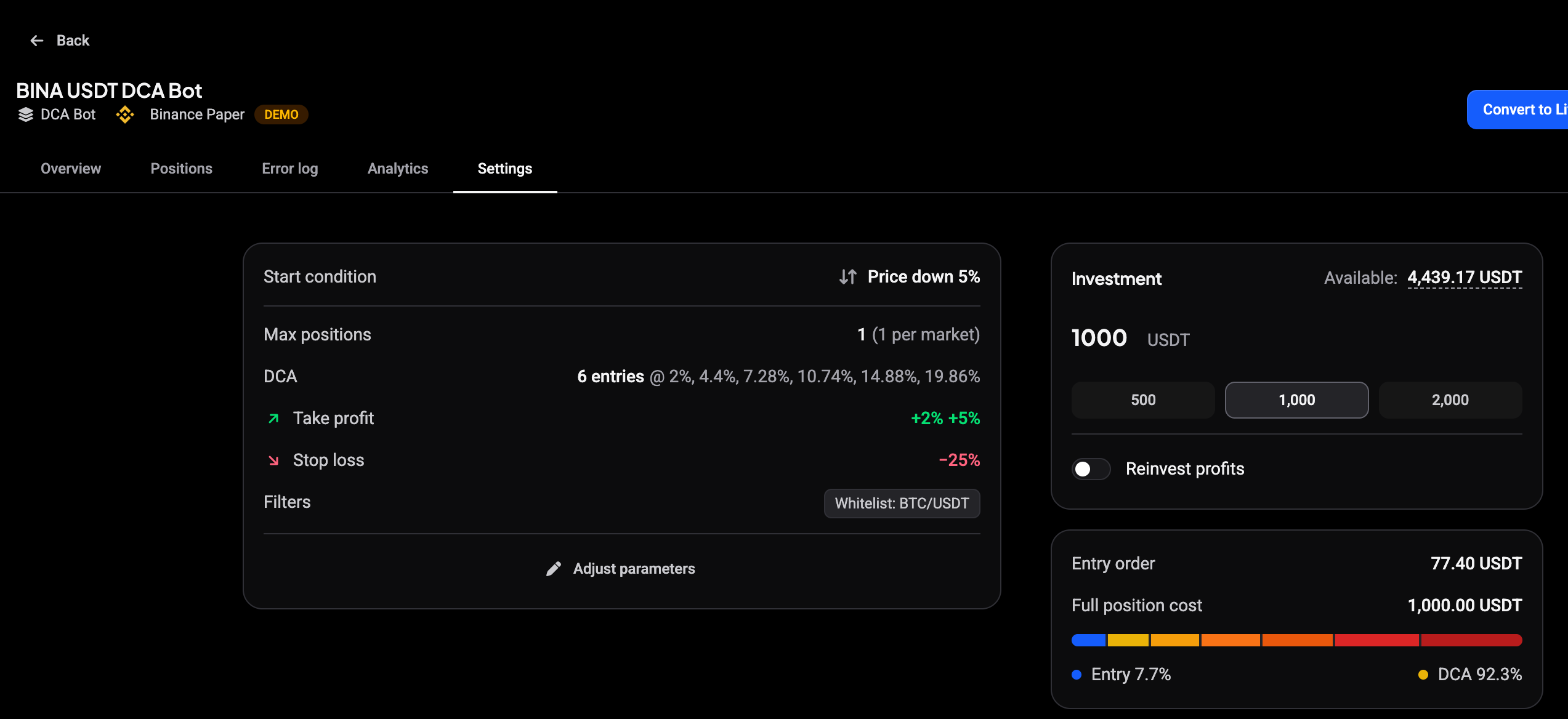
- Settings: the bot’s configuration and investment, with Adjust parameters to change it.
 🔍 Click the image to see a larger version
Change a running bot’s settings
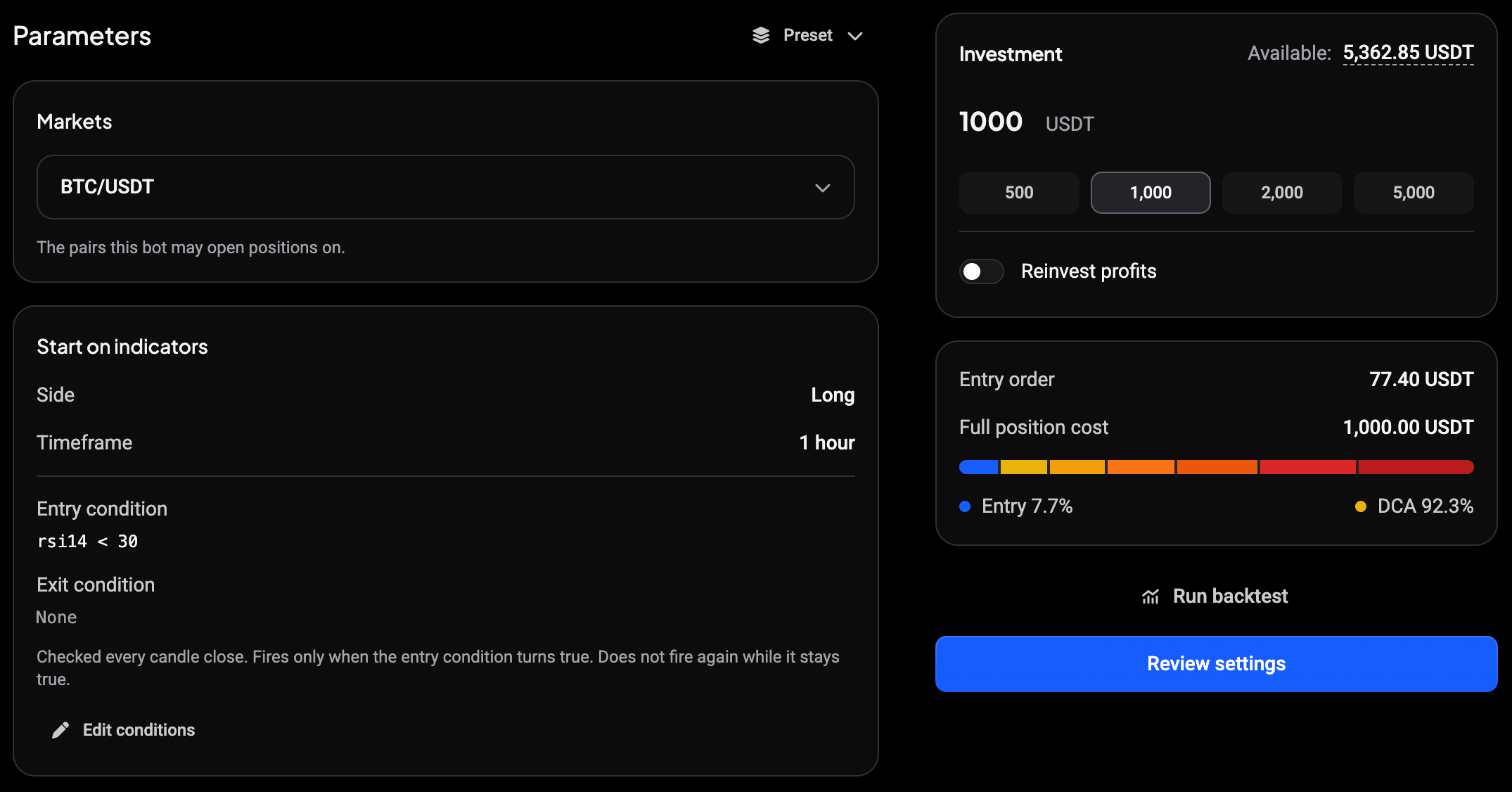
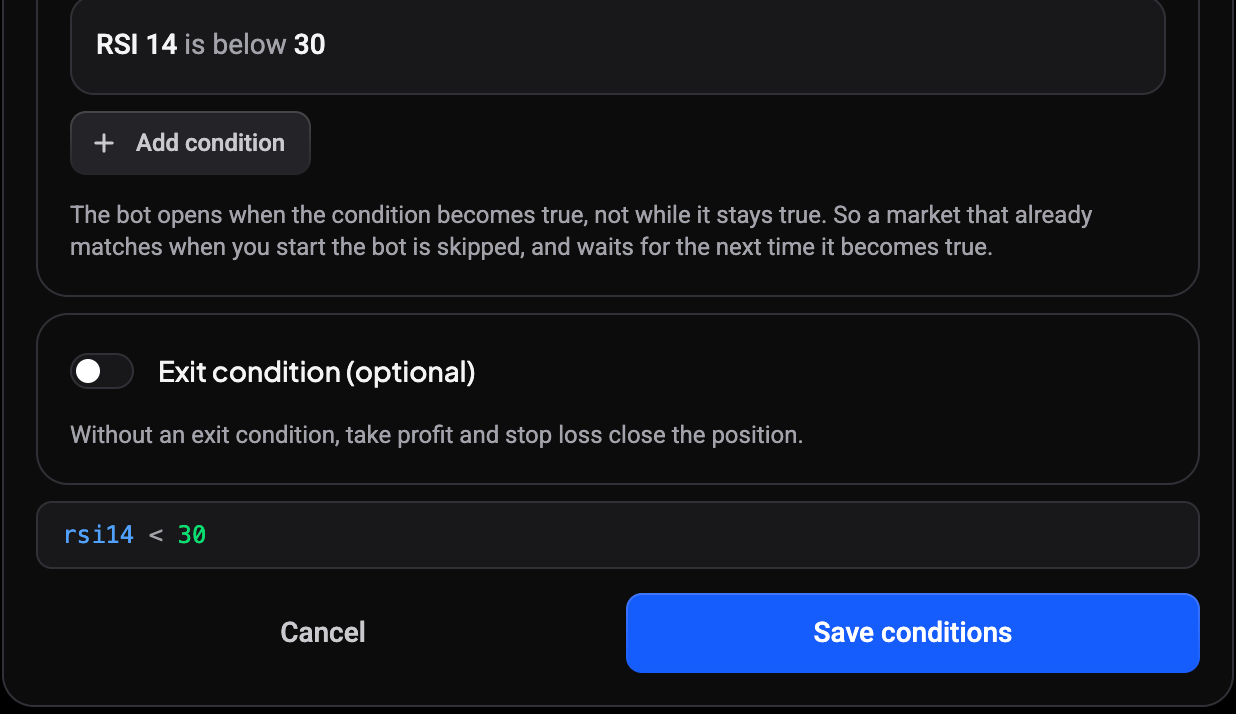
Click Adjust parameters on the Settings tab to edit the bot without leaving the page. For Indicator and Price move bots, the Markets card becomes a picker: add or remove the pairs the bot may open positions on. An Indicator bot also shows its Start on indicators card with Edit conditions: change the side, timeframe, entry and exit conditions, then click Save conditions. The tabs below (Entry, Take profit, Stop loss, Filters and Journal) work like the wizard. Run backtest replays the saved conditions and settings on past candles, and Review settings takes you back to the summary.
Provider and webhook bots get their market from the signal, so they have no Markets card.
 🔍 Click the image to see a larger version
 🔍 Click the image to see a larger version
The bot page on your phone
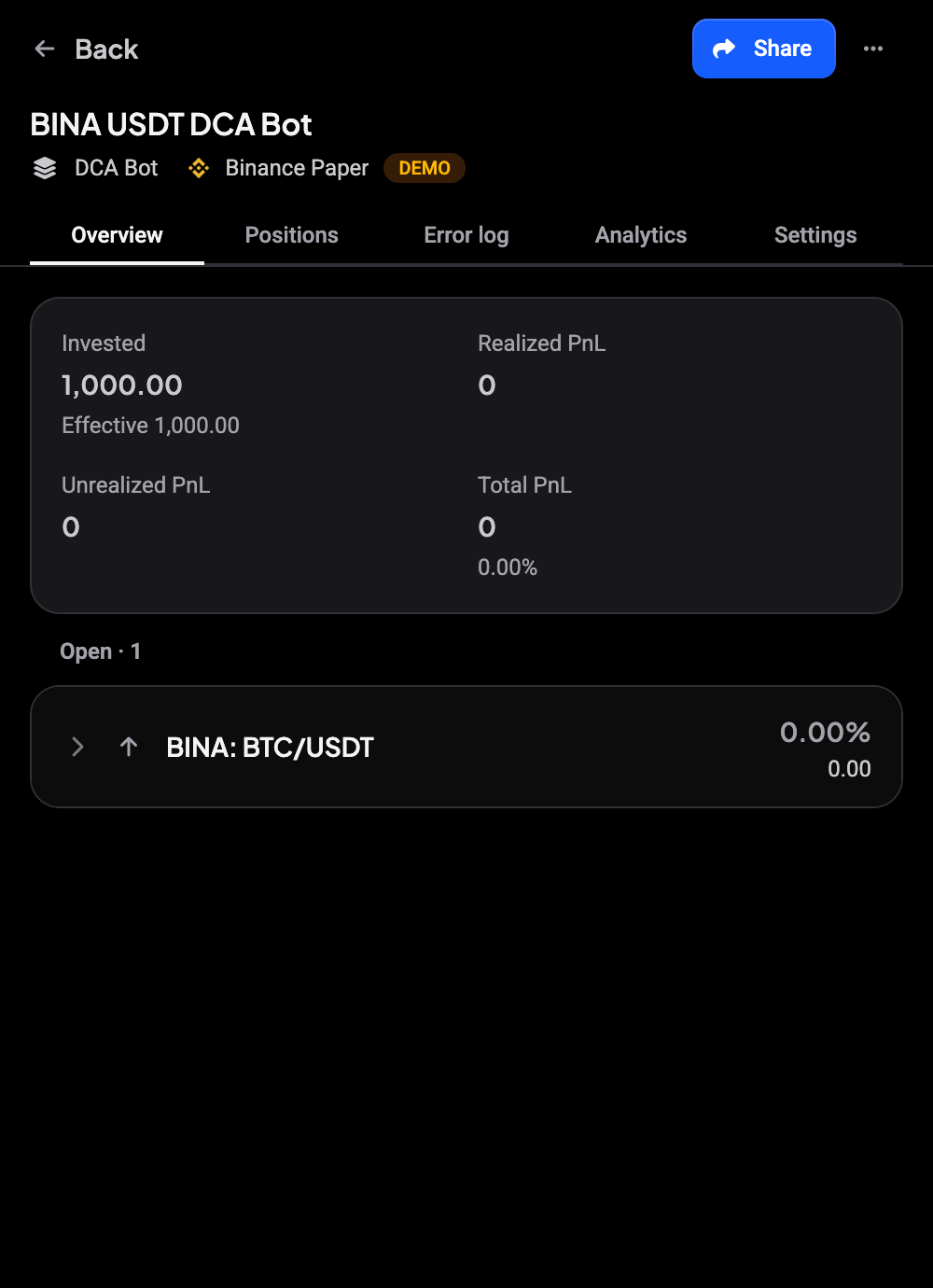
On a phone the header stays the same for every kind of bot: Back, Share, the menu, the name, the kind and the account. The stats sit at the top, followed by the positions.
 🔍 Click the image to see a larger version
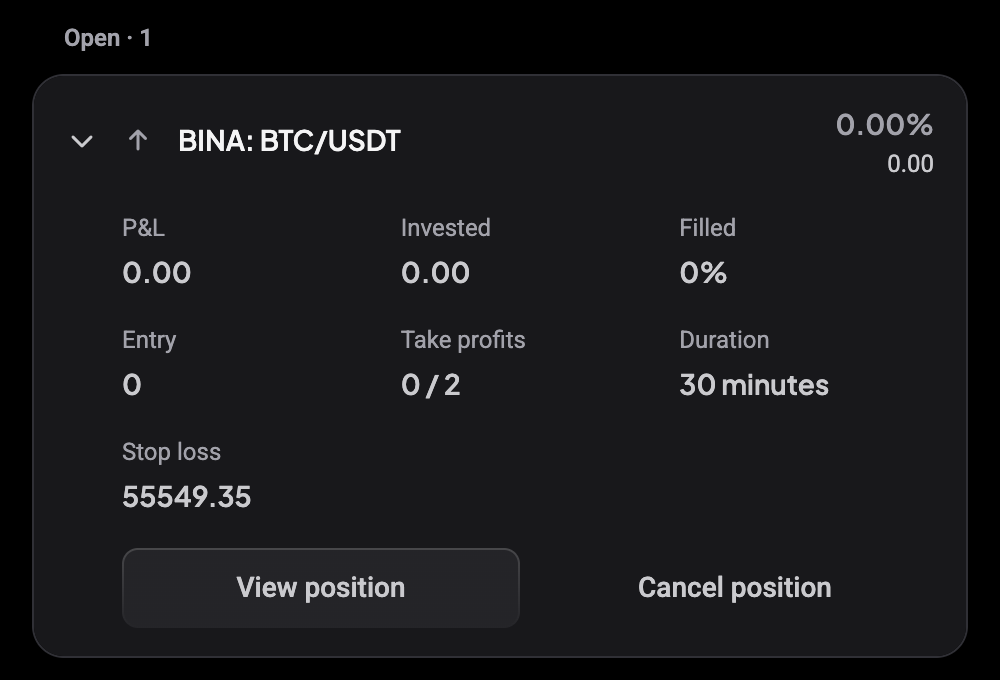
Tap a position to expand it. You’ll see its P&L, Invested, Filled, Entry, Take profits, Duration and Stop loss, with View position and Cancel position.
 🔍 Click the image to see a larger version
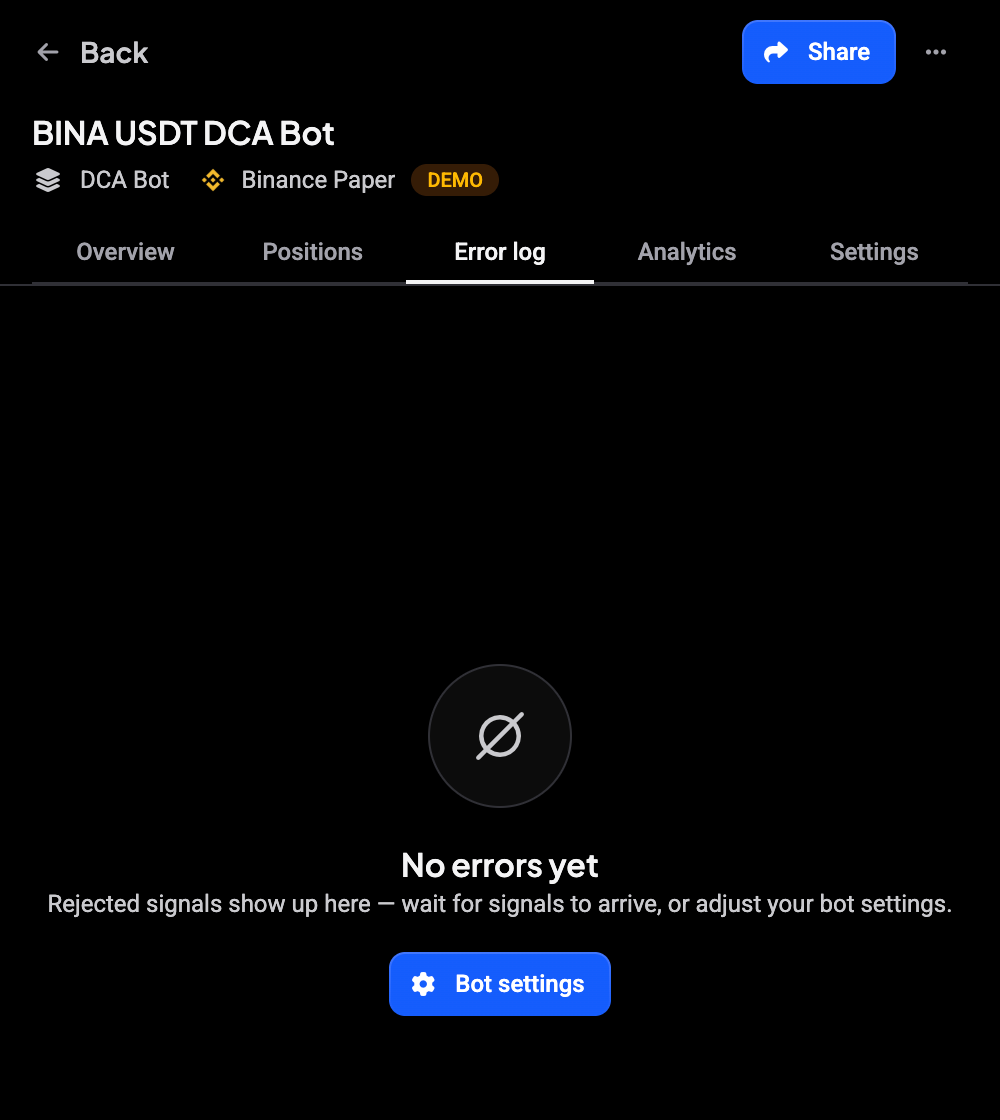
The Error log tab lists anything the bot couldn’t do. When it’s empty, Bot settings takes you to the settings.
 🔍 Click the image to see a larger version
Back takes you back to the page you came from. Switching tabs doesn’t add steps, so you don’t have to tap back through each tab.
Move a demo bot to live
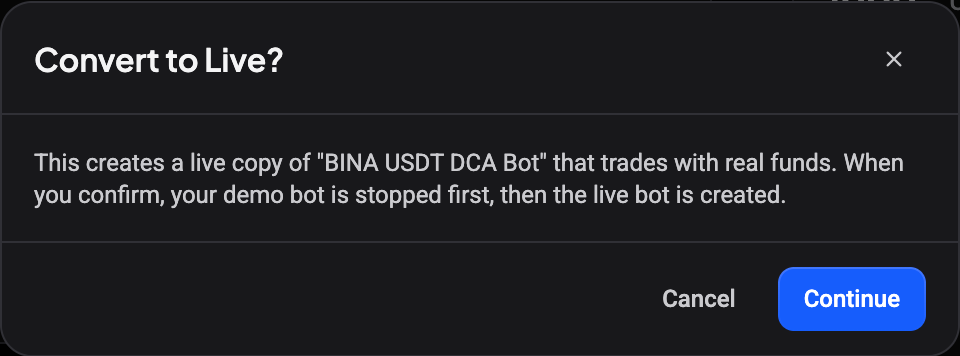
When a demo bot works the way you want, click Convert to Live. Altrady asks you to confirm: it creates a live copy of the bot that trades with real funds, and stops the demo bot first.
 🔍 Click the image to see a larger version
For what carries over and which account you can pick, see How do I convert a demo bot to a live bot?.
Duplicate a bot
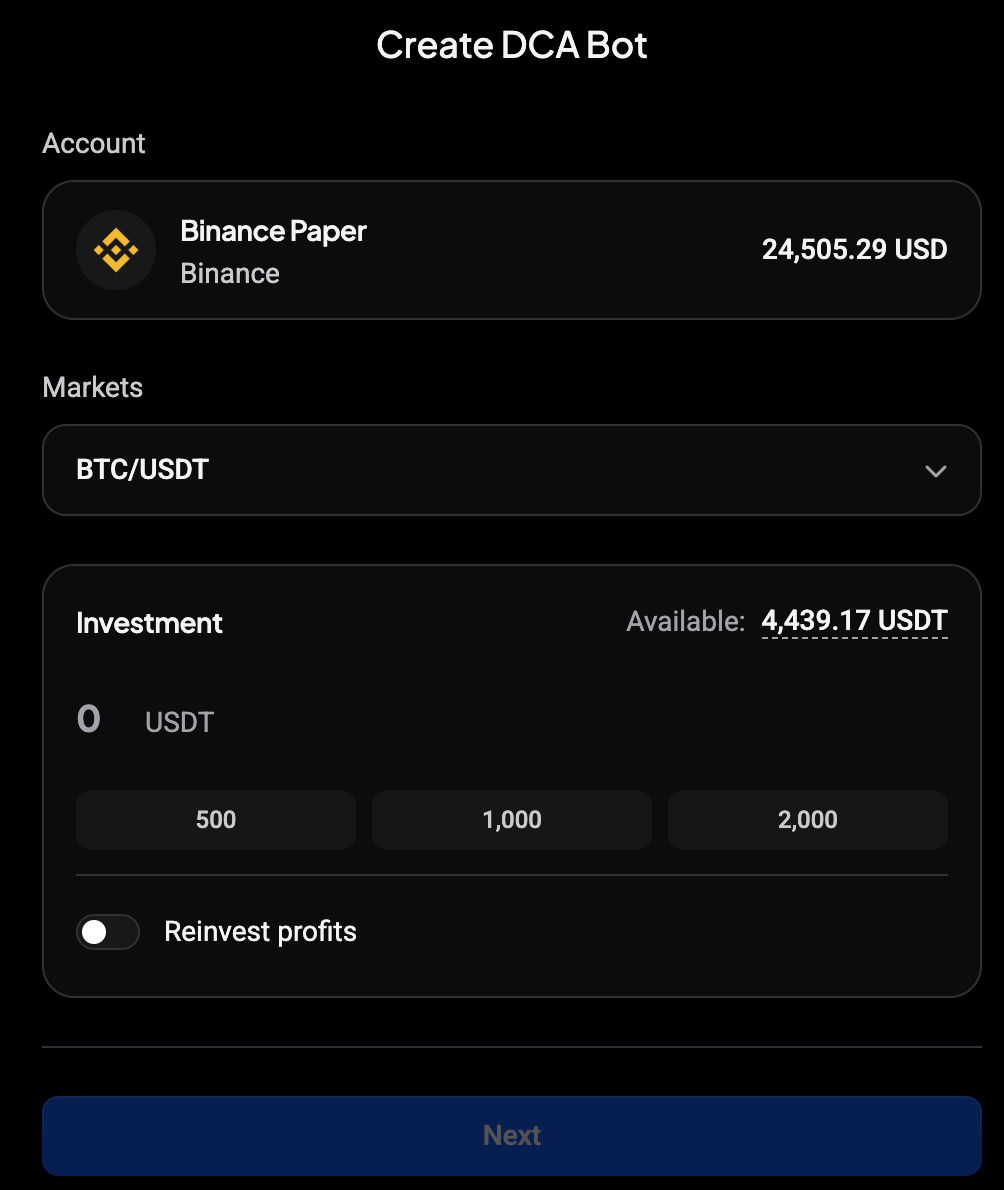
Open the bot menu on the Trading Bots page and click Duplicate. A DCA bot copy opens Create DCA Bot with the same account, markets and start condition. The investment starts empty, so enter it before you continue: the review then shows the copied start condition and settings.
 🔍 Click the image to see a larger version
Still stuck?
If a bot page shows errors you don’t understand, reach out via support chat with the bot’s name.