
Order labels on the chart
Every order and position line on the chart carries a small label. You decide what that label shows: amounts in the coin, values in the quote currency, or profit and loss. It takes a few clicks in the chart settings, and the chart updates while you choose.
Open the Order labels settings
 🔍 Click the image to see a larger version
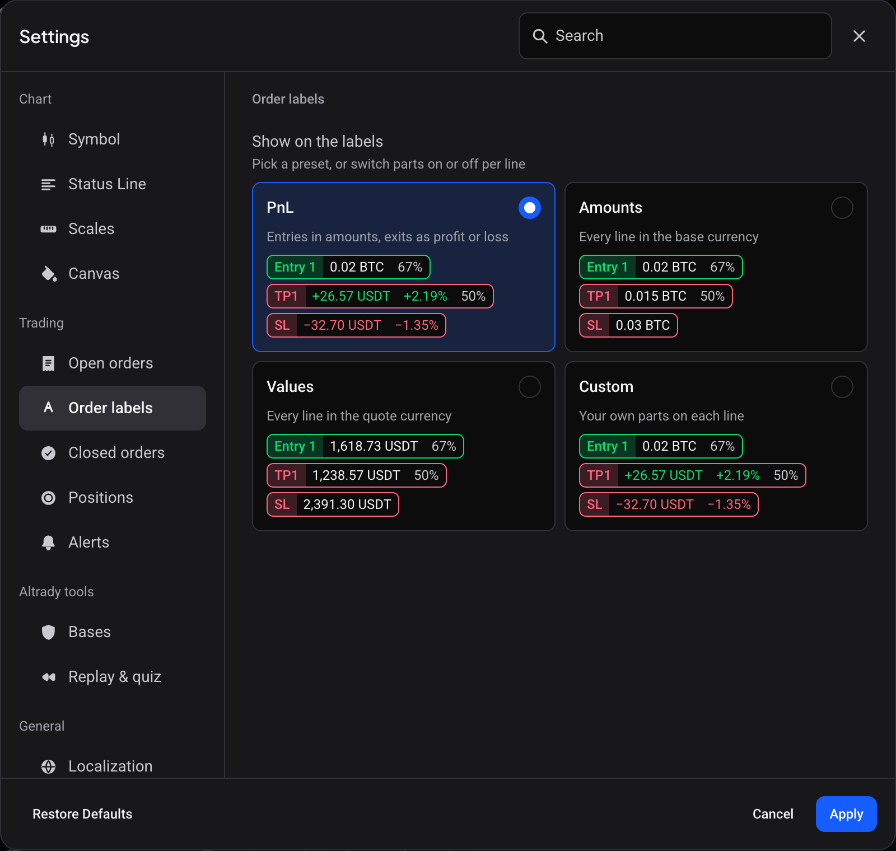
- Click the gear Settings button on the chart header, or press Cmd+, on a Mac or Ctrl+, on Windows.
- In the sidebar, under Trading, open the Order labels tab.
The tab holds one setting, Show on the labels, with the hint “Pick a preset, or switch parts on or off per line”. The labels apply to the lines for your entries, DCA orders, take profits, stop loss and other open orders.
Pick a preset
 🔍 Click the image to see a larger version
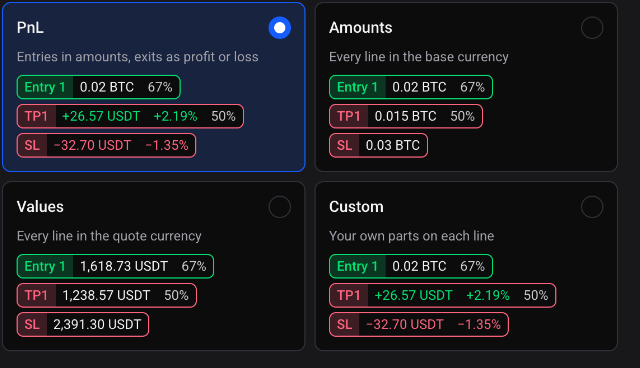
The presets are shown as cards. Each card previews sample Entry 1, TP1 and SL labels, so you can see the result before you click.
- PnL: entries show amounts, exits show profit or loss. This is the default.
- Amounts: every line shows its size in the base currency, for example BTC.
- Values: every line shows its size in the quote currency, for example USDT.
- Custom: your own parts on each line (see below).
Click a card and the labels on the chart change straight away. Press Cancel to put them back as they were.
Choose your own parts
 🔍 Click the image to see a larger version
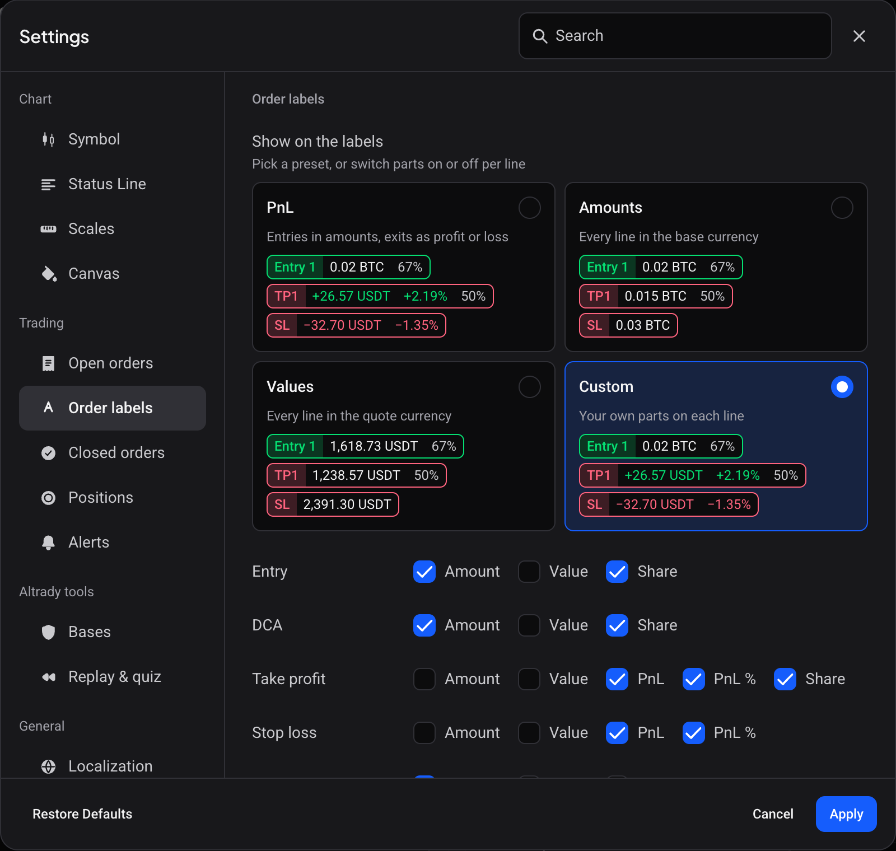
Switch any part on or off and the preset changes to Custom. A row per line type appears, each with a switch for every part that line can show:
| Line | Parts you can show |
|---|---|
| Entry | Amount, Value, Share |
| DCA | Amount, Value, Share |
| Take profit | Amount, Value, PnL, PnL %, Share |
| Stop loss | Amount, Value, PnL, PnL % |
| Open order | Amount, Value, Distance % |
Amount is the size in the base currency, Value the size in the quote currency, and Share the part of the position that order covers. Distance % is how far an open order sits from the current price. The preview on the Custom card follows your switches.
If you use the option to hide amounts, the sizes and PnL in the labels are masked on the chart in the same way.
Related chart settings
Two more switches in the Open orders tab change what the label looks like: Labels shows or hides the text on open order lines, and Side on the label adds whether the order is a buy or a sell. The Closed orders tab has its own Prices and Quantities switches for your filled orders.
For a tour of the other chart settings, see An introduction to SuperChart.
Still stuck?
If a label does not show what you picked, check that the matching line is switched on in the Open orders or Positions tab, then reach out through support chat inside Altrady and the team will take a look with you.