
How do I find, filter, and get notified about bases?
The Bases widget is where you work with the Base Scanner’s results: browse and search bases, filter them to what you care about, save or hide individual ones, and set up notifications so Altrady tells you the moment a base cracks. For what a base is and the terms used here, see the Base Trading overview.
The three tabs
Open the Bases widget in your trading terminal. Across the top are three tabs:
- Active: bases currently cracked or recently respected, for your selected algorithm.
- Exchanges: bases grouped by exchange, so you can drill into one.
- Saved: bases you’ve bookmarked.
On any tab, the search box above the list narrows results as you type a base or quote currency.
Filter the list
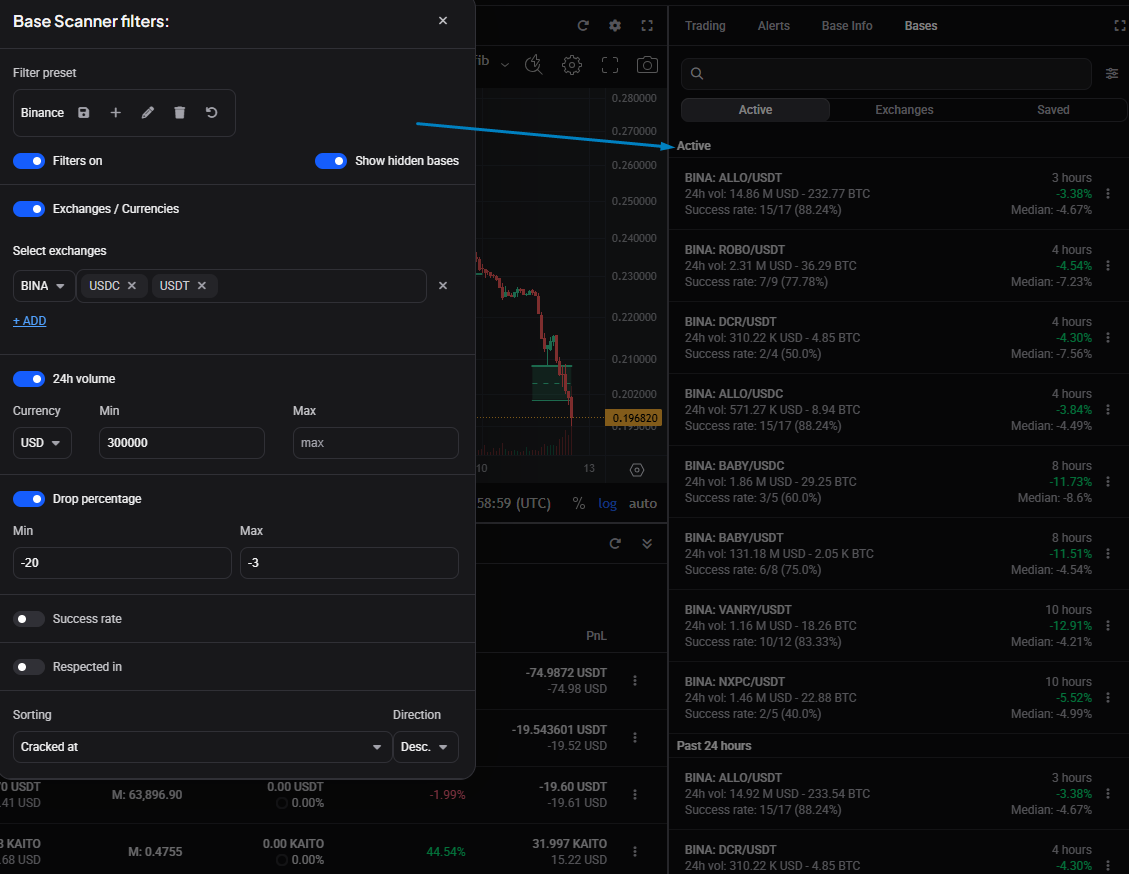
Click the sliders icon next to the search box to open the filter popover, then switch on Filters on at the top to apply the conditions below it. Next to it, Show hidden bases brings back any bases you’ve hidden. Each condition has its own switch, so you only fill in what matters:
- Exchanges / Currencies: restrict to specific exchanges, base currencies, or quote currencies, the quickest way to cut a long list to markets you trade.
- 24h volume: choose BTC or USD, then set a Min and/or Max.
- Drop percentage: set Min and Max to see only bases that dropped within a range.
- Success rate: use the slider (or type a value) to show only bases that were respected at least that often historically.
- Respected in: use the slider to show only bases respected within a recent window, handy for focusing on recent rather than historical activity.
Each condition only applies once its switch is on, so an empty Max just means no upper limit.
 🔍 Click the image to see a larger version
Sort the list
 🔍 Click the image to see a larger version
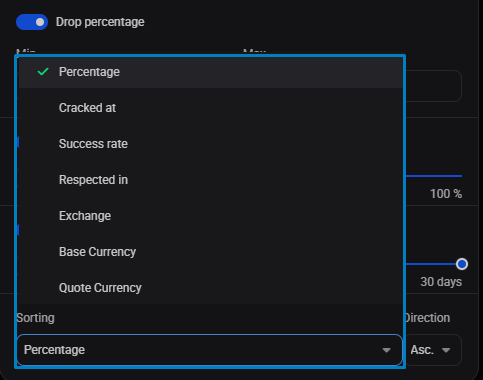
At the bottom of the popover, Sorting orders the list by Percentage, Cracked at, Success rate, Respected in, Exchange, Base Currency, or Quote Currency, and Direction flips between Asc. and Desc..
Save a filter preset
Once a filter is set up the way you like, save it as a preset so you don’t rebuild it each time:
- At the top of the popover, the Filter preset dropdown shows Off when none is active.
- Click + to start a new preset, name it, and click the save icon.
- To rename one, select it, click the edit (pencil) icon, and change the name.
- To delete one, select it and click the trash icon; Altrady asks you to confirm.
- If you tweak a preset without saving, Altrady asks whether to save the change when you close the popover.
You can keep up to 10 saved presets. If you hit the limit, delete one you don’t use to free a slot.
Save or hide individual bases
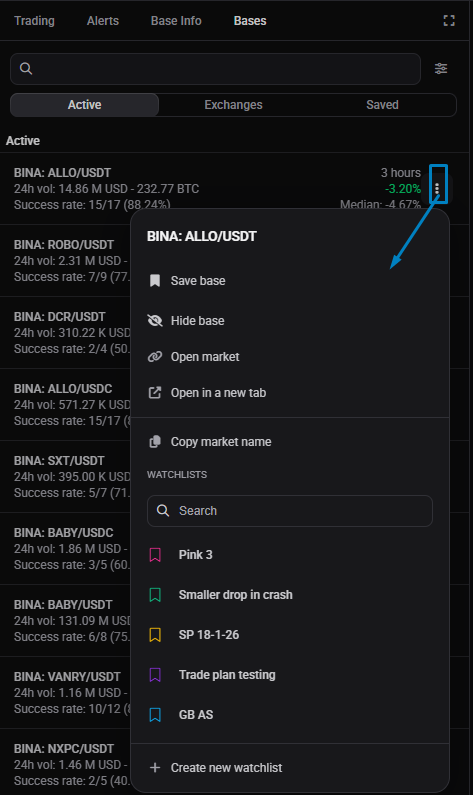
Click the 3-dot icon next to any base for its menu:
- Save base bookmarks it to the Saved tab (it becomes Unsave base once saved).
- Hide base removes it from the Active and Exchanges lists (it becomes Unhide base). Turn on Show hidden bases in the filter popover to see hidden ones again.
Hiding a base doesn’t delete any of its history; it just keeps your list focused.
 🔍 Click the image to see a larger version
Get notified when a base cracks
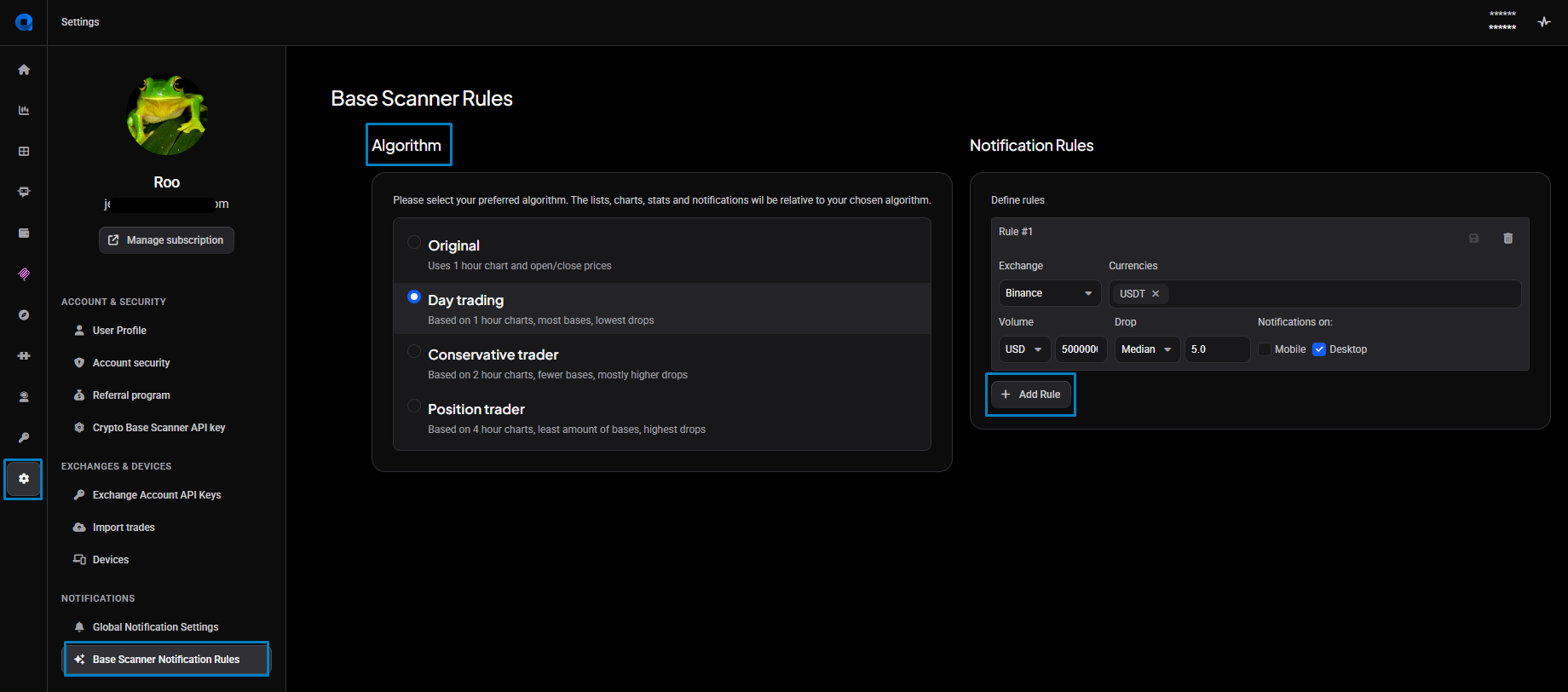
Instead of watching the list, you can have Altrady notify you when a base matches conditions you set. Notifications are configured under Settings > Base Scanner Notification Rules, and follow whichever algorithm you’ve selected (see choosing an algorithm).
 🔍 Click the image to see a larger version
Under Notification Rules, click Add Rule. Each rule is independent, so you can run several for different exchanges or conditions:
- Exchange: which exchange this rule watches.
- Currencies: one or more quote currencies (like USDT or BTC) to watch.
- Volume: choose USD or BTC, then the minimum volume a base must reach.
- Drop: Fixed for a set percentage (for example -5 means at least a 5% drop), or Median for a multiplier of the base’s own median drop, so a market that usually swings wider needs a bigger move to qualify.
- Mobile and/or Desktop: where the notification is delivered.
- Click the save icon on the rule.
For a rule to actually reach you, it needs at least one quote Currency selected and at least one of Mobile or Desktop switched on, so you can build a rule now and turn it on later by adding a delivery channel. Each rule appears as its own card with a trash icon, so you can remove one without touching the others.
The alert sound is separate
Notification rules control whether and where you’re notified. The sound that plays is a different setting: Base Scanner alert sound, under Settings > Global Notification Settings. If your rules look right but you hear nothing, check there too; it’s easy to miss because it lives on another page.
Still stuck?
If bases aren’t showing up as you expect, check that Filters on is enabled and your ranges aren’t too narrow. If notifications aren’t arriving, confirm the rule has a quote currency and a delivery channel switched on, and check the alert-sound setting above. Still stuck? Reach out through support chat and the team will take a look with you.