
How do I clear the Altrady app cache?
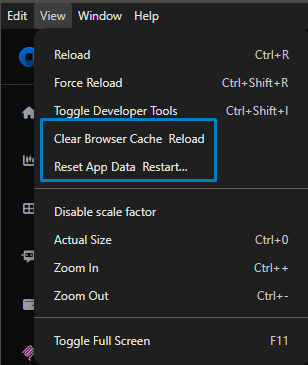
If the desktop app is showing stale data, a broken layout, a blank screen, or keeps sending you back to log in, clearing its stored data usually sorts it out. On the desktop app there are two levels, both on the View menu: a lighter Clear Browser Cache, and a fuller Reset App Data that signs you out.
Try the lighter clear first
View > Clear Browser Cache and Reload clears cached data and reloads the app. It’s the first thing to try when something looks wrong visually: display or rendering glitches where the underlying data is fine, for example:
- Missing or frozen candles when the data exists server-side
- Icons/buttons rendering as grey blanks
- TA Scanner alert bells persisting temporarily after changes
- Chart gaps after an exchange websocket reconnect: missing candles are backfilled automatically, but a stale local cache can keep showing the gap until you clear it
- General slowness that improves briefly after reload
If that doesn’t help, move on to the full reset below.
 🔍 Click the image to see a larger version
## Reset App Data and Restart (the fuller fix)
🔍 Click the image to see a larger version
## Reset App Data and Restart (the fuller fix)
From the desktop app, View > Reset App Data wipes the app’s local storage and signs you out.
Resetting App data can delete saved layouts and drawings, so should not be used lightly. If unsure, check with our support team.
Reach for it when the lighter clear didn’t help, or for a blank screen, a login loop, repeated “Activate device” prompts, settings that won’t save, or a chart that disappears, all signs the saved state has become corrupted.
Your orders, positions, and bots are safe: they live on Altrady’s servers and on the exchange, not in the app. What gets cleared is local state, like your saved layout and cached session data. After the reset:
- Log back in.
- Re-activate the device with your 5-word password (keep it handy before you start).
- Re-select your layout if it doesn’t come back on its own.
Clearing once covers every window
Altrady’s stored data is shared by every copy running on your computer, the desktop app and each browser you’ve opened it in. So clearing it once, from the desktop app, fixes it everywhere. If you normally use the browser, it’s often quickest to install the desktop app just to run this from the View menu.
On an older desktop version?
If your View menu doesn’t look like the image above, and only shows Reload, Force Reload, and Toggle Developer Tools, you’re on an older desktop version that doesn’t have the one-click options yet. Updating to the current desktop version gives you the full menu options, see how do I update the desktop app?.
Using Altrady in a browser
The View menu is desktop-only. In a browser, do a hard refresh (Ctrl+Shift+R on Windows/Linux, Cmd+Shift+R on Mac), or clear the site’s cache and cookies from your browser’s own settings. Because the stored data is shared, running the reset from the desktop app (if you have it) is usually the quicker route.
Still stuck?
If clearing the cache and resetting app data both fail, reach out through support chat and tell us what you were seeing (stale prices, a blank screen, a login loop) so we can dig in faster.