
How do I update the Altrady desktop app?
Altrady keeps itself up to date in two ways: small updates arrive automatically, and only a new major desktop version needs to be downloaded and installed by hand. You can always see where you stand at Settings > Check for Updates.
The two version numbers
Open Settings > Check for Updates. It shows two numbers, with recent release notes to the right:
- App version: the part of Altrady that runs inside the app. This updates automatically; a reload is all it takes to pick up the latest.
- Desktop version: the installed program itself, the shell that everything runs in. A new major desktop version has to be downloaded and reinstalled, because it ships things the older shell can’t get on its own.
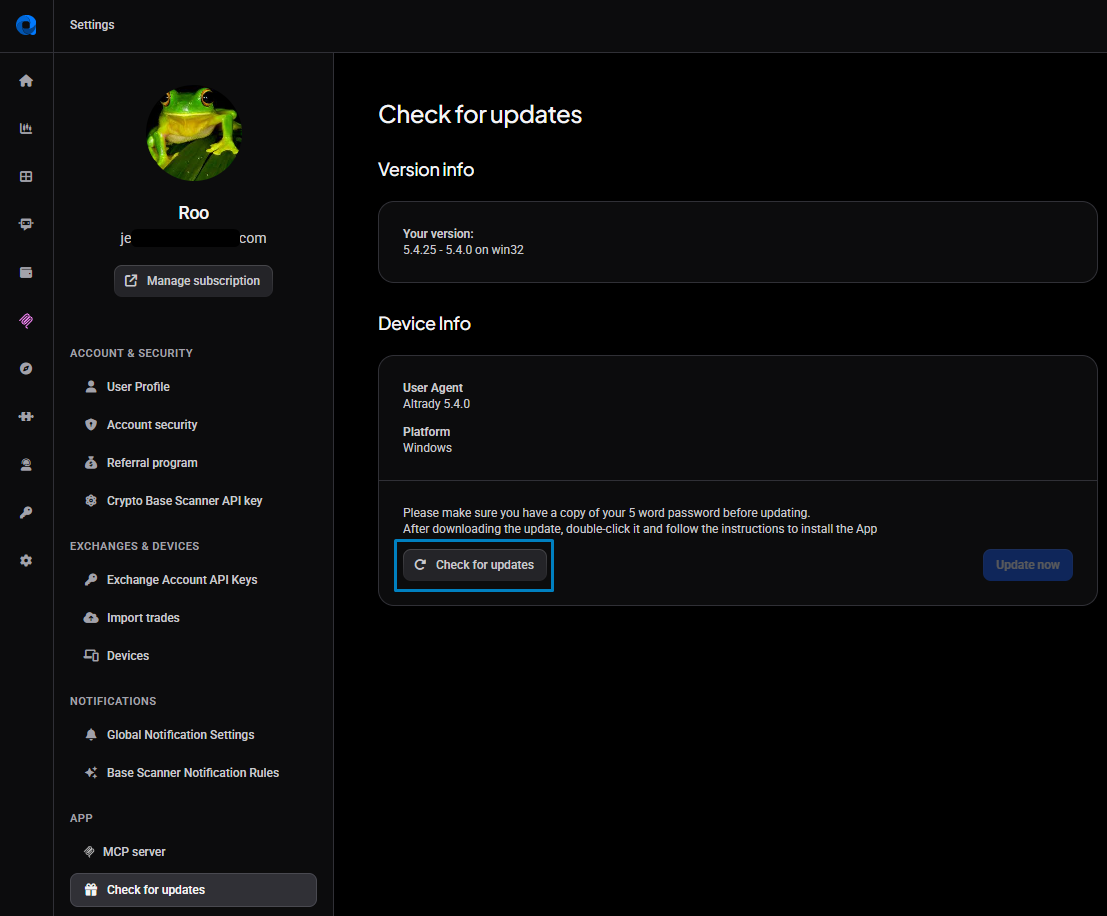 🔍 Click the image to see a larger version
## Small updates install automatically
🔍 Click the image to see a larger version
## Small updates install automatically
Most updates are minor and apply on their own, so usually there’s nothing to do. If you’ve heard a newer version is out but don’t see it yet, force a reload with Cmd/Ctrl+Shift+R (or just reload the page in the browser) to pull it in.
Installing a new major desktop version
When a new major desktop version is released, download and install it yourself:
- Open Settings > Check for Updates and download the latest desktop version, or get it from altrady.com/download. If the desktop app won’t open or update, open Altrady in your browser and download it from there.
- Pick the build for your operating system, then run the installer and follow the prompts.
After installing, two things are normal:
- You’ll be asked for your 5-word password. A freshly installed app counts as a new device, so you re-activate it by entering your five words before you can trade. Have them handy before you start.
- Your layout may need re-selecting. If your saved layout doesn’t come back on its own, pick it again from the layouts menu.
Signs you’re on an old desktop version
An out-of-date desktop version can quietly hold you back. Tell-tale signs are missing menu items (for example, View only showing Reload, Force Reload, and Toggle Developer Tools) or a blank MCP Server page. If you see those, download and install the current desktop version as above.
Using Altrady in a browser
The web version has nothing to install: it refreshes when you reload the page. When a newer version is available Altrady shows a banner. For a small update you can reload whenever it suits you; for a required update, follow the prompt to move onto a compatible version before continuing.
Still stuck?
If the app still shows an old version after installing, or an update won’t apply, reach out through support chat with your operating system and the app version and desktop version shown on the Check for Updates page, so we can see exactly where you are.