
How do I add and organize notes on a market?
Every market in the Trading Terminal has its own Notes widget, so you can jot down chart observations, screenshots and links without leaving the chart you’re watching. Notes are saved per market and stay organized by pinning, date grouping, filters and a search box.
Open the Notes widget
The Notes widget lives in the Trading Terminal. Open a market as you normally would, then click the Notes icon in the widget bar down the right-hand edge of the screen: the panel opens beside your chart. (If the icon isn’t there, open the Widgets menu in the top right and switch Notes on.) By default it shows notes for the market you currently have open.
Add a note
 🔍 Click the image to see a larger version
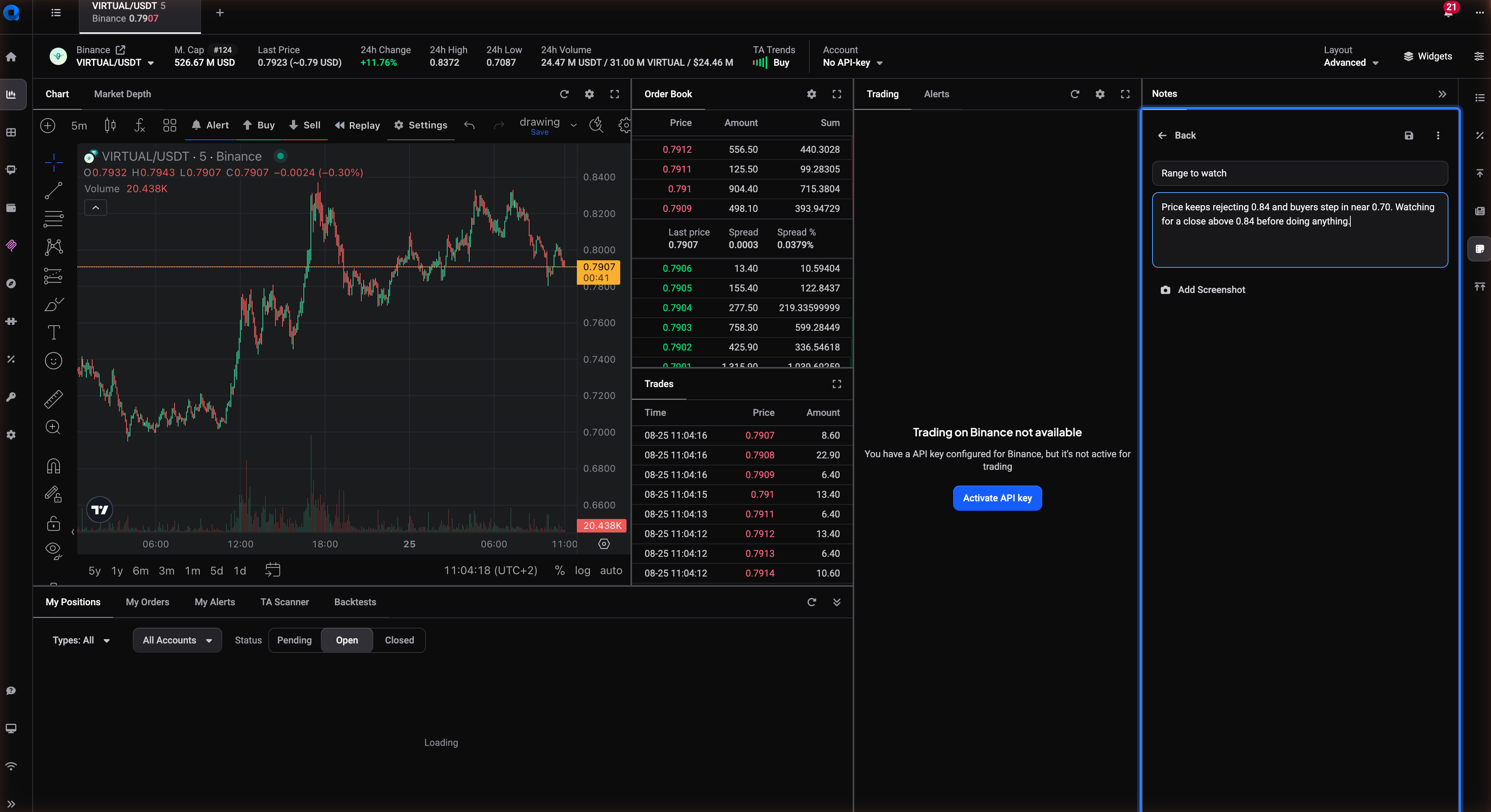
- In the Notes widget, click Add a note.
- Give the note a Title.
- Write the body underneath. This is a rich text field, so you can format as you type.
- Click the save icon in the top right of the editor. Nothing is saved until you do.
Don’t worry about getting the formatting right on the first pass. You can always come back and edit a note later.
Format the note body
Type “/” at the start of a line to open the slash menu, then pick from:
- Heading
- Bullet list
- Numbered list
- Quote
- Code block
- Divider
- Chart screenshot
To turn plain text into a link, select the text first, then use the link button in the toolbar that appears above your selection. You’ll be asked to enter the URL. This is handy for pointing back to a TradingView idea, an exchange announcement or another resource you want to remember alongside your note.
Attach a chart screenshot
If a note is about something you’re seeing on the chart right now, click Add Screenshot in the note editor. Altrady captures the current chart and attaches it to the note, so when you come back to it later you see exactly what the market looked like at the time. You can remove it again with Delete Screenshot if you attached the wrong one.
Pin the notes that matter
 🔍 Click the image to see a larger version
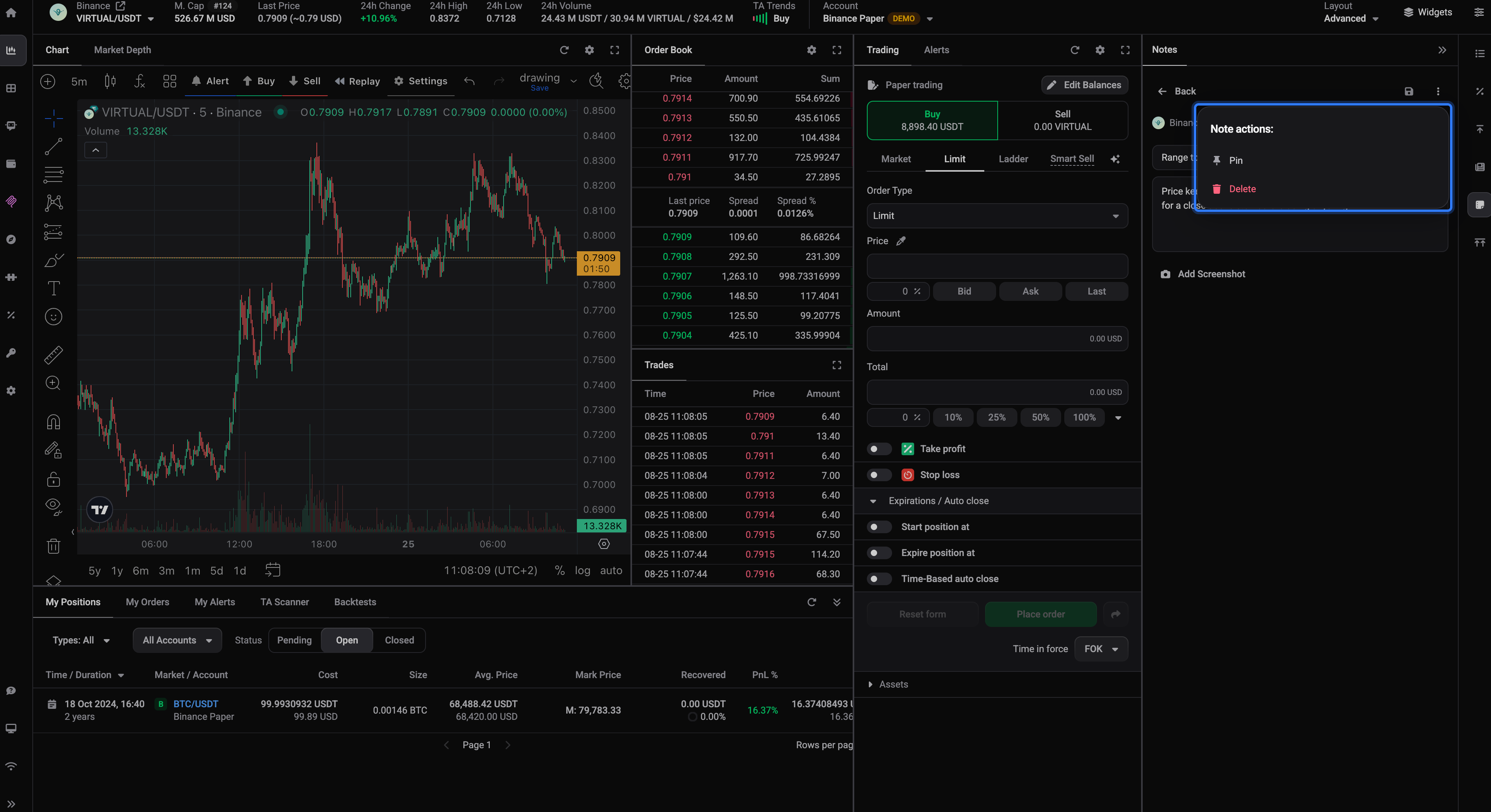
Notes you want to keep visible don’t have to get buried under newer ones. Open the note, click the actions icon (the three dots in the top right), then choose Pin. Save the note afterwards: like any other change, the pin only sticks once you click the save icon. The note then moves into a Pinned group at the top of the list, whatever its date. To reverse it, open the note again, choose Unpin and save.
Browse notes by date
Below any pinned notes, Altrady groups the rest of your notes as Today, Yesterday and Earlier, newest first within each group. This keeps a busy market’s notes readable: you can scan straight to what you wrote this week without scrolling through everything from months ago.
Filter and search
 🔍 Click the image to see a larger version
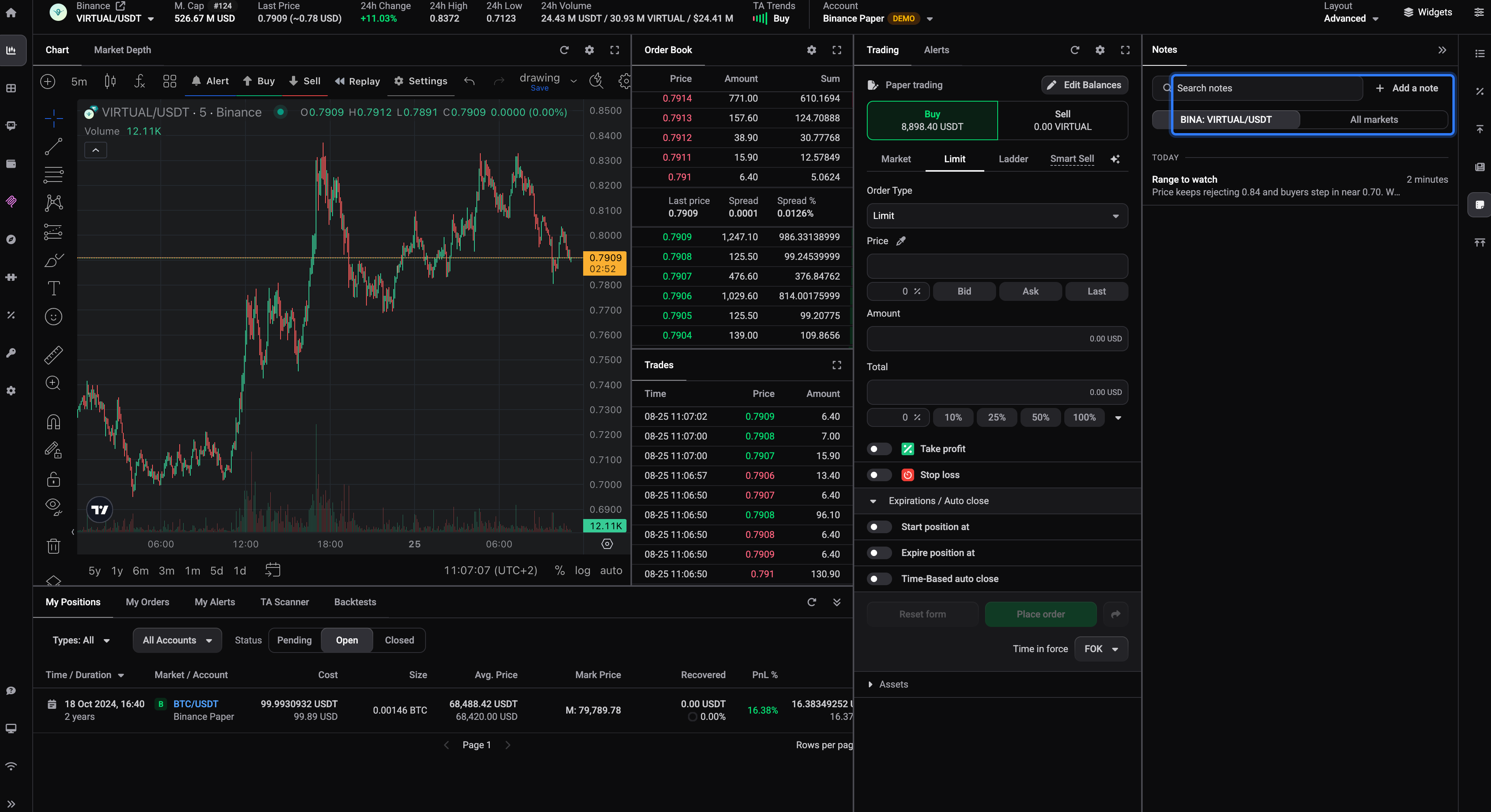
By default the widget only shows notes for the market you have open, which keeps each chart’s notes focused on that market alone. Use the All markets filter if you want to see every note you’ve written across all markets in one list, for example when you’re trying to remember which coin you wrote a particular thought about.
To find a specific note quickly, type a keyword into the search box at the top of the widget. It searches your note titles and text together, so a word from the body will surface the note even if it’s not in the title.
A quick note on scope: these market notes are separate from the notes you leave when reviewing a closed position in your trade journal. Market notes travel with a market and stay there whether you’re in a position or just watching; journal notes belong to a specific closed trade.
Still stuck?
If a note, screenshot or link isn’t behaving the way this article describes, reach out through in-app support chat and the team will take a look.