
How do I get an AI review of my trades in the Trading Journal?
An AI review reads the closed positions in your journal and writes up what went well, where money leaked, how your process looked and what to record next time. You can review a whole period from the AI Reviews tab, or one closed trade from its review page. Each review costs AI credits and takes about a minute.
Where to find AI reviews
Open the Journal from the left icon rail and click the AI Reviews tab in the top bar. On the left you see Generate new review, your remaining AI credits and a list of the reviews you already made. The panel on the right shows the selected review.
 🔍 Click the image to see a larger version
Reviews of a single trade do not appear in this list. They live on that position’s own review page, which the last section covers.
Generate a review for a period
- Click Generate new review.
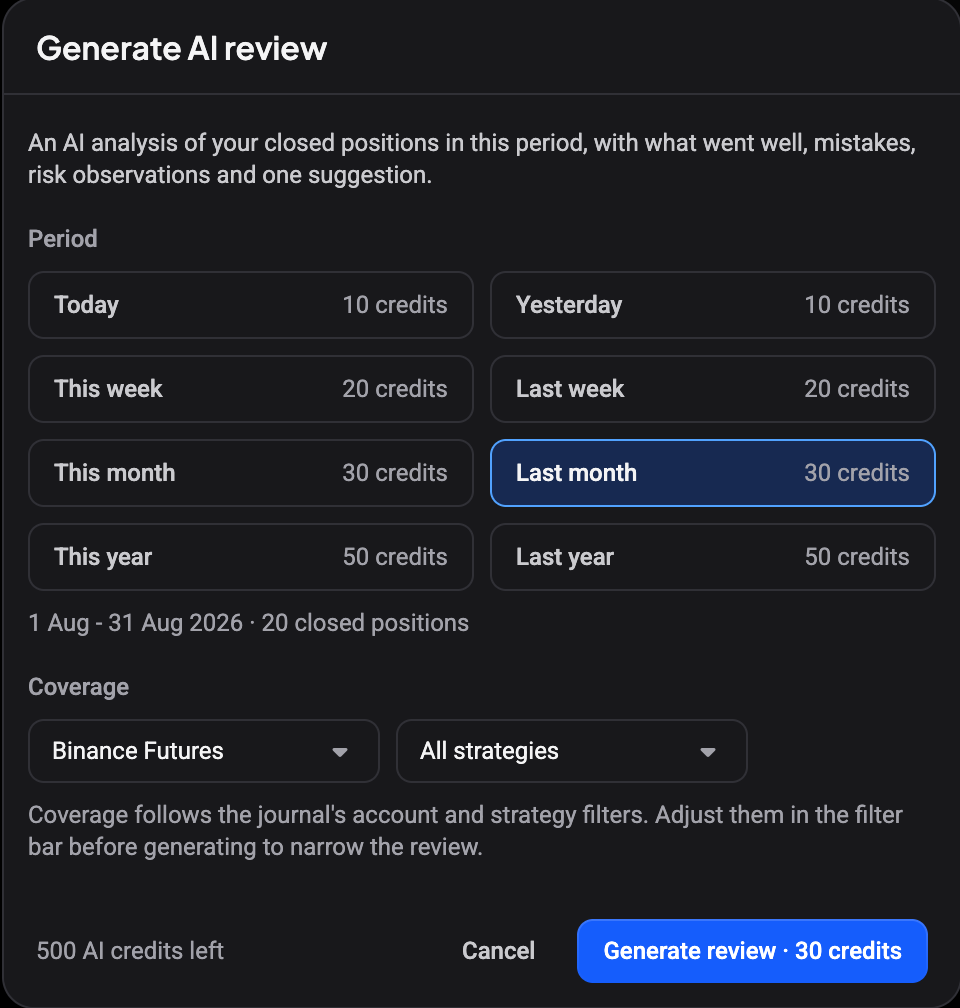
- Under Period, pick the range to analyze. Each option shows its credit cost, and the line below the grid tells you how many closed positions fall in that range.
- Check Coverage. The review uses the account and strategy filters from the journal filter bar. To narrow it to one account or strategy, close the dialog, change the filters in the top bar, and open it again.
- Click Generate review. The button repeats the cost so you know what you spend.
 🔍 Click the image to see a larger version
If a period has no closed positions, the dialog says so and there is nothing to generate. If your balance is below the cost, the dialog tells you how many credits you have left instead of generating; credits refill monthly with your plan.
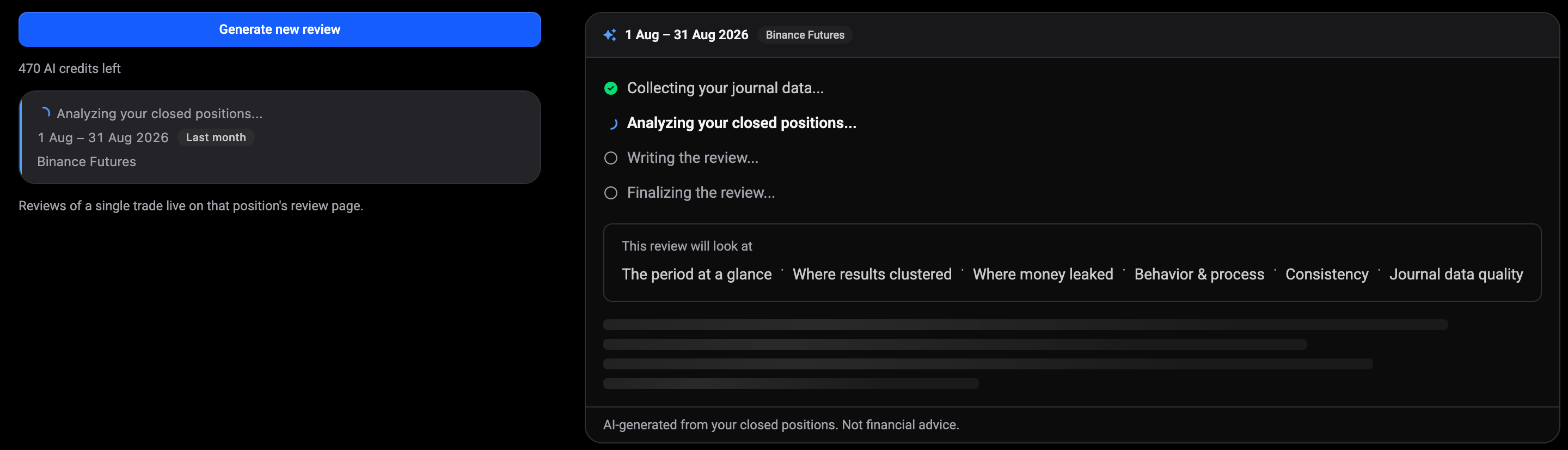
While the review runs, the panel shows a progress stepper: collecting your journal data, analyzing your closed positions, writing the review, finalizing. A card in the left list tracks the same progress, so you can keep working in another tab and come back. If a review fails, the credits are refunded automatically and you can simply try again.
 🔍 Click the image to see a larger version
Read the review
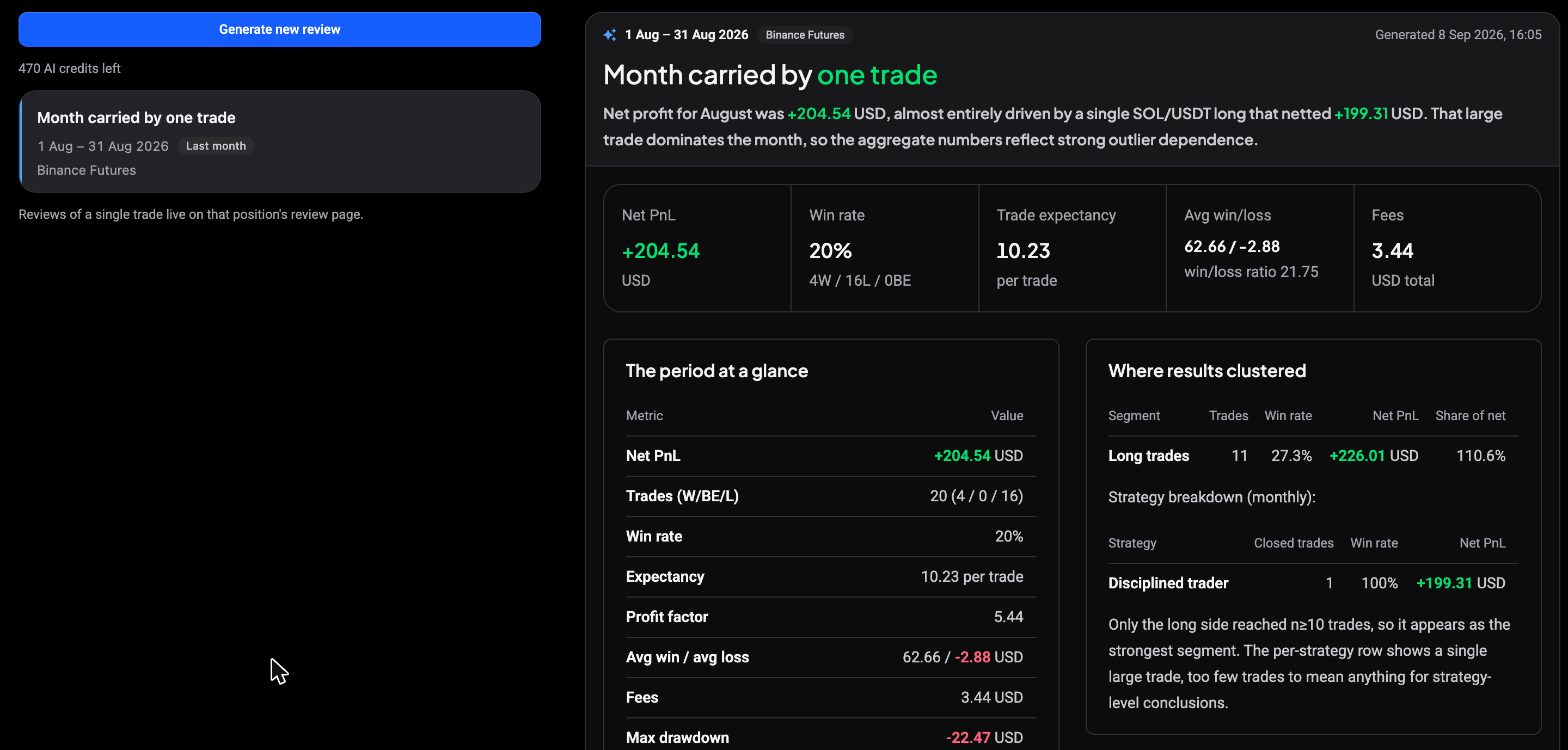
A finished review opens with a one-line headline and a short lede that names the main driver of the period. Under it sits a strip of key numbers: Net PnL, win rate, trade expectancy, average win and loss, and fees.
 🔍 Click the image to see a larger version
Below that, the review is laid out in cards:
- The period at a glance: a metrics table (net PnL, trade counts, win rate, expectancy, profit factor, max drawdown) plus a week-by-week PnL breakdown.
- Where results clustered: which segments (long or short, per strategy) carried the result, with a note when a segment has too few trades to mean anything.
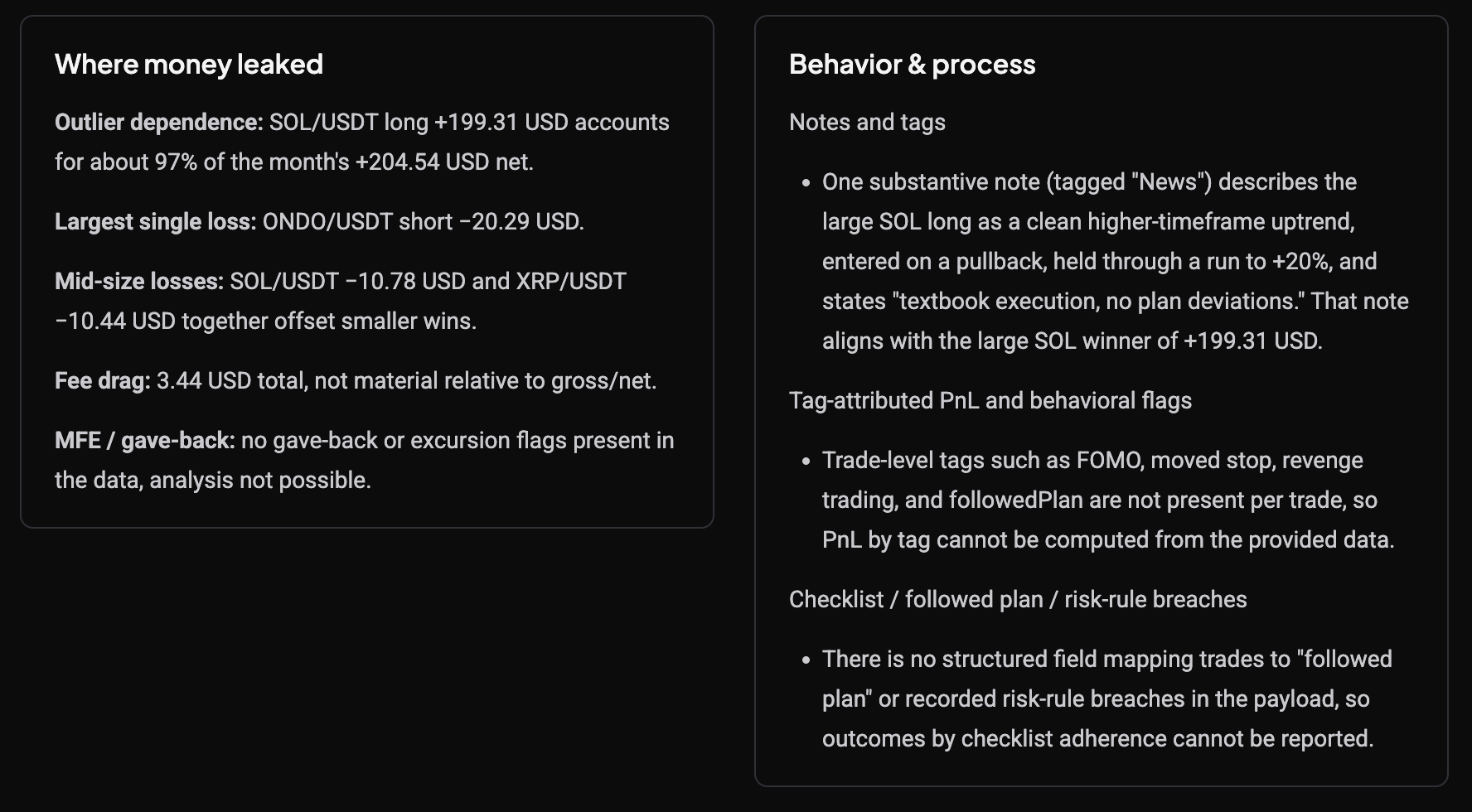
- Where money leaked: outlier dependence, largest single loss, mid-size losses and fee drag.
- Behavior & process: what your notes, tags, checklist and risk rules say about how you traded, or that nothing was recorded.
- Consistency: trading days, best and worst day, longest losing streak, longest winning day, max drawdown.
- Journal data quality: coverage bars for positions reviewed, trades with planned risk, and trades with tags or notes.
 🔍 Click the image to see a larger version
The data quality card is worth reading first. When it carries the Limits this review badge, the review could not run some analyses because the underlying journal data is missing, for example planned risk per trade or tags. The card lists exactly which analyses were skipped and why. Filling in risk, tags and notes on your positions makes the next review more specific.
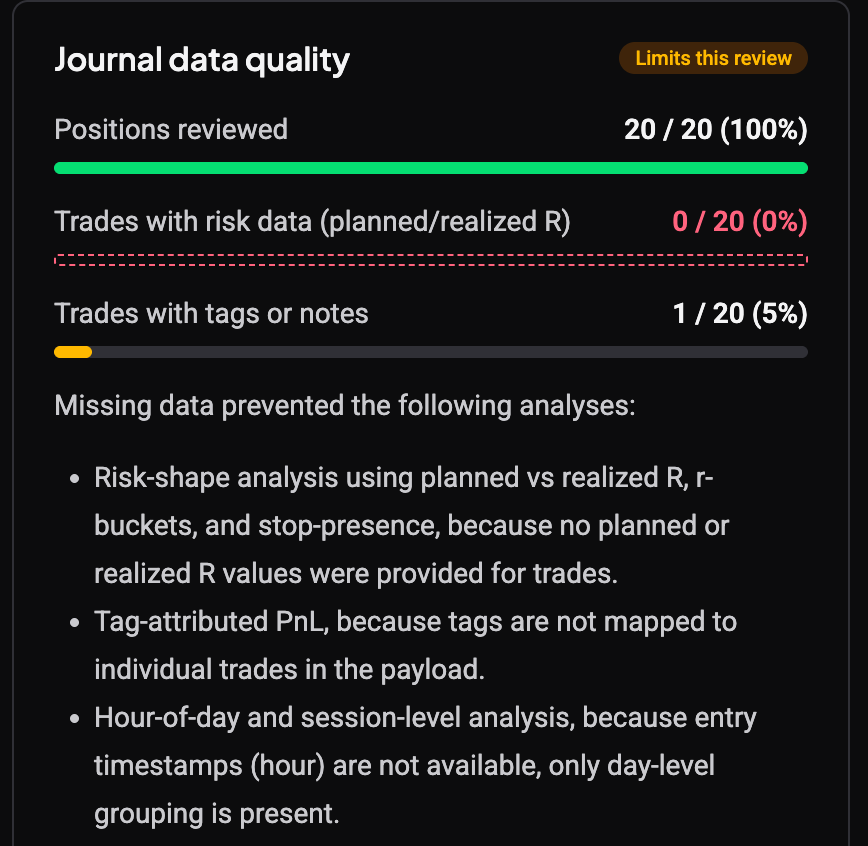 🔍 Click the image to see a larger version
Every review ends with the reminder that it is an automated analysis of your own past trades, not investment advice or a recommendation, and that past results do not indicate future performance.
Turn the questions into your next journal entry
The last card, For your next journal entry, holds three questions written for your specific trades: which details in a note explained a decision, what separated one large winner from the losers, what your rationale recorded for a losing side. They are meant to be answered in the journal, not read once. Copy the ones you want into your notes and answer them when you review those positions.
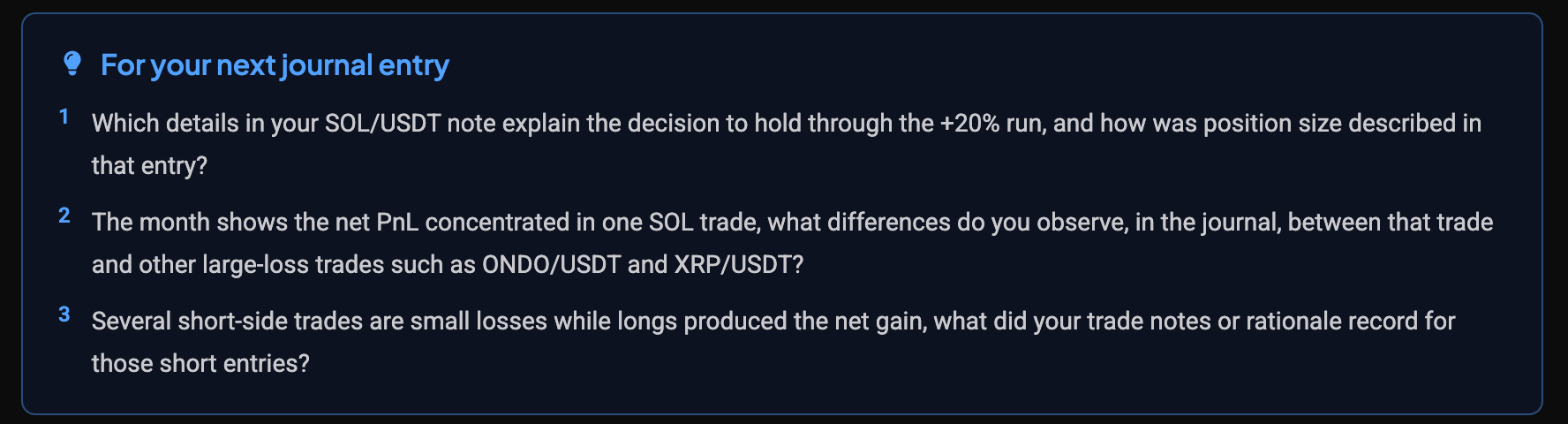 🔍 Click the image to see a larger version
Each review in the left list keeps its headline, period and account, so you can come back to it later. Generate new review always creates a fresh one and spends credits again.
Review a single trade
A closed position gets its own AI review on its review page:
- Open Journal, then Positions, and click a closed position.
- Scroll below the chart to the tab strip and open the AI review tab. It shows the cost (10 credits) and your balance.
- Click Generate review and wait for the stepper to finish.
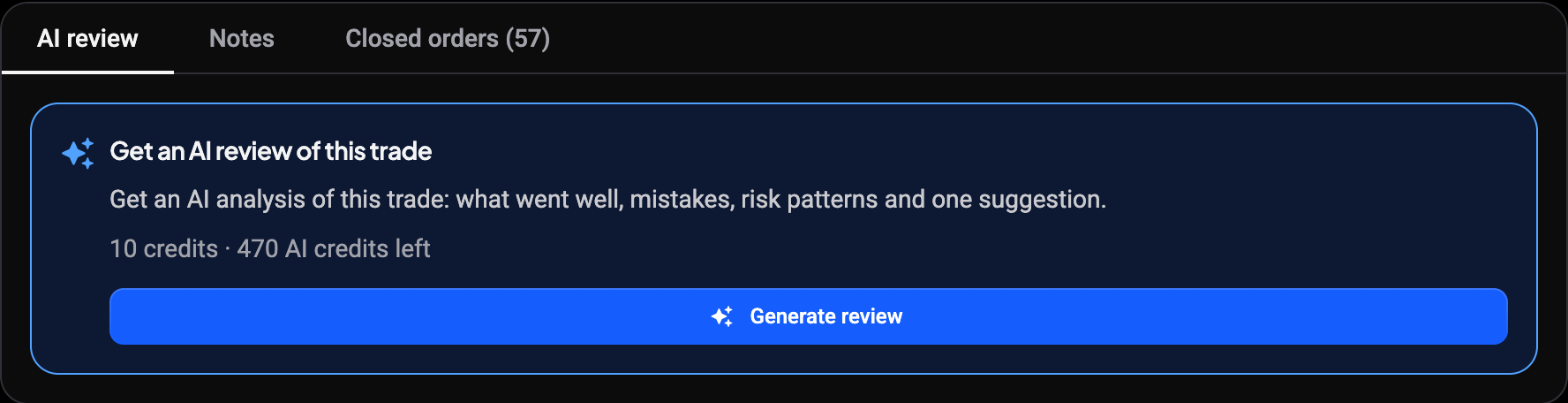 🔍 Click the image to see a larger version
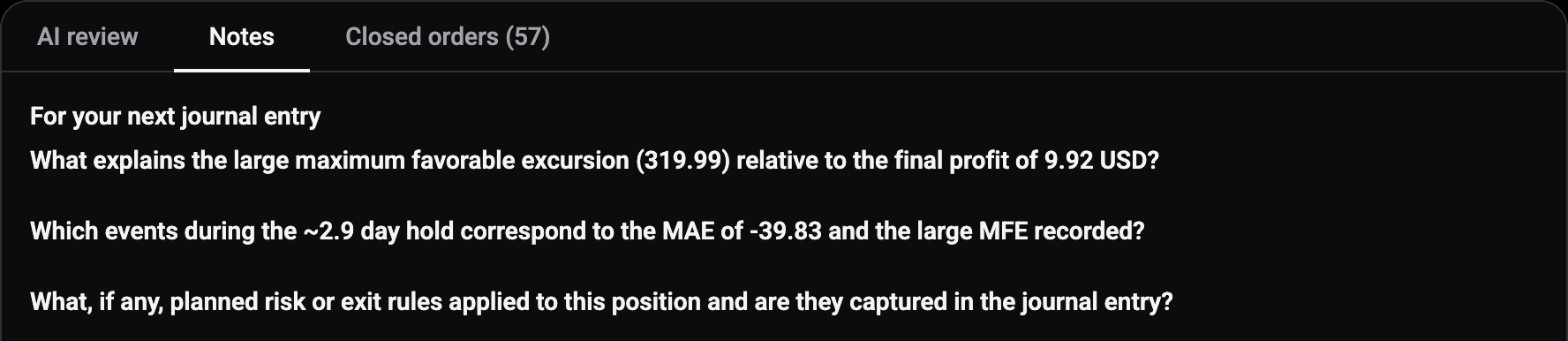
The result has the same shape as a period review, scaled to one trade: net PnL, hold time and MFE/MAE at the top, then This trade at a glance, Where money leaked, Behavior & process and Journal data quality. A single trade often shows large favorable excursion against a small final profit, or missing planned risk; the review calls both out.
The questions card here has an Add to notes button. Click it and the three questions are appended to this position’s Notes tab, ready for you to answer underneath. Regenerate at the bottom of the tab writes a new review for the same trade and charges the credits again. Open positions do not show the AI review tab; close the position first.
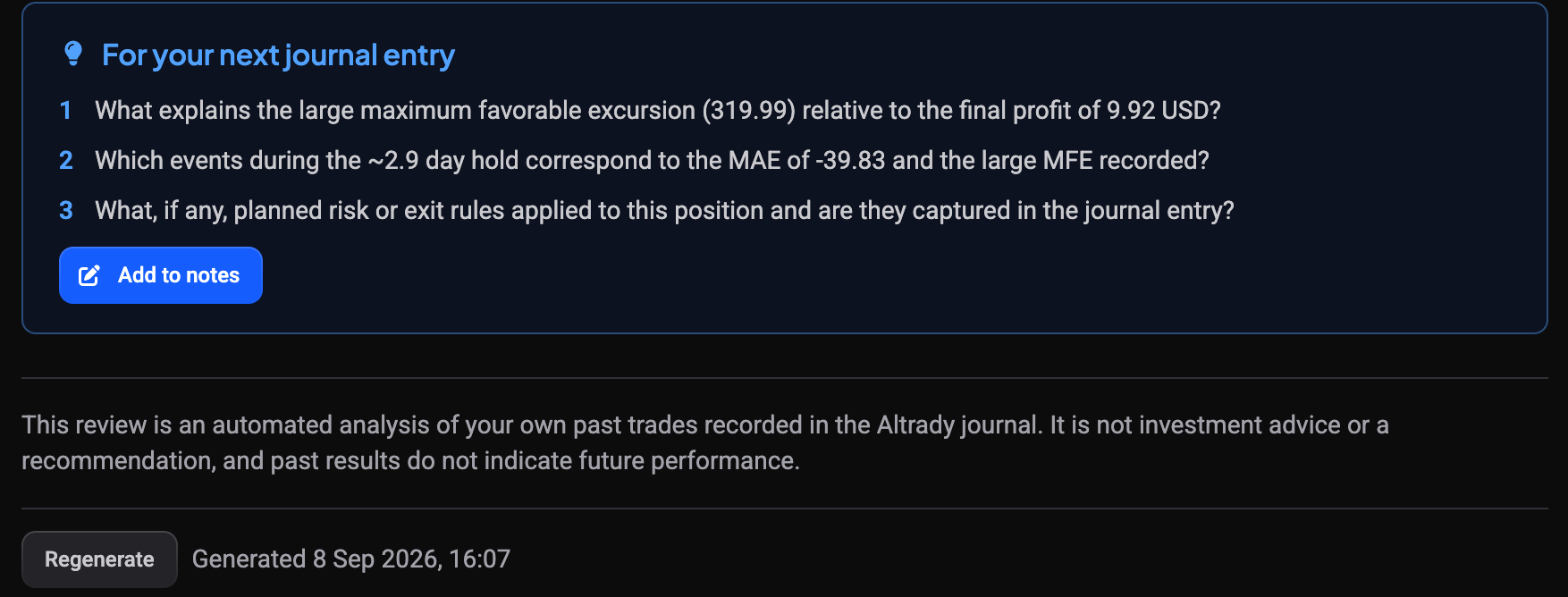 🔍 Click the image to see a larger version
 🔍 Click the image to see a larger version
Credits and coverage
| Period | Cost |
|---|---|
| Single position | 10 credits |
| Today, Yesterday | 10 credits |
| This week, Last week | 20 credits |
| This month, Last month | 30 credits |
| This year, Last year | 50 credits |
AI reviews draw from the same AI credit balance as AI Chat and AI market reports. Your balance shows next to the generate button and inside the dialog. See How do AI credits work? for how the monthly grant and top-ups work.
A review only sees what is in the journal: closed positions in the period that have been reviewed, on the accounts and strategies currently selected in the filter bar, with the tags, notes, planned risk and checklist answers you recorded. Unreviewed positions are left out, so if a review covers fewer trades than you expected, mark them reviewed on the Positions tab first. It does not look at open positions or at your exchange balances.
Still stuck?
If a review keeps failing, never finishes, or the credit balance does not match what you expect, reach out through support chat in the app. Mention the period you picked and the time you clicked Generate so we can look up the run.