
Learn the trading terminal
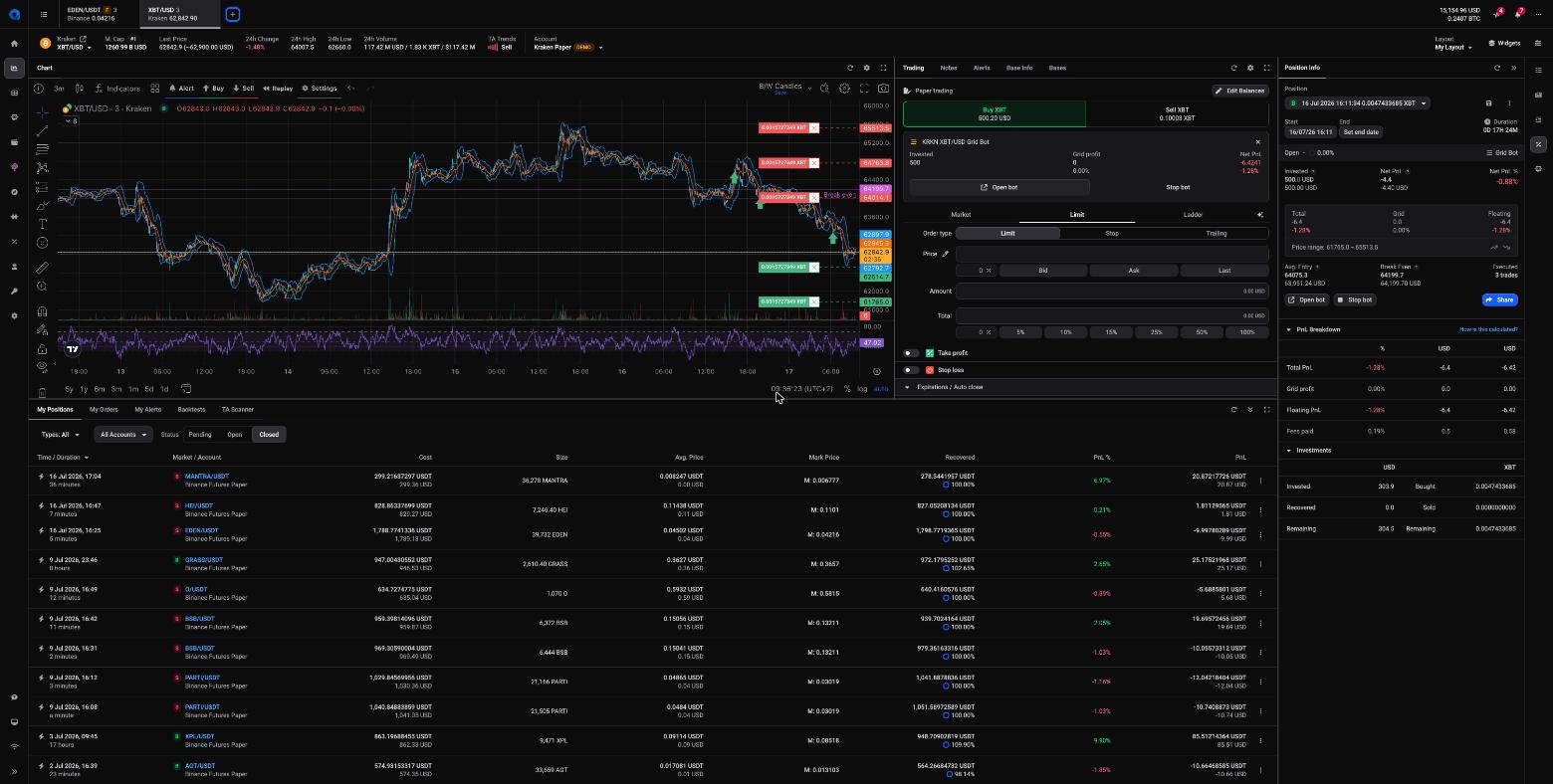
The Trading Terminal is where most of your time in Altrady happens. At first glance it can look busy, but it is built from just two simple ideas: tabs along the top (one per market) and a grid of widgets below (chart, order book, trading panel, and more). Once you see how those two pieces work, you can arrange the screen any way you like and get anything back if it disappears.
Tabs: one market per tab
Each tab in the Trading Terminal shows one trading pair on one exchange, for example BTC/USDT on Binance. You can have up to 50 tabs open, so you can jump between markets without losing your place.
Open a new market tab
- Open the Trading Terminal from the menu on the left side of the screen.
- Click the New tab (+) button in the top-left corner (or + Add tab in the middle of the screen if no tabs are open yet).
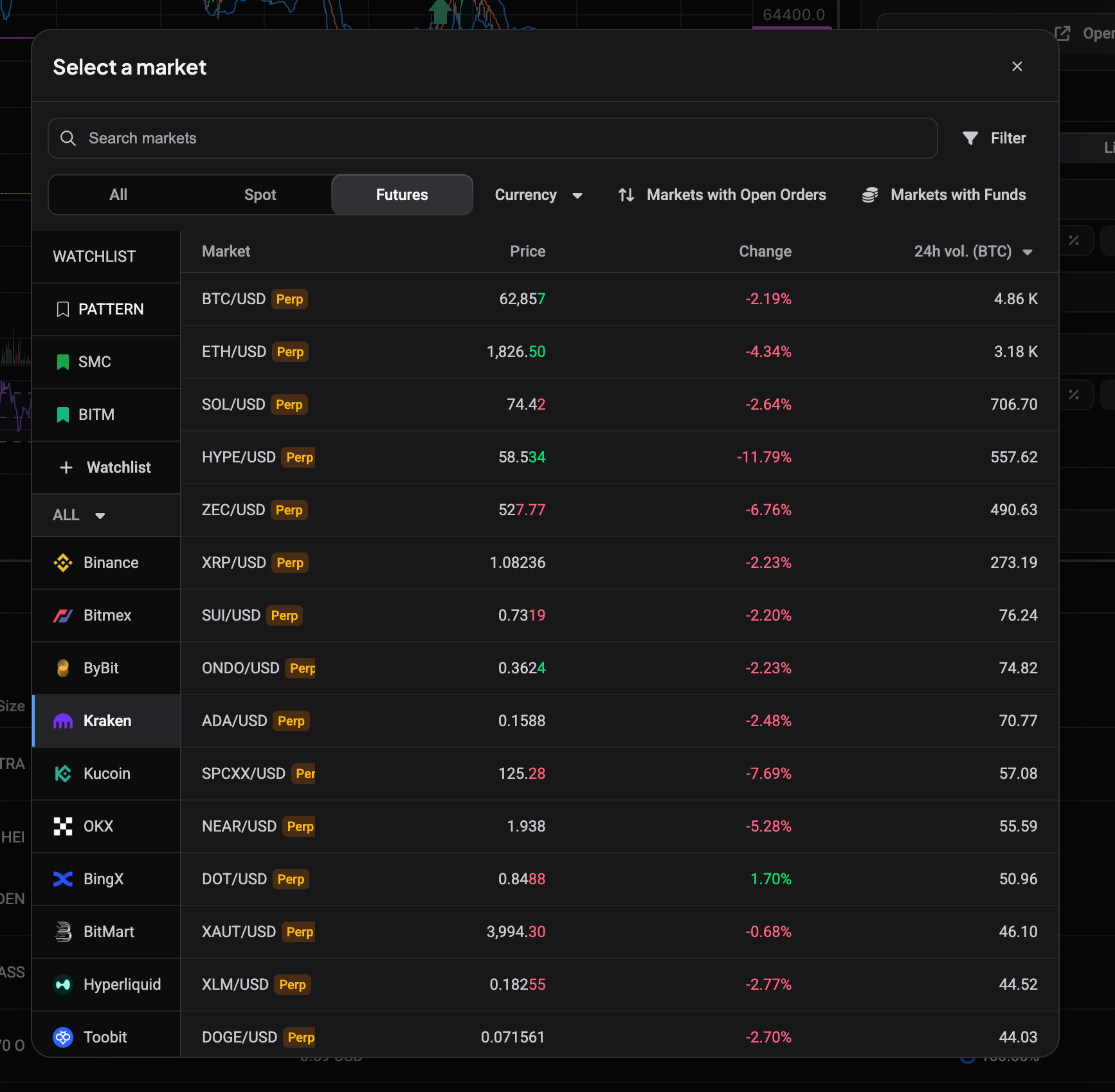
- A window appears listing all available exchanges and markets. Pick an exchange and a trading pair, or type in the search bar at the top to find one faster.
 🔍 Click the image to see a larger version
You can also narrow the list with the built-in filters, for example Spot vs. Futures, a specific quote currency, or only markets where you have open orders.
🔍 Click the image to see a larger version
You can also narrow the list with the built-in filters, for example Spot vs. Futures, a specific quote currency, or only markets where you have open orders.
 🔍 Click the image to see a larger version
Once you choose a pair, the whole tab switches to that market: the chart, the trading panel, your orders, and every other market-related widget now show that pair.
🔍 Click the image to see a larger version
Once you choose a pair, the whole tab switches to that market: the chart, the trading panel, your orders, and every other market-related widget now show that pair.
Everyday tab actions
Most tab management lives in the right-click menu. Right-click any tab to:
- Change market - swap the tab to a different pair without closing it.
- Close tab - or just click the X on the tab itself.
- Close other tabs - keep only the one you are looking at.
- Close all tabs - start fresh.
To reorder tabs, simply click and hold a tab, then drag it left or right. Grouping related markets together (all your BTC pairs, for example) keeps things tidy.
If you have many tabs open, click the list icon to the left of the tabs to see and search all open tabs in one place.
Lock the tabs you always use
If there are markets you check every day, lock those tabs so they can’t be closed, moved, or changed by accident.
- Right-click the tab you want to keep.
- Click Lock tab at the top of the menu.
Locked tabs move to the left side of the tab row and show a small padlock icon. If you try to open a different market in a locked tab, Altrady opens it in a new tab instead, your locked tab stays exactly as it is. To unlock, right-click the tab and choose Unlock tab.
Shortcut: hold CTRL (Windows) or CMD (Mac) while the Trading Terminal is focused and a lock symbol appears on every tab, click it to lock or unlock that tab.
Widgets: the building blocks of your screen
Everything below the tab row is a widget: the chart, the order book, the trading panel, your open orders, market depth, and so on. Widgets sit in a flexible grid, and you decide which ones appear and where.
Add or remove widgets
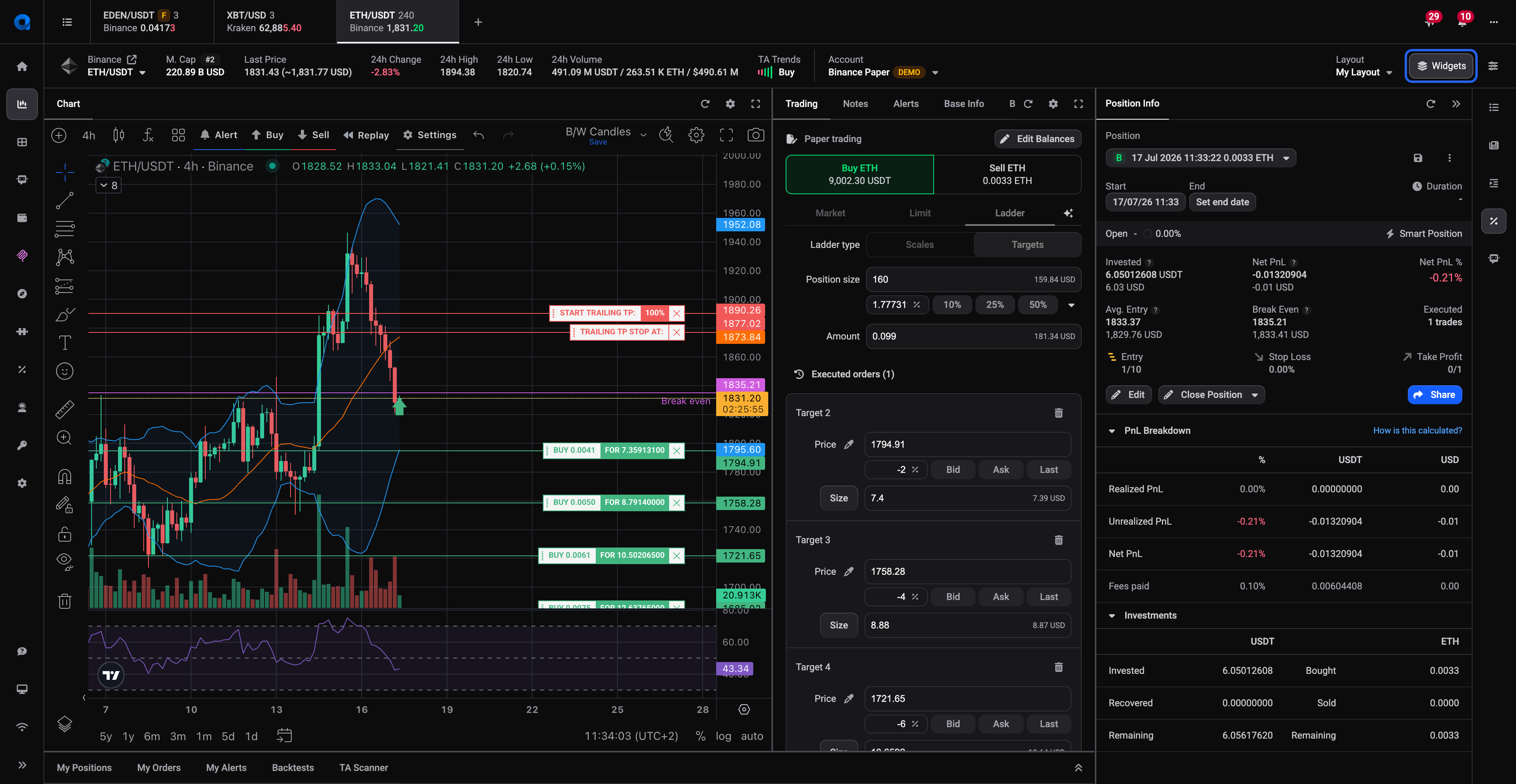
All available widgets are listed in the Widgets menu. Tick a widget’s box to add it (it appears at the bottom of the terminal), or untick it to remove it from the layout.
 🔍 Click the image to see a larger version
Nothing is ever lost. If a panel disappears, closed by accident, or hidden after a layout change, it is just switched off, not deleted. Open the Widgets list, tick it back on, and it returns.
🔍 Click the image to see a larger version
Nothing is ever lost. If a panel disappears, closed by accident, or hidden after a layout change, it is just switched off, not deleted. Open the Widgets list, tick it back on, and it returns.
Move and resize widgets
To move a widget, click and hold its name (the title at the top of the widget), then drag it to where you want it and let go. The rest of the grid shifts to make room.
You can also stack widgets together to save space:
- Group widgets: right-click a widget’s name and choose Join with other widget(s), then click the group you want to add it to. Grouped widgets share one spot and switch like tabs.
- Ungroup: right-click a widget’s name and choose Detach this widget (or Detach all widgets to break up the whole group).
- Reorder within a group: right-click the widget’s name and choose Move left or Move right.
Save or undo your changes
After you rearrange anything, the Save and Revert buttons become active. Click Save to keep the new arrangement, or Revert to snap back to how it looked the last time you saved. So feel free to experiment, you are always one click away from your last saved layout.
The Charts page: several markets at once
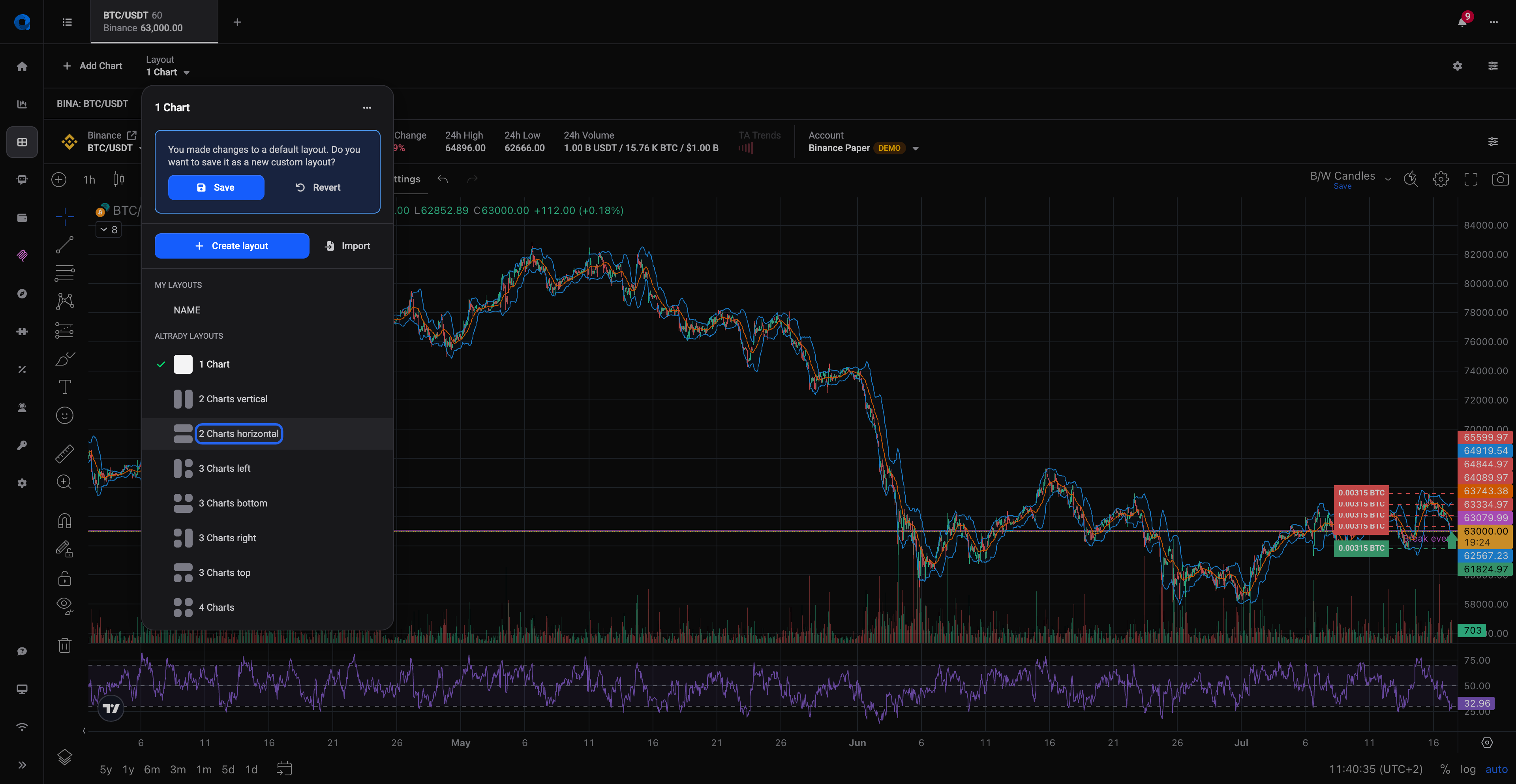
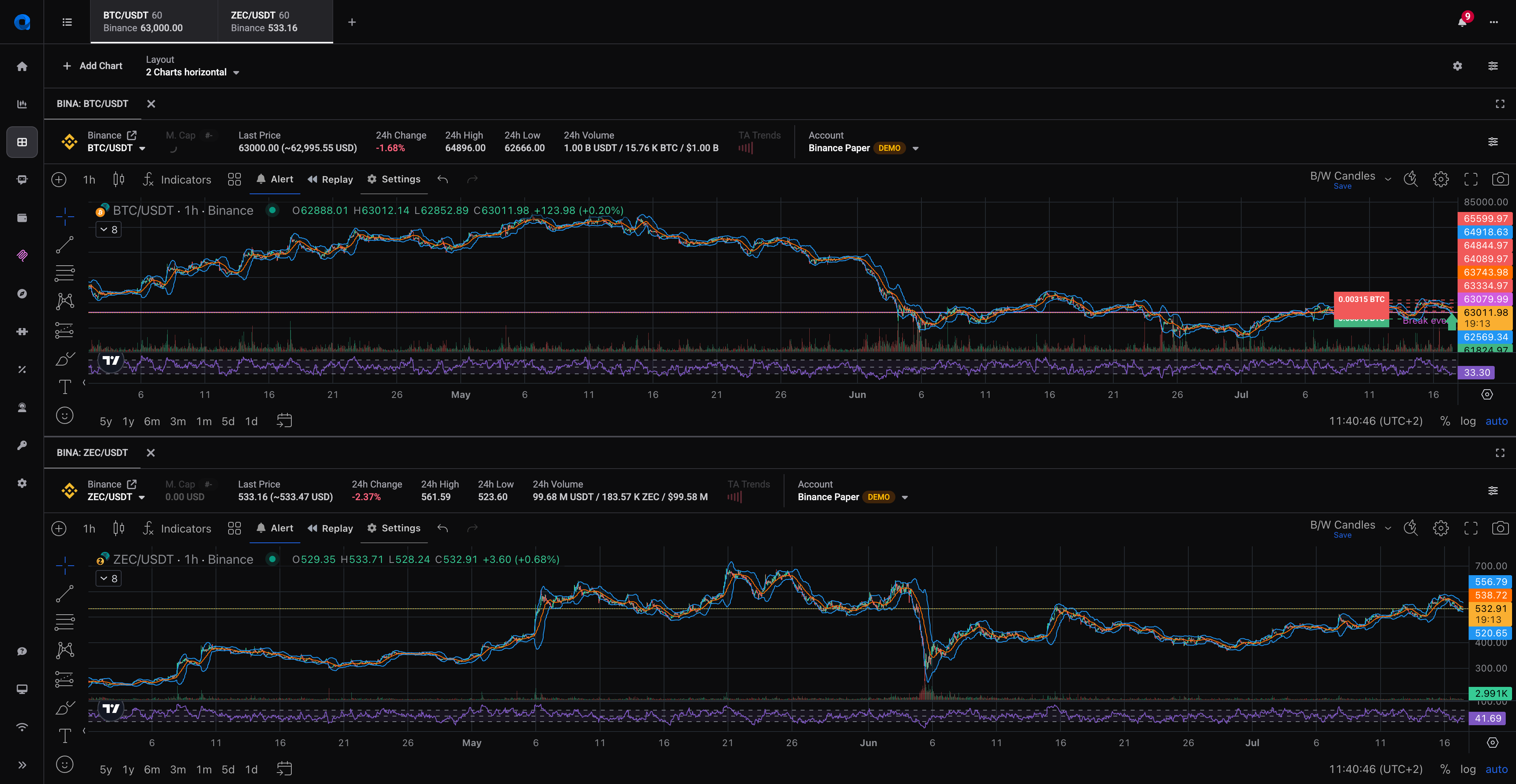
Next to the Trading Terminal, Altrady also has a Charts page (top-left of the screen) where you can watch multiple charts side by side which handy for comparing markets at a glance.
- Click Add chart, then pick an exchange and pair, just like adding a tab.
- Use the Layout selector in the top-right corner to pick a ready-made arrangement, or click New layout to create and name your own. Advanced settings let you set the number of columns and the gap between charts.
- The More button (next to the Layout selector) holds the rest: rename a layout, Lock layout so charts can’t be dragged around, Unlock layout to edit again, and Export/Import layout to back up your setup or move it to another computer.
 🔍 Click the image to see a larger version
 🔍 Click the image to see a larger version
## Found a setup you like? Lock it in
🔍 Click the image to see a larger version
## Found a setup you like? Lock it in
A good routine once your screen feels right:
- Click Save in the Trading Terminal so your widget arrangement is stored.
- Lock the tabs for markets you trade daily.
- On the Charts page, use Lock layout so nothing shifts while you work.
From there, everything stays put, and if you ever change your mind, unlock, rearrange, and save again.
Want to go deeper into individual widgets and custom layouts? Browse Your Trading Screen for detailed guides on each widget.