
How do I change the app language?
You can switch Altrady’s display language from the top bar at any time. There’s no save button: click a language and the interface updates right away.
Where to find the language menu
 🔍 Click the image to see a larger version
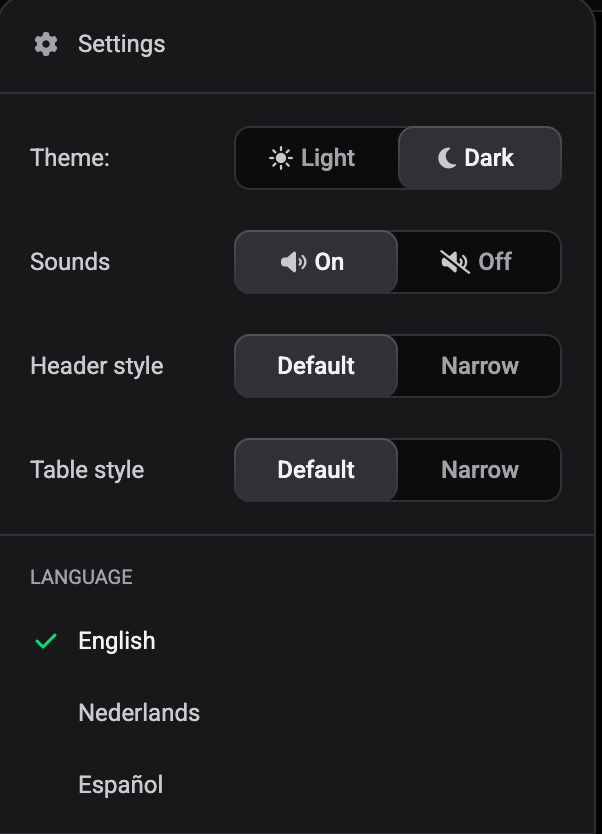
On desktop, open the Settings menu from the icon in the top-right corner of the app and scroll to the LANGUAGE section. Altrady currently offers three interface languages there:
- English
- Nederlands (Dutch)
- Español (Spanish)
A green check mark shows which one is active. The same menu also holds your theme, sounds, header style and table style settings.
On mobile, the language setting lives under the More menu, also labeled Language, but it currently offers two options: English and Nederlands. Spanish isn’t available on mobile yet.
Switching languages
- Open the Settings menu in the top-right corner (or More on mobile).
- Scroll to the LANGUAGE section.
- Click or tap the language you want.
That’s it. Altrady switches the interface immediately, there’s no extra confirmation or save step. If you picked the wrong one, just open the menu again and pick the correct language: it changes just as fast.
What actually changes
Switching languages only translates the interface text: menus, buttons, labels, and messages. It does not change:
- The currency your balances and prices are shown in.
- Market data, coin names, or exchange information (these come from the exchanges themselves and stay in their original form).
- Any bot templates, presets, or configurations you’ve already set up.
So if you’re used to reading prices in USD, switching to Español won’t move you to EUR. Currency is a separate setting, and none of your exchange connections, positions, or bots are affected by a language change: it’s purely cosmetic.
It’s remembered per device
Once you pick a language, Altrady remembers it on that device. If you use Altrady on your laptop and your phone, you can set a different language on each; they don’t need to match, and switching one won’t change the other. There’s nothing to sync and nothing you need to do to make the choice stick: it’s saved automatically the moment you click.
If you ever switch devices or reinstall the app, you’ll just need to pick your preferred language again on that device the first time.
Still stuck?
If the language menu doesn’t show the option you expect, or the interface doesn’t switch after you click, reach out through the in-app support chat and the team will take a look.