
Understanding your Portfolio overview: balances, charts and totals
The Portfolio page adds up everything you hold across every connected exchange and external wallet into one view: a value chart, an assets breakdown, and a table of coins. Here is what each part shows and where to look if a coin seems to have vanished.
 🔍 Click the image to see a larger version
Choosing what you are looking at
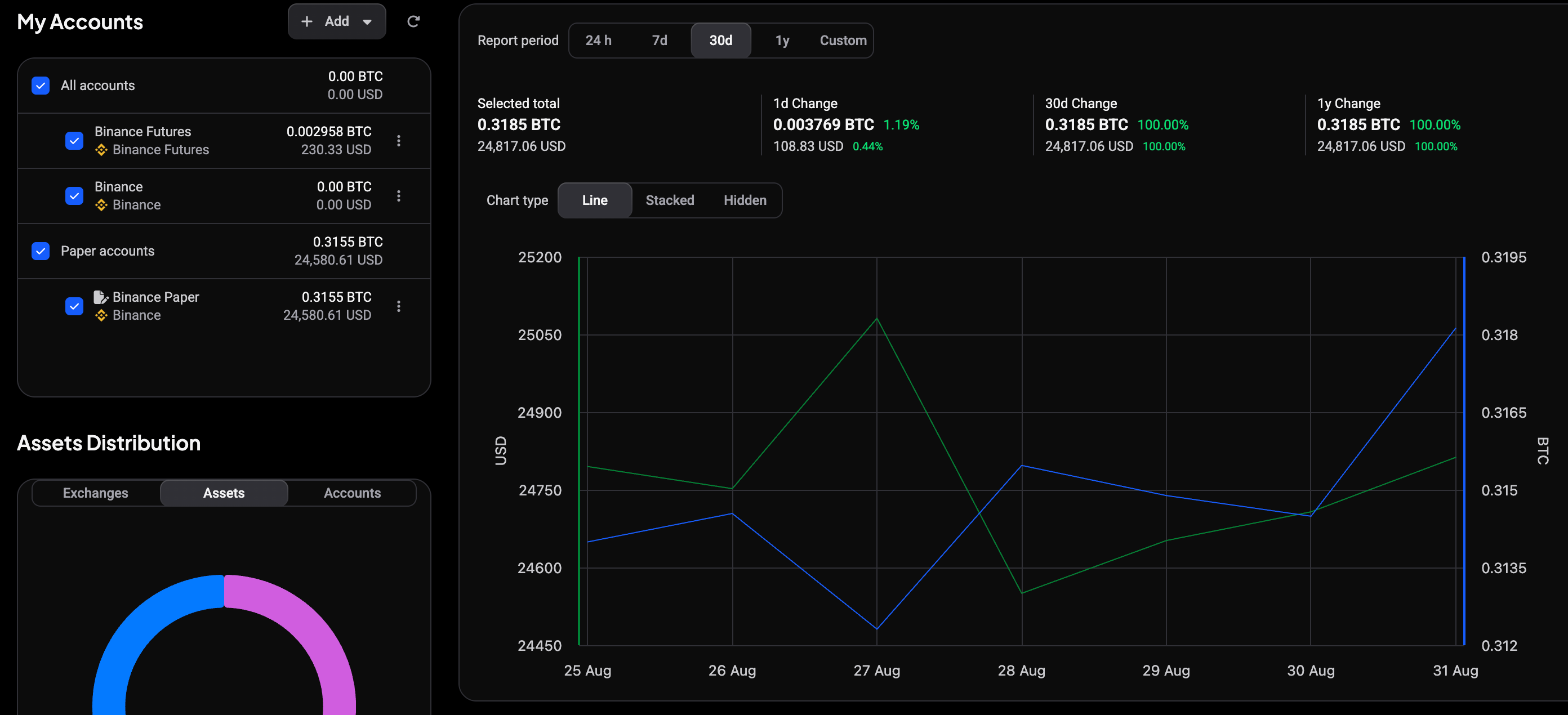
The My Accounts sidebar on the left controls the whole page. Each account and wallet has a checkbox, and there is an All accounts checkbox at the top:
- Tick All accounts to see everything combined.
- Tick a single exchange account or wallet to narrow down to just that one.
- Tick any combination to compare a few at once.
Whatever you select rescopes the charts, the totals and the table together, so you can flip between your whole portfolio and a single wallet without doing any math. To add a connection, use + Add; to force a fresh sync, select the circular refresh icon next to it.
The totals and the value chart
Above the chart, a Report period selector (24h, 7d, 30d, 1y, or Custom) sets the window everything is measured over. Below it, four cards summarize your selection:
- Selected total: the current value of what you have selected, shown in both BTC and your reporting currency.
- 1d Change, 30d Change and 1y Change: how that value has moved over each period, as an amount and a percentage.
The chart itself plots your value over time, with a USD scale on the left and a BTC scale on the right. Chart type switches it between Line, Stacked and Hidden.
The Assets Distribution donut
 🔍 Click the image to see a larger version
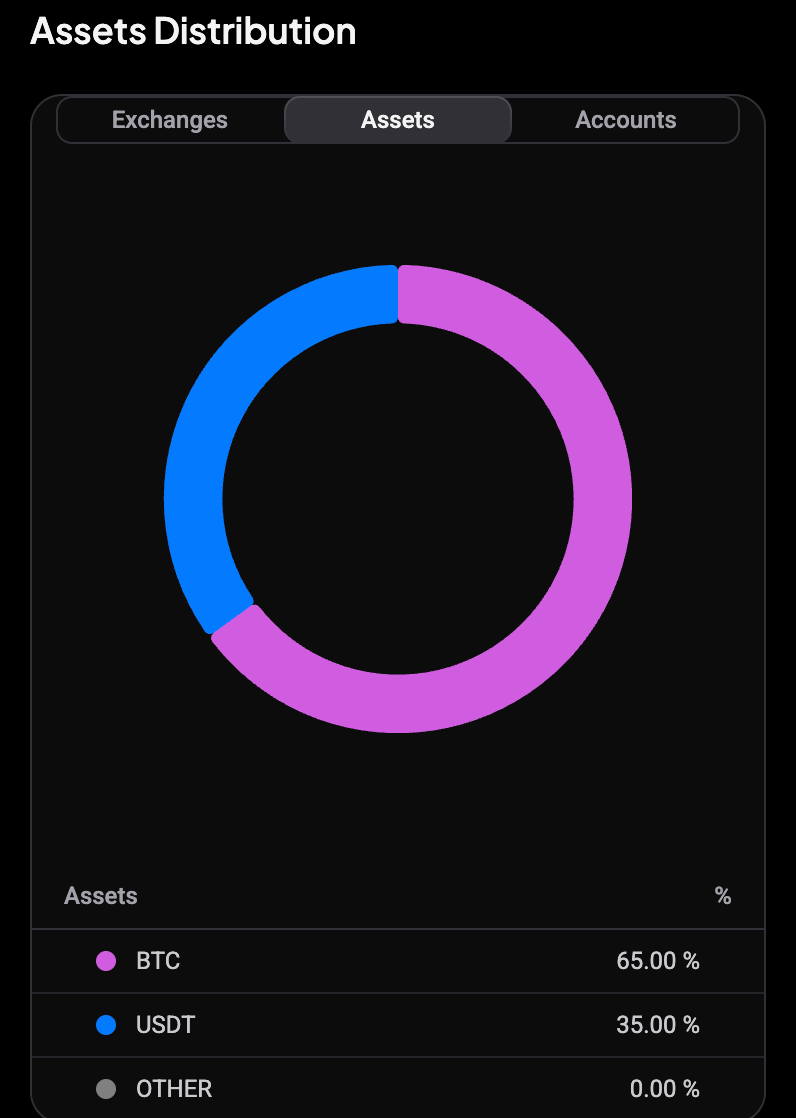
Under the sidebar, Assets Distribution shows how your value is split, with three tabs:
- Exchanges: the share held on each connected exchange.
- Assets: the share held in each coin.
- Accounts: the share held in each account.
A legend below the donut lists each slice with its percentage.
Reading the portfolio table
 🔍 Click the image to see a larger version
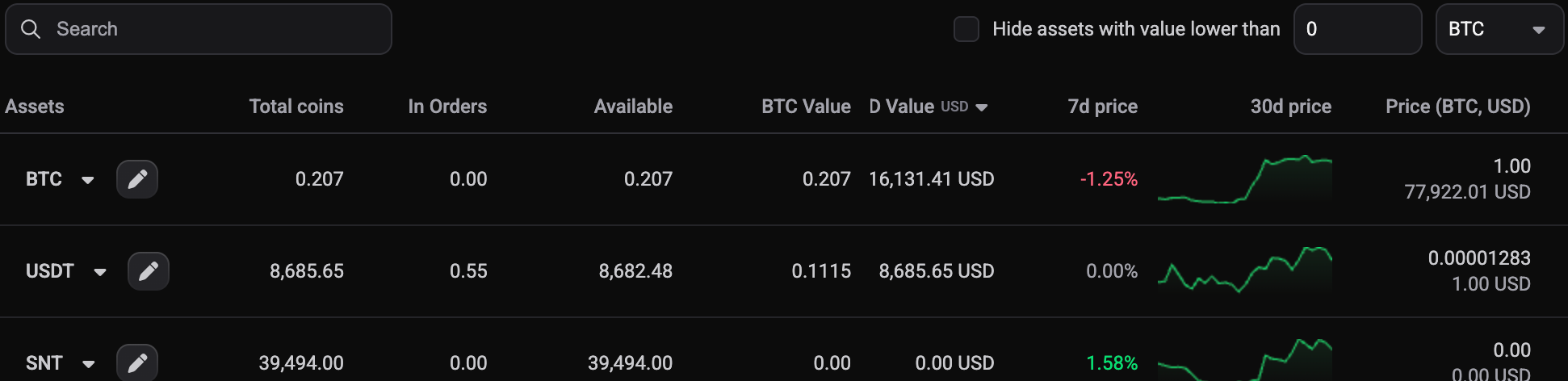
Each row in the table is one coin, with these columns:
- Assets: the coin. The pencil icon lets you edit how that holding is tracked.
- Total coins: how many units you hold, which is simply In Orders plus Available.
- In Orders: coins tied up in open buy or sell orders.
- Available: coins free to trade or withdraw right now.
- BTC Value: the holding’s value in BTC.
- D Value: the value in your reporting currency. The currency label next to the header lets you switch it.
- 7d price: how the coin’s price moved over the last 7 days.
- 30d price: a small sparkline of the last 30 days.
- Price: the current market price, in BTC and your reporting currency.
- Portfolio %: what share of your selected value this coin represents.
If a Total coins number looks off, check the In Orders column: coins parked in open orders still count toward your total.
Why coins disappear from the table
Above the table, Hide assets with value lower than filters out dust, tiny balances too small to be worth showing, from both the table and the Assets Distribution donut. Set a threshold and pick its unit; raise it and more small holdings drop out, lower it (or set it to zero) and they reappear.
This is also what is behind a message you might see on the dashboard’s Balances widget about coins being hidden. It is not a bug, it is the same filter. Adjust it here in Portfolio if you want those coins visible again.
Forcing a fresh sync
Balances update automatically, but if you have just moved funds or added a wallet and want to see it right away, select the refresh icon next to + Add. Give it a few seconds, since exchange and blockchain data both take a moment to come back.
Still stuck?
If a balance still looks wrong after refreshing, or a wallet is not showing up at all, our support team can take a look. Open the chat bubble in the app and start a conversation, we are happy to dig in with you.