
Where can I read crypto news in Altrady?
Altrady shows crypto news in two places: the News tab on any coin’s Market Explorer page, and a News tab in the widget bar at the bottom of the Trading Terminal. Both list headlines you click to open the full article in your browser.
News on a coin’s Market Explorer page
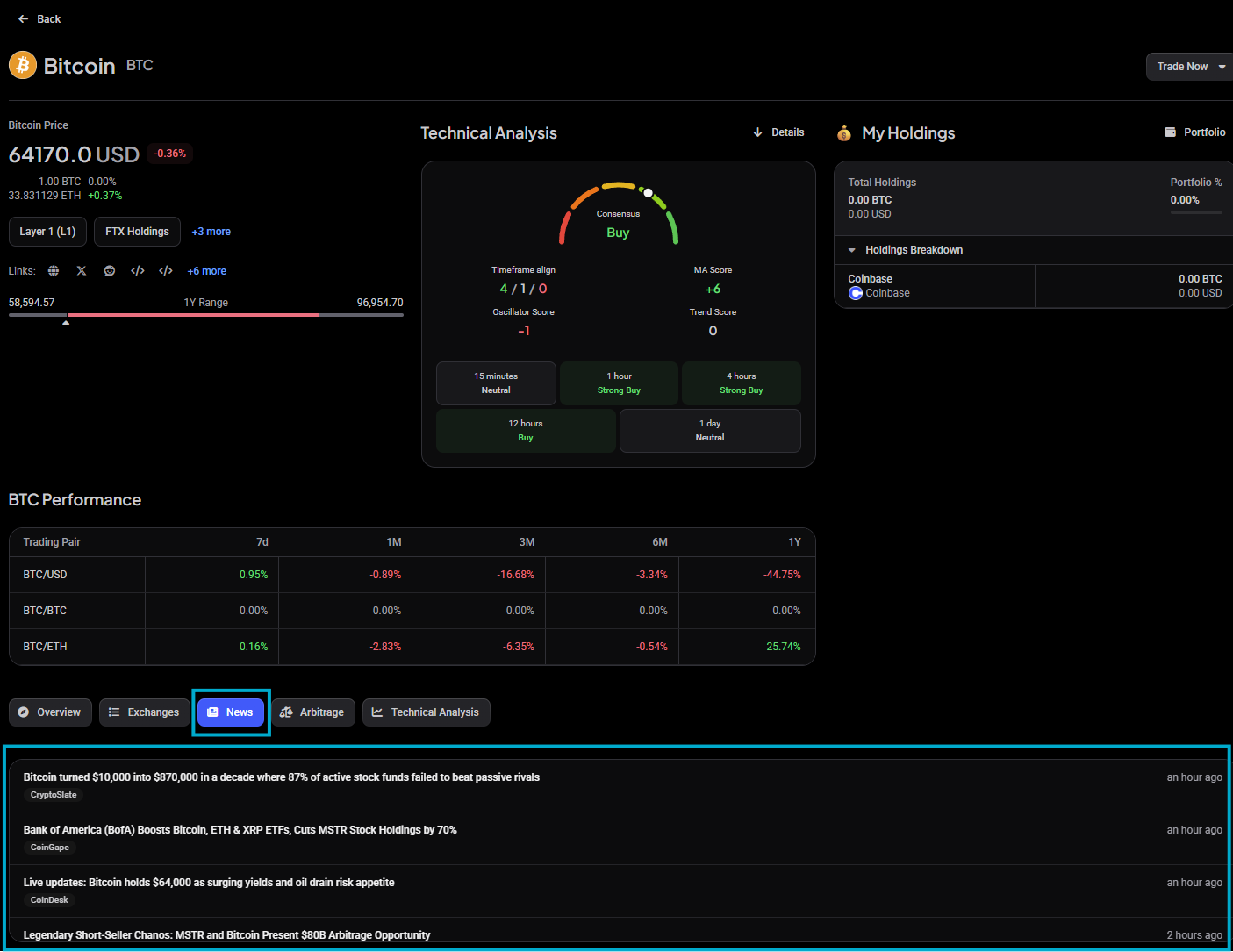 🔍 Click the image to see a larger version
Every coin in Market Explorer has its own detail page, with a row of tabs across the middle: Overview, Exchanges, News, Arbitrage and Technical Analysis. Open the News tab to see a live list of headlines relevant to that specific coin.
To get there: open Market Explorer from the main menu, search for or select a coin (from Overview, Market Cap Ranking, Categories, Gainers, or Losers), then click into that coin’s detail page and select the News tab.
Each row shows the headline, the publisher’s name as a small badge, and how long ago the story went out. Click any item and it opens the source article in a new browser tab, not inside Altrady itself. That’s normal: Altrady collects and lists the news, but the full story always lives on the original publisher’s site.
If a coin doesn’t have much coverage, the list may show very few items or none at all. That’s not a fault on Altrady’s end: it just means the specific coin hasn’t had recent news picked up yet.
News in the Trading Terminal
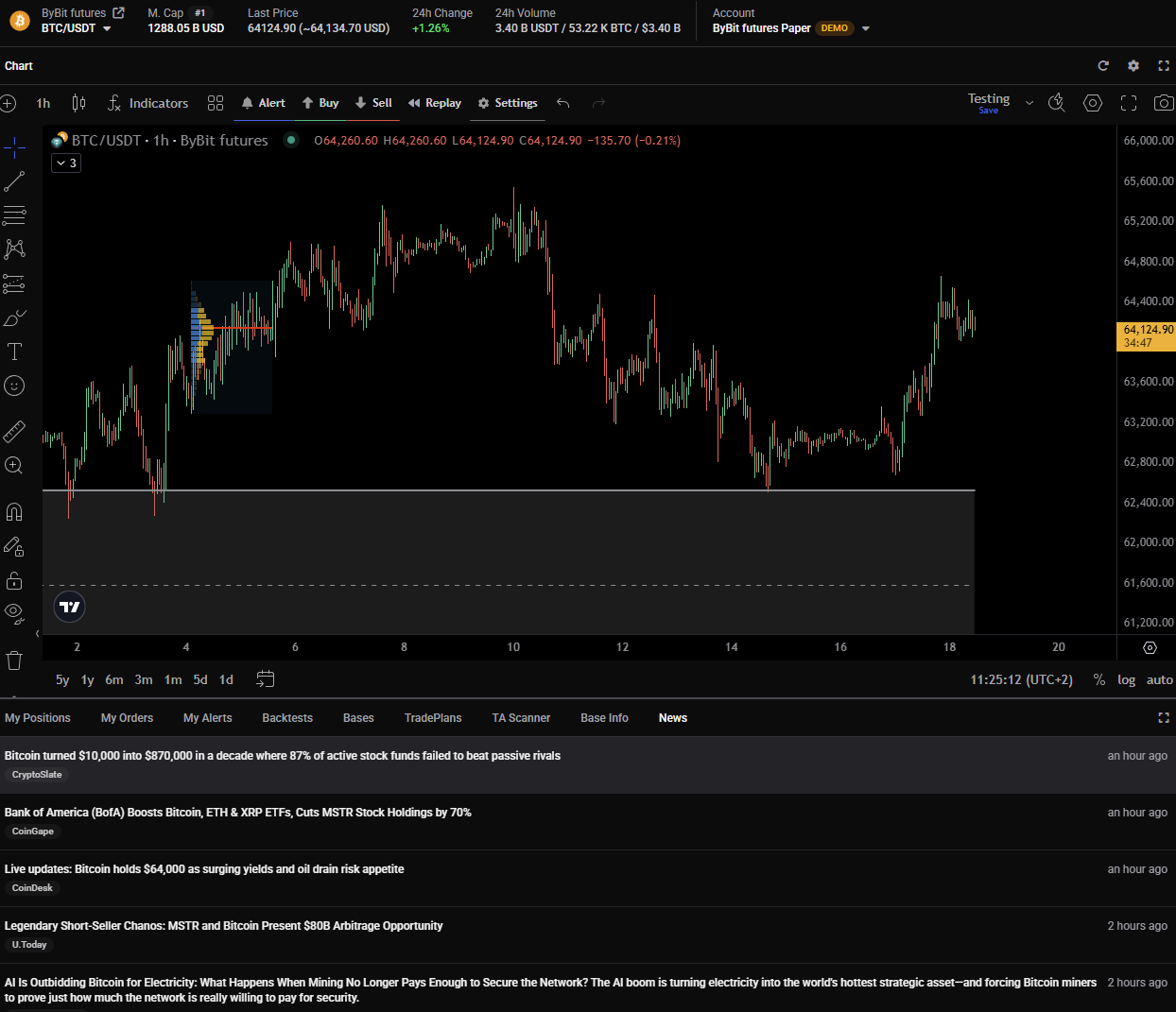 🔍 Click the image to see a larger version
If you’d rather see headlines while you’re charting, use the News tab in the widget bar along the bottom of the Trading Terminal, instead of switching over to Market Explorer. It sits alongside the other tabs there, such as My Positions, My Orders, My Alerts and TA Scanner.
The tab behaves a little differently depending on what’s active in your layout:
- If the Trading Terminal has an active chart open, News shows headlines for that chart’s symbol, the same way the Market Explorer tab does for a single coin.
- If there’s no active chart symbol to link to, it falls back to a general crypto news feed instead.
This means the same tab can act as either a focused, per-coin feed or a broader market overview, just depending on how your layout is set up.
Which widgets appear in your terminal, and how they’re arranged, is up to you. If you haven’t customized a layout before, our guide covers it: Learn the Trading Terminal.
Once it’s open, the list updates on its own as new headlines come in. You don’t need to refresh it manually.
When there’s nothing to show
Sometimes News will display a placeholder message instead of a list: “We don’t have any news yet. Check back later!” This shows up when there’s no coverage available yet for the current symbol, or for the general feed at that moment. It’s a normal, temporary state, not an error, and it switches back to showing headlines automatically as soon as news comes in.
Clicking through to an article
Wherever you find a headline, whether in the Market Explorer News tab or in the Trading Terminal, clicking it opens the original source article in your default browser. Altrady doesn’t host the article text itself; it surfaces the headline and link so you can read the full piece from the publisher.
A quick way to think about it
- Researching one coin in depth? Use the News tab on that coin’s Market Explorer page.
- Keeping an eye on headlines while you chart? Use the News tab in the Trading Terminal’s widget bar.
There’s no separate, standalone “News” section in the main menu: news always lives attached to a coin’s page or to the Trading Terminal.
Still stuck?
If headlines aren’t loading, the list looks stuck on the placeholder message longer than expected, or you can’t find the News tab on a coin’s page, reach out through support chat in the app and our team will take a look.