
Connect WOO X
Connect WOO X
Connecting your WOO X account lets Altrady see your balances and place trades for you, using a secure API key. It only takes a few minutes.
A quick word on safety: when you create the API key on WOO X, only tick Enable Trading. Altrady never needs, and will never ask you to enable, withdrawal permission. Your funds stay on WOO X at all times; Altrady can trade with them but can never move them out.
Step 1: Create the API key on WOO X
- Log in to your WOO X account.
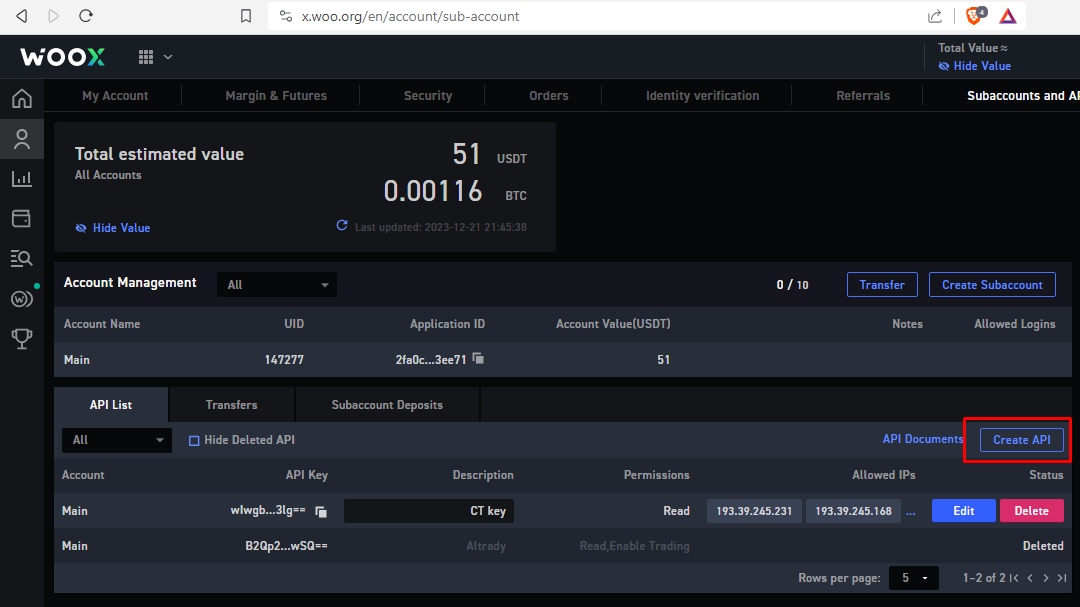
- Click the profile icon in the top-right corner, then select Subaccounts and API from the menu.
- On the subaccount page, click Create API Key.
 🔍 Click the image to see a larger version
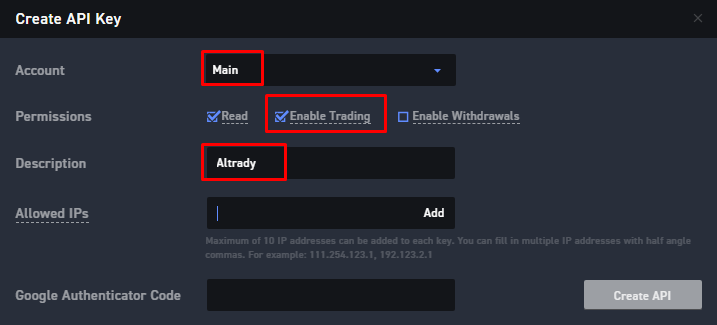
- From the dropdown, choose the main account or the subaccount you want to connect.
- Tick the permission Enable Trading only.
- Add a label or description for the key, so you recognize it later.
Leave this page open for a moment; next you’ll need to add Altrady’s IP addresses before finishing here.
 🔍 Click the image to see a larger version
Step 2: Start the connection in Altrady
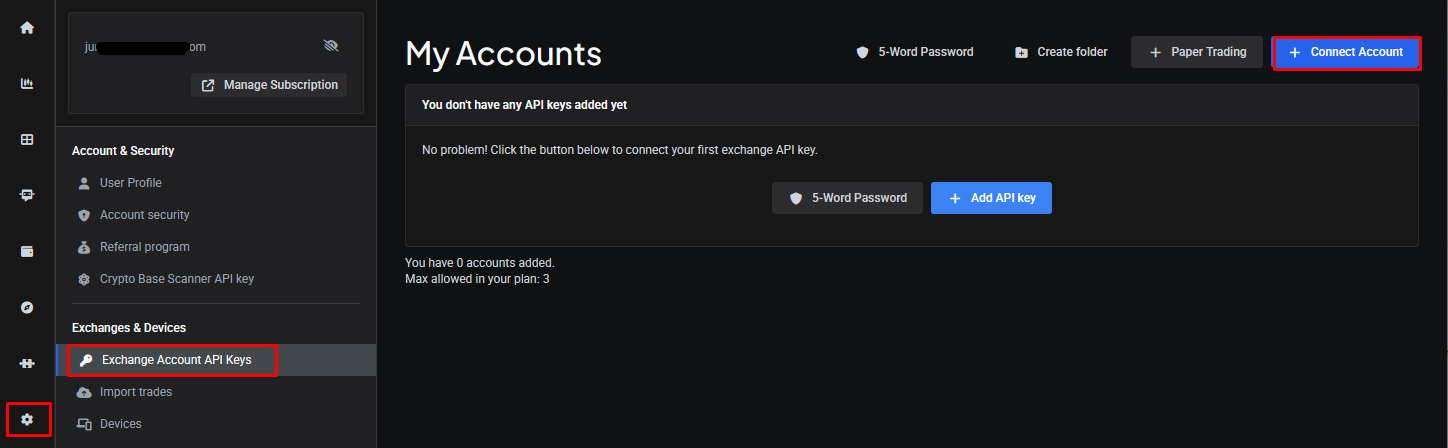
- In Altrady, go to Settings > Exchange Account API Keys.
- Click + Connect Account.
 🔍 Click the image to see a larger version
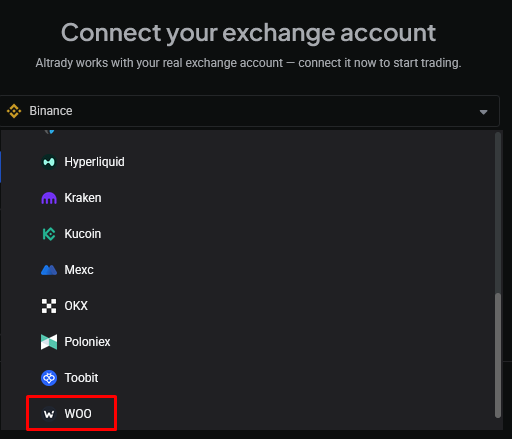
- From the Exchange dropdown, select Woo.
 🔍 Click the image to see a larger version
Step 3: Whitelist Altrady’s IP addresses on WOO X
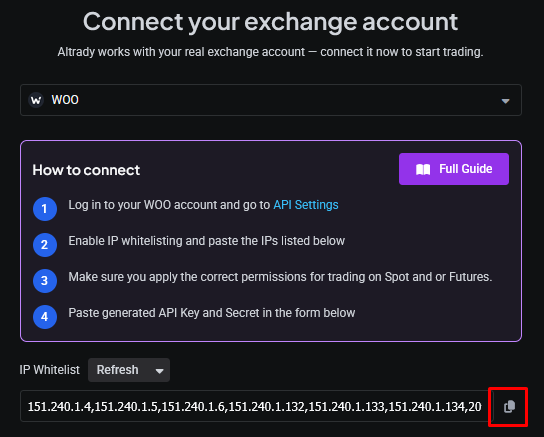
- Next to the IP whitelist field, click the Copy icon to copy Altrady’s IP addresses to your clipboard. This is a list of 10 fixed IP addresses that Altrady uses to talk to WOO X; whitelisting them is an extra layer of security, since no other address can use your API key.
 🔍 Click the image to see a larger version
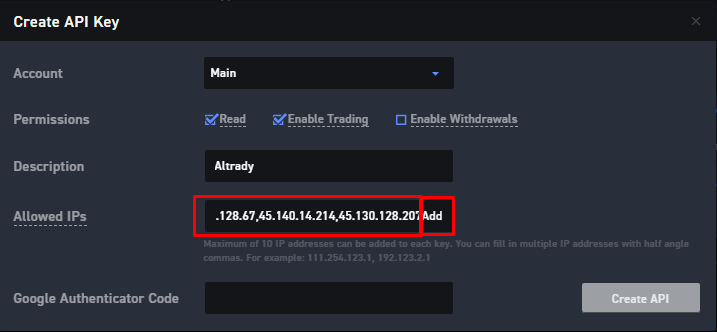
- Go back to your WOO X tab and paste the addresses into the IP whitelist field, then click Add.
 🔍 Click the image to see a larger version
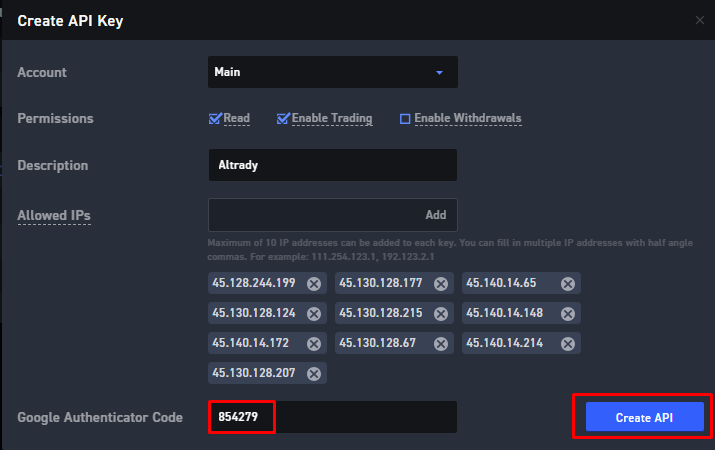
- WOO X will show the 10 IP addresses you added. Enter your authenticator code, then click Create API.
 🔍 Click the image to see a larger version
Step 4: Finish the connection in Altrady
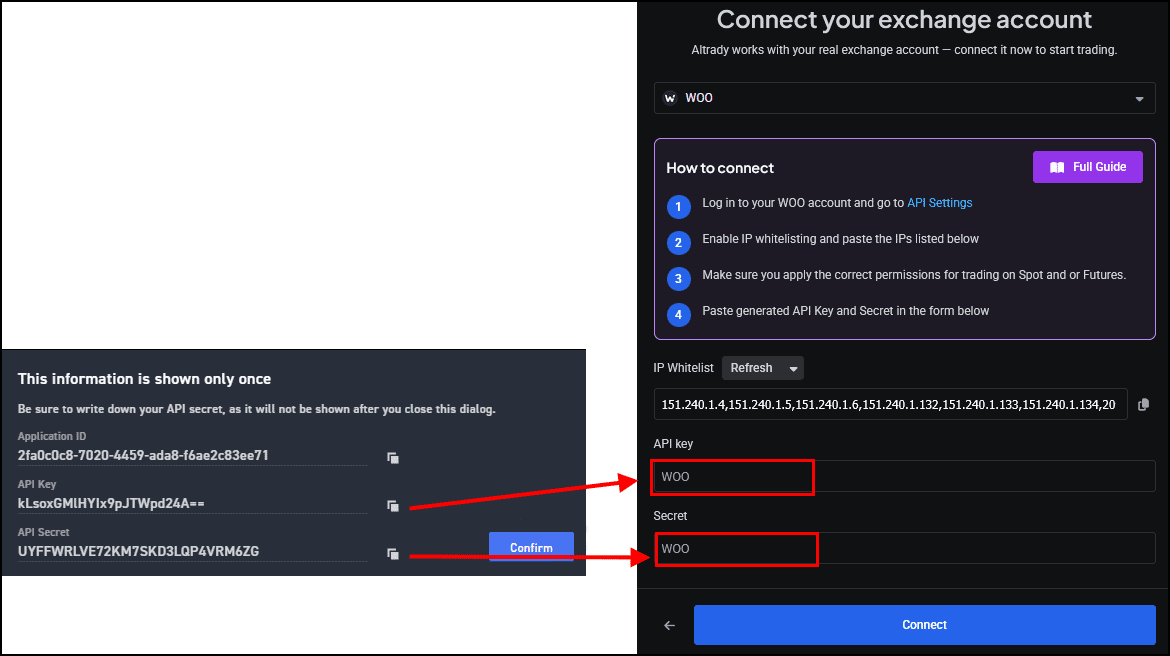
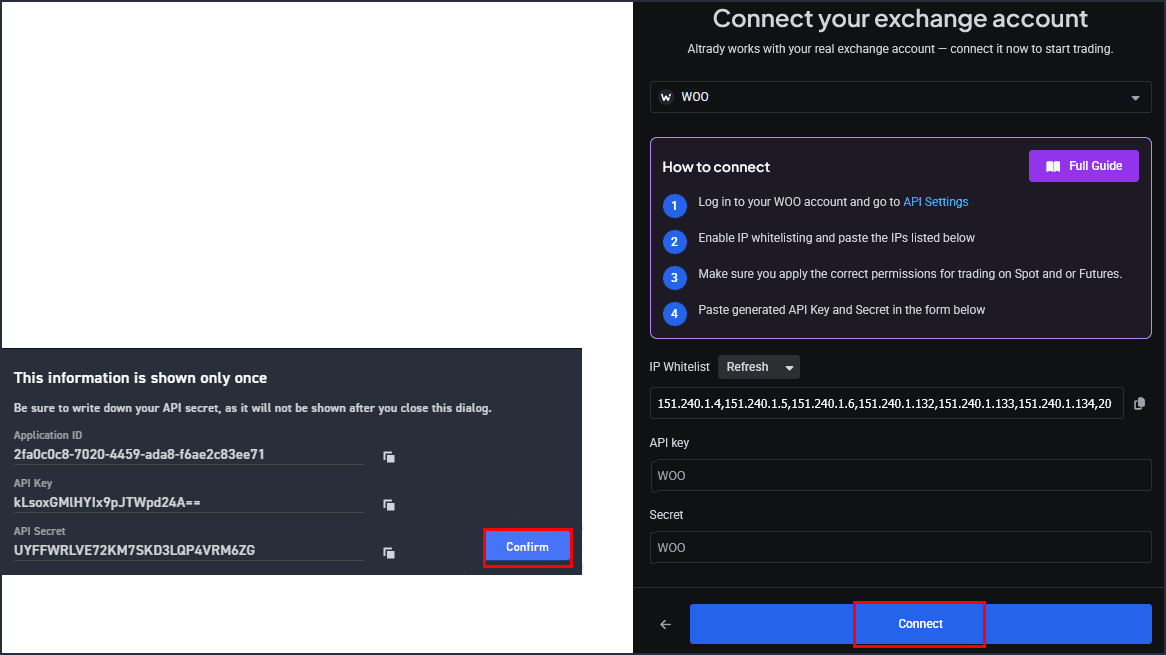
- Copy the API key and API secret from WOO X into the matching fields in Altrady.
 🔍 Click the image to see a larger version
- On WOO X, click Confirm. Then, back in Altrady, click Connect.
 🔍 Click the image to see a larger version
That’s it: your WOO X trading account now appears in Altrady’s list of API keys. You can edit it any time using the Edit icon next to it.
 🔍 Click the image to see a larger version
If your balance shows zero
Don’t worry: this is usually one of two things:
- Your balances haven’t synced from the exchange yet. This can take up to 5 minutes.
- The wrong account or subaccount was selected on WOO X when you created the API key.
 🔍 Click the image to see a larger version
You can also trigger a manual balance sync from the API Keys page.
Finding WOO X markets in the Trading Terminal
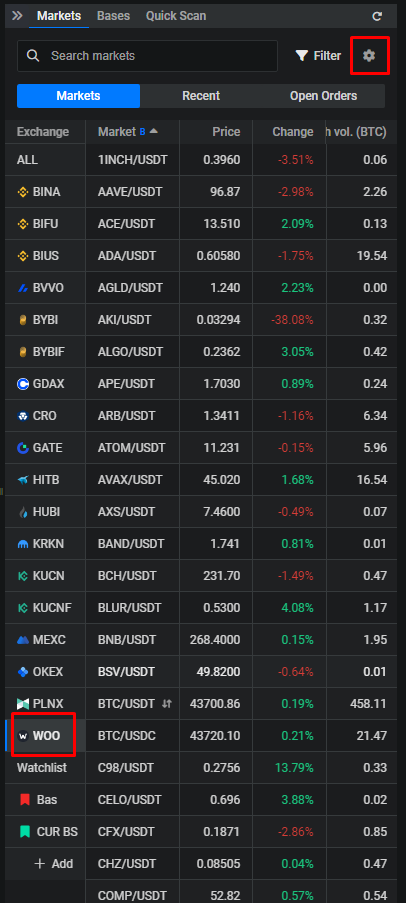
In the Markets widget on the Trading Terminal, WOO X markets appear under WOO in the left-hand column. If WOO doesn’t show up, it probably isn’t set as an active exchange yet; click the Settings (cog) icon at the top right of the Markets widget to turn it on. Once you select a WOO X market, your WOO X trading account is automatically selected in the Trading Terminal.
 🔍 Click the image to see a larger version
Learn more
Having trouble?
If the connection isn’t working the way you expect, see Connection Problems or chat with our support team; we’re happy to help.