
Connect OKX
Connecting your OKX account lets Altrady show your balances and place trades for you, without you having to switch between apps. You can connect both a Spot and a Futures OKX account.
There are two ways to do this. Fast Connect is the easiest: a couple of clicks and you’re done. If that doesn’t work for you, Manual Connection does the same job with a few extra copy-paste steps.
Whichever way you connect, Altrady never asks for withdrawal access to your funds. You’ll only ever grant Trade permission; your money can never be sent out of your OKX account through Altrady.
Before your first trade: check that your OKX account mode allows what you want to trade. Altrady can place spot orders only when your OKX account is in Spot mode or Spot and futures mode; see the section just below before you create your key.
Important. Fast Connect only works if your OKX account address is www.okx.com (OKX global). If you use my.okx.com or app.okx.com, use Manual Connection instead; this includes most traders based in the EU/EEA.
Before you trade OKX Futures
OKX Futures has several essential setup points — especially your OKX account mode, and extra requirements for EEA residents — see Trading Futures on OKX at the end of this guide before your first futures trade.
Trading OKX spot: set your account mode
OKX has four account modes: Spot mode, Spot and futures mode, Multi-currency margin mode, and Portfolio margin mode. This is a single, account-wide setting, so it applies to everything you trade; there is no separate setting for spot and futures. Altrady can place spot orders only when your account is in Spot mode or Spot and futures mode.
If your OKX account is in Multi-currency margin mode or Portfolio margin mode, OKX treats every spot order as a margin order and rejects the ones Altrady sends, returning the error 51000 Parameter tdMode error. Your futures orders keep working, so it can look as though only spot is broken, or as though the problem is one market. It isn’t: it affects every spot order. Altrady does not support spot trading in these two account modes, and it does not support margin (borrowing) on spot at all.
To trade spot through Altrady, set your OKX account to Spot mode or Spot and futures mode:
- Choose Spot and futures mode if you also want to trade OKX futures. You keep full futures access; you only give up the shared collateral of Multi-currency margin mode.
- Choose Spot mode if you only trade spot.
Where to change it on OKX:
- On the web: Settings > Account mode (or Trade > Derivatives trading > top-right corner > Account mode).
- In the OKX app: Trade > top-left menu > Trade settings > Account mode.
OKX won’t let you switch account mode while you have open positions or pending orders, so cancel and close those first. Switching also changes how your whole OKX account handles collateral, so it’s worth reading OKX’s own guide before you change it: Introduction to Unified Account.
The easy way: Fast Connect
Fast Connect logs you into OKX securely and sets up the API key for you; permissions and IP whitelist included. You don’t need to touch OKX’s API settings at all.
Read more about it here: Fast Connect.
Fast Connect only works for adding a new Trading Account. If you already have an OKX account connected and just need to update its key, skip ahead to the Manual Connection steps below and use Edit instead.
-
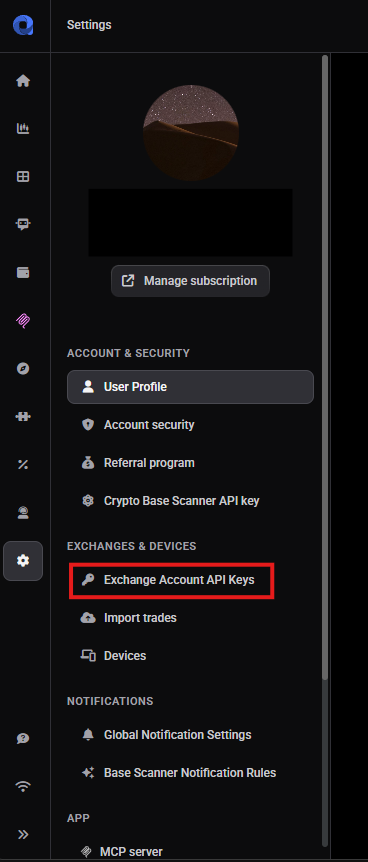
In Altrady, click Settings in the left sidebar, then Exchange Account API Keys.
 🔍 Click the image to see a larger version
-
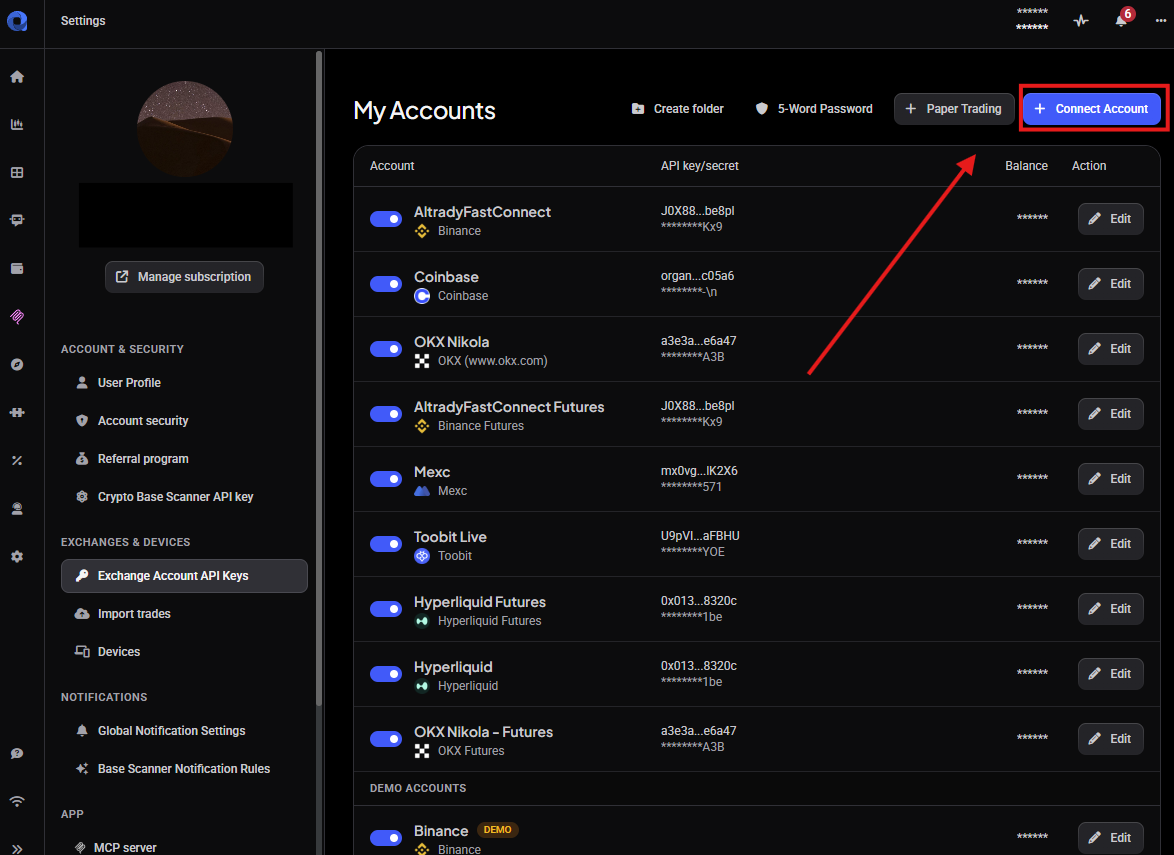
Click + Connect Account.
 🔍 Click the image to see a larger version
-
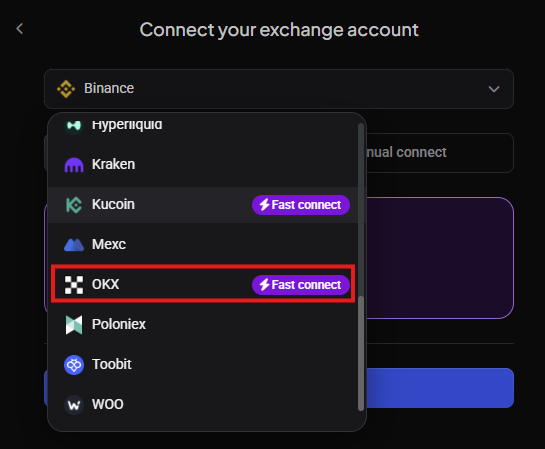
Select OKX from the dropdown list.
 🔍 Click the image to see a larger version
-
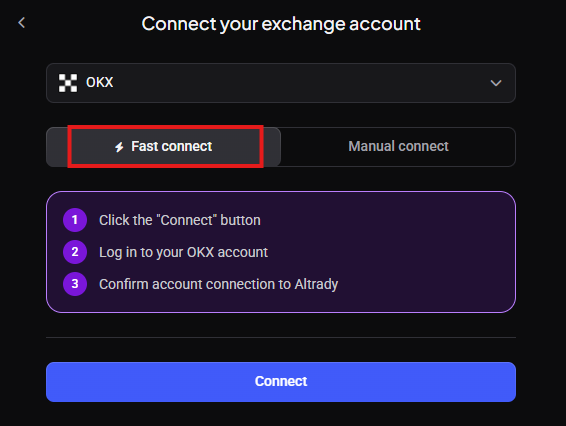
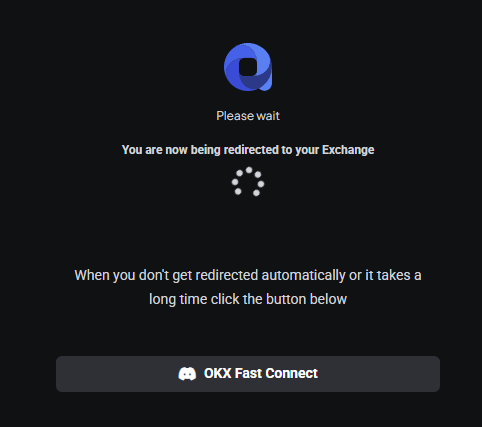
Make sure Fast Connect is selected, then click Connect. You’ll be redirected to the OKX login page. If you’re already logged into OKX in this browser, you won’t need to log in again.
 🔍 Click the image to see a larger version
 🔍 Click the image to see a larger version
-
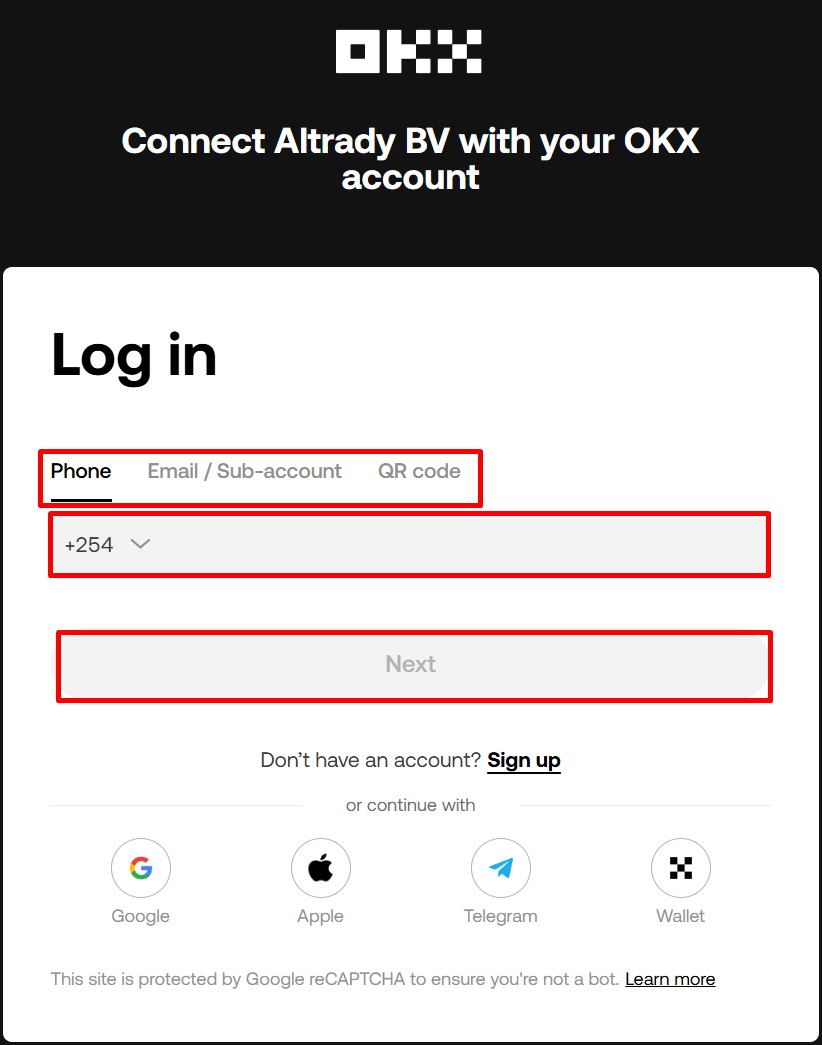
Choose your login method, enter your details, and click Next.
 🔍 Click the image to see a larger version
-
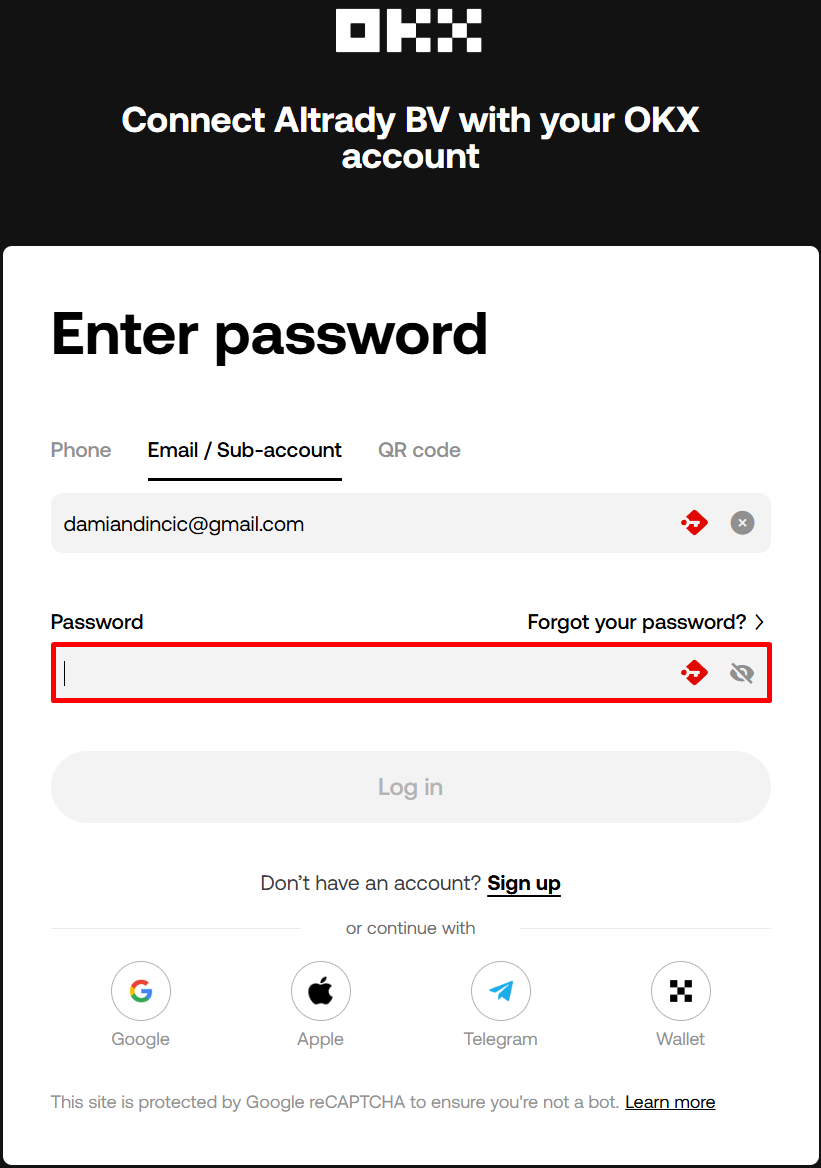
If you logged in with phone/email or a sub-account, you’ll also be asked for your password. Enter it and click Log In.
 🔍 Click the image to see a larger version
-
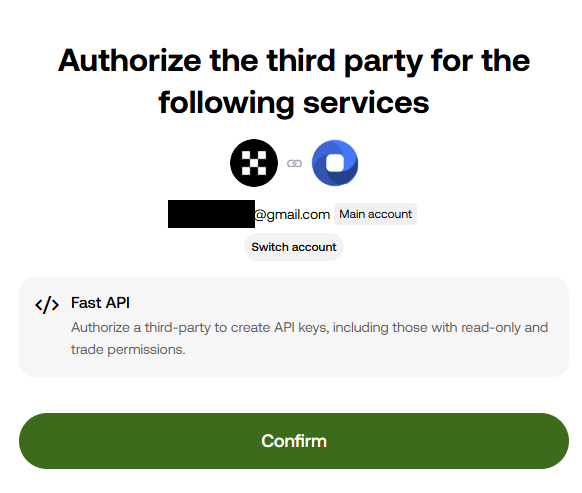
Click Confirm to allow Altrady to create the Fast Connect API key. This key is created with the correct Trade permission only, and Altrady’s IP whitelist is applied automatically.
 🔍 Click the image to see a larger version
-
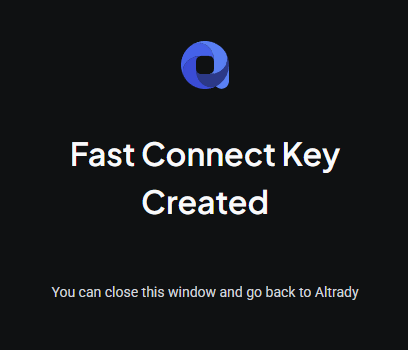
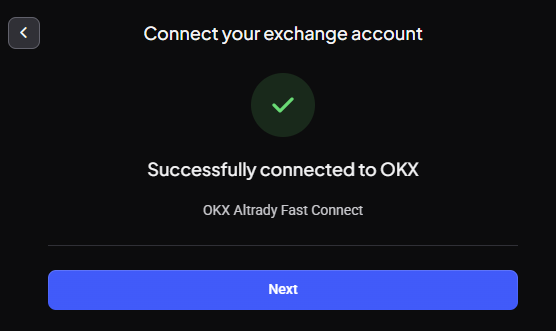
You’ll see a success message, both on the OKX redirect page and in Altrady.
 🔍 Click the image to see a larger version
 🔍 Click the image to see a larger version
-
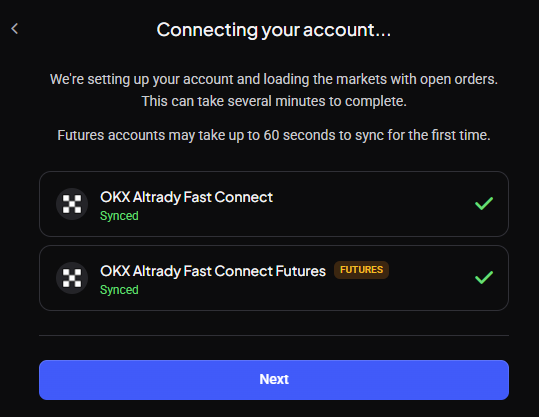
Click Next to finish.
 🔍 Click the image to see a larger version
Spot and Futures are created as two separate Trading Accounts in Altrady, even though they share the same balance on OKX. Make sure your funds are in your OKX Trading account, not Funding, so Altrady can see them.
Your new Trading Account will now show up on the Exchange Account API Keys page. You can rename it any time by clicking Edit and changing the Account Label.
 🔍 Click the image to see a larger version
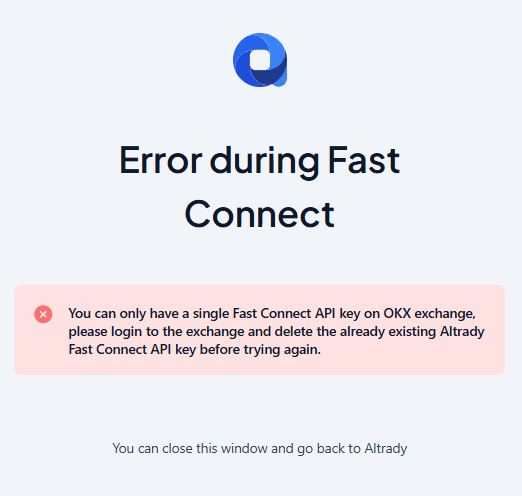
If something goes wrong: OKX only allows one Fast Connect API key per account. If you see an error saying one already exists, either delete the existing Altrady key on OKX, or add the account manually instead (see below).
🔍 Click the image to see a larger version
If something goes wrong: OKX only allows one Fast Connect API key per account. If you see an error saying one already exists, either delete the existing Altrady key on OKX, or add the account manually instead (see below).
 🔍 Click the image to see a larger version
You may also see an error if adding this account would go over the number of Trading Accounts allowed on your current Altrady plan.
🔍 Click the image to see a larger version
You may also see an error if adding this account would go over the number of Trading Accounts allowed on your current Altrady plan.
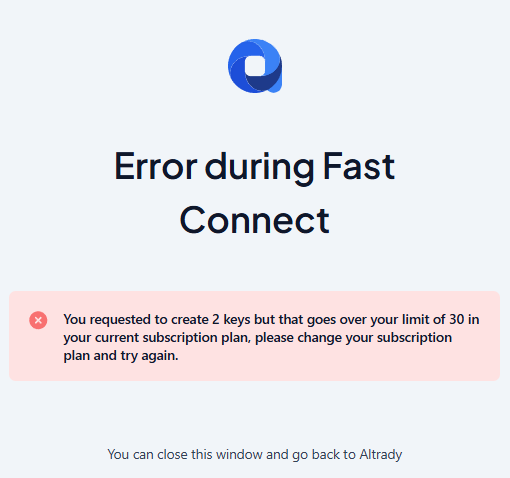 🔍 Click the image to see a larger version
If your balance doesn’t appear right away, see Syncing your balance below.
🔍 Click the image to see a larger version
If your balance doesn’t appear right away, see Syncing your balance below.
Manual Connection (alternative)
If Fast Connect isn’t available to you (for example you’re on my.okx.com), connect manually instead. There are two ways to create the API key on OKX; the third-party method is simpler because it sets Altrady’s IP whitelist for you automatically.
Third-party app (recommended for manual)
-
Log into OKX.
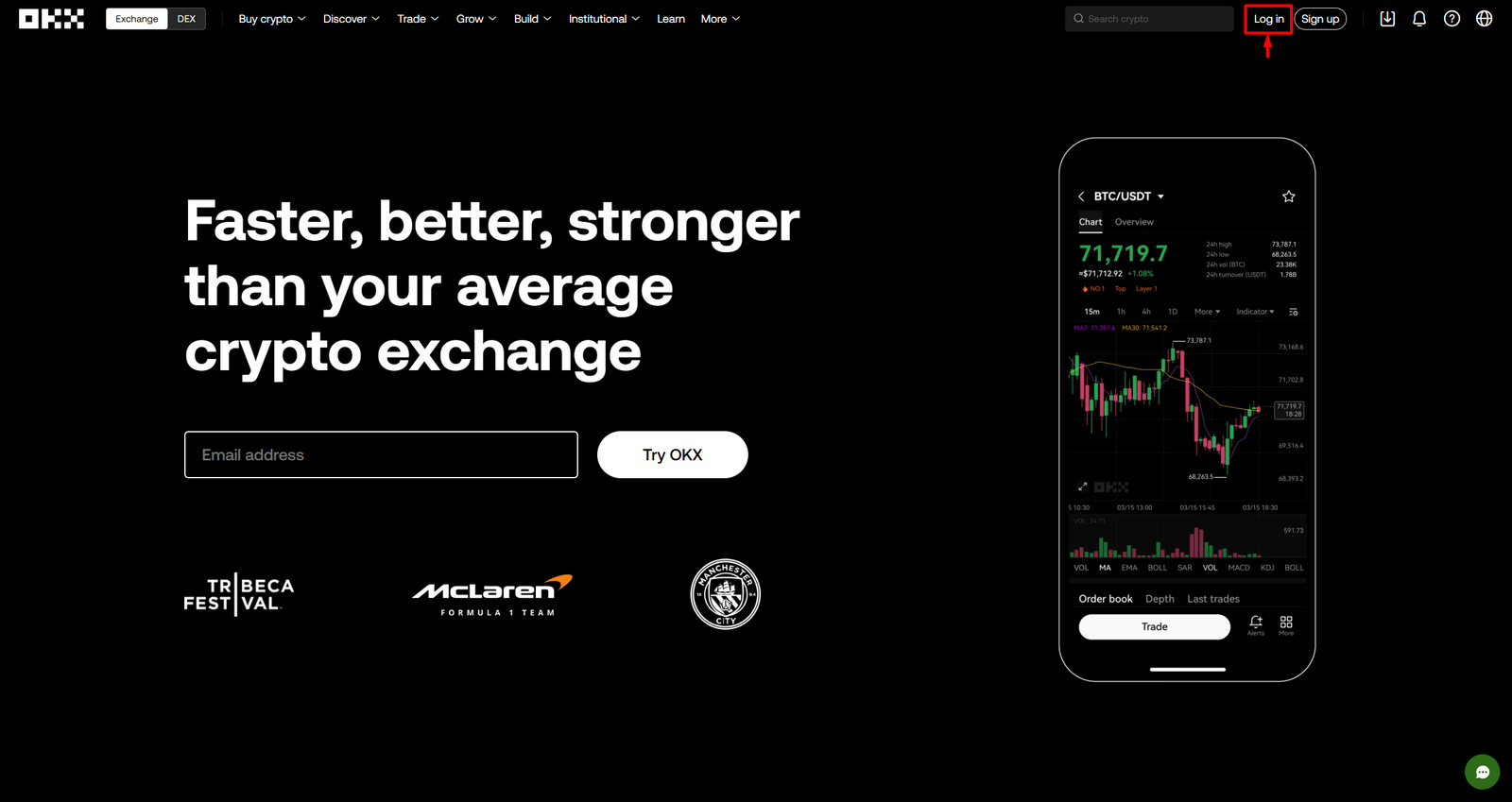 🔍 Click the image to see a larger version
-
Click APIs, then Create APIs.
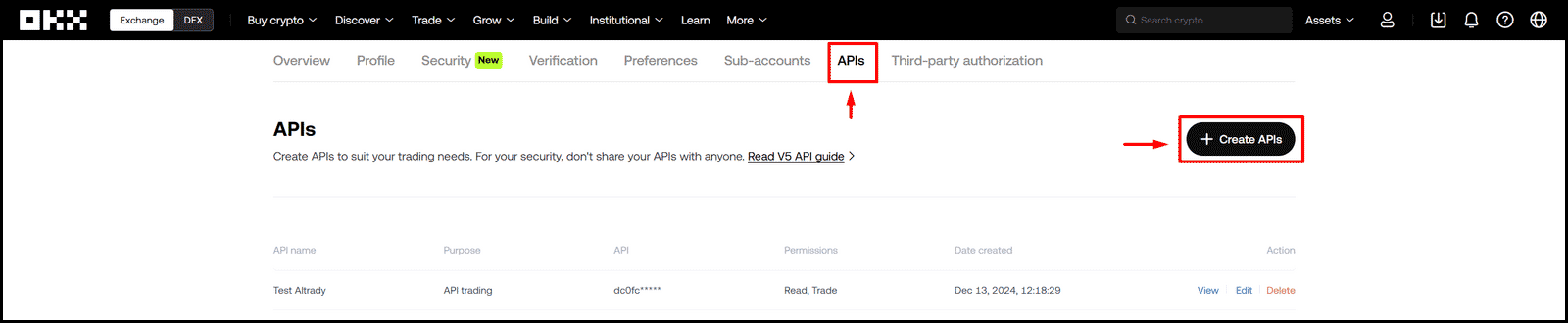 🔍 Click the image to see a larger version
-
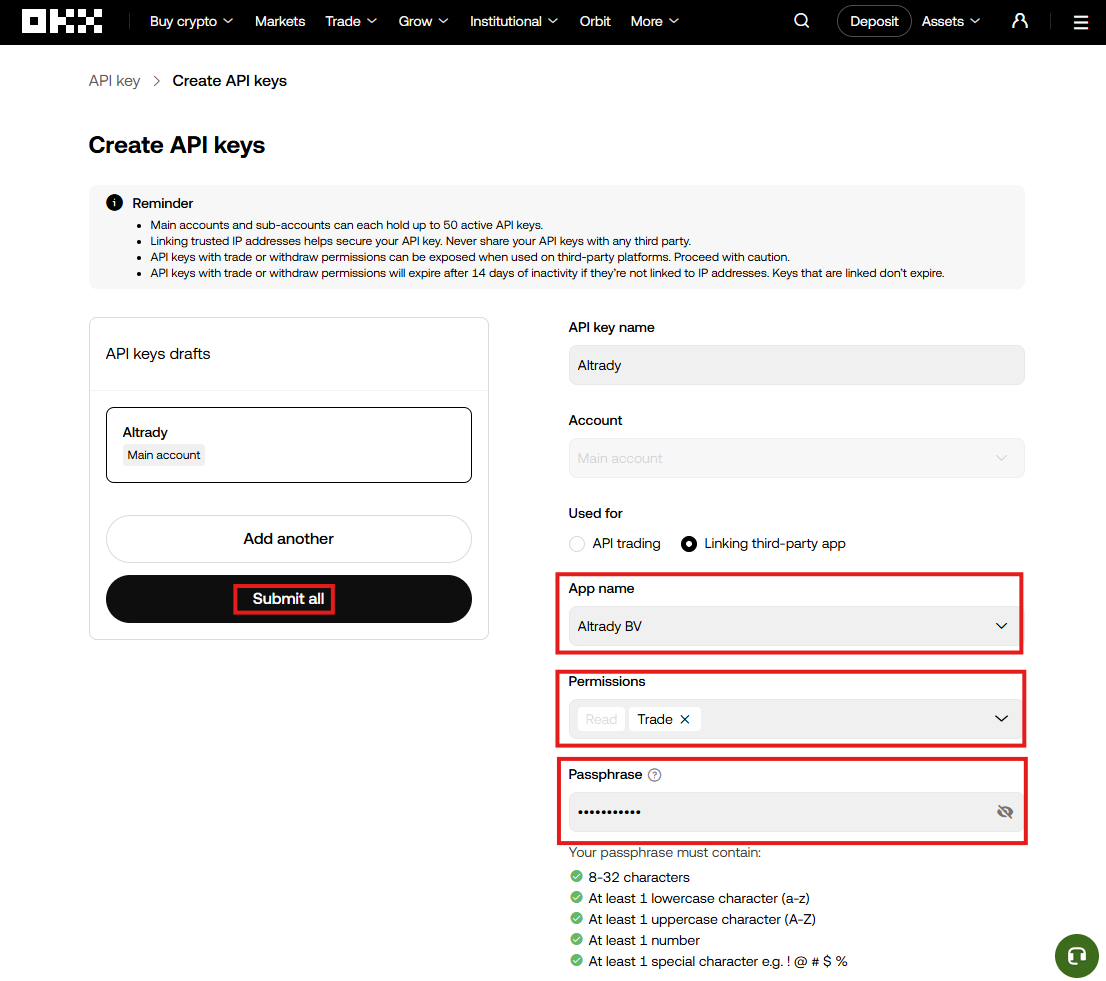
Give the key a name, choose the account (or sub-account) it’s for, and set the purpose to Linking third-party app.
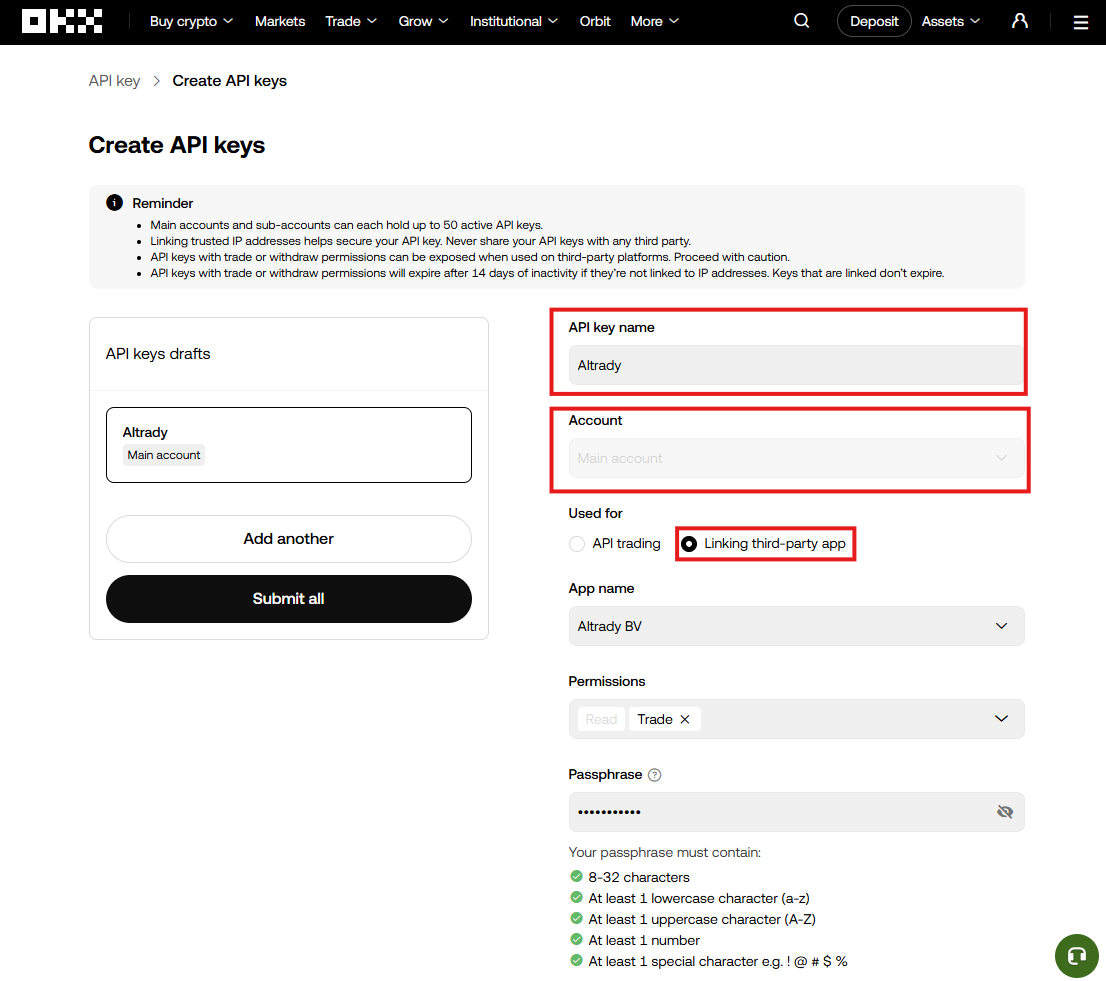 🔍 Click the image to see a larger version
-
Select Altrady BV as the app name. Tick the Trade permission (leave Withdraw unchecked; Altrady never needs it).
 🔍 Click the image to see a larger version
-
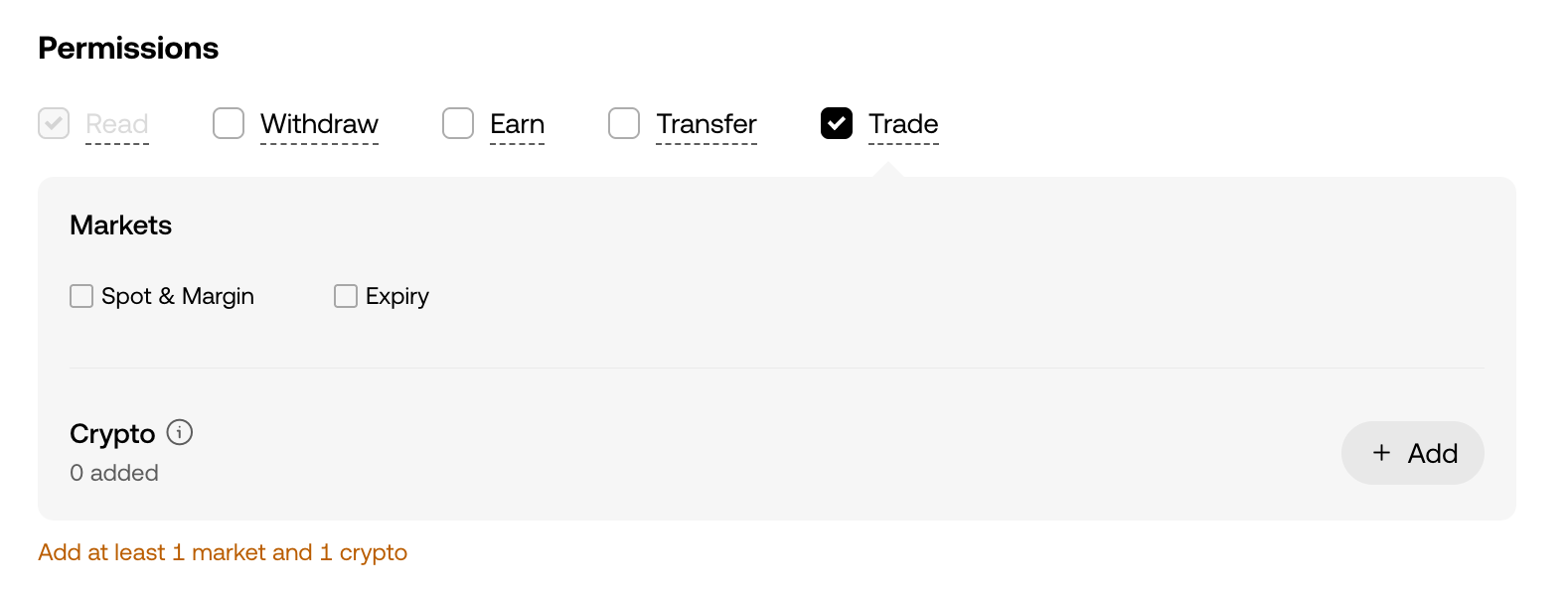
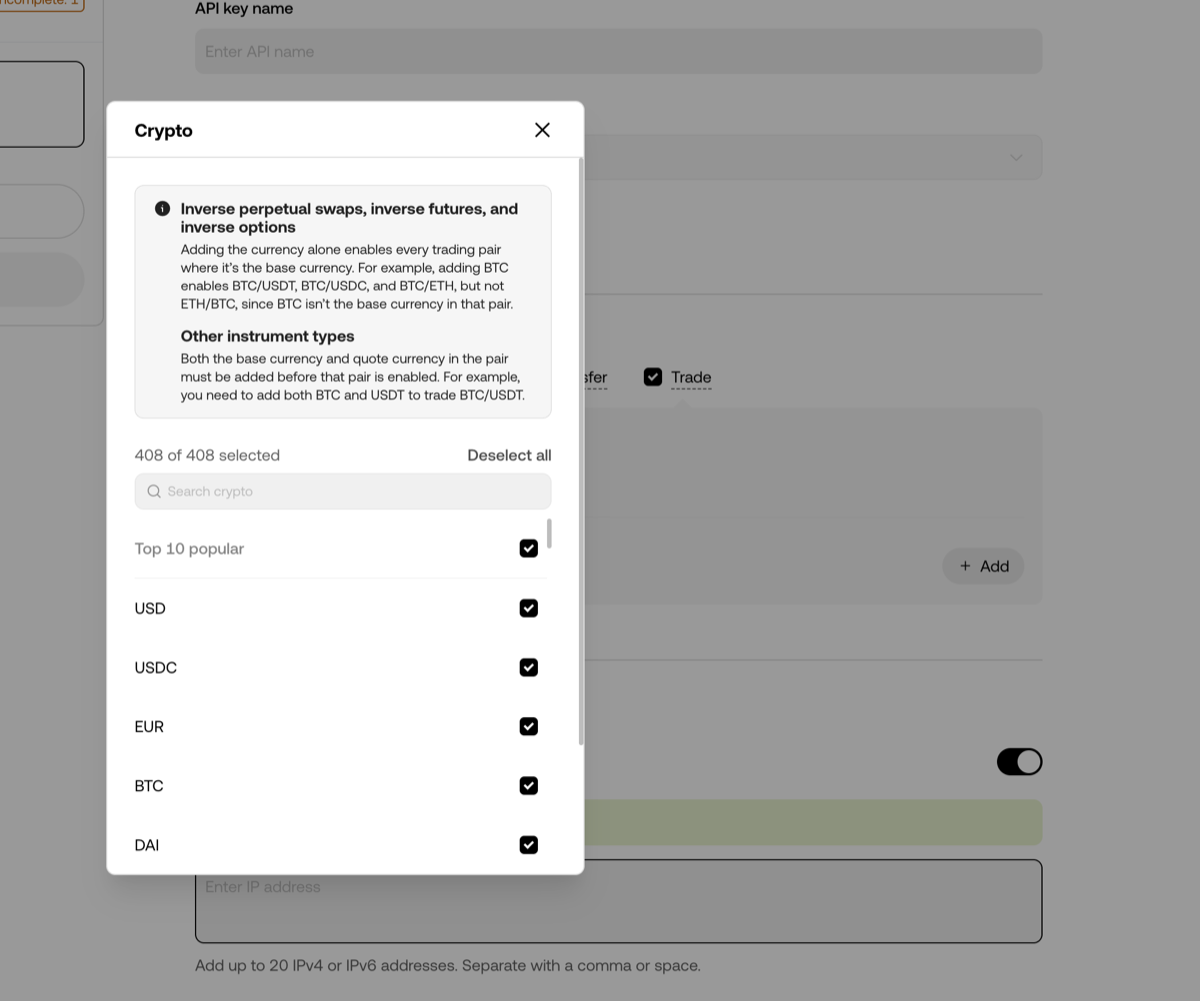
Ticking Trade opens two extra choices, and OKX reminds you with “Add at least 1 market and 1 crypto”. Under Markets, tick Spot & Margin (tick Expiry too if you also trade futures). Then click + Add next to Crypto and select the currencies the key may trade; selecting all of them is the easiest choice and skips this problem entirely. If you skip the Crypto list, OKX later refuses every order with error 50123.
 🔍 Click the image to see a larger version
 🔍 Click the image to see a larger version
-
Create a passphrase and write it down, you’ll need it in a moment. Click Submit All. Because you used the third-party app link, Altrady’s IP whitelist is applied automatically.
-
Complete OKX’s authentication step.
-
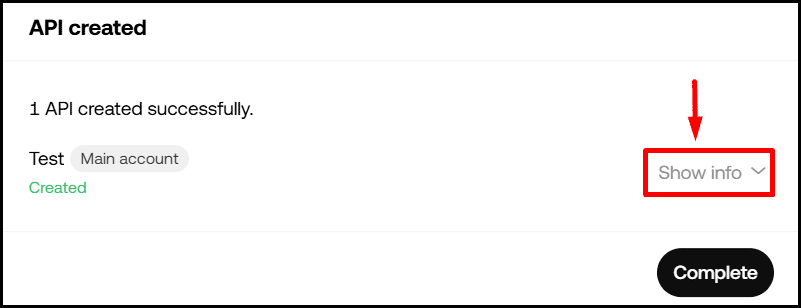
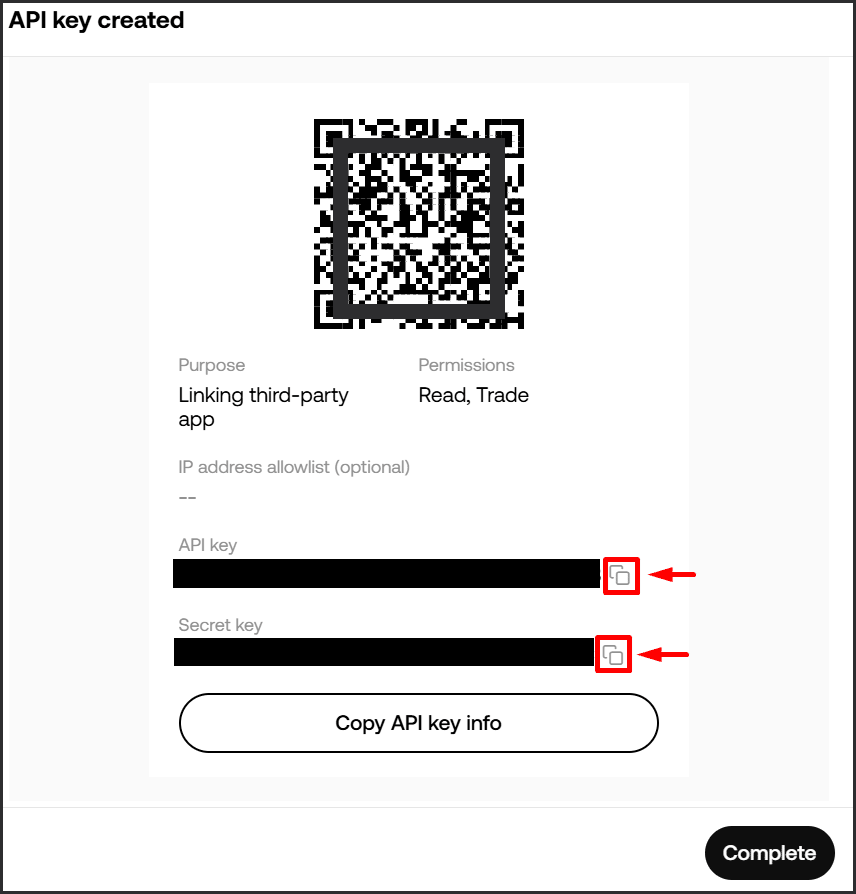
A window confirms “1 API created successfully.” Click Show Info, then copy the API key and Secret separately using the copy buttons; you’ll paste these into Altrady next.
 🔍 Click the image to see a larger version
 🔍 Click the image to see a larger version
-
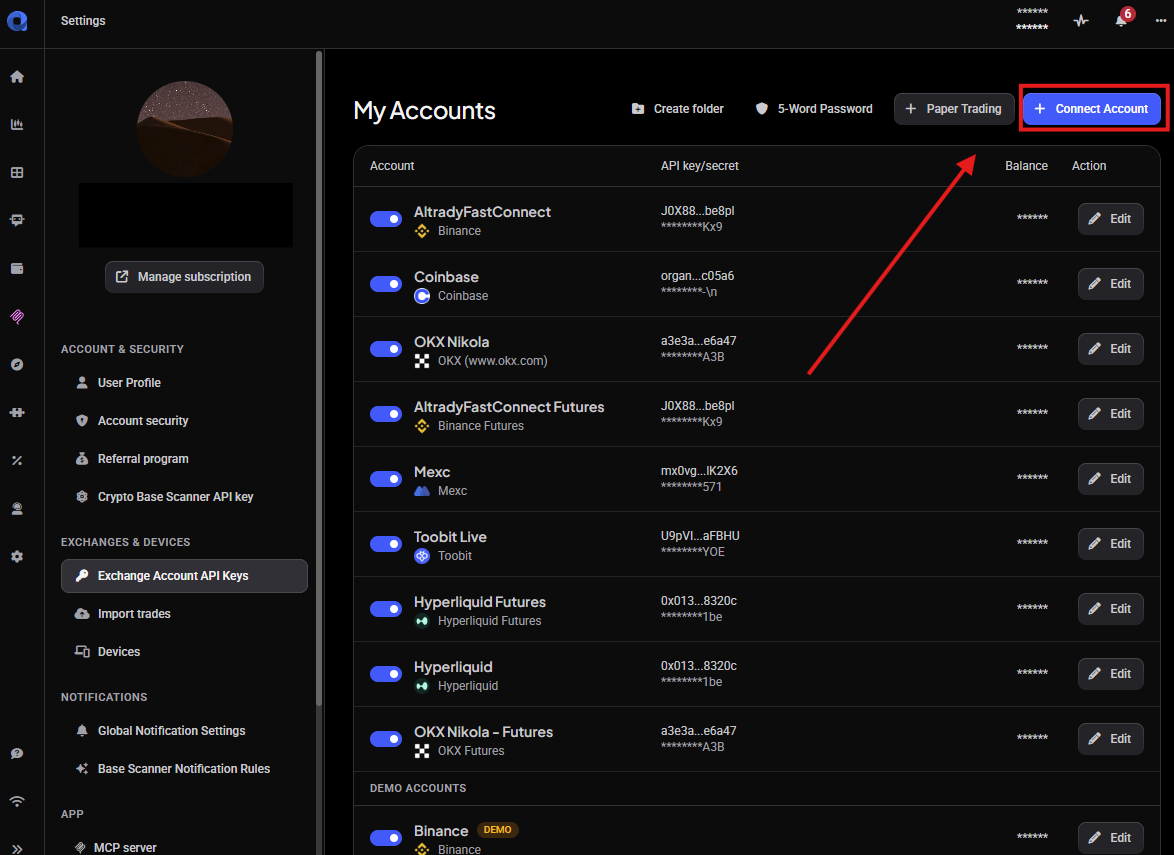
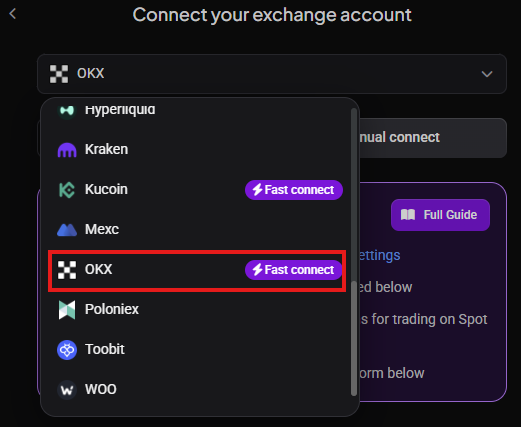
In another tab, open Altrady and go to Settings > Exchange Account API Keys > + Connect Account, then select OKX.
 🔍 Click the image to see a larger version
 🔍 Click the image to see a larger version
-
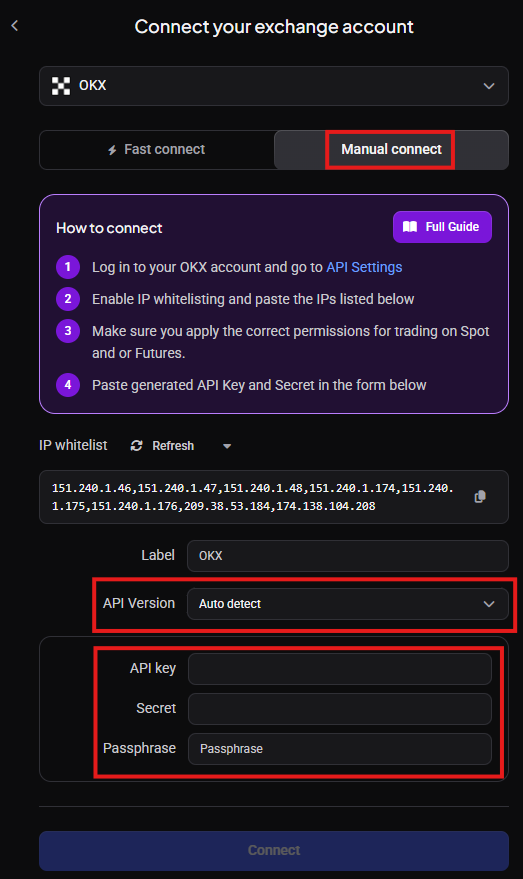
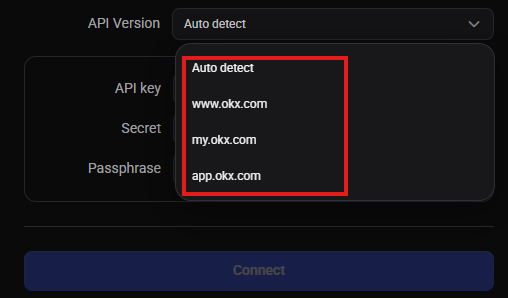
Make sure Manual Connect is selected. Set the API version to match the OKX site you used (or choose Auto detect). Paste in your API key, Secret, and passphrase, then click Connect.
 🔍 Click the image to see a larger version
 🔍 Click the image to see a larger version
-
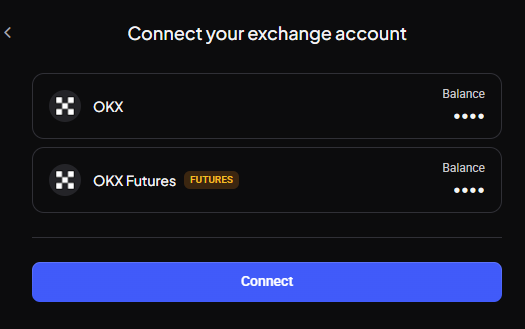
Altrady will sync your balances. Click Connect.
 🔍 Click the image to see a larger version
-
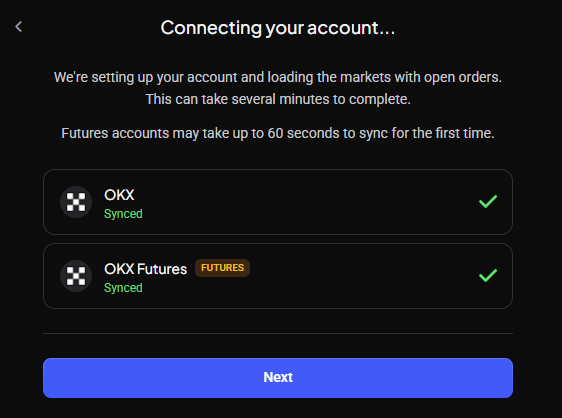
Click Next.
 🔍 Click the image to see a larger version
-
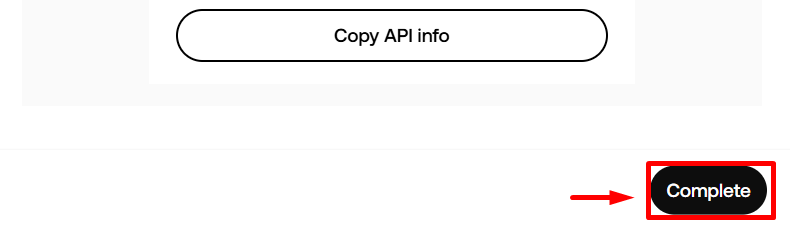
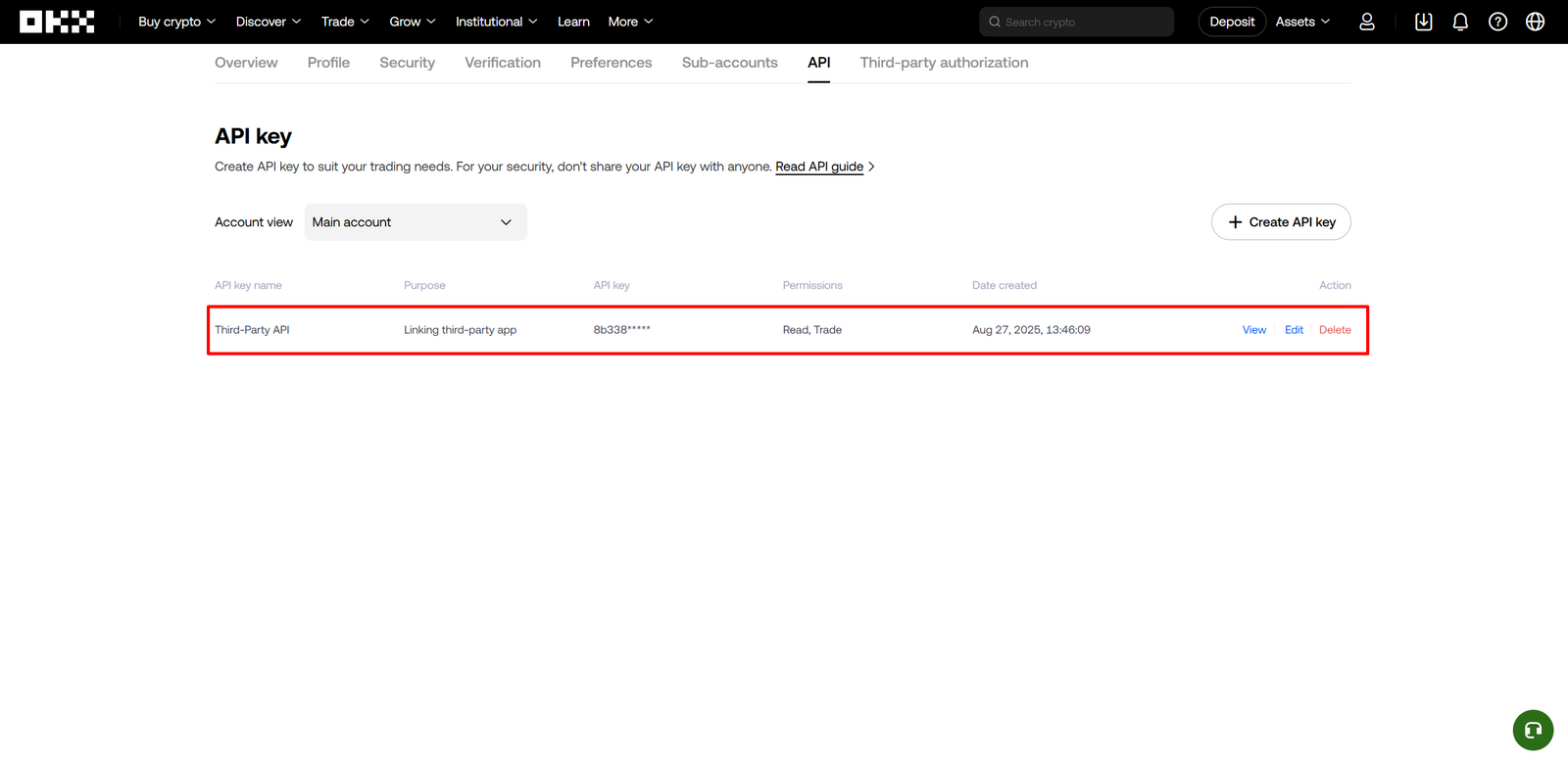
Go back to OKX and click Complete. You should now see the key listed in OKX’s API list.
 🔍 Click the image to see a larger version
 🔍 Click the image to see a larger version
Your new Trading Account now appears in Altrady under Exchange Account API Keys. You can edit its details any time using the Edit button.
 🔍 Click the image to see a larger version
If you ever need to replace this API key, use Edit on the existing Trading Account; don’t add it as a brand new one, or you’ll lose your trade history.
🔍 Click the image to see a larger version
If you ever need to replace this API key, use Edit on the existing Trading Account; don’t add it as a brand new one, or you’ll lose your trade history.
Non-third-party (manual API key)
Use this if the third-party method doesn’t work for you, or you’d rather set everything yourself. With this method you paste Altrady’s IP whitelist into OKX by hand.
-
Log into your OKX account.
🔍 Click the image to see a larger version
-
Click APIs, then Create APIs.
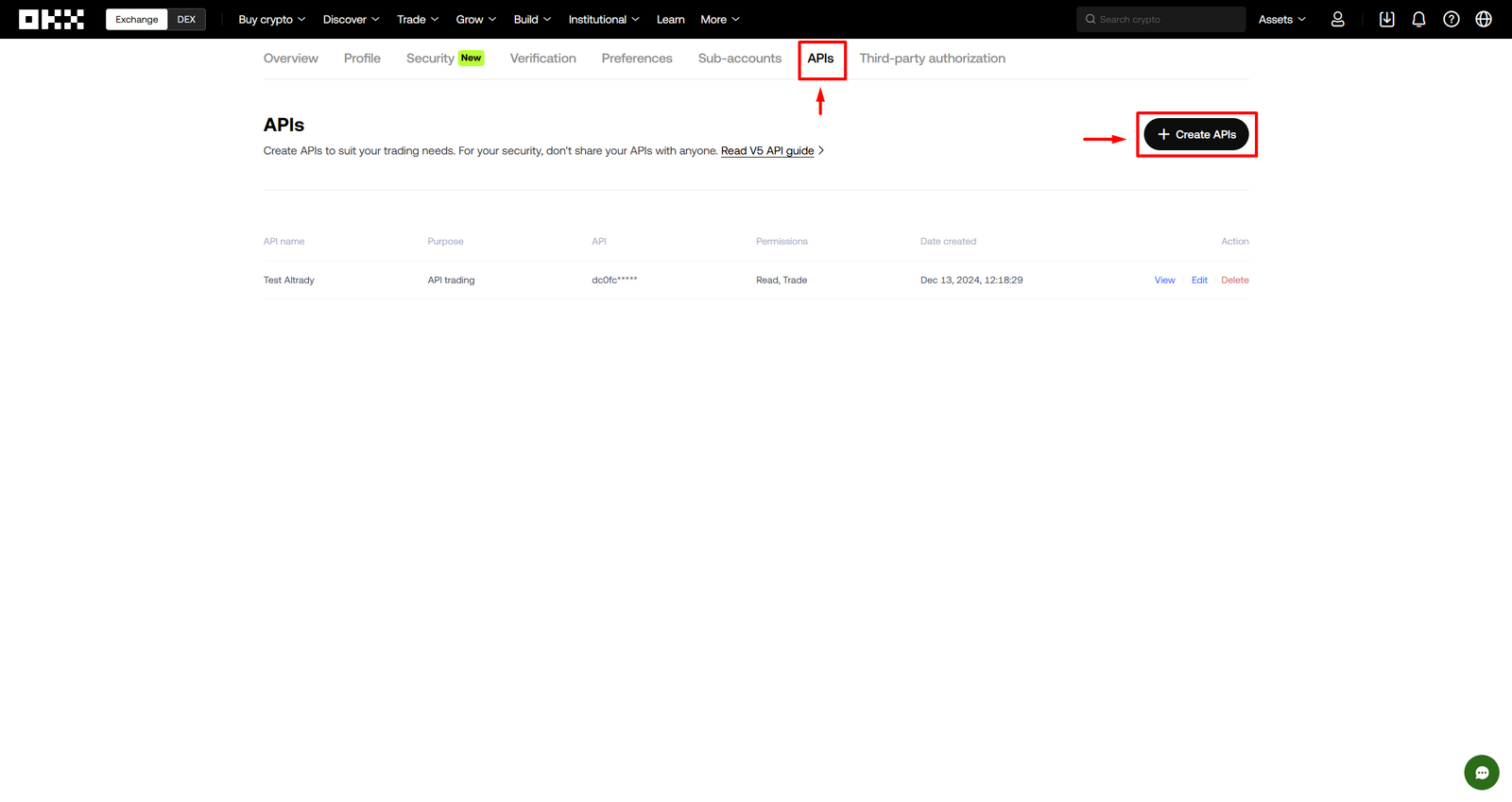 🔍 Click the image to see a larger version
-
Give the key a name, choose the account (or sub-account), and set the purpose to API Trading.
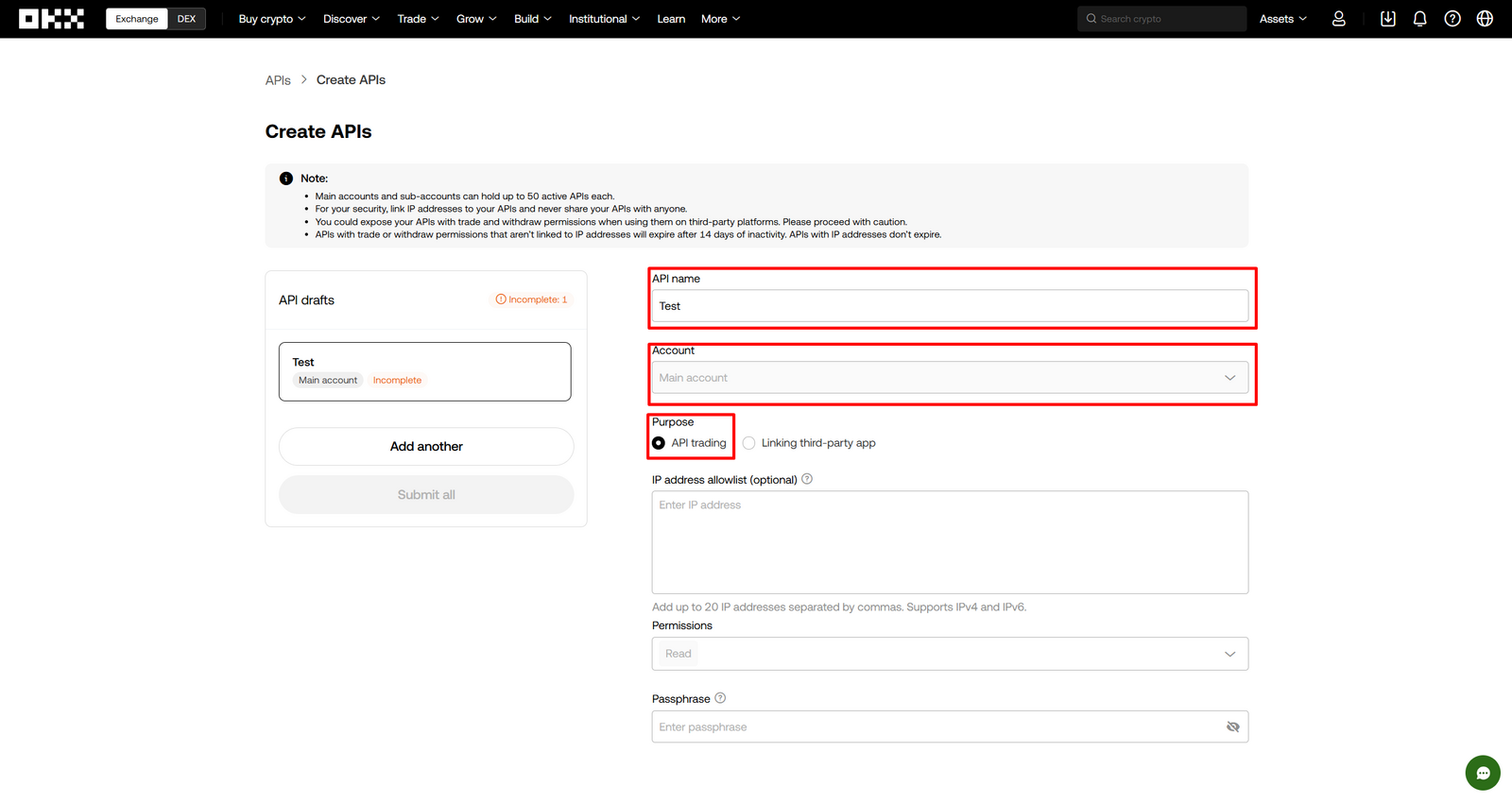 🔍 Click the image to see a larger version
-
In another tab, open Altrady, go to Settings > Exchange Account API Keys > + Connect Account, and click OKX.
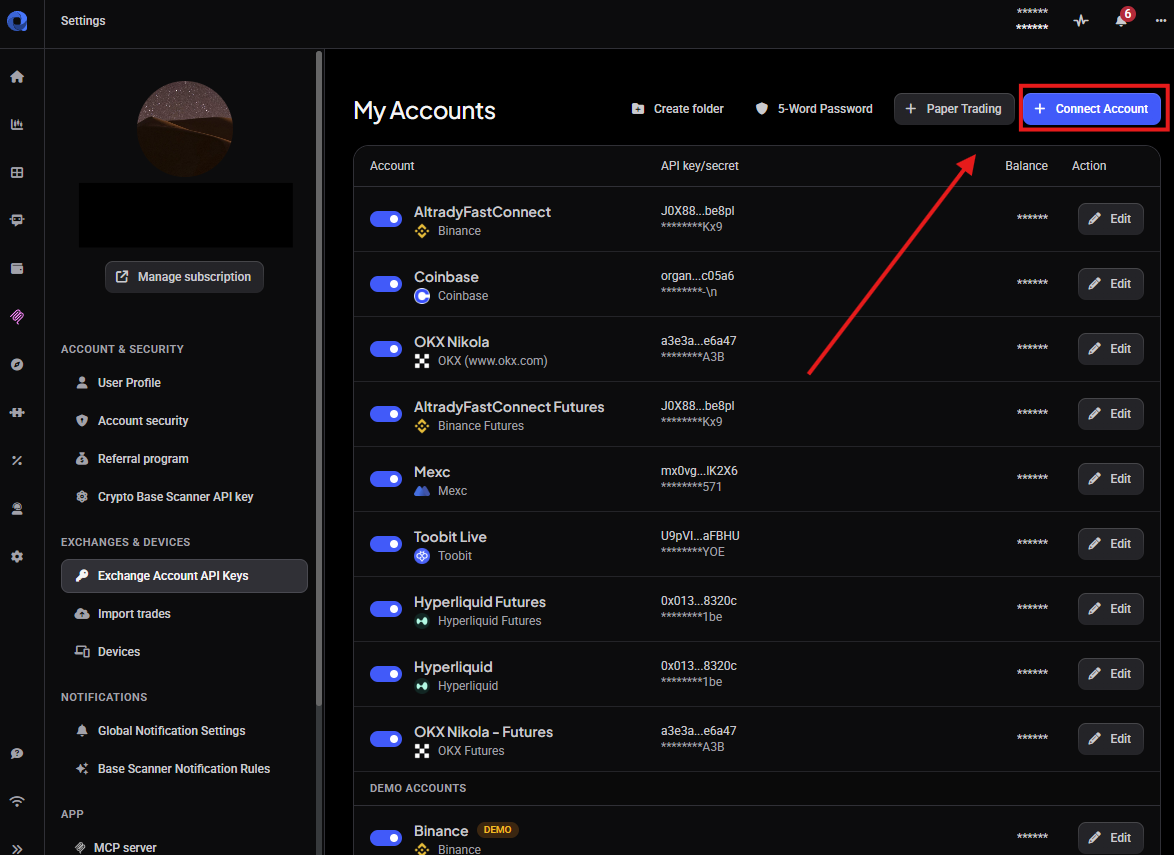 🔍 Click the image to see a larger version
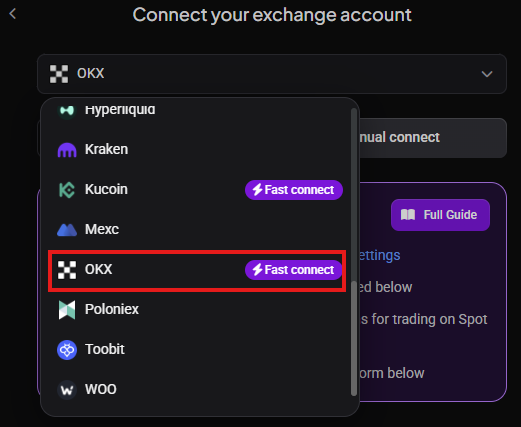 🔍 Click the image to see a larger version
-
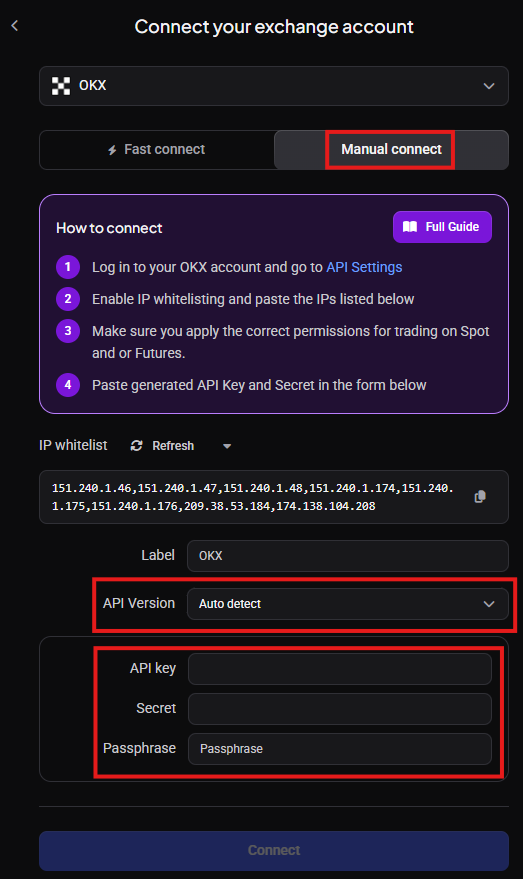
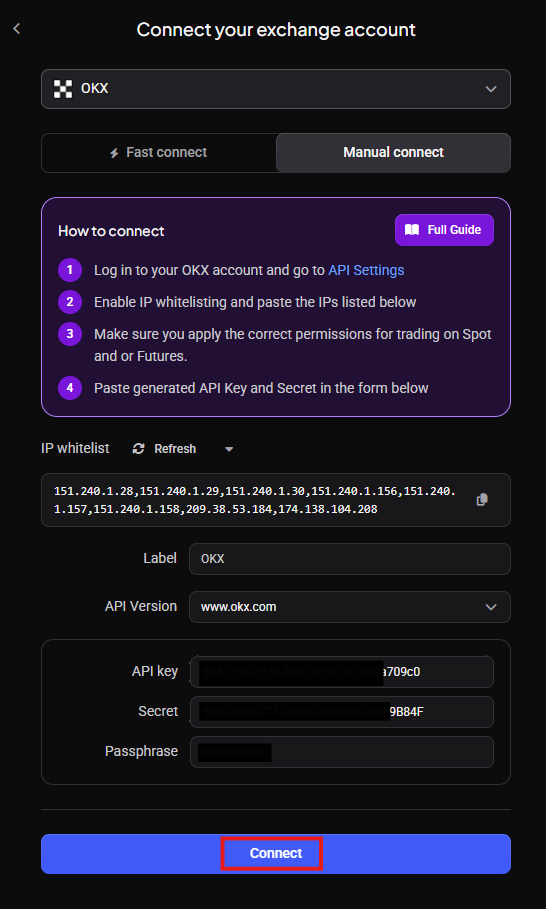
Make sure Manual Connect is selected, then click the copy icon next to the IP whitelist to copy it.
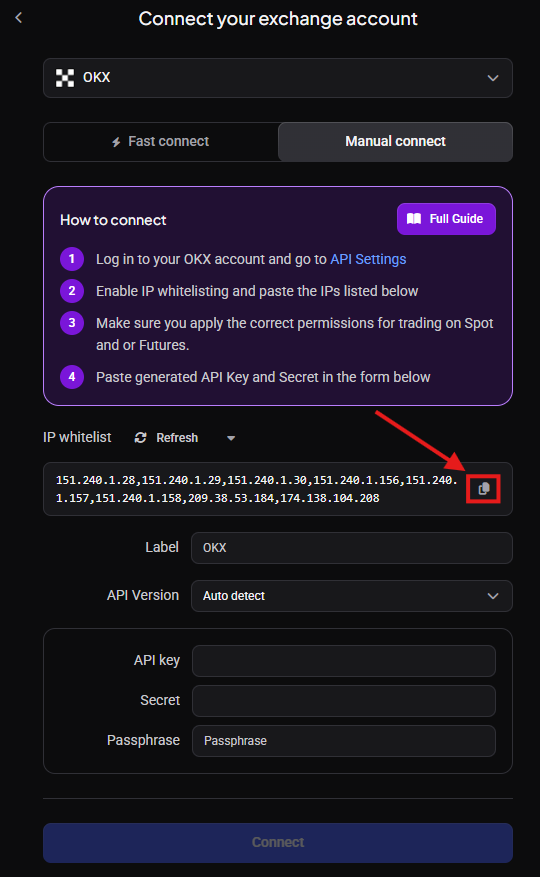 🔍 Click the image to see a larger version
-
Back on OKX, turn on Trusted IP access and paste in the IP whitelist you just copied; all 20 of Altrady’s IP addresses need to be pasted in. Tick the Trade permission (leave Withdraw unchecked). Under Markets, tick Spot & Margin (and Expiry if you also trade futures), then click + Add next to Crypto and select the currencies the key may trade; selecting all is easiest. The screenshots in the third-party steps above show both screens. Create a passphrase and note it down. Click Submit All.
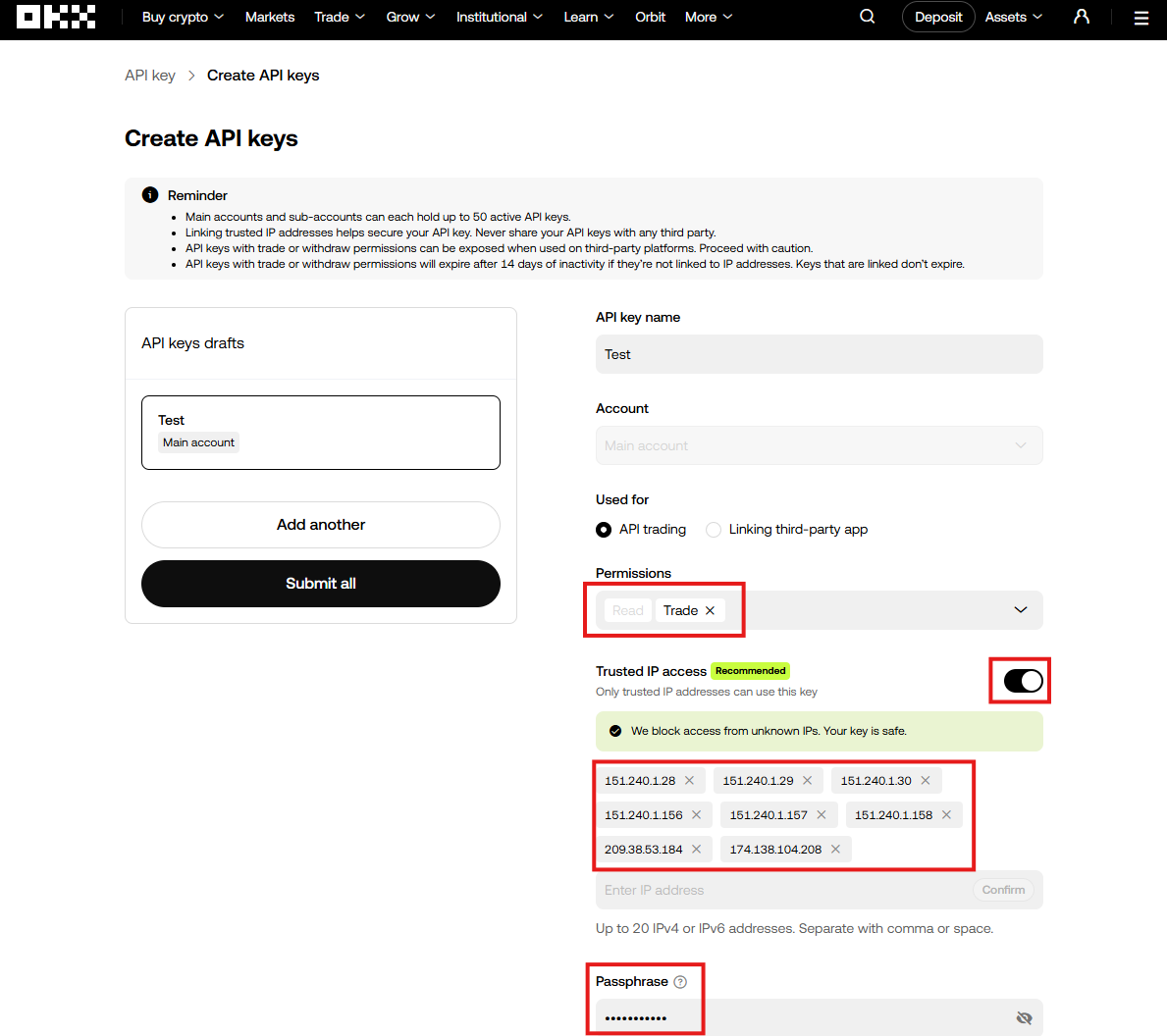 🔍 Click the image to see a larger version
-
Complete OKX’s authentication step. A window confirms “1 API created successfully”; click Show Info.
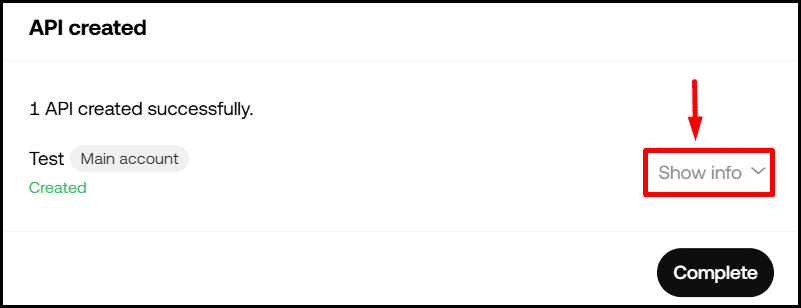 🔍 Click the image to see a larger version
-
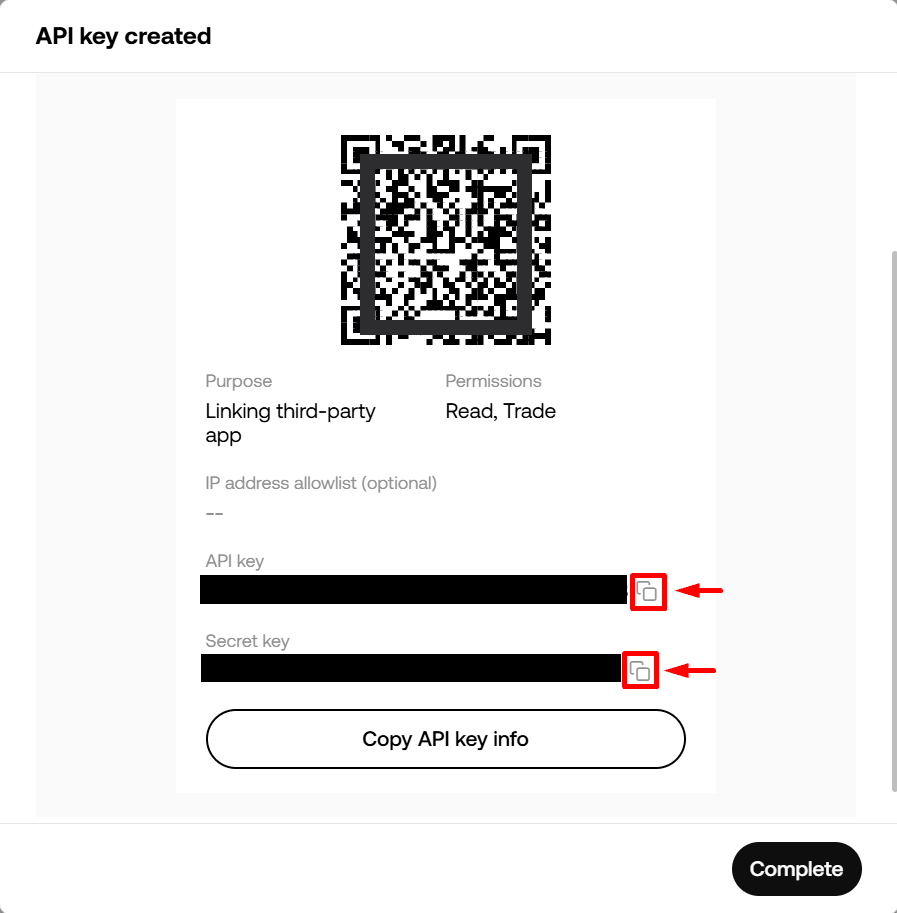
Copy the API key and Secret separately. Back in Altrady, set the API version to match the OKX site you used (my.okx.com or www.okx.com, or Auto detect), then paste in the API key, Secret, and passphrase.
 🔍 Click the image to see a larger version
 🔍 Click the image to see a larger version
-
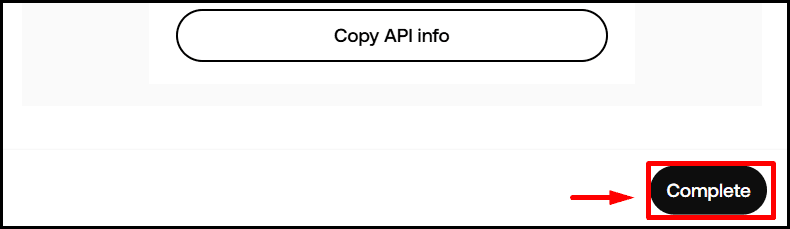
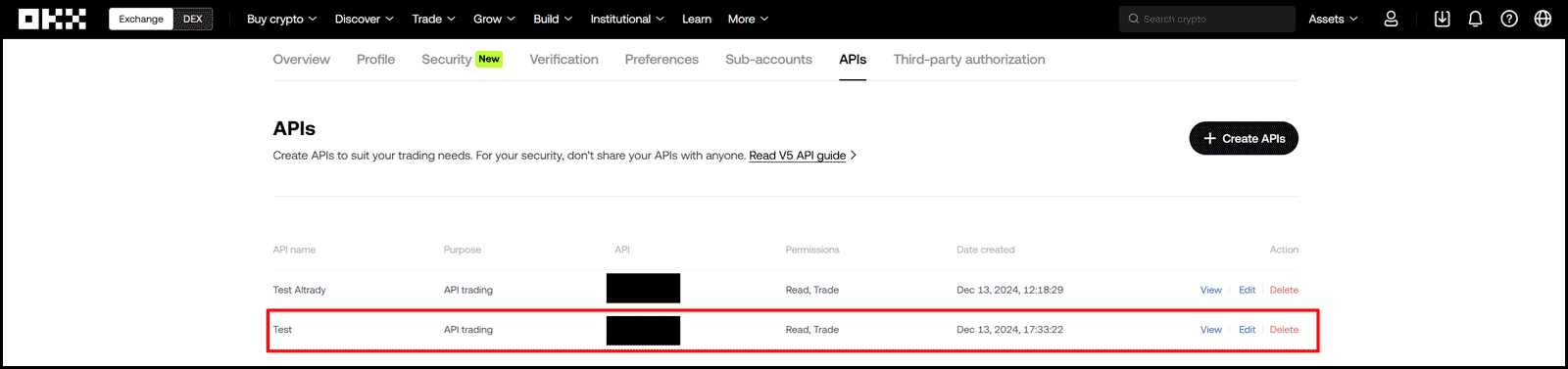
Go back to OKX and click Complete. Confirm the key now appears in OKX’s API list.
 🔍 Click the image to see a larger version
 🔍 Click the image to see a larger version
-
Back in Altrady, click Connect at the bottom of the window.
 🔍 Click the image to see a larger version
Your new Trading Account now appears in Altrady under Exchange Account API Keys, and you can edit it any time with the Edit button.
🔍 Click the image to see a larger version
If you ever need to replace this API key, use Edit on the existing Trading Account rather than adding a new one; this keeps your trade history intact.
Want to understand what each permission and field actually does? See API Keys Explained.
Trading OKX futures if you’re in the EU/EEA
If you live in the EEA (the EU plus Norway, Iceland, and Liechtenstein), OKX handles futures a little differently, and a couple of things need setting up on OKX before Altrady can trade them for you. Get them right once and your futures markets appear in Altrady automatically.
EEA traders can access two kinds of OKX futures, and both settle in USDC rather than USDT:
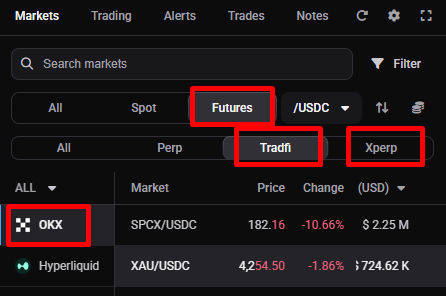
- X-Perps, OKX’s perpetual product with a long expiry date, on my.okx.com.
- OKX’s standard futures contracts (the ones OKX groups under TradFi).
Unlock X-Perps on OKX
EEA accounts run on my.okx.com. X-Perps are separate from OKX’s standard global futures, so you unlock them on OKX before they show up in Altrady.
 🔍 Click the image to see a larger version
1. Complete identity verification (KYC).
🔍 Click the image to see a larger version
1. Complete identity verification (KYC).
2. Unlock X-Perps by completing OKX’s appropriateness assessment (Trade > Unlock X-Perps on desktop). This is a one-time, mandatory questionnaire required under EU rules, and it can’t be skipped. If you don’t pass, OKX applies a cooling-off period before you can try again, so answer carefully.
3. Create your API key with the Trade permission (OKX only has Read, Trade, and Withdraw; there’s no separate futures permission), then follow the Manual Connection steps above using the my.okx.com API version. Because EEA accounts run on my.okx.com, Fast Connect isn’t available.
Set your futures to settle in USDC
Under EU rules you trade USDC-settled futures, not USDT. On OKX, USDC-settled contracts now appear as a single XXX/USD market rather than a separate USDC market, but the currency that actually funds your margin, profit and loss, and fees is a separate account setting called the settlement currency. If it doesn’t match the currency you hold, OKX rejects your orders with “Insufficient USD margin in account” (error 51008), even when your balance is sitting right there.
OKX defaults this to USDC, but it’s worth confirming before you place your first futures order:
- On the web: open the OKX Trading page, go to Settings > USD-M settlement currency, and set it to USDC.
- In the OKX app: on the Trading page, tap More > Settings > USD-M settlement currency, and set it to USDC.
OKX won’t let you change this while you have open futures orders or positions, so close or cancel those first if needed. If your OKX balance has ended up in another currency, convert it back to USDC once the setting matches; converting your funds without fixing the setting first just brings the same error back. OKX explains the setting in more detail in its USD-margined futures FAQ.
One thing that looks odd but is completely normal: Altrady shows these markets as XXX/USDC to reflect the USDC you’re settling in, while OKX labels the same market XXX/USD. It’s the same market.
If Altrady still shows only Spot
If Altrady is still only showing Spot after connecting, check that: the appropriateness assessment is passed and X-Perps is visible under Trade on OKX; your API key has the Trade permission; you connected using the my.okx.com API version; and your funds sit in your OKX Trading account, not Funding. Then try adding your API key again: if you have both spot and futures enabled on the exchange, Altrady will create two trading accounts: one for spot and one for futures.
X-Perps are leveraged products with a long expiry date; leverage can amplify both gains and losses, and losses can happen quickly.
Syncing your balance
If your balance doesn’t show up straight away after connecting, give it a moment to sync, then check the Exchange Account API Keys page again.
Trading Futures on OKX
Altrady supports OKX USDT-margined perpetual futures, in both One-way and Hedge mode. For EEA residents, OKX also offers X-Perps (USDC perpetuals) and TradFi perpetuals (USDT and USDC contracts for stocks, metals, indices and more).
Enable Futures in your OKX account mode. OKX Futures needs Futures trading enabled in your account mode — OKX’s Spot and Multi-currency account modes don’t support futures.
Leverage and margin mode are per-position, not an account default. Unlike many exchanges, OKX doesn’t keep a default leverage or margin mode; both are applied when an order is placed and stored separately for each position. So you can run a BTC/USDT position on Cross 5x while an ETH/USDT position uses Isolated 3x. When you set margin mode or leverage in Altrady it may not show in the OKX trading form, but once the position opens the applied values appear in OKX’s position details — and Altrady always reflects what will be applied when the order is placed.
EEA residents: you must complete an assessment on OKX before you’re allowed to trade futures, and you can’t use Fast Connect (it’s for OKX global only) — connect with a manual API key instead.
FAQ: OKX error codes
If an order won’t go through, the error code OKX returns usually tells you exactly what to fix. These are the ones you’re most likely to see:
“This API Key does not have trading permission for the Crypto” (error 50123)
Your API key has the Trade permission, but no currencies are added under its Crypto list, so OKX refuses every order even though the key otherwise works and your balance shows fine. On OKX, go to APIs, edit your key, and under the Trade permission tick a market under Markets (such as Spot & Margin) and click + Add next to Crypto to select the currencies; selecting all is easiest. If you create a new key instead, update the existing Trading Account in Altrady using Edit; don’t add it as a new account, or you’ll lose your trade history.
“Parameter tdMode error” (error 51000)
Your OKX account is in Multi-currency margin mode or Portfolio margin mode, so OKX treats every spot order as a margin order and rejects it. Switch your account to Spot mode or Spot and futures mode; the full steps are in Trading OKX spot: set your account mode at the top of this guide.
“Insufficient USD margin in account” (error 51008)
Your futures settlement currency doesn’t match the currency you hold, even though your balance looks fine. Set USD-M settlement currency to USDC on OKX; see Set your futures to settle in USDC above for the exact steps.
“You can’t trade this pair or borrow this crypto due to local compliance restrictions” (error 51155)
Nothing is wrong with your key or permissions: OKX itself blocks this market in your region. For EEA residents this usually means USDT markets are restricted while the USDC version of the same market is available. Open the USDC pair in Altrady instead.
Having trouble?
If your account still won’t connect or your balance won’t sync, see Connection Problems.