
Connect HTX (Huobi)
Connecting your HTX (Huobi) account lets Altrady read your balances and place trades on your behalf. You’ll create an API key on HTX, then paste it into Altrady. It only takes a few minutes.
You’re always in control. Altrady only ever needs Trade permission. Never enable withdrawal permission on the API key you create; Altrady doesn’t need it, and you should never grant it to any trading app.
Not sure what an API key even is? Have a quick read of API Keys Explained first; it makes the rest of this much easier to follow.
Step 1: Log in to HTX
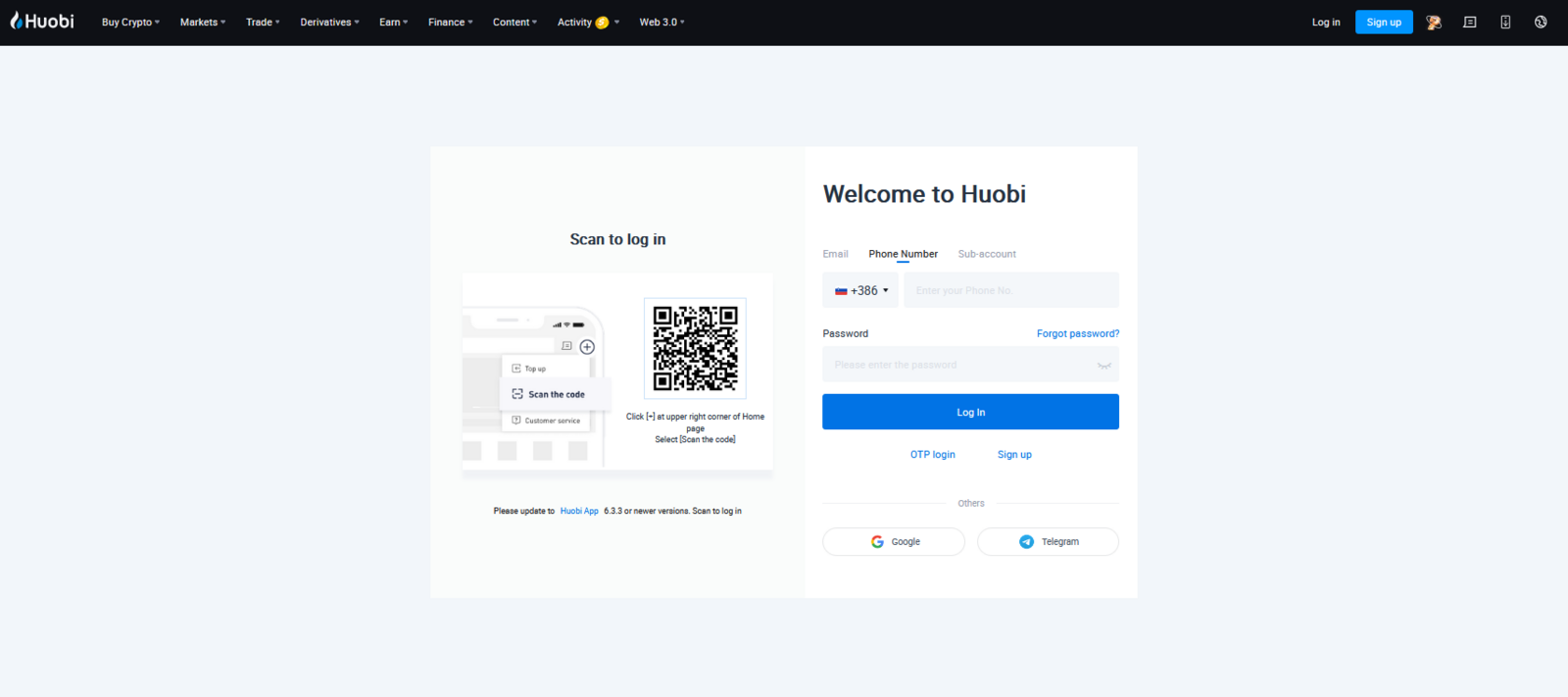
Open the HTX (Huobi) website in your browser and log in to your account.
 🔍 Click the image to see a larger version
Step 2: Open API Management
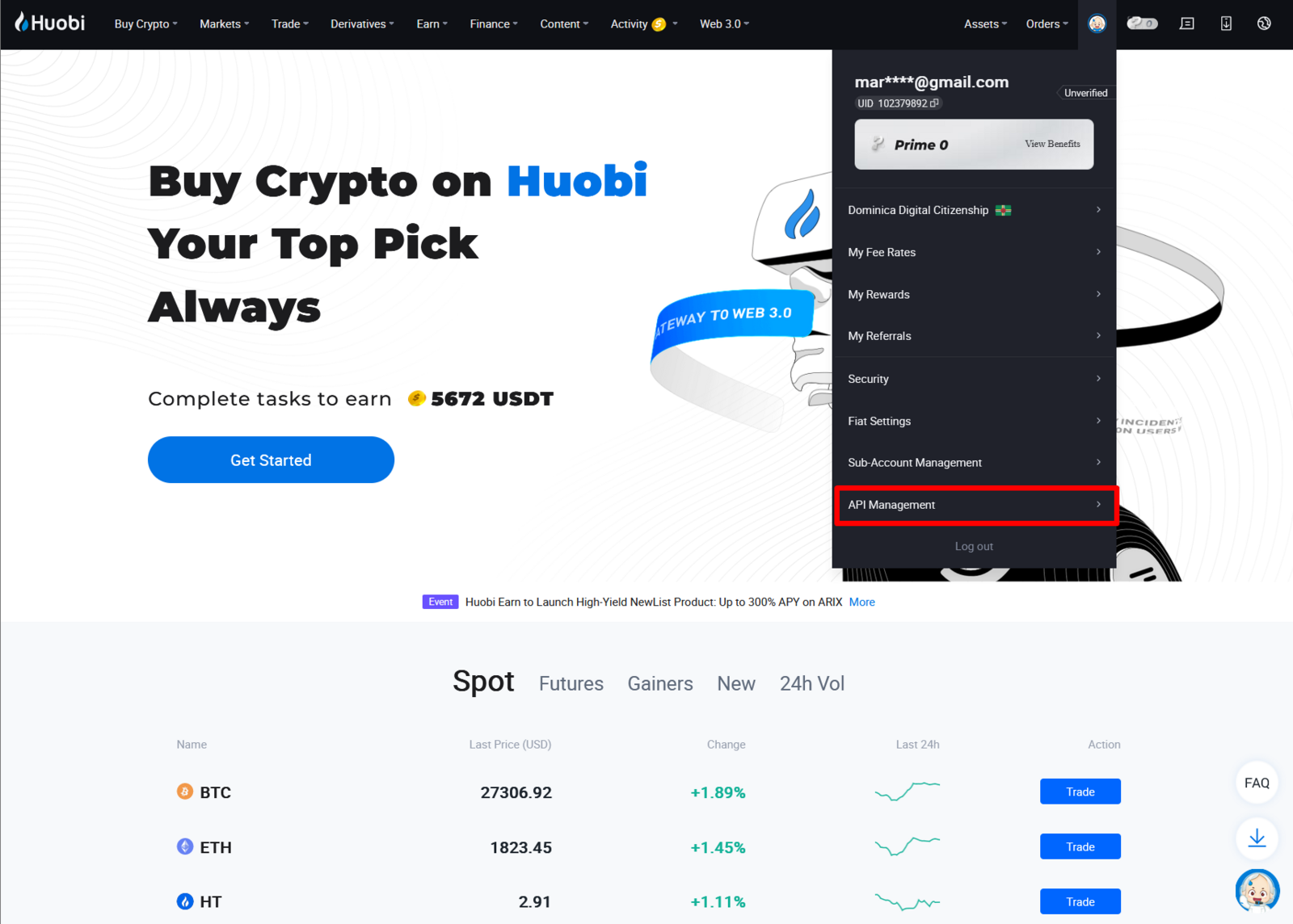
Click the profile icon in the navigation bar, then select API Management.
 🔍 Click the image to see a larger version
Step 3: Create a new API key
You’ll be taken to a new page.
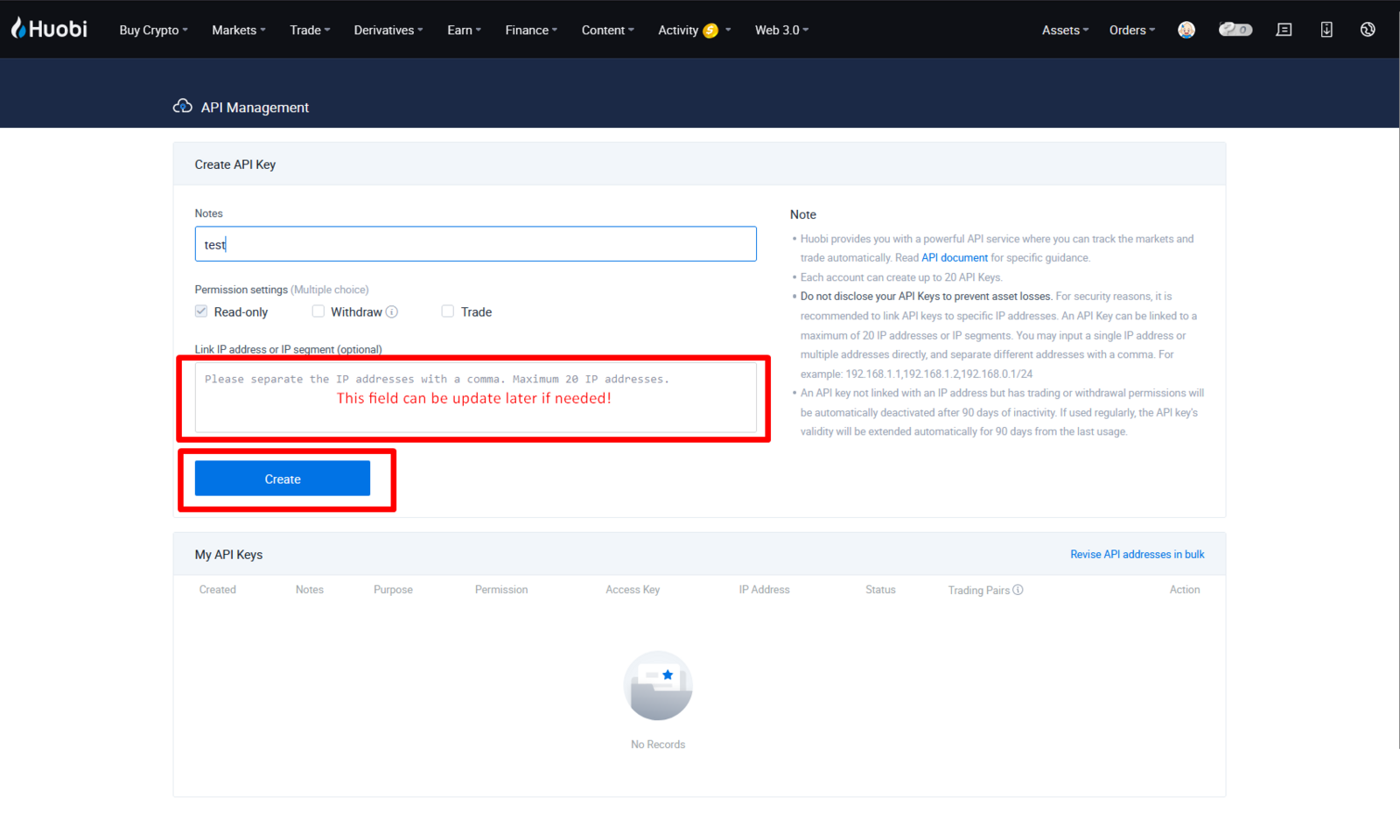
- Add a Note if you’d like (this just helps you recognize the key later).
- You can leave the IP address field empty for now; you’ll add it later, once the key is in Altrady.
- Click Create.
 🔍 Click the image to see a larger version
Step 4: Confirm by email
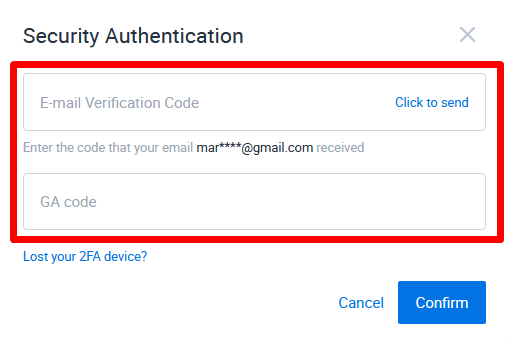
A pop-up will ask for an email verification code to confirm the request.
Check your inbox, copy the code, paste it into the pop-up, and click Confirm.
 🔍 Click the image to see a larger version
Step 5: Whitelist Altrady’s IP address (optional but recommended)
Adding an IP whitelist gives your API key extra security, and, as a bonus, it means the key won’t expire.
Now switch over to Altrady to get the IP addresses you’ll need:
- In Altrady, go to Settings > Exchange account API keys.
- Click + Connect Account.
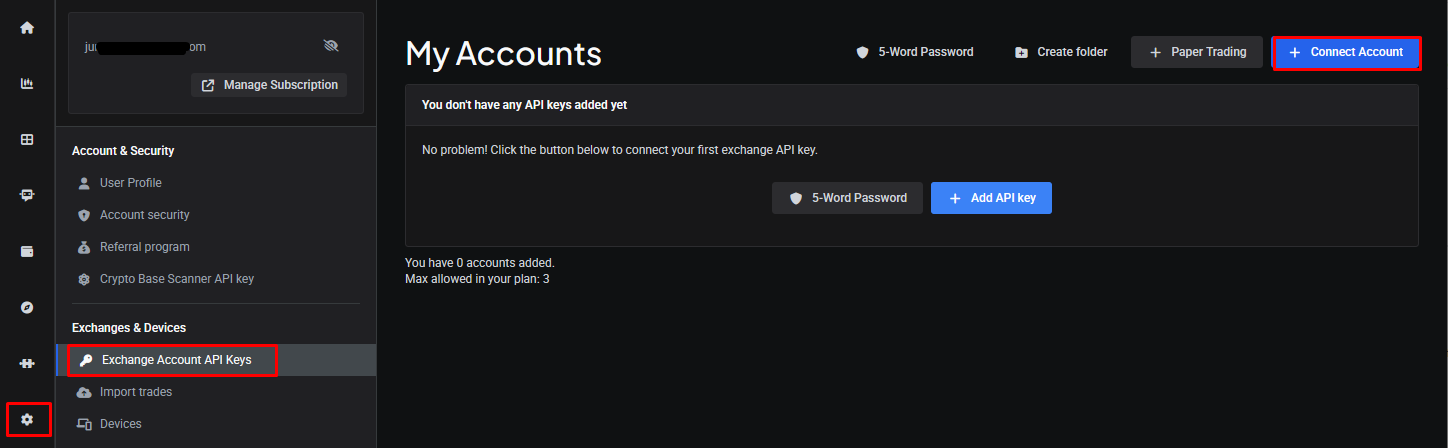 🔍 Click the image to see a larger version
- From the dropdown, select HTX.
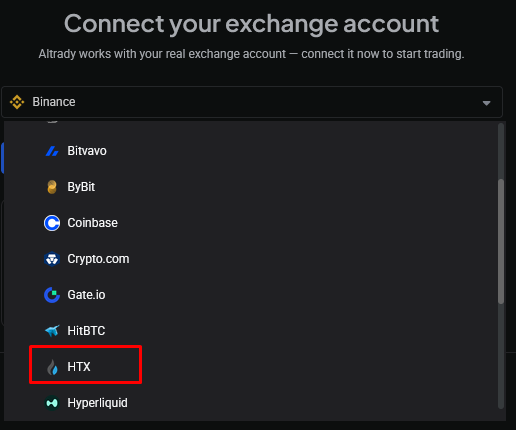 🔍 Click the image to see a larger version
- Click the copy icon to copy Altrady’s IP addresses to your clipboard.
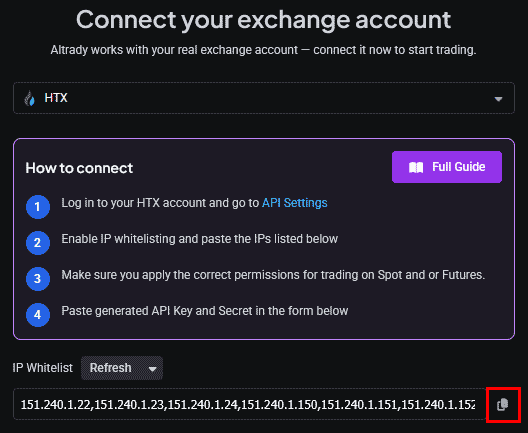 🔍 Click the image to see a larger version
Now back on HTX:
- In Permission settings, tick Trade.
- Paste the copied IP addresses into Link IP address or IP segment (optional).
- Click Create.
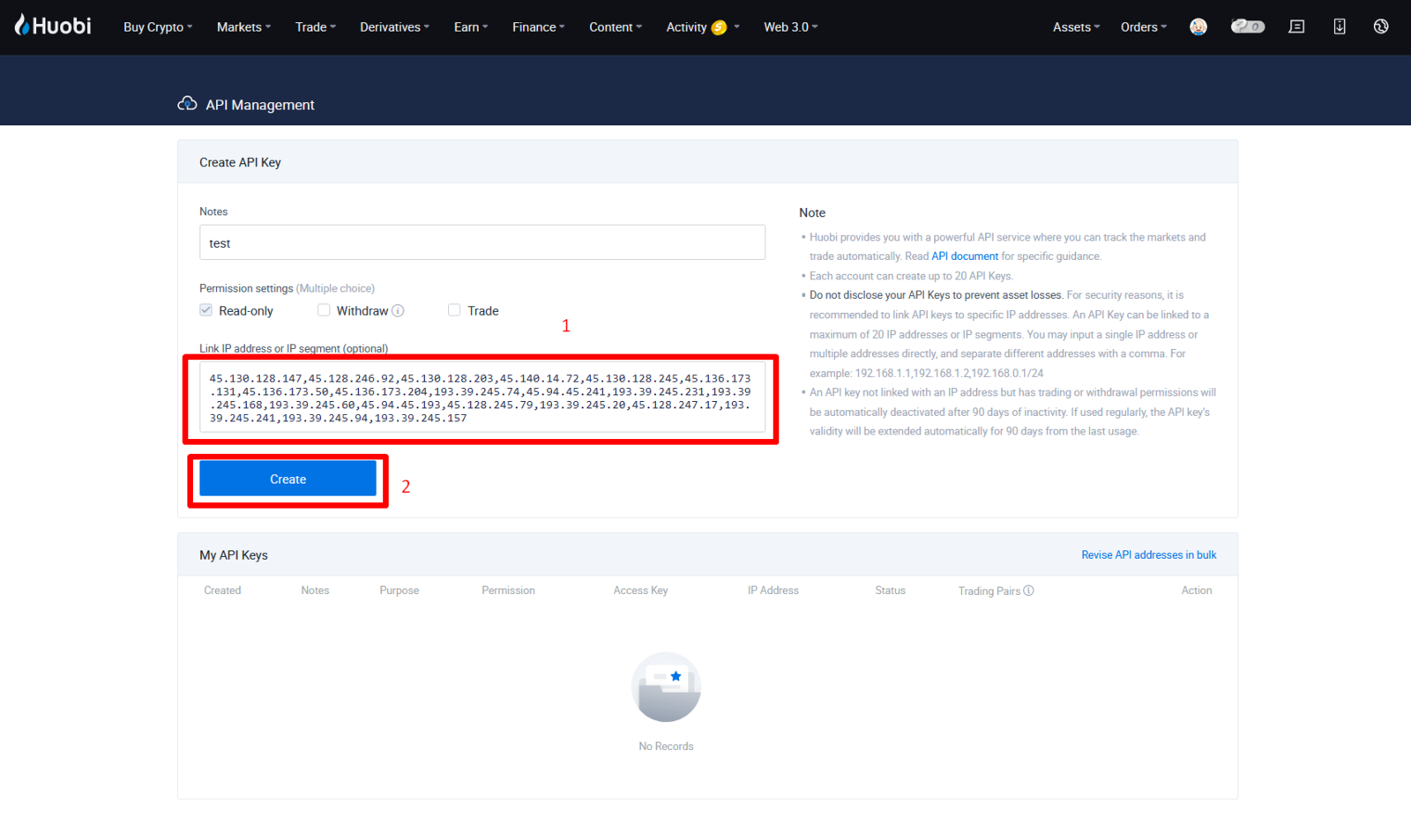 🔍 Click the image to see a larger version
Step 6: Verify again
A “Security Authentication” message appears. Click Send code, copy the code from the email you receive, and paste it in. If you have 2FA set up, enter that code too. Then click Confirm.
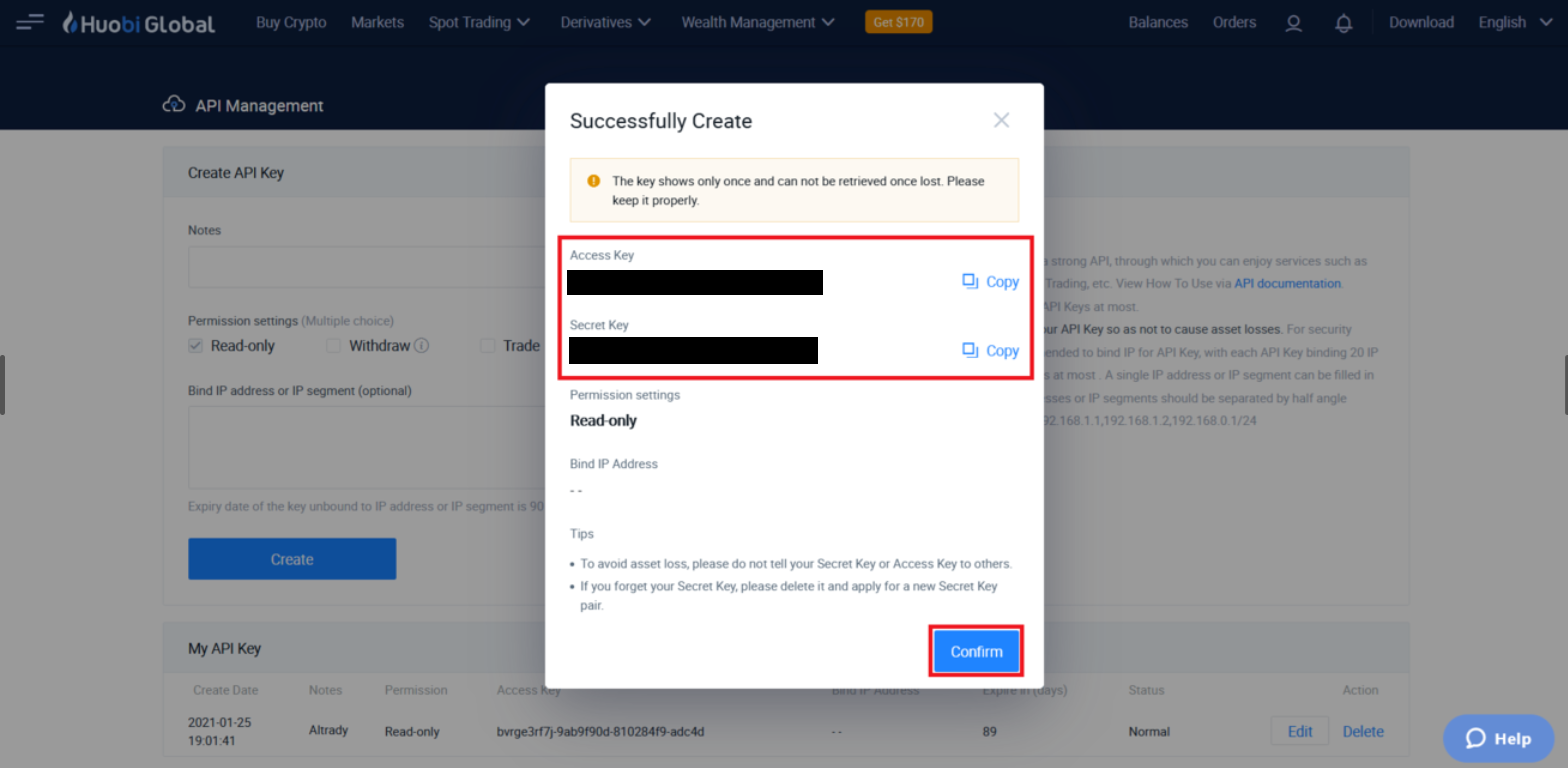
Step 7: Copy your API and Secret key
A pop-up shows your API key and Secret Key. Copy both; you’ll paste them into Altrady in a moment. Click Confirm, then head back to Altrady.
 🔍 Click the image to see a larger version
Step 8: Paste your keys into Altrady
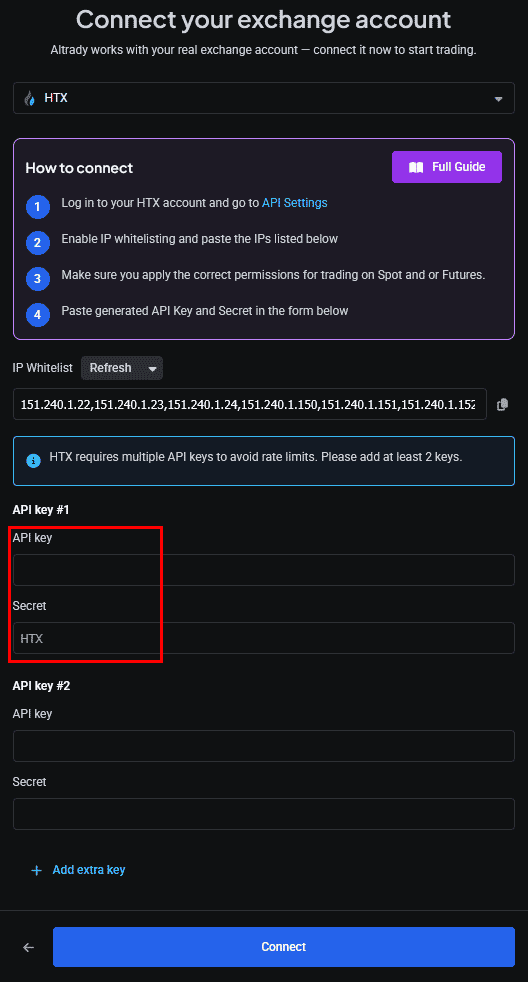
Back in Altrady, paste the API key and Secret key into the fields under API key #1.
 🔍 Click the image to see a larger version
Step 9: Add a second API key (recommended)
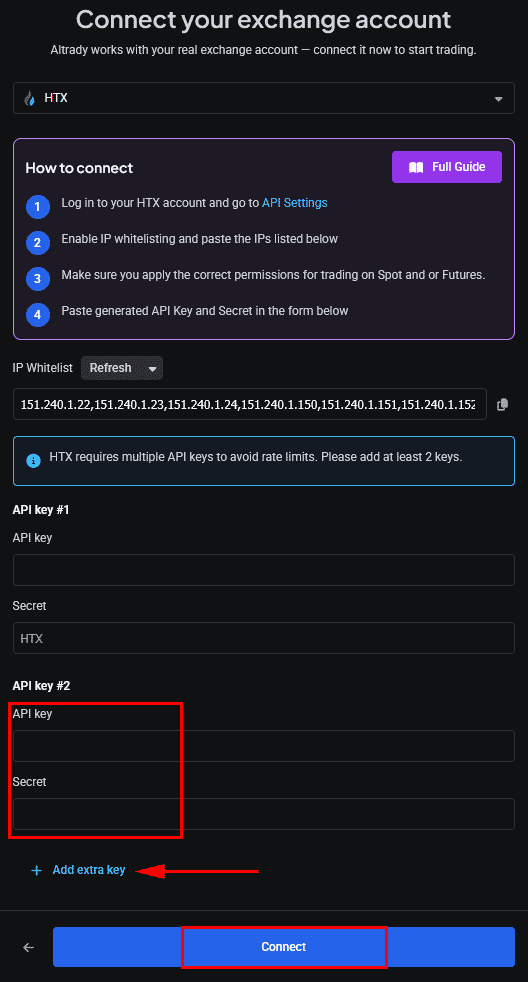
HTX applies fairly strict rate limits. To keep things running smoothly, it helps to connect a second API key to the same account in Altrady:
- Create another API key on HTX, using the exact same method as above.
- Paste that new API key and secret into the fields under API key #2.
- You can always add more keys later: click Edit next to the account on the API keys page, create a new key on HTX, click + Add extra key, and paste the details.
- Click Connect.
 🔍 Click the image to see a larger version
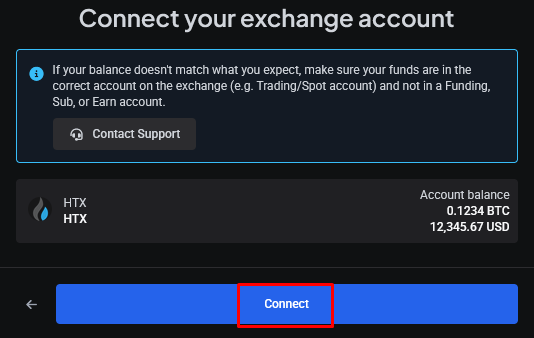
Step 10: Click Connect
 🔍 Click the image to see a larger version
Step 11: Click Next
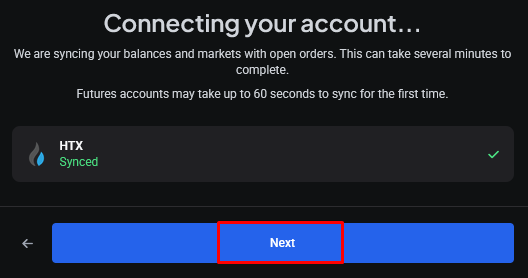 🔍 Click the image to see a larger version
That’s it: your HTX (Huobi) account is now connected to Altrady. You can edit the connection anytime from the API keys page.
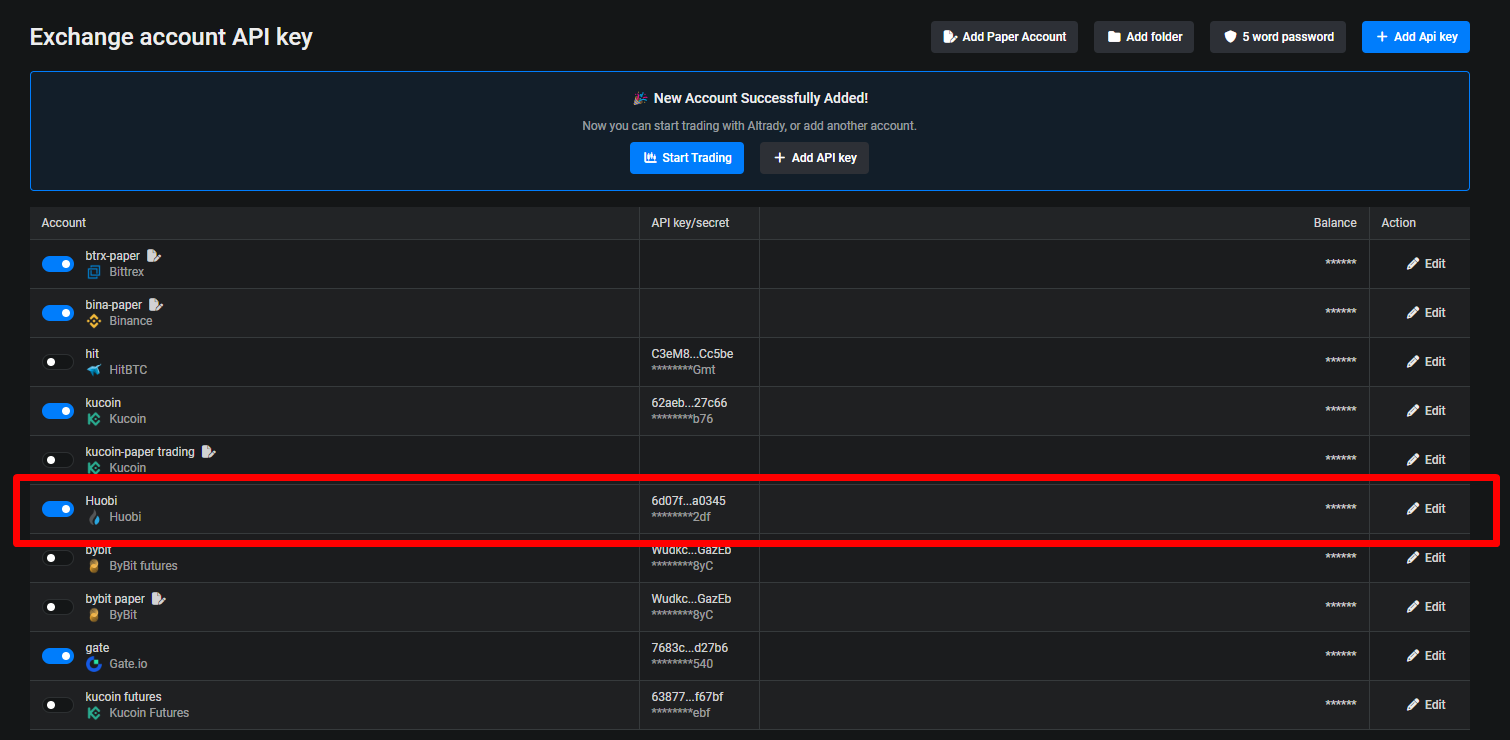 🔍 Click the image to see a larger version
Balances not showing up yet?
If your balances haven’t updated from the exchange, that’s usually just a quick refresh away; see the steps in Connection Problems.
Having trouble?
If your account won’t connect or balances aren’t syncing, check Connection Problems for the fix.