
Connect Gate.io
Connecting your Gate.io account lets Altrady see your balances and place trades for you. It only takes a few minutes, and Altrady never needs, or asks for, withdrawal permission, so your funds always stay on Gate.io.
Step 1: Start adding the account in Altrady
- Log into Altrady.
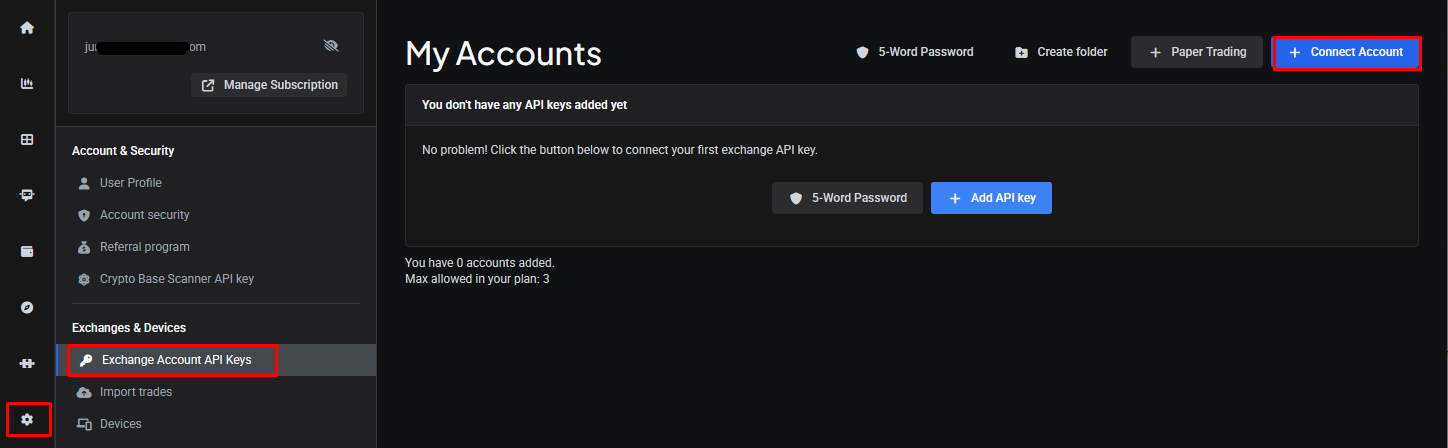
- Go to the Exchange Accounts page and open the API keys page.
 🔍 Click the image to see a larger version
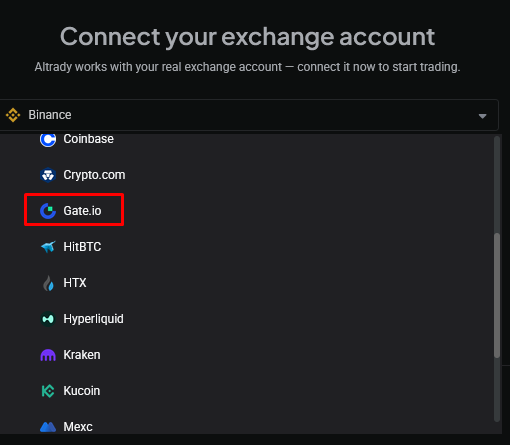
- From the dropdown list, select Gate.
 🔍 Click the image to see a larger version
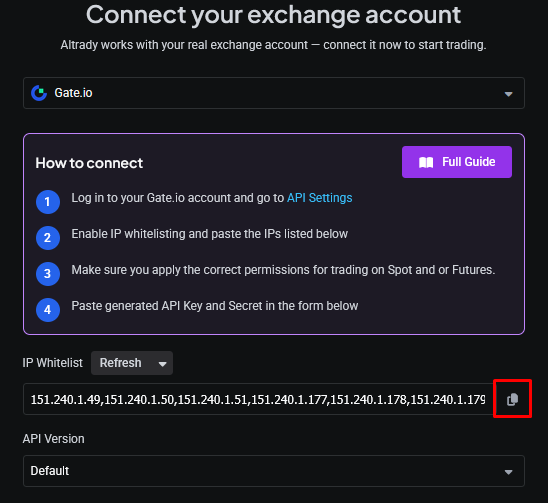
- Next to the IP whitelist, click the copy icon to copy the list of addresses to your clipboard. You’ll paste these into Gate.io in a moment.
 🔍 Click the image to see a larger version
Step 2: Create the API key on Gate.io
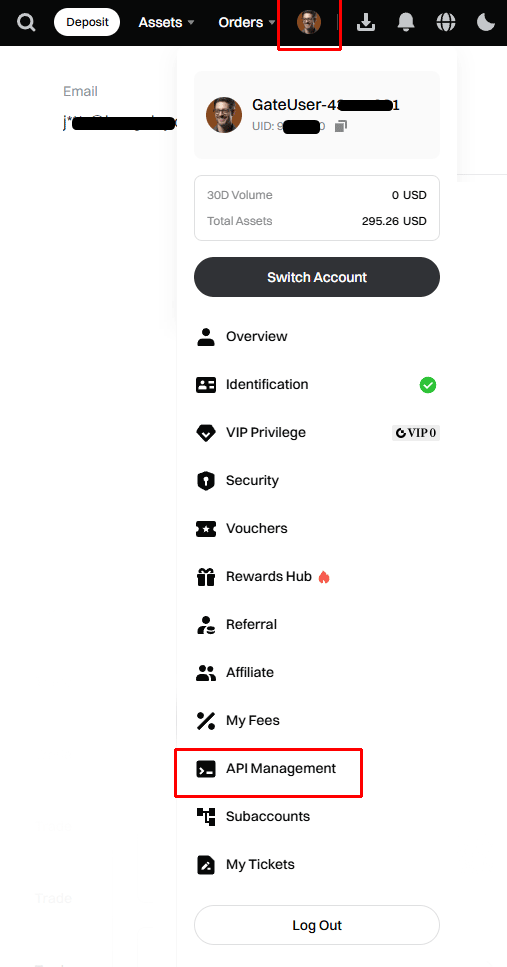
- In a new browser tab, log into your Gate.io account. Go to the API Management page from your profile dropdown, or open it directly at gate.com/myaccount/profile/api-key/manage.
 🔍 Click the image to see a larger version
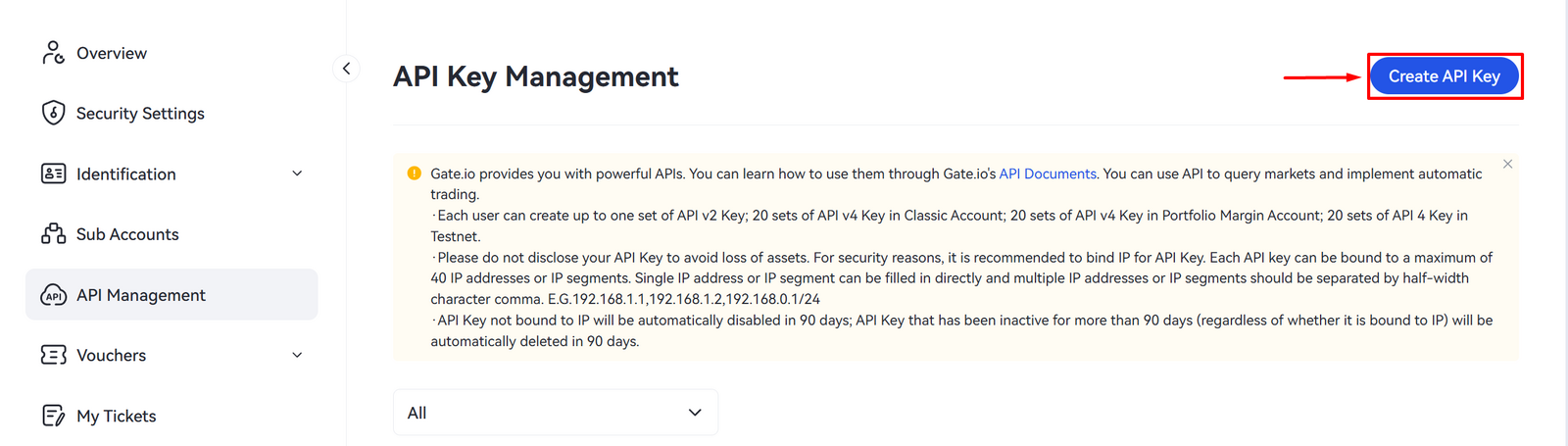
- Click Create API key.
 🔍 Click the image to see a larger version
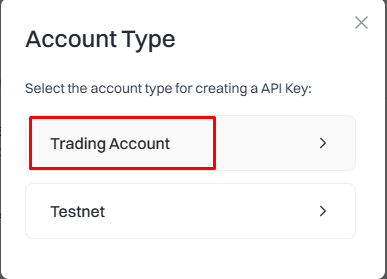
- For the account type, select Trading Account.
 🔍 Click the image to see a larger version
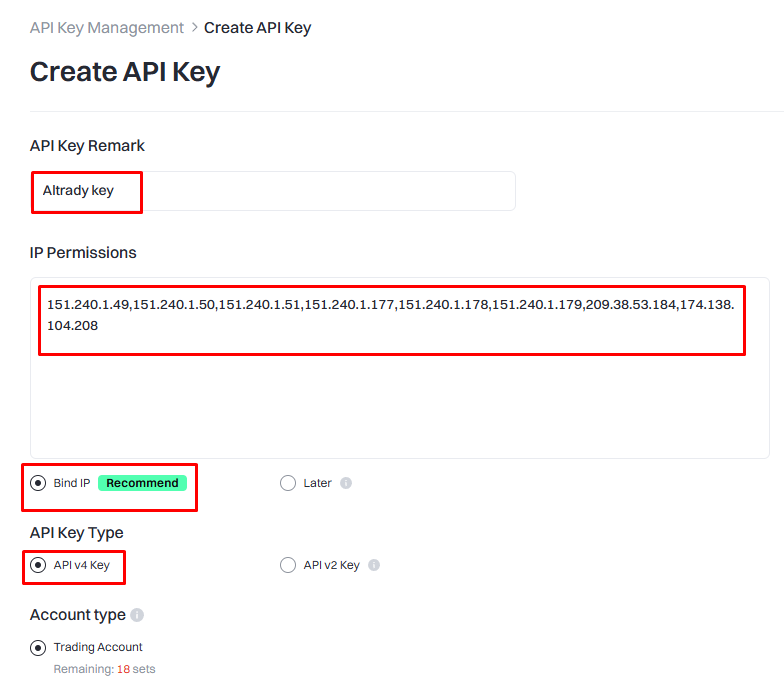
- Fill in the details for the key:
- Give it a label, for example Altrady key.
- Paste the IP whitelist you copied earlier into the IP Permissions field.
- Leave the API type as V4.
- Under permissions, enable Spot trading with Read and Write access.
- Click Submit.
Altrady only ever needs Spot trading (Read and Write) permission; never enable a withdrawal permission for your Altrady key.
 🔍 Click the image to see a larger version
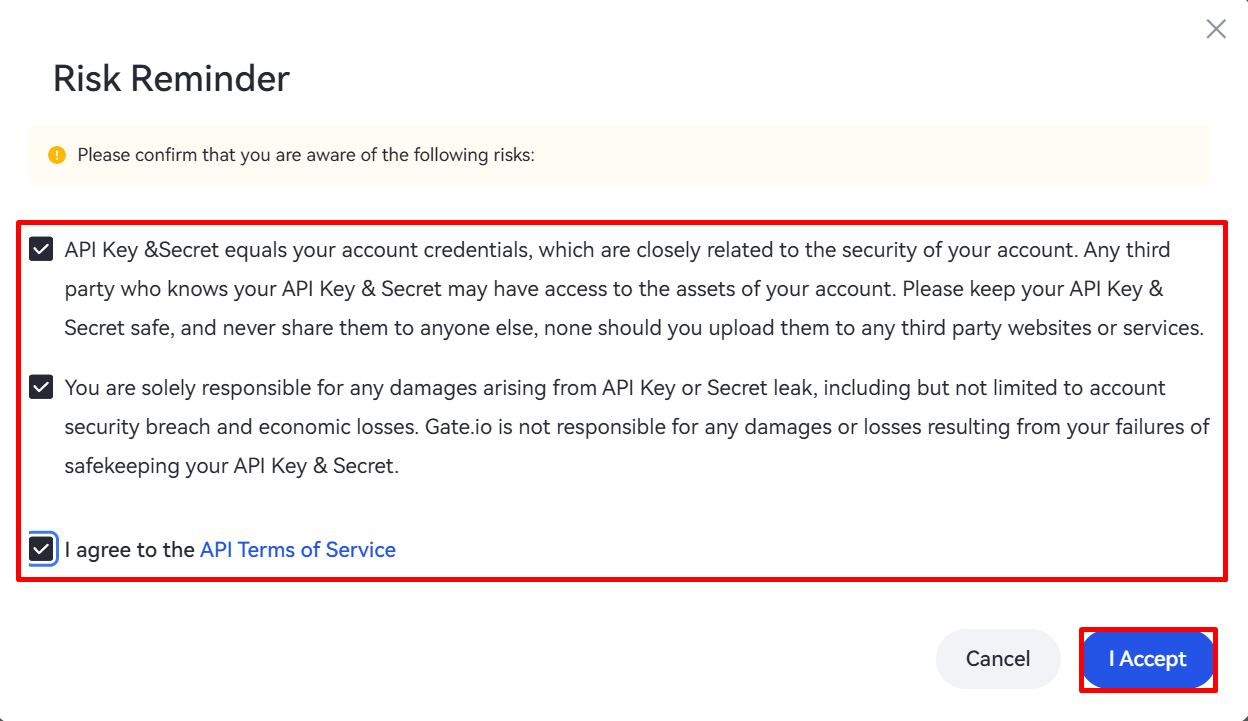
- Confirm the risk information and click I Accept. Complete any extra authentication Gate.io asks for (like a 2FA code).
 🔍 Click the image to see a larger version
Step 3: Connect the key back in Altrady
- Gate.io will show you your API key and Secret key. Back in Altrady:
- Choose the API version: Default, or Unified if you have a unified account.
- Copy the API key and secret into Altrady.
- Click Connect.
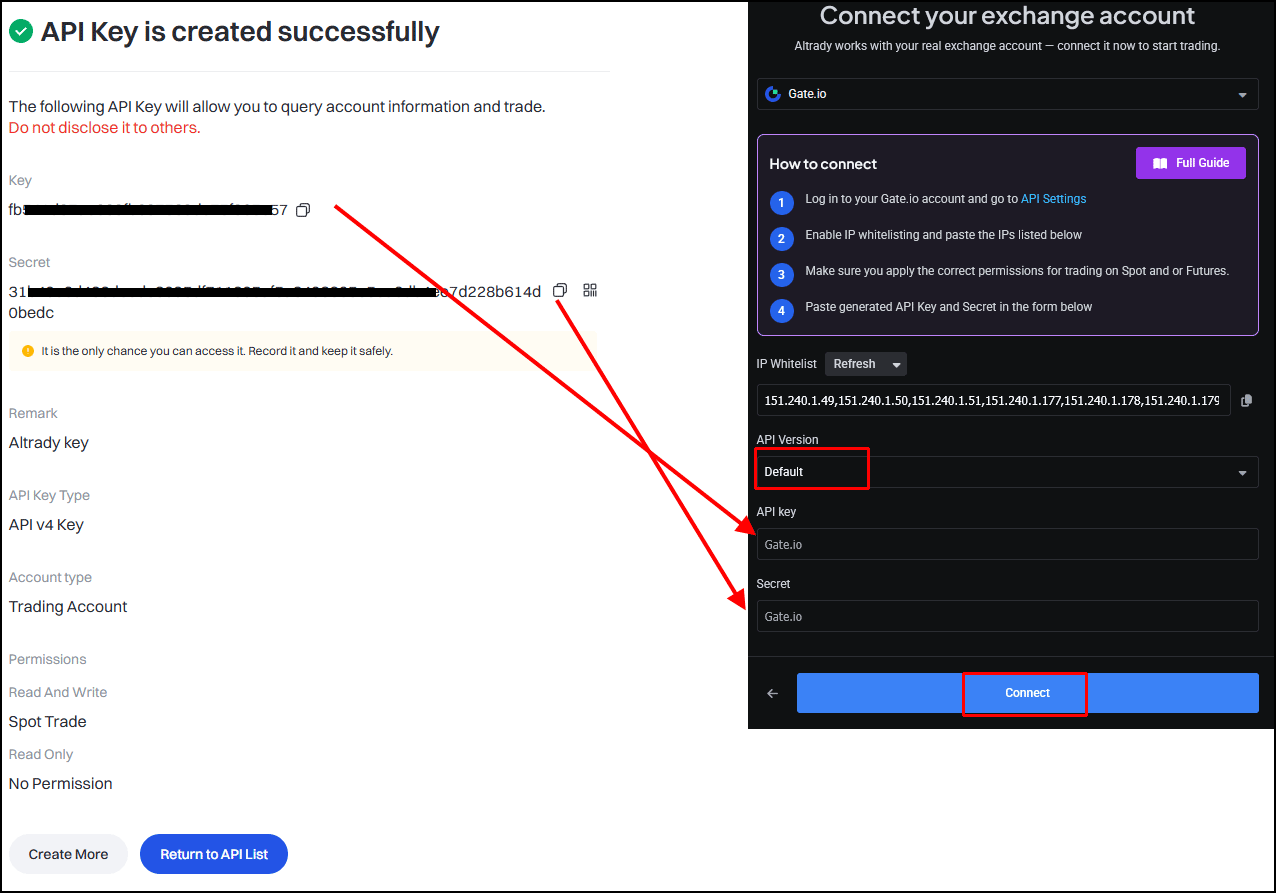 🔍 Click the image to see a larger version
- To sync your balances, click Connect.
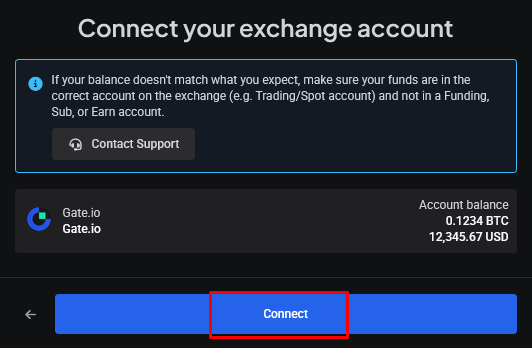 🔍 Click the image to see a larger version
- Click Next to finish and return to the Accounts page.
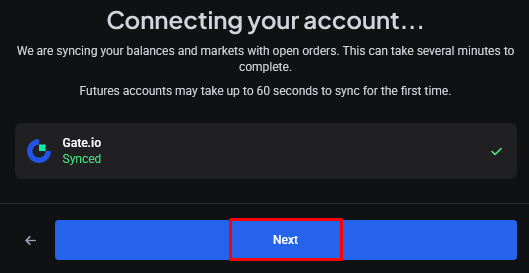 🔍 Click the image to see a larger version
That’s it: your Gate.io account is now connected to Altrady. You can edit the details anytime from the Accounts page.
Important: never delete your API key in Altrady. Deleting it removes all of your trade, order, position, and portfolio history. If you need to change your key or secret, edit the existing entry instead.
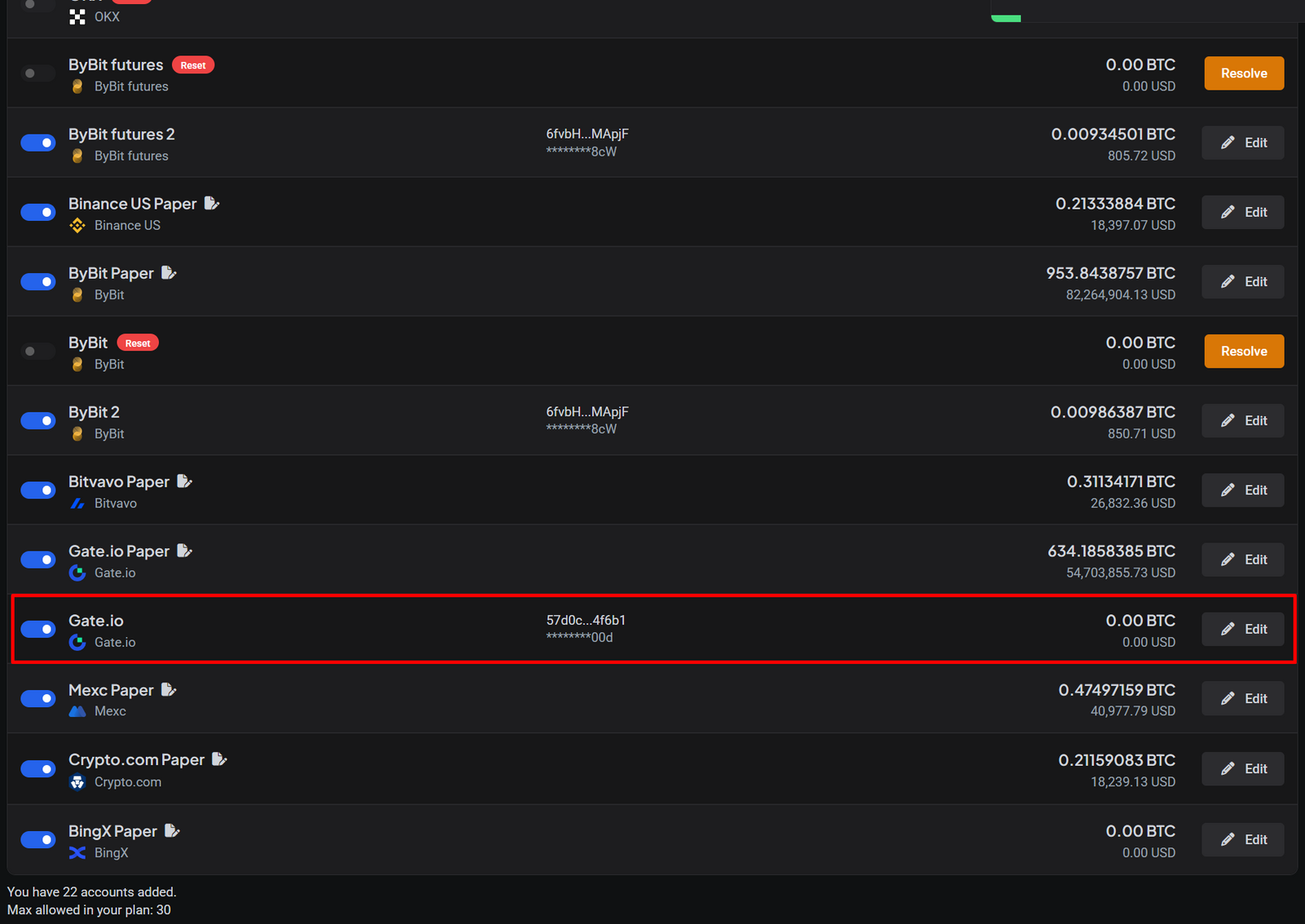 🔍 Click the image to see a larger version
If your balances don’t update right away, give it a little time, or open the account and reconnect it to force a refresh.
Want to know more about what each API permission does? Check out API Keys Explained.
Having trouble?
If the connection isn’t working, see Connection Problems, or chat with our support team; we’re happy to help.