
Connect Crypto.com
Connect Crypto.com
Linking your Crypto.com account to Altrady only takes a few minutes. You will create an API key on Crypto.com, then paste it into Altrady. Two keys are recommended so you don’t run into rate-limit errors while trading, but that second key is easy to add and optional if you want to start quickly.
Crypto.com does not currently offer Fast Connect (one-click sign-in). The steps below use a Crypto.com API key instead. See API Keys Explained if you’d like more background on what an API key is and why it’s safe to use.
A quick reassurance: Altrady never needs, and never asks for, withdrawal permission on your API key. It only needs trading permission to place and manage orders on your behalf. Your funds always stay on Crypto.com.
Step 1: Open the connection page in Altrady
- Log into Altrady.
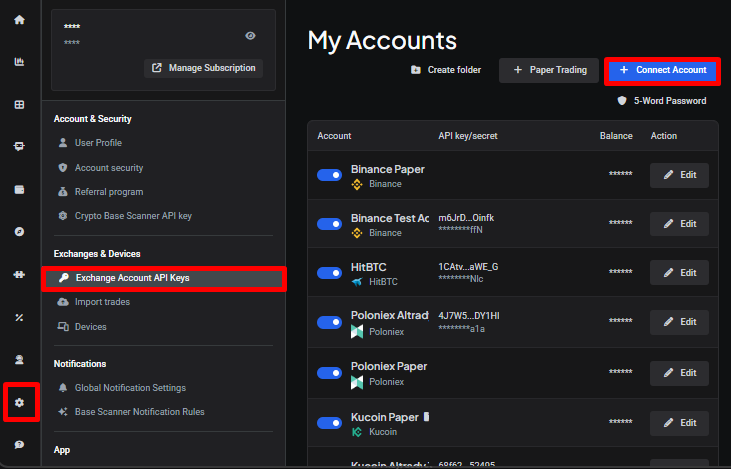
- Go to Settings, then Exchange Account API Keys.
- If asked, enter your 5-word pass key.
- Click + Connect Account.
 🔍 Click the image to see a larger version
Step 2: Select Crypto.com
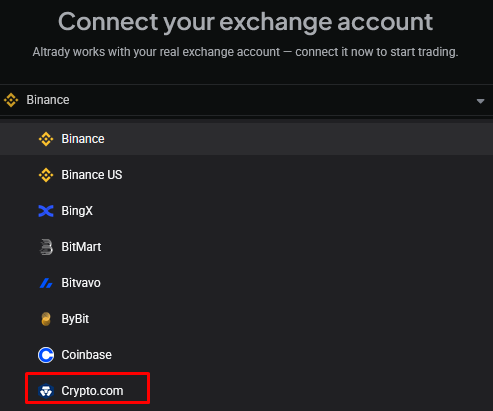
From the dropdown list, select Crypto.com.
 🔍 Click the image to see a larger version
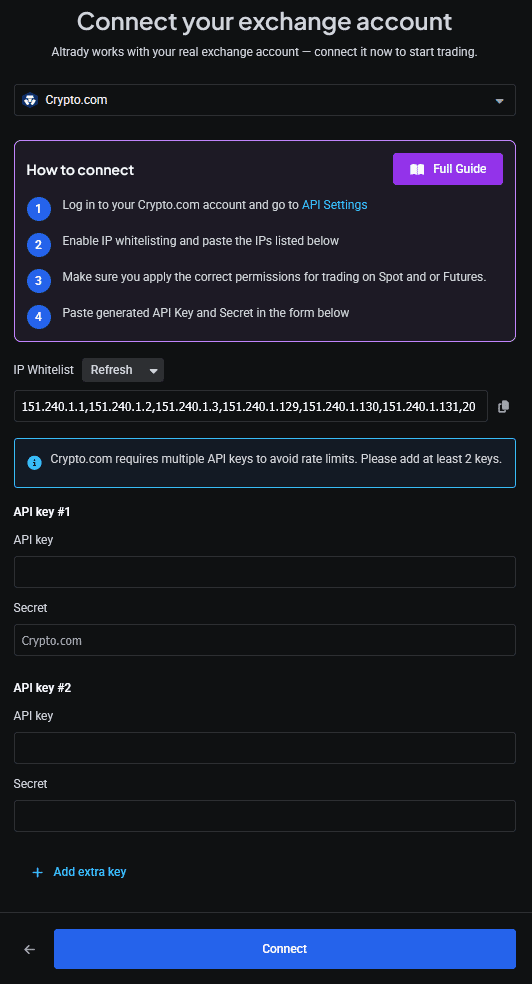
Keep this Altrady window or tab open; you’ll come back to it in a moment.
 🔍 Click the image to see a larger version
Step 3: Open API Management on Crypto.com
- Open Crypto.com/exchange in your browser and log in.
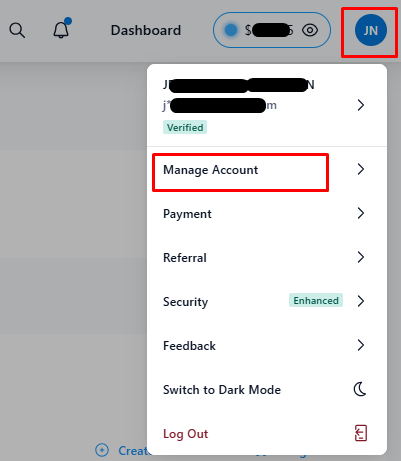
- Open the account menu and select Manage Account.
 🔍 Click the image to see a larger version
Select the API Management tab.
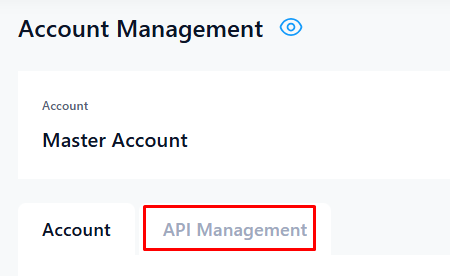 🔍 Click the image to see a larger version
Step 4: Choose the account and create the key
Select the account you want the API key created for. If you’re connecting a sub-account to Altrady, select the sub-account here.
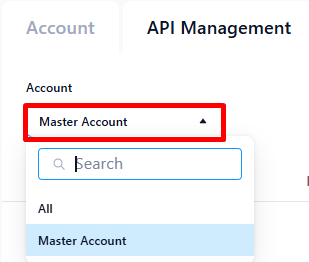 🔍 Click the image to see a larger version
Once the right account is selected, click Create a new API key.
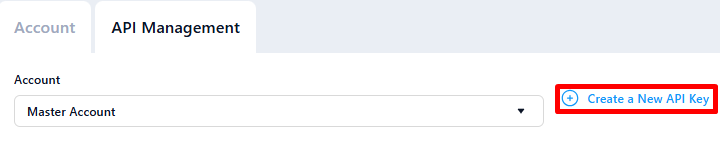 🔍 Click the image to see a larger version
Step 5: Label the key and confirm
Enter a label for the API key and enter the 2FA code Crypto.com asks for. Then click Create API.
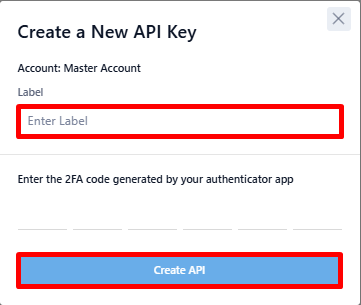 🔍 Click the image to see a larger version
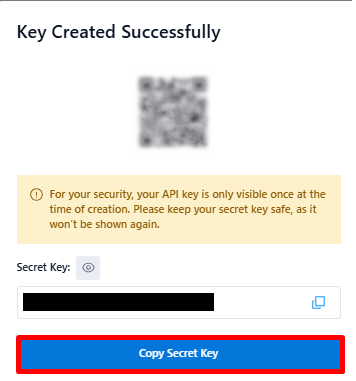
Step 6: Copy the secret key
Copy the secret key and save it somewhere safe; it will only be shown once. Click Copy Secret Key to copy it; the window will then close.
 🔍 Click the image to see a larger version
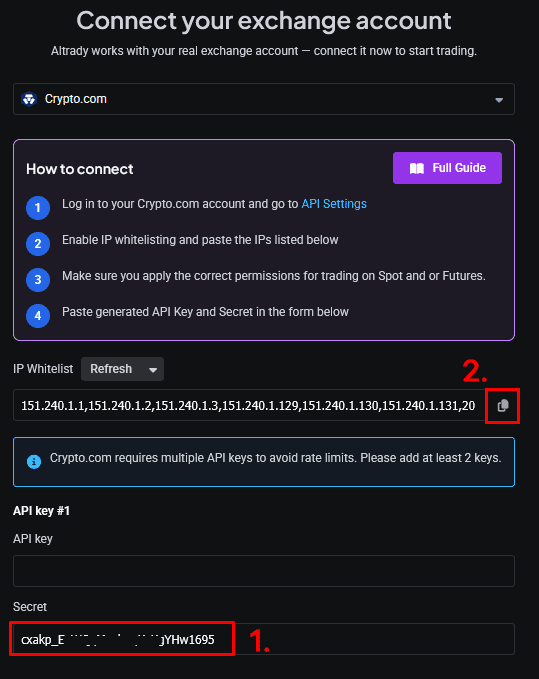
Step 7: Paste the secret into Altrady and copy the IP whitelist
- Paste the Secret into Altrady.
- Click the copy icon next to the IP whitelist to copy it.
 🔍 Click the image to see a larger version
Step 8: Edit the API key on Crypto.com
Back on Crypto.com, your new API key is shown in the list on the API management page. Click Edit next to it; this is needed to make the key usable for trading.
 🔍 Click the image to see a larger version
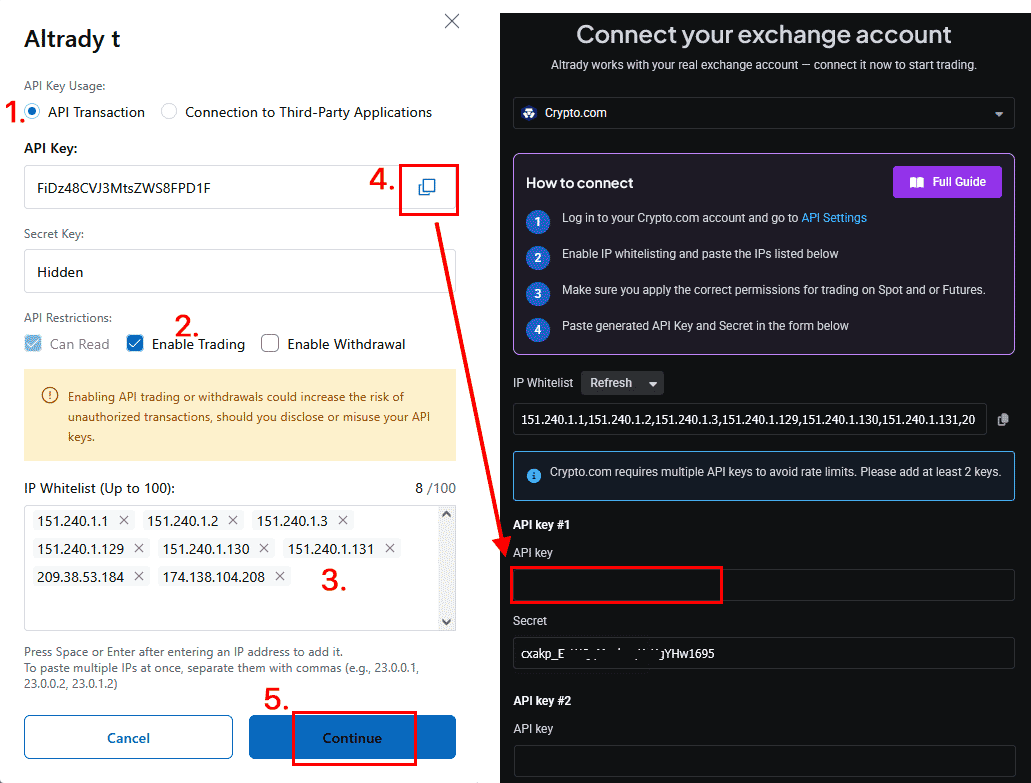
Step 9: Set permissions and paste the IP whitelist
- Make sure API Transaction is selected.
- Select Enable Trading.
- Paste the IP whitelist you copied from Altrady.
- Click the copy button to copy the API key, then paste it into Altrady.
- Click Continue on Crypto.com.
 🔍 Click the image to see a larger version
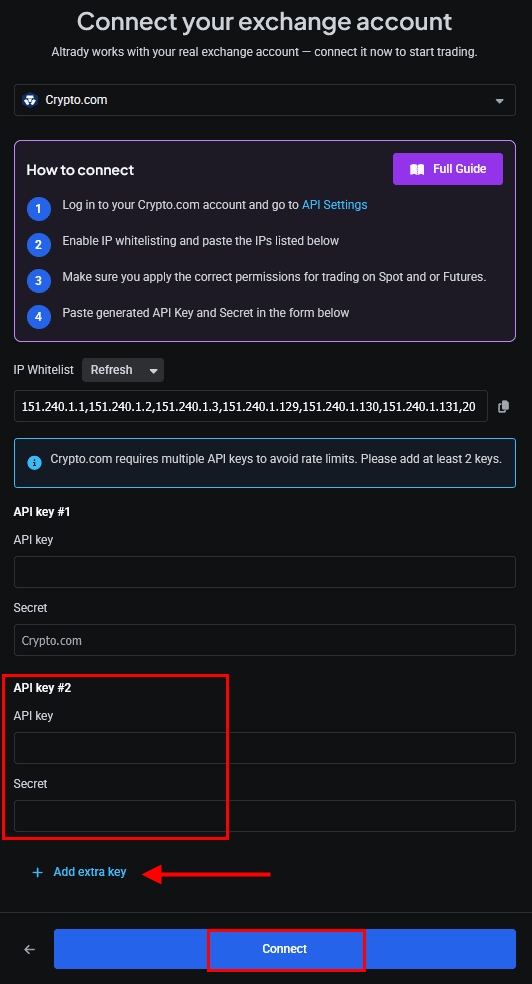
Step 10 (recommended): Add a second API key
We recommend adding a second API key to your Crypto.com trading account in Altrady. A rate limit is an error the exchange throws when too many orders are created, edited, or cancelled in a short time, which can briefly suspend your key. A second key doubles the number of calls Altrady can make, so this helps avoid interruptions while trading.
- Create another API key on Crypto.com the same way as the first.
- Use the same IP whitelist.
- Paste the details into Altrady under API key #2.
- Up to 10 API keys can be added to one trading account; click + Add Extra key to reveal a new slot. You can also add these later.
- Click Connect.
 🔍 Click the image to see a larger version
Step 11: Finish connecting
Click Connect.
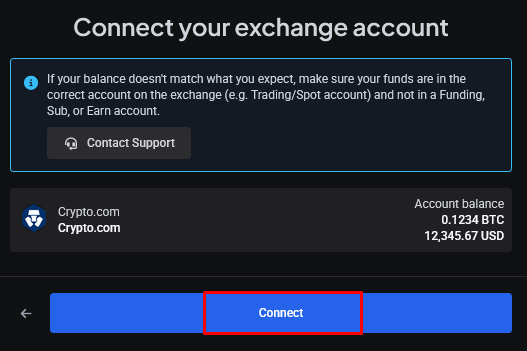 🔍 Click the image to see a larger version
Then click Next.
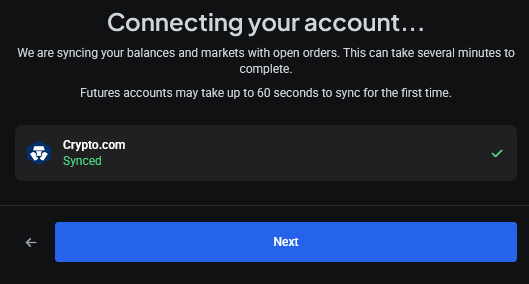 🔍 Click the image to see a larger version
Your Crypto.com trading account is now ready to use.
Good to know
The exchange code for Crypto.com in Altrady is CRO. In the Markets widget settings (the Cog icon in the top right of the widget), you can reorder your active exchanges or remove ones you’re not using.
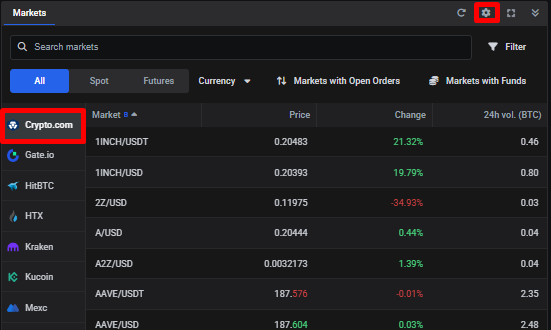 🔍 Click the image to see a larger version
Balances not showing?
If your balance hasn’t updated after connecting, give it a moment to sync, then check your funds are in the right account on Crypto.com. If it’s still not showing, see Connection Problems.
Having trouble?
If any step doesn’t match what you’re seeing, or your account still won’t connect, check Connection Problems, or reach out to our support chat and we’ll sort it out with you.