
Connect Binance
To trade Binance in Altrady, you first need to connect your Binance account. There are two ways to do this:
- Fast Connect: the quick, automatic way. Recommended for most traders.
- Manual Connection: you create the API key yourself on Binance and paste it into Altrady.
If you’re not sure which to pick, use Fast Connect. It’s faster and Altrady sets everything up correctly for you, including the security settings.
Note: Fast Connect only works with Binance Global accounts. Binance US accounts must use Manual Connection. Fast Connect is also only for connecting a new Trading Account. If you need to update the API key on an account you already connected, jump to the Editing the API key details section below.
Before you trade Binance Futures
Binance Futures has a couple of setup points worth knowing — see Trading Futures on Binance at the end of this guide before your first futures trade.
Option 1: Fast Connect (recommended)
Fast Connect logs you into Binance directly, then automatically creates the API key with the right permissions and the right security settings, with no copying and pasting required.
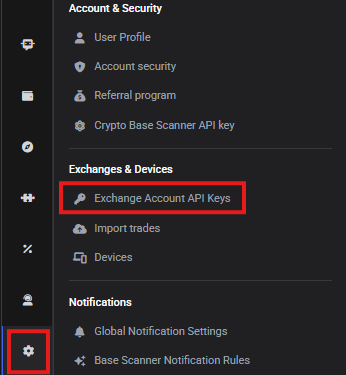
- In Altrady, click Settings in the left side panel, then click Exchange Account API Keys.
 🔍 Click the image to see a larger version
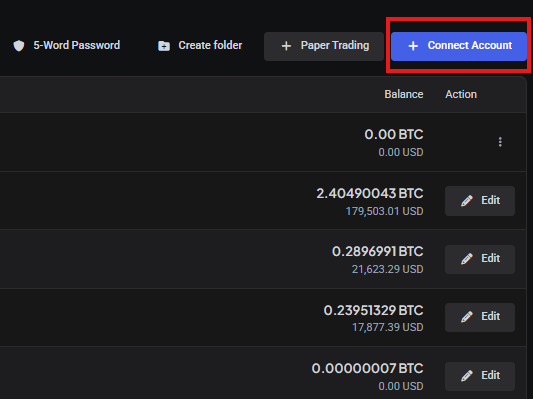
- Click +Add Account in the top-right corner.
 🔍 Click the image to see a larger version
- Select Binance from the list.
 🔍 Click the image to see a larger version
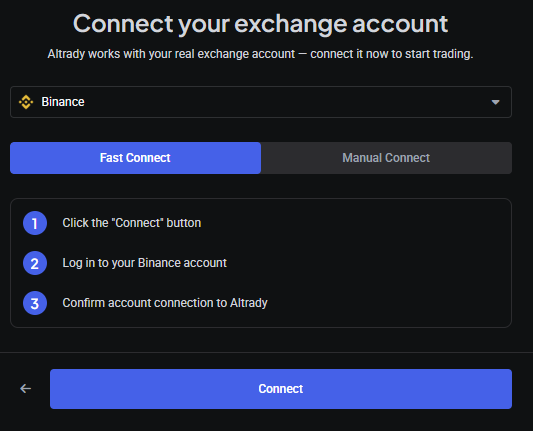
- Make sure Fast Connect is selected. Choose whether you want to enable Futures trading on the key, then click Connect. You’ll be redirected to the Binance login page.
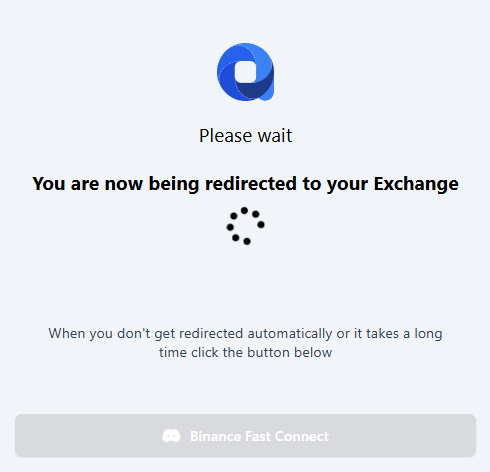
If the redirect doesn’t happen automatically, or it’s taking a while, you’ll see this screen. Just click the Binance Fast Connect button on it to continue.
 🔍 Click the image to see a larger version
- Enter the email address for your Binance account and click Next. On the next screen, enter your Binance password and click Next again.
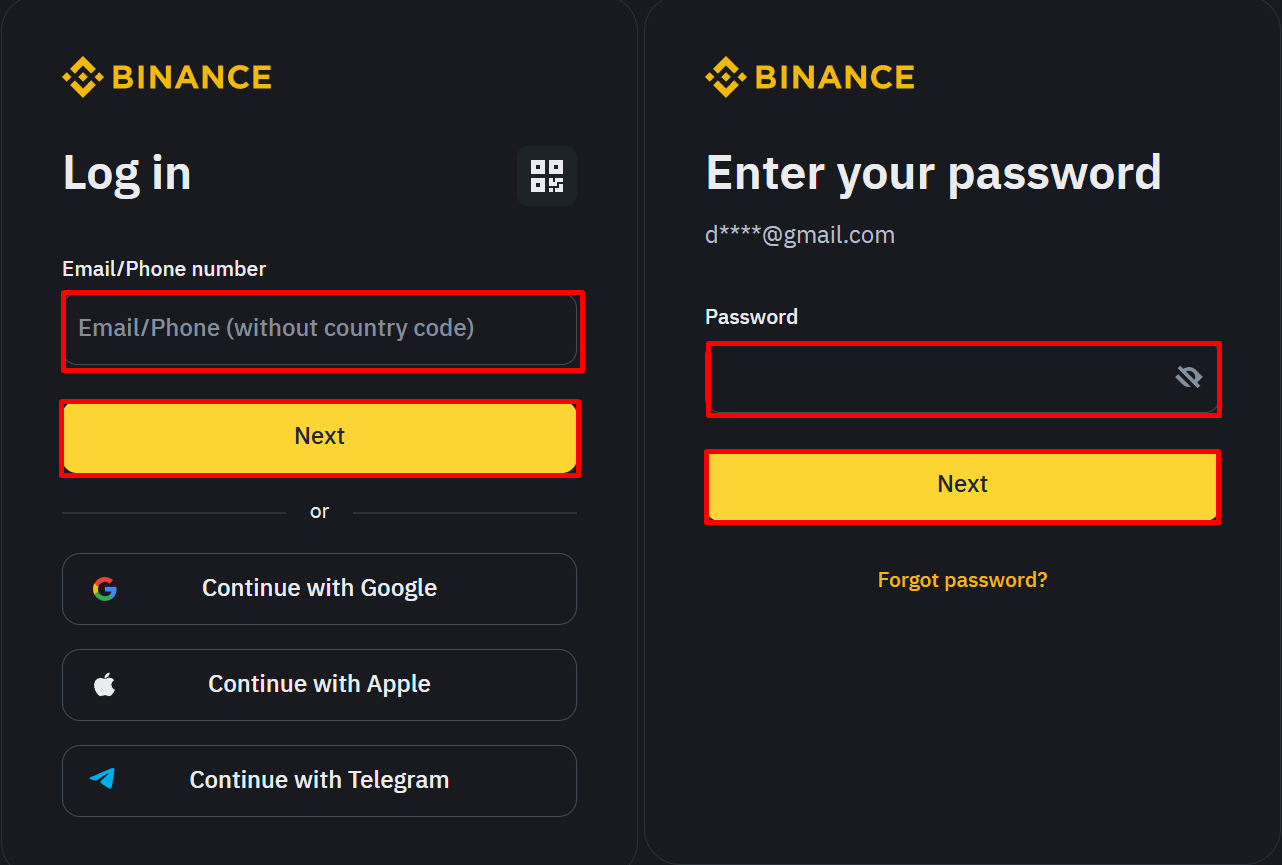 🔍 Click the image to see a larger version
- Complete any verification steps Binance asks for.
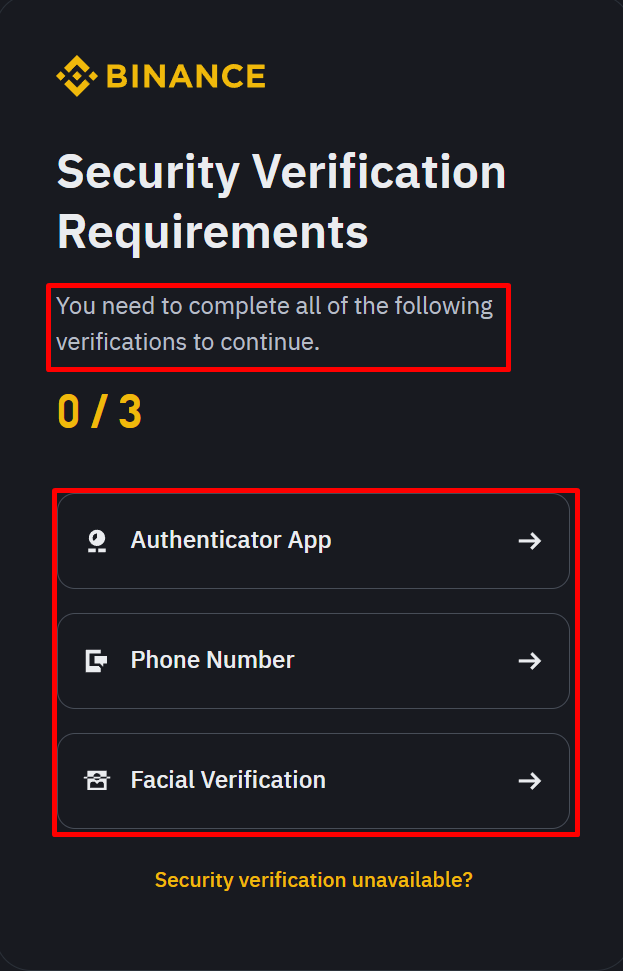 🔍 Click the image to see a larger version
- Click Confirm to let Altrady create the Fast Connect API key.
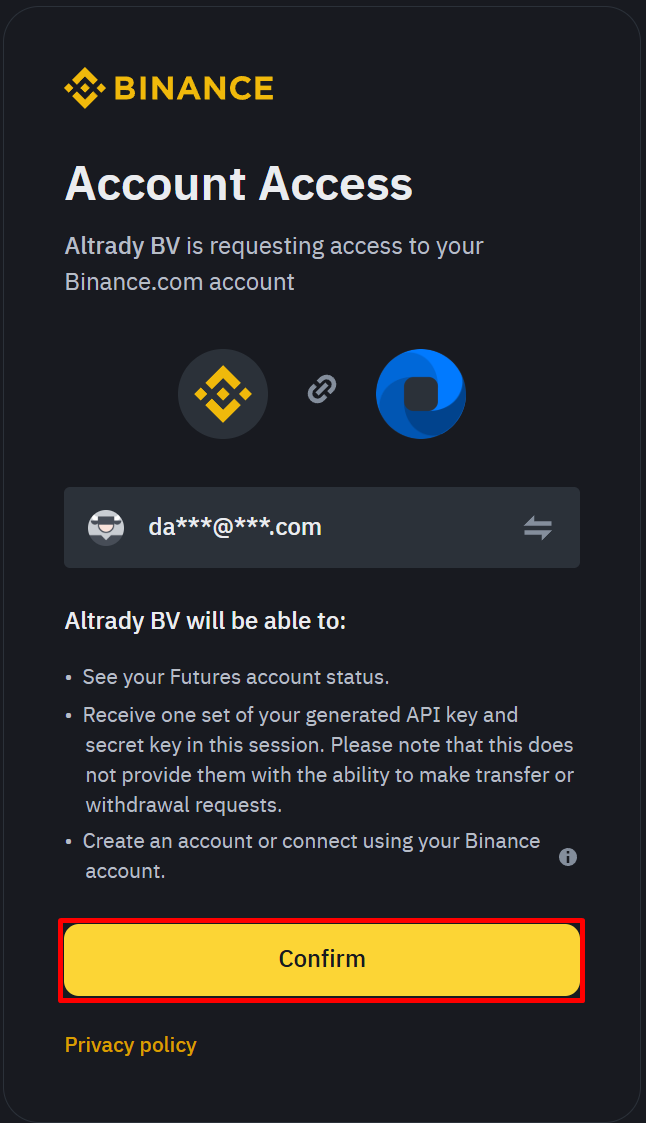 🔍 Click the image to see a larger version
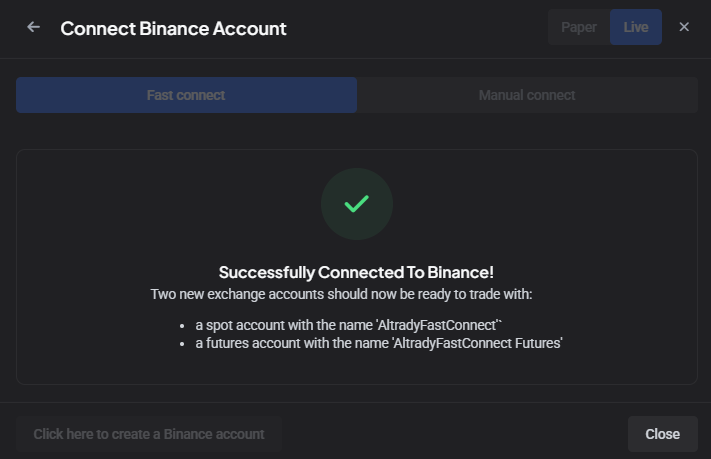
A Spot Trading Account is created by default. If your Binance account also has Futures access, a Futures Trading Account is created too. Altrady never asks for or uses withdrawal permission: only the trading and read-only permissions it needs are enabled, and Altrady’s IP whitelist is applied automatically.
You’ll see a success message like this:
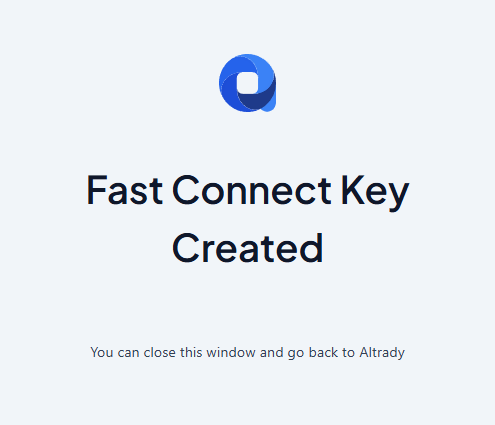 🔍 Click the image to see a larger version
 🔍 Click the image to see a larger version
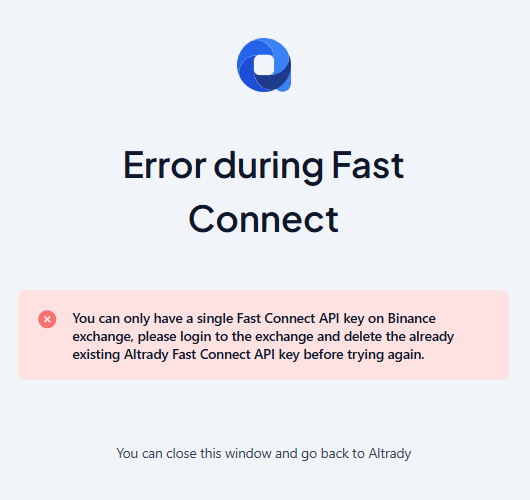
Ran into an error instead? Binance only allows one Fast Connect key per account; if you already have one, you’ll see this message:
 🔍 Click the image to see a larger version
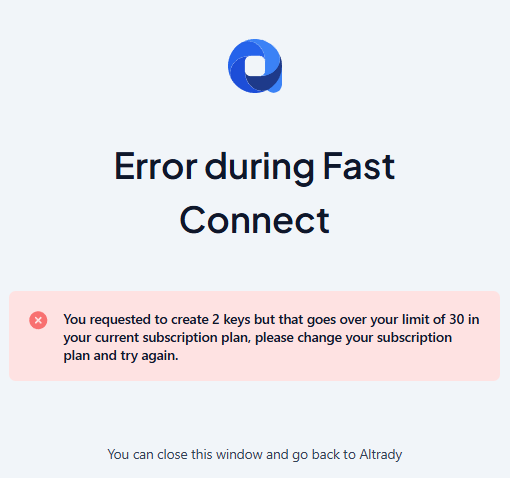
You may also see this message if creating the new Trading Account(s) would go over the limit for your current Altrady plan:
 🔍 Click the image to see a larger version
-
Once connected, you can safely close these windows.
-
Your new Trading Account(s) will now appear on the Exchange Account API Keys page. You can rename them any time by clicking Edit and changing the Account Label.
 🔍 Click the image to see a larger version
- If your balances don’t show up after connecting, see Syncing Exchange Balances below.
Option 2: Manual Connection
Prefer to do it yourself, or trading on Binance US? Follow these steps instead.
- Go to Binance in your browser and log in to your account.
 🔍 Click the image to see a larger version
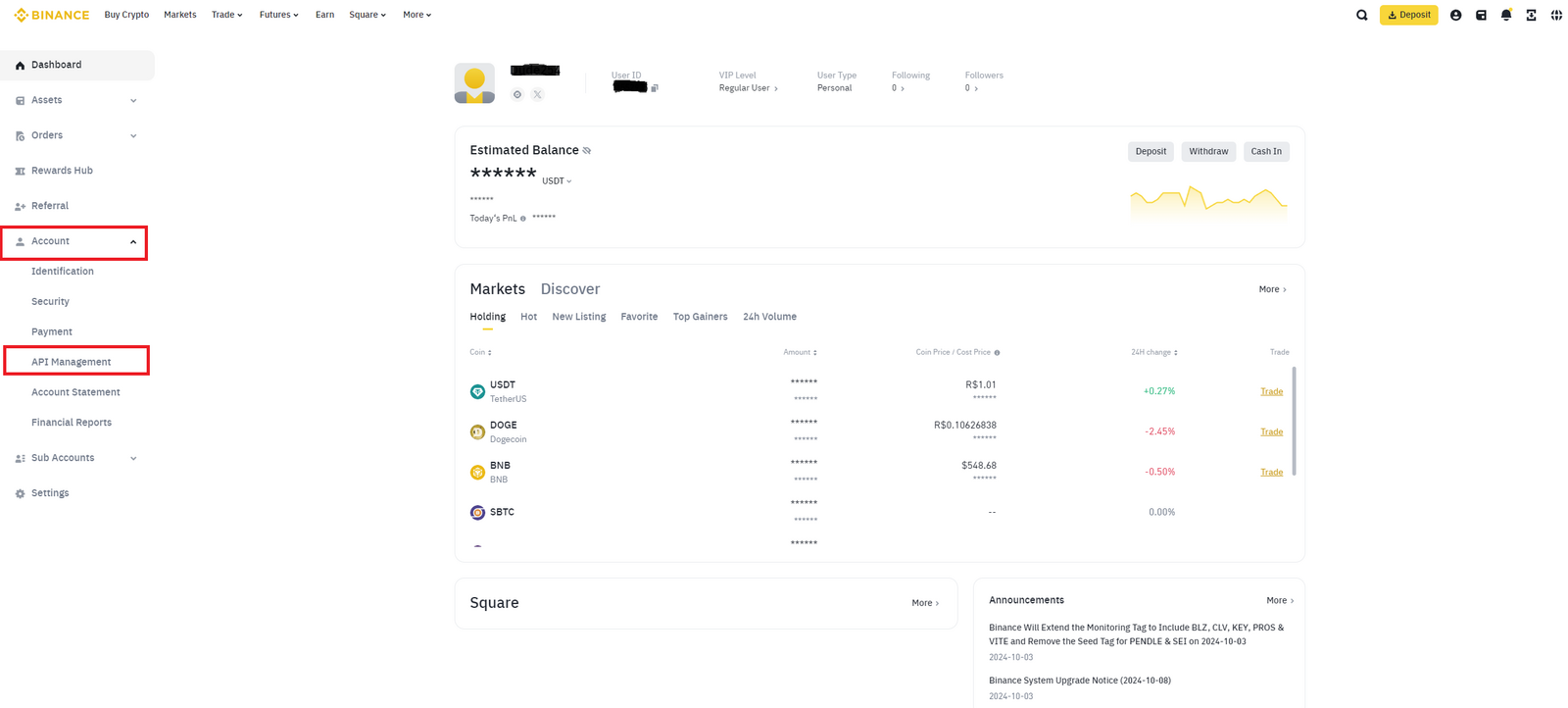
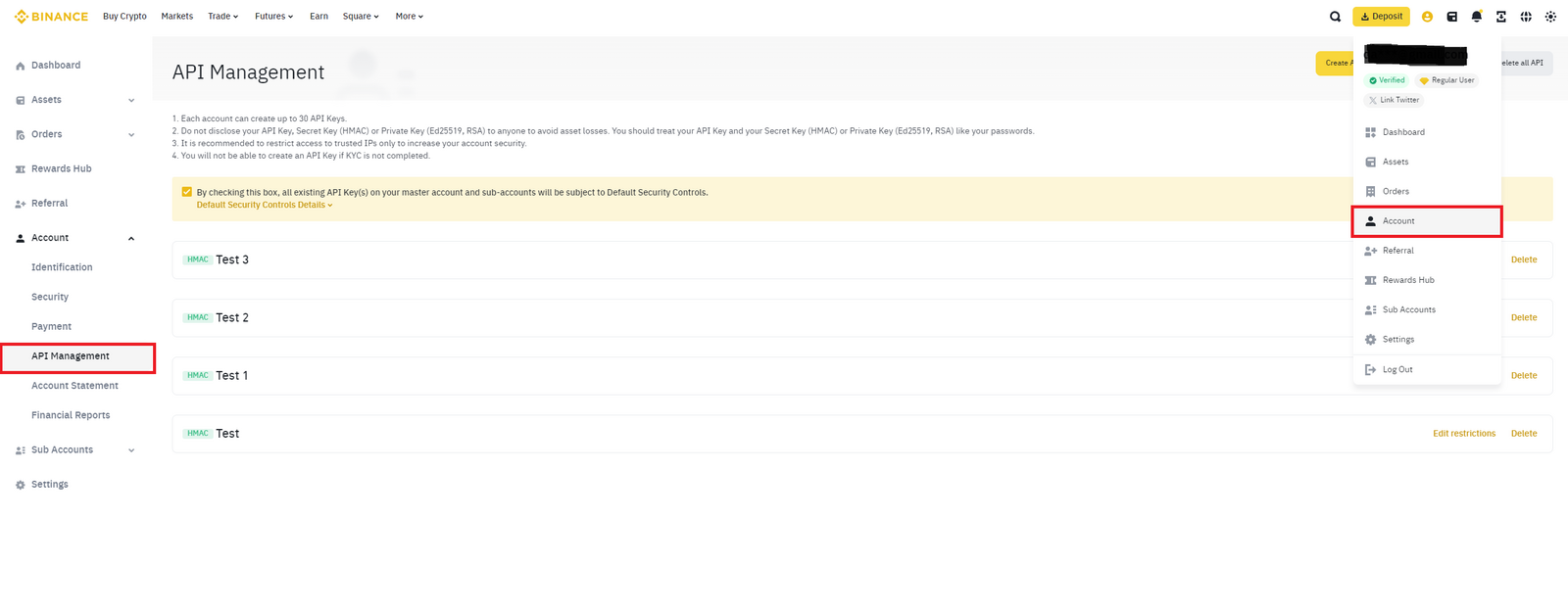
- After signing in, click Account in the dashboard bar, then select API Management. (Or click the profile icon in the top-right corner, choose Account, then API Management from the menu.)
 🔍 Click the image to see a larger version
 🔍 Click the image to see a larger version
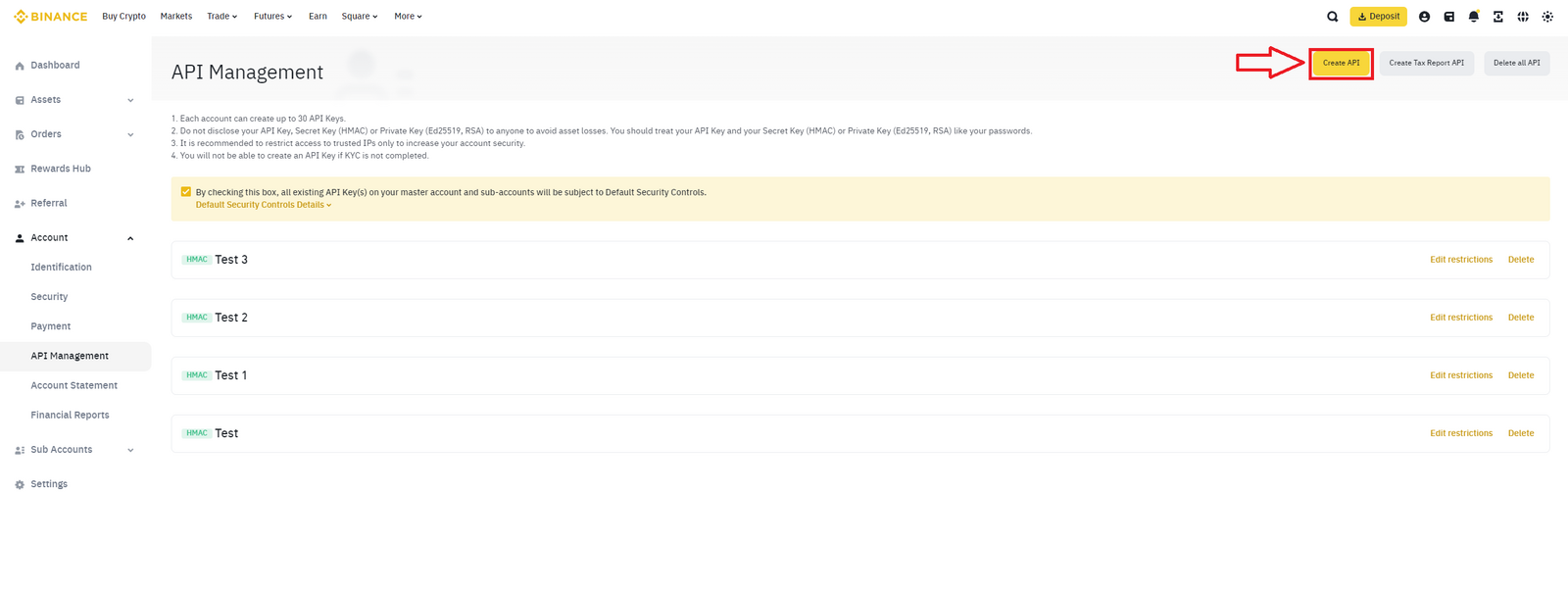
- Click Create API.
 🔍 Click the image to see a larger version
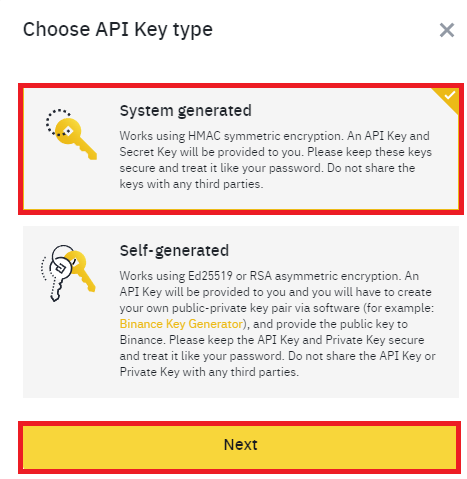
- Choose the API key type: select System Generated, then click Next.
 🔍 Click the image to see a larger version
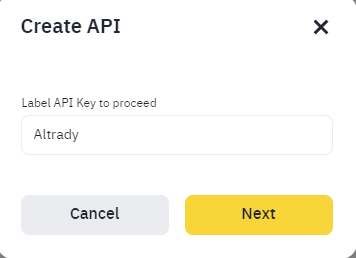
- Give the key a name (for example, Altrady), then click Next.
 🔍 Click the image to see a larger version
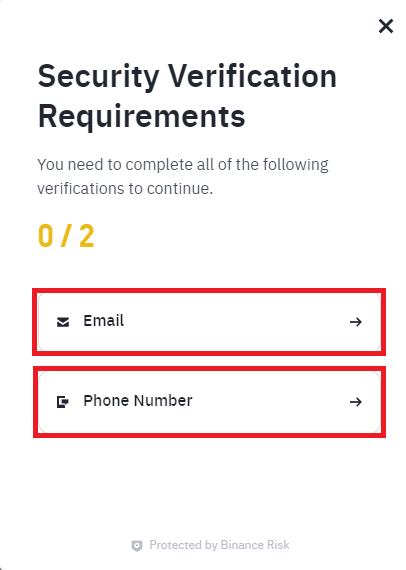
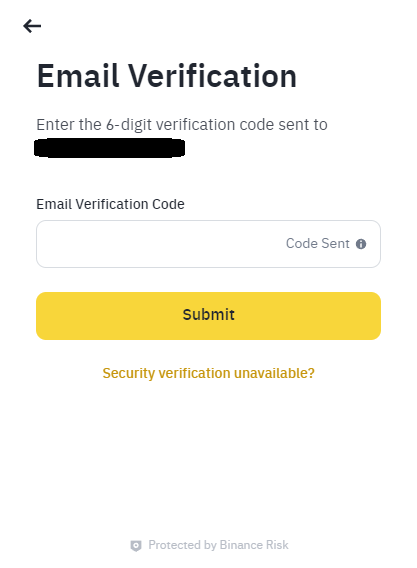
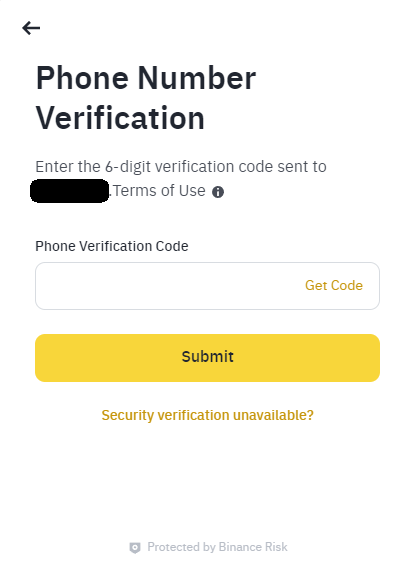
- Click Email and Phone Number to request a six-digit verification code for each. Enter both codes, then click Submit.
 🔍 Click the image to see a larger version
 🔍 Click the image to see a larger version
 🔍 Click the image to see a larger version
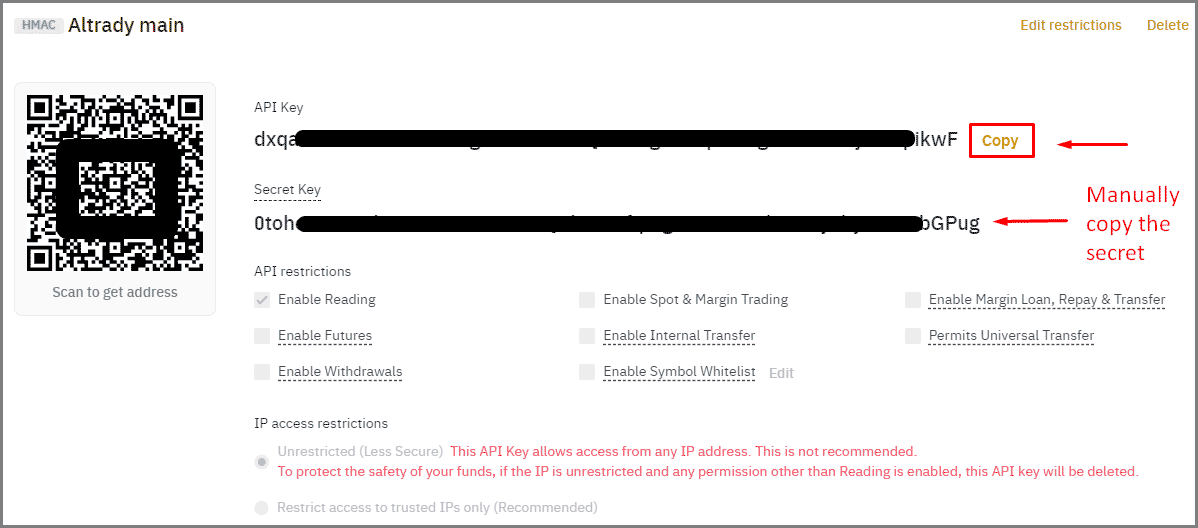
- Binance will show your API key and Secret key. Copy both; you’ll need them in Altrady. Keep this page open, or copy them somewhere safe, since Binance only shows the Secret key once.
 🔍 Click the image to see a larger version
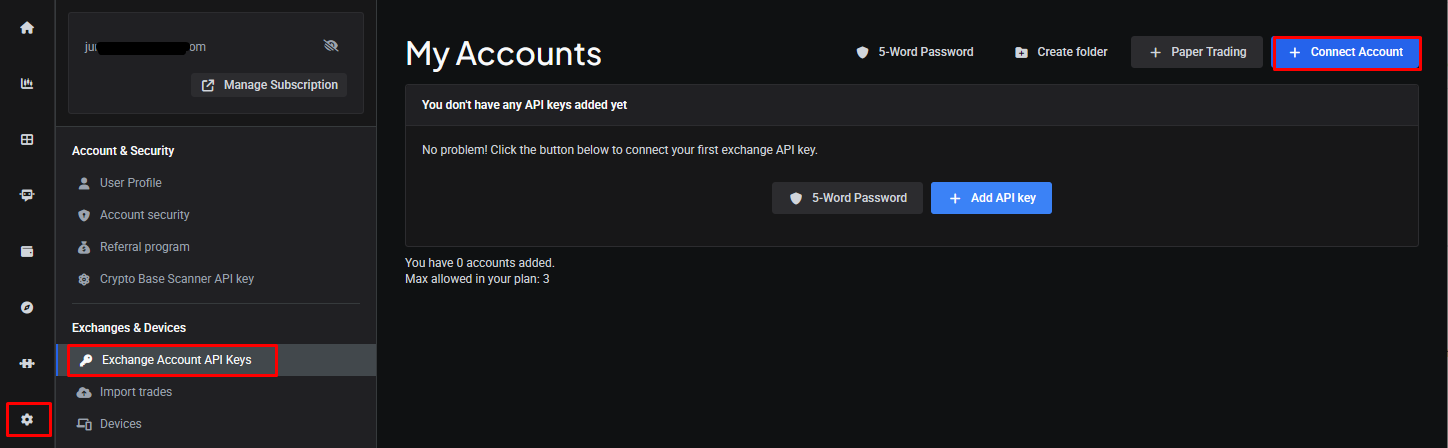
- In Altrady, click Settings in the left panel, choose Exchange Account API Keys, then click + Add API Key.
 🔍 Click the image to see a larger version
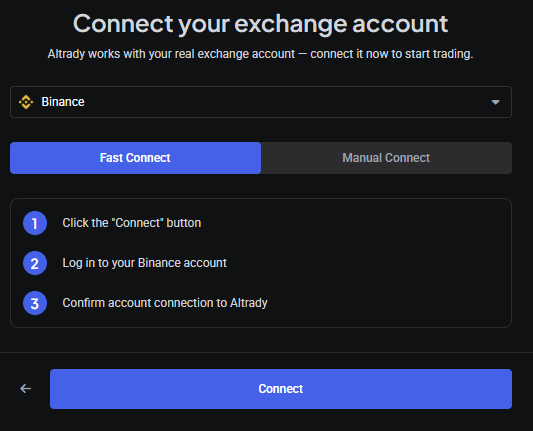
- Select Binance in the pop-up.
 🔍 Click the image to see a larger version
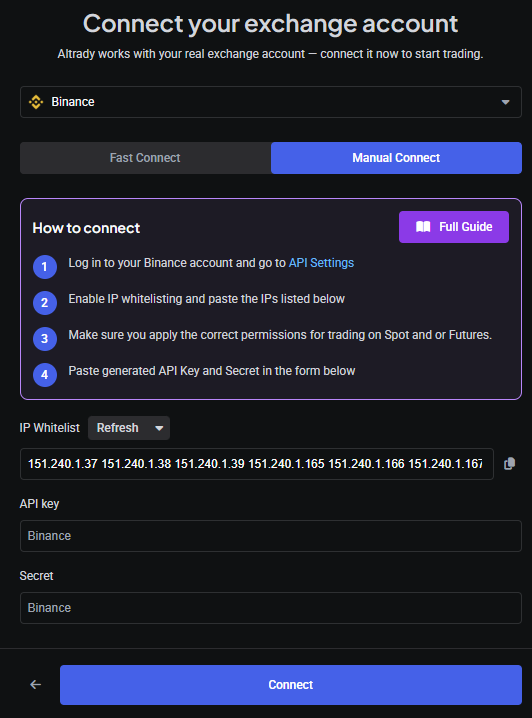
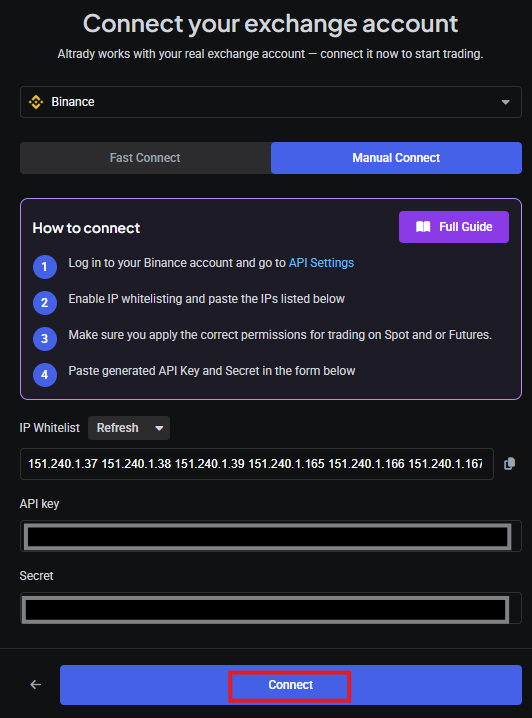
- Make sure Manual Connect is selected, then:
- Give the key a label.
- Enter the API key and Secret key you copied in step 7.
- Enable Spot, Futures, or both, depending on what you want to trade.
- Click the copy icon next to the IP whitelist to copy Altrady’s IP addresses to your clipboard.
Don’t close or save this window yet: you’ll need it open for the next steps.
 🔍 Click the image to see a larger version
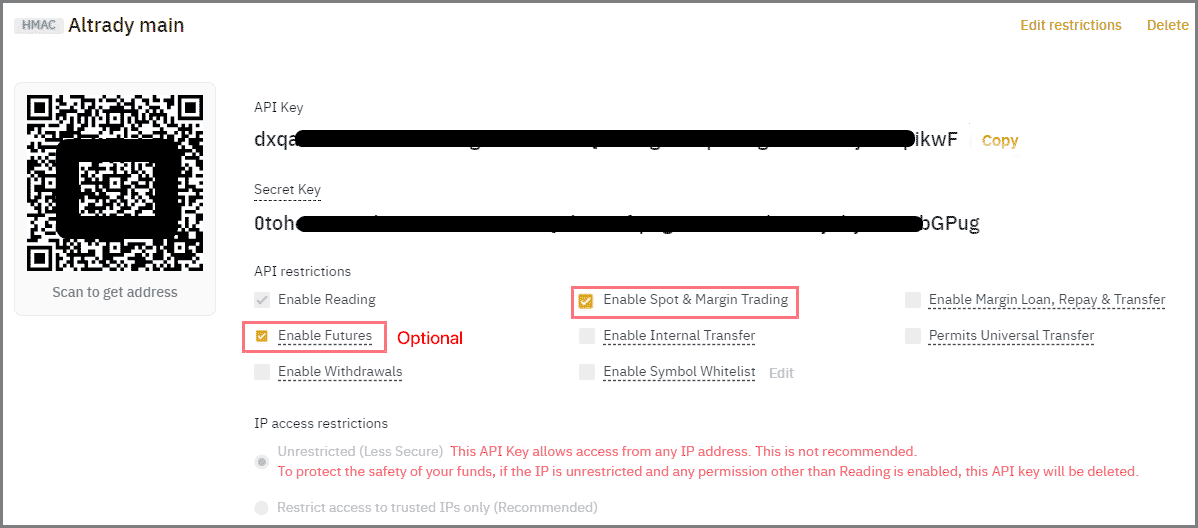
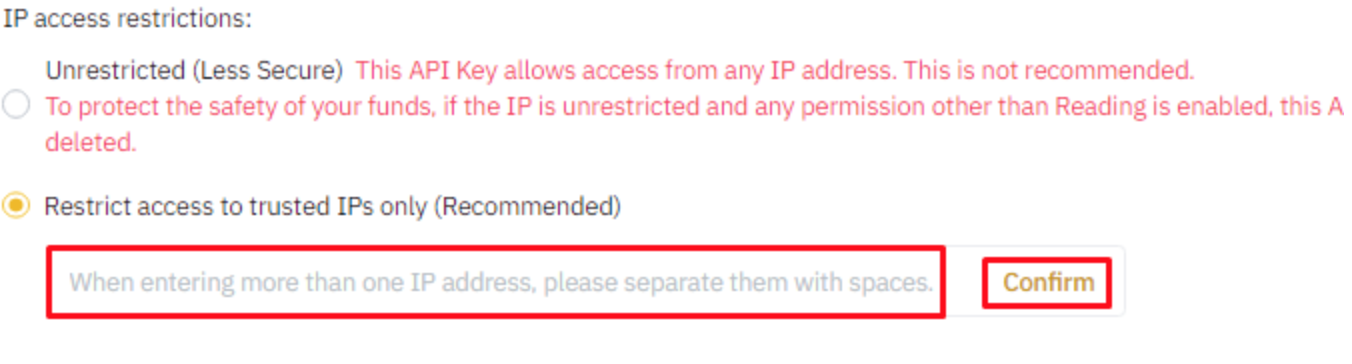
- Go back to Binance, click Edit Restrictions, then click Restrict Access to Trusted IPs Only.
 🔍 Click the image to see a larger version
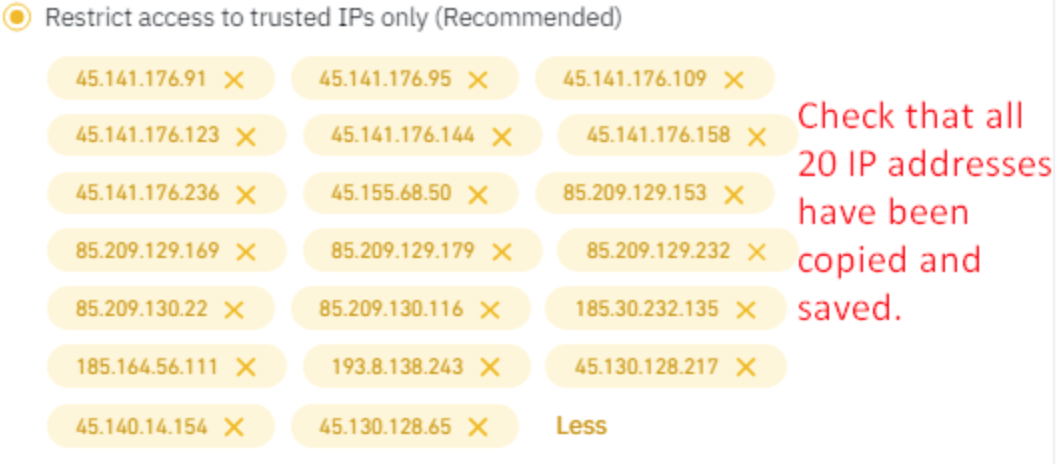
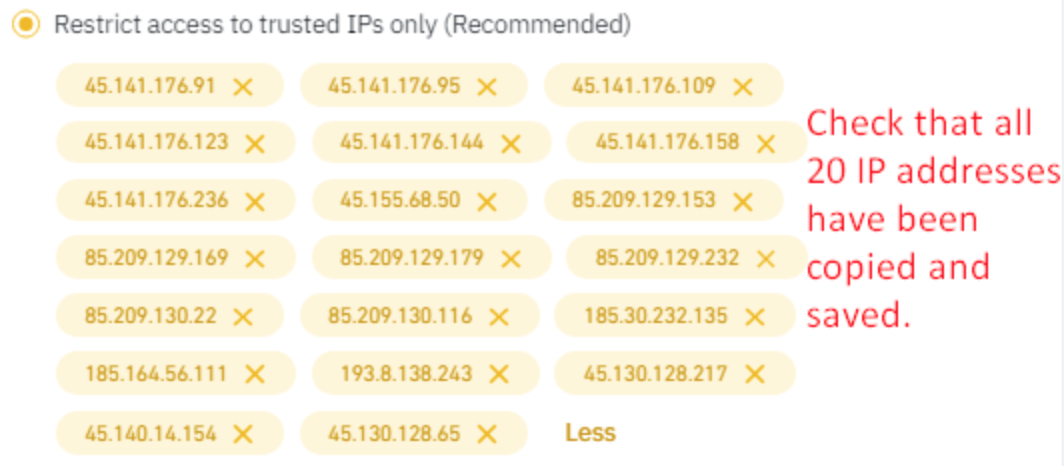
- Paste the IP addresses you copied from Altrady, and check that all 20 IP addresses have been added.
 🔍 Click the image to see a larger version
 🔍 Click the image to see a larger version
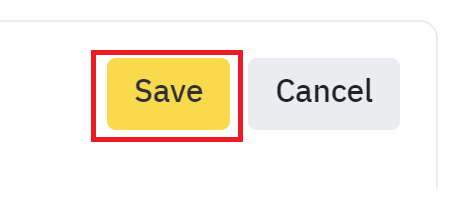
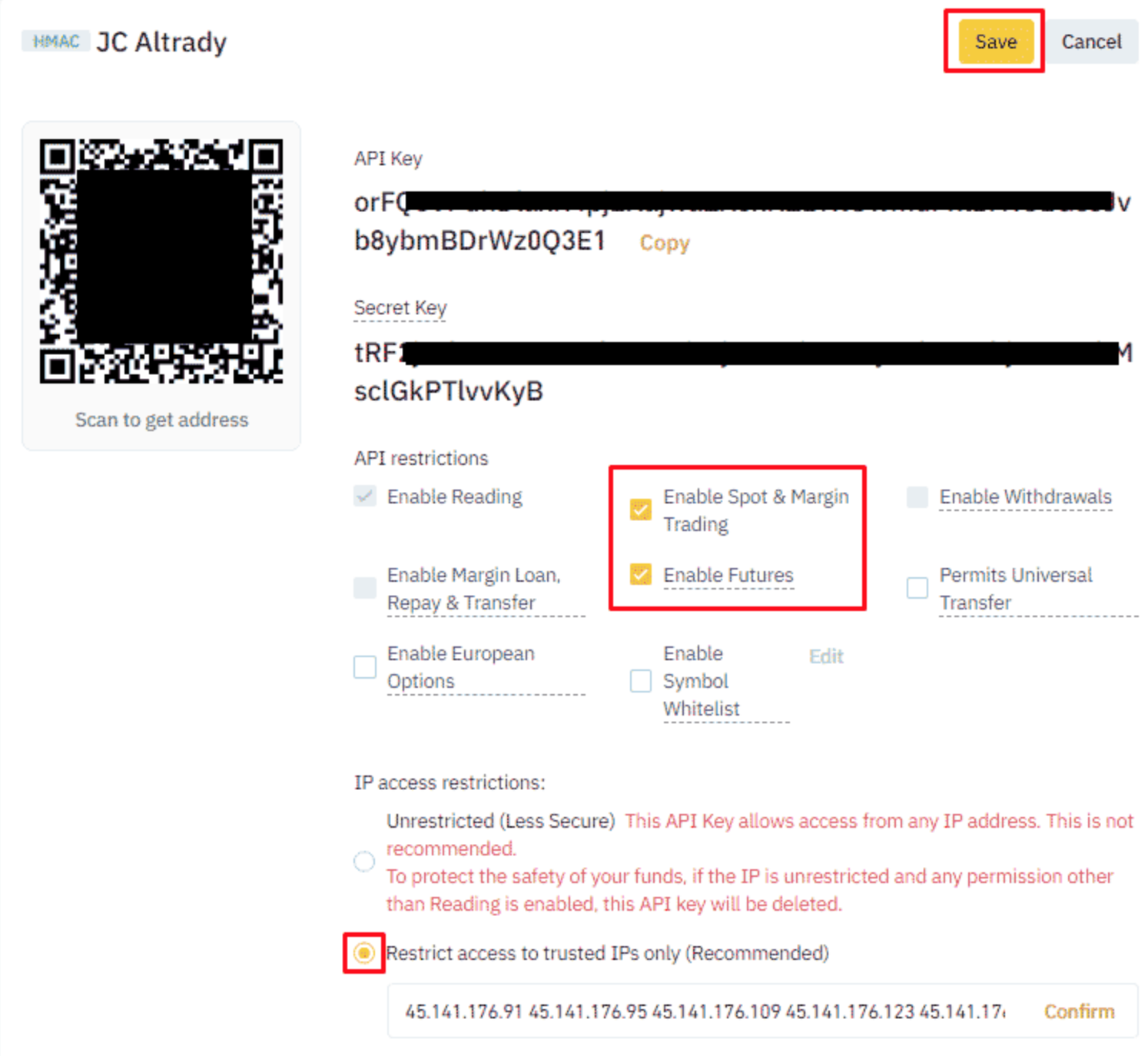
- Click Save once all 20 IP addresses are added.
 🔍 Click the image to see a larger version
- Back in Altrady, click Connect now that all the information is entered.
 🔍 Click the image to see a larger version
- Altrady will test your keys. If everything is correct, you’ll see your balance. Click Connect again to finish adding the key.
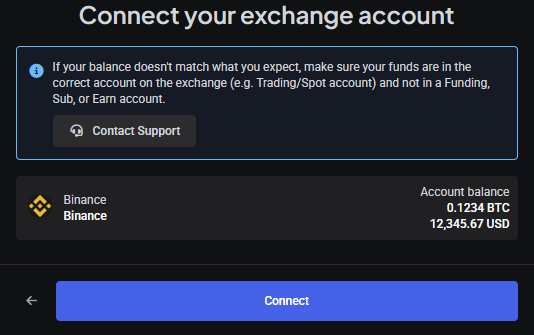 🔍 Click the image to see a larger version
- Your account will now sync for the first time; this can take up to 60 seconds.
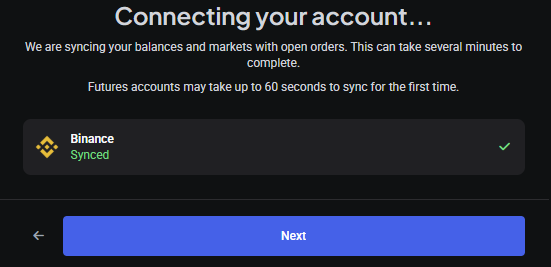 🔍 Click the image to see a larger version
- That’s it: your Binance account is connected to Altrady.
If you enabled both Spot and Futures, you’ll see a separate Trading Account for each in your list of API keys. In the Markets widget, select Binance on the left, then choose Spot or Futures to see the matching markets.
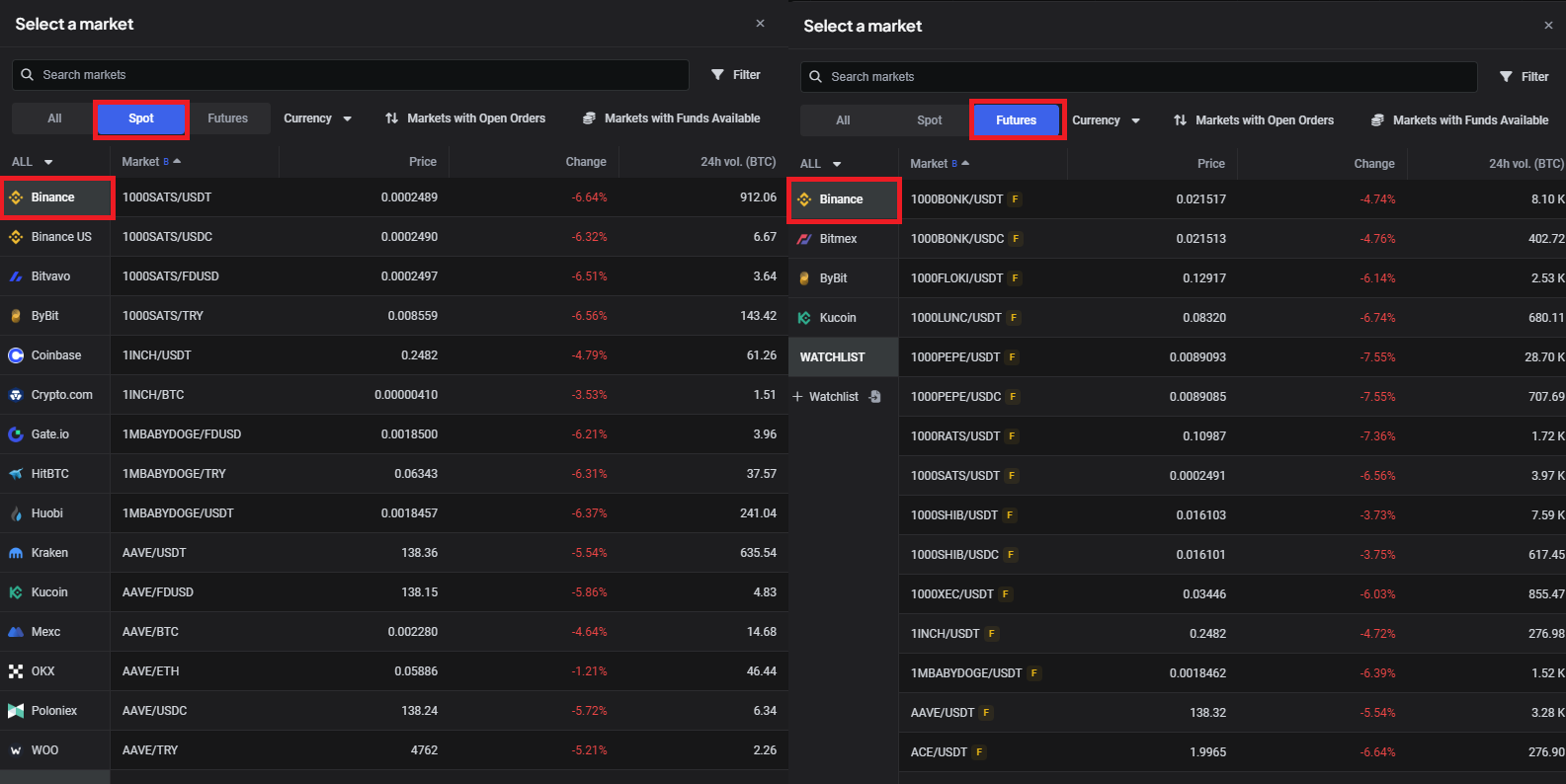 🔍 Click the image to see a larger version
Editing the API key details
You can edit your connection any time from Settings > Exchange Account API Keys. From there you can:
- Update the API key/secret: this is seamless as long as the new key is valid, has the correct permissions (see step 7 above), and you replace it in Altrady before the old key is deleted or expires on Binance. Your bots, positions, and orders are unaffected.
- Delete the Trading Account: this permanently deletes all orders, trades, and positions for that account, and stops any Signal Bots using it. This cannot be undone.
 🔍 Click the image to see a larger version
Syncing Exchange Balances
If your balances haven’t updated yet, check out this short video on how to refresh them:
How to add an IP whitelist to your Binance API keys
If you used Manual Connection and need to (re)add the IP whitelist:
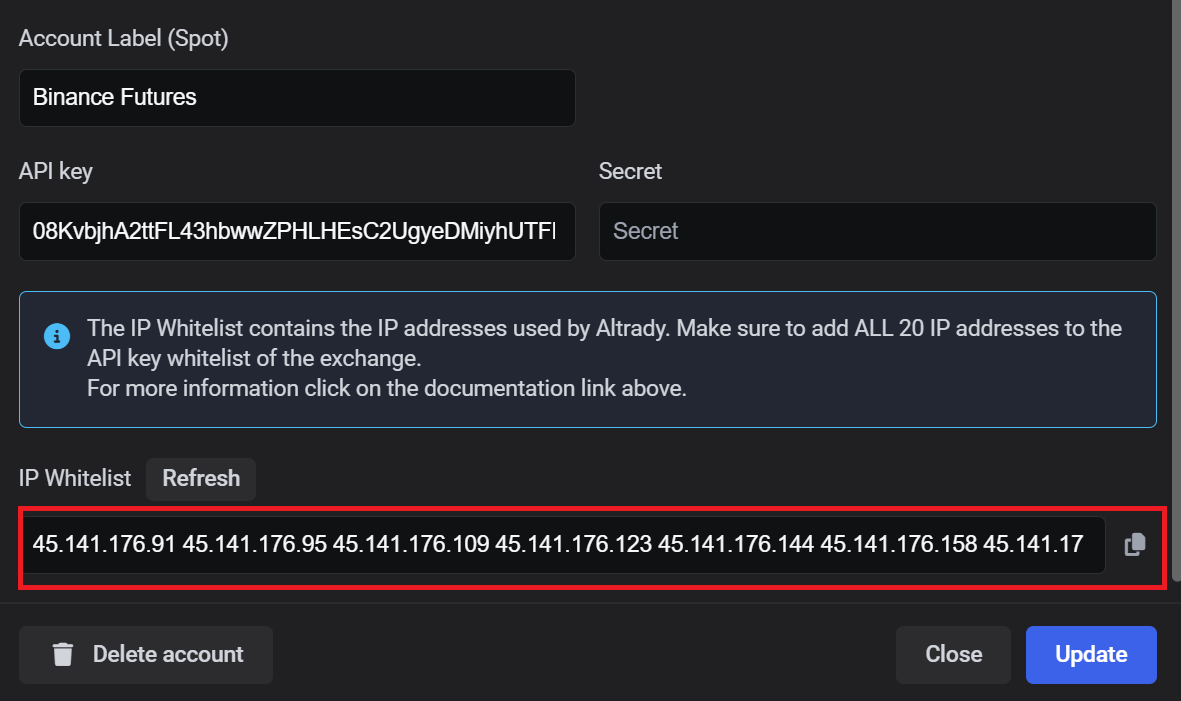
- Go to Settings > Exchange API Keys in Altrady, and edit your Binance Trading Account to find its list of IP addresses.
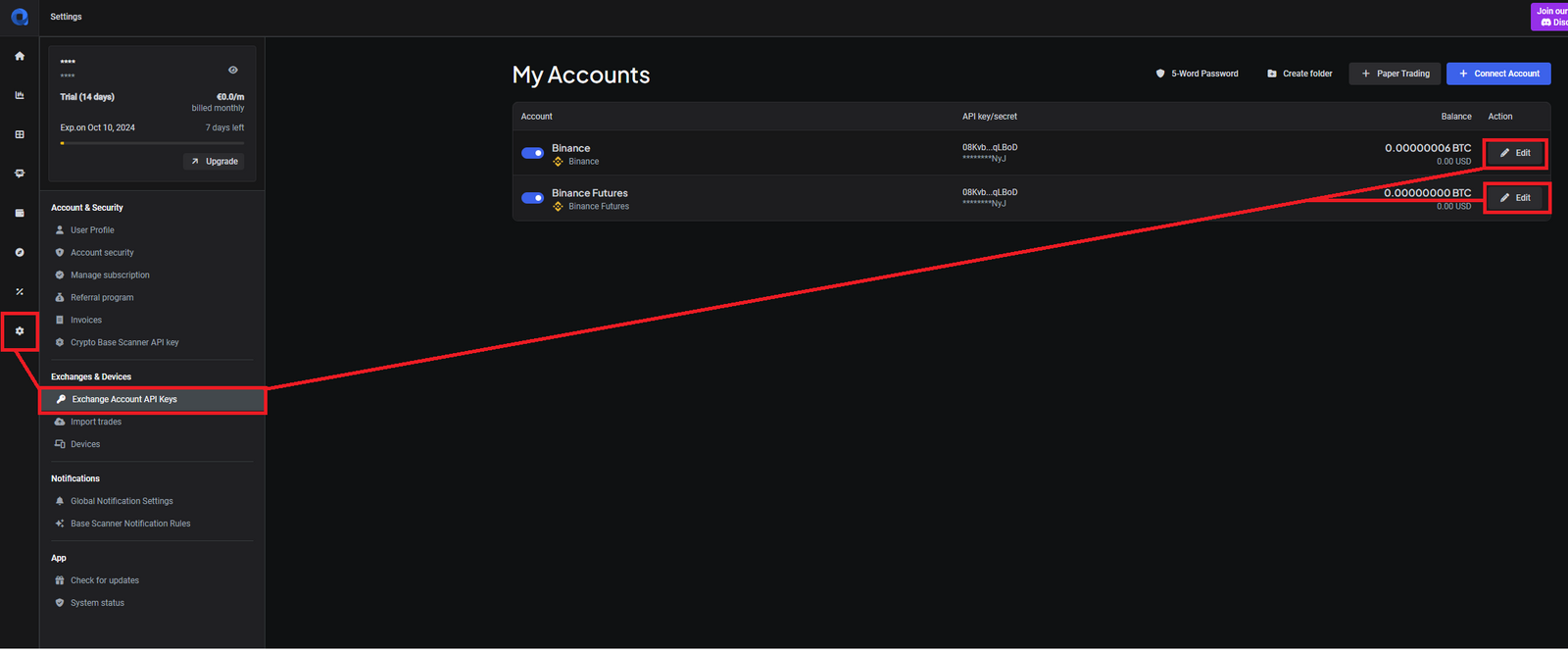 🔍 Click the image to see a larger version
Here you’ll see the full list of IP addresses allocated to this specific key. These addresses only work with this key; they won’t work with any of your other API keys.
 🔍 Click the image to see a larger version
-
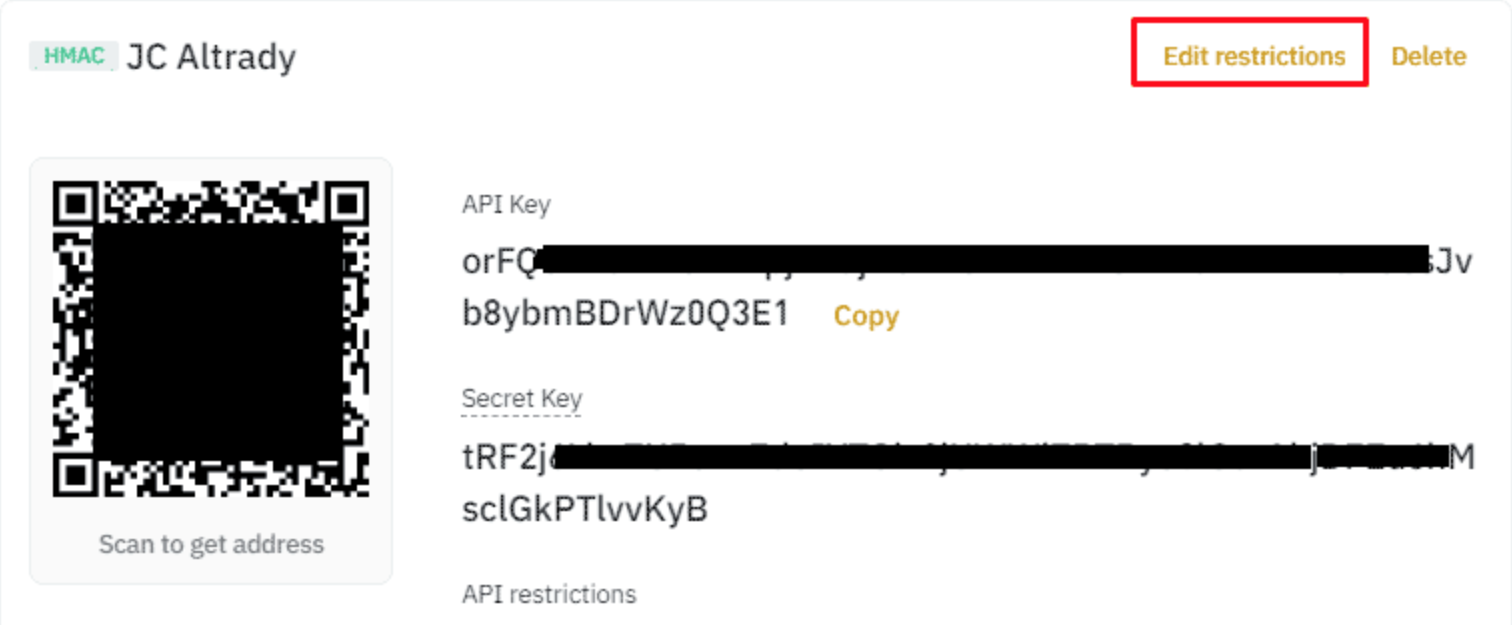
Log in to Binance and go to the API keys page. If you have more than one key, check against Altrady to find the right one.
-
Click Edit.
 🔍 Click the image to see a larger version
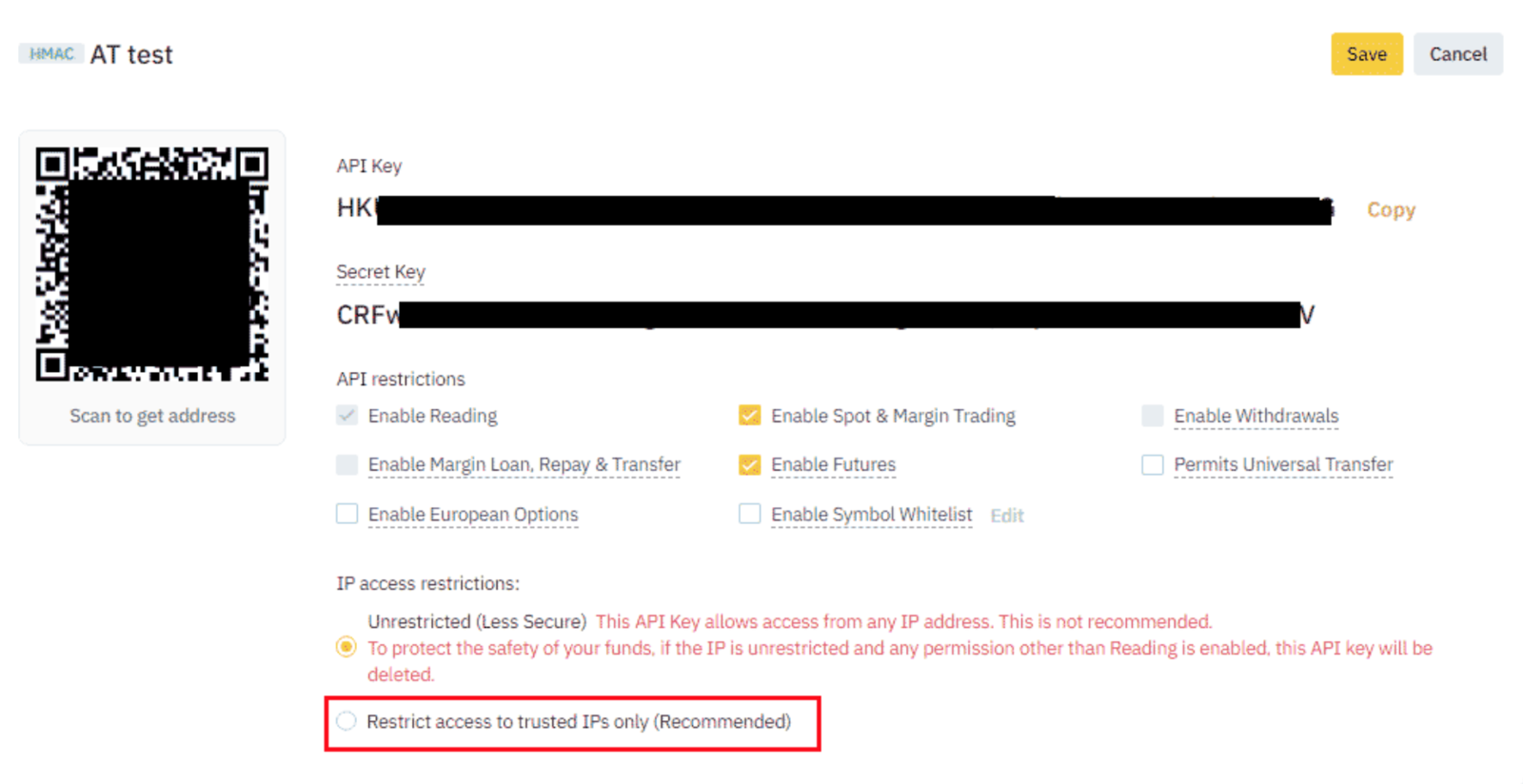
- Enable IP whitelisting (on some exchanges this is called Trusted IPs, IP binding, or IP addresses).
 🔍 Click the image to see a larger version
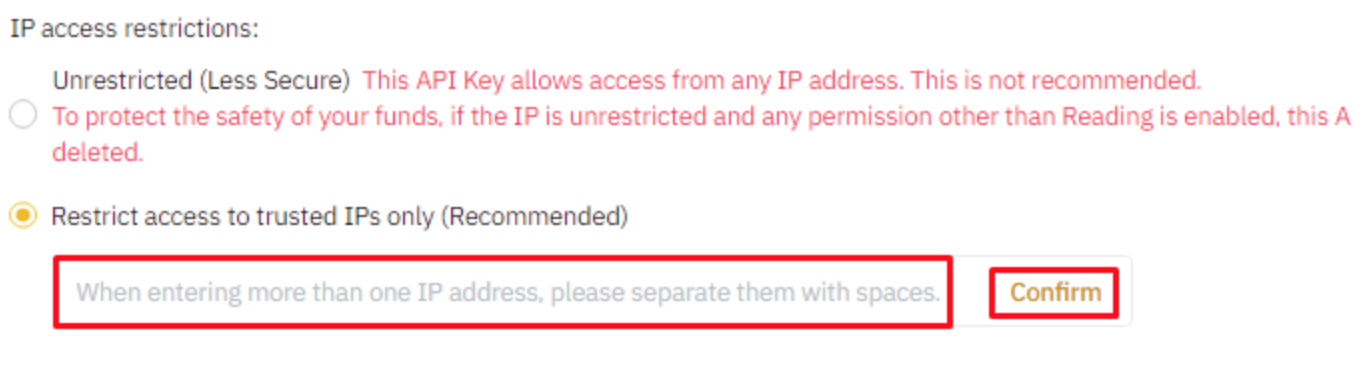
- Copy the list of 20 IP addresses from Altrady and paste them in. Some exchanges ask you to click Confirm.
 🔍 Click the image to see a larger version
- Check that all 20 IP addresses were added.
 🔍 Click the image to see a larger version
- Click Save.
 🔍 Click the image to see a larger version
For more background on how API keys and permissions work, see API Keys Explained.
Trading Futures on Binance
Altrady supports Binance USDⓈ-M (USDT-margined) perpetual futures, in both Hedge mode and One-way mode — set the mode in Altrady or on Binance.
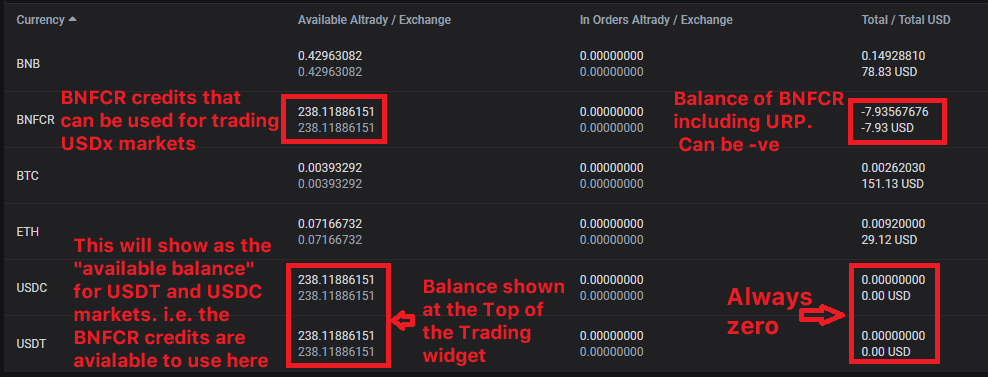
Binance Futures doesn’t allow cross-collateral (for example USDT to USDC), with one exception: Binance Credits (BNFCR) in multi-asset mode (Cross margin only). In multi-asset mode all your balances are usable; the total shown is your actual holdings plus unrealized profit, and Available Balance is what you can trade with.
 🔍 Click the image to see a larger version
Having trouble?
If your balances aren’t showing up, your keys won’t connect, or you’re getting an error, check Connection Problems for the fix.