
How do I save and reuse a chart template?
Altrady’s chart saves three separate kinds of template: the style of one drawing tool, the settings of your indicators, and the chart’s own appearance. Each is saved from a different place on the chart, which is the part that trips people up the first time. Below is where each one lives and how to load it back.
The three template types
Knowing which is which saves you hunting through the wrong menu:
- Drawing template: the saved style of one drawing tool (color, line width, extend settings, and so on). Saved templates belong to the tool you saved them from, so a trend line template shows up when a trend line is selected, not when you select a Fibonacci retracement.
- Indicator template: a saved set of indicators with their settings, so you can put your usual indicator stack back on any chart in one click.
- Chart template: the chart’s own look and settings, saved so you can apply it to another chart.
Drawings you place on a chart are not part of any of these. They are stored with the market you drew them on and come back when you open that market again.
Save a drawing style as a template
 🔍 Click the image to see a larger version
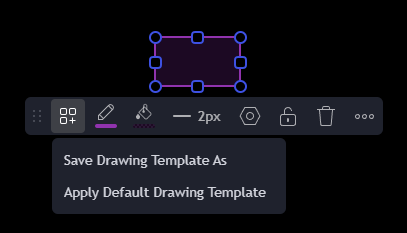
- Click the drawing on the chart so it is selected. A small floating toolbar appears above it.
- Click the templates icon on that floating toolbar.
- Choose Save Drawing Template As.
- Type a name in the Name field, for example “Trend line: dashed blue”, and click Save.
The same menu also has Apply Default Drawing Template, which puts the tool back to its factory style if you have styled yourself into a corner.
Reuse a saved drawing template
- Draw the same kind of tool again, or select one already on the chart.
- Open the templates icon on its floating toolbar.
- Click your template’s name in the list below the menu items. The drawing takes on the saved style straight away.
To remove one you no longer use, hover its name in that list and click the bin icon next to it. Deleting a template does not change any drawing you already styled with it.
Save your indicators as a template
 🔍 Click the image to see a larger version
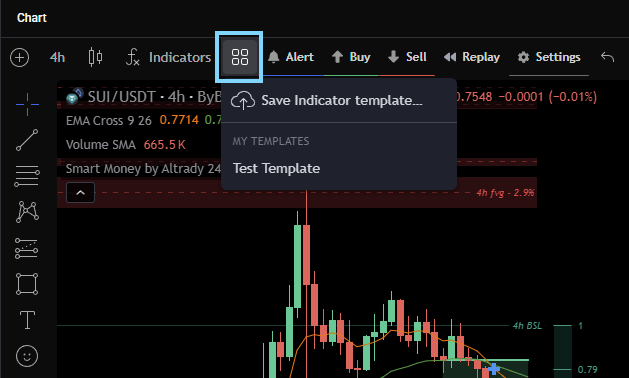
Once a chart has the indicators you normally work with, set up the way you like them, save them together as an indicator template from the templates menu on the chart’s top toolbar and give it a name you will recognize, for example “EMA + RSI + volume”.
Applying that template later puts those indicators back on the chart with their saved settings. It does not touch your drawings.
Save a chart template
A chart template stores the chart’s own settings and appearance. Save it from the chart settings dialog, name it, and it becomes available to any chart on your account.
This is worth doing once you have spent time getting a chart looking exactly how you read it best, so you never have to redo that work on a new market.
Apply a saved chart template
 🔍 Click the image to see a larger version
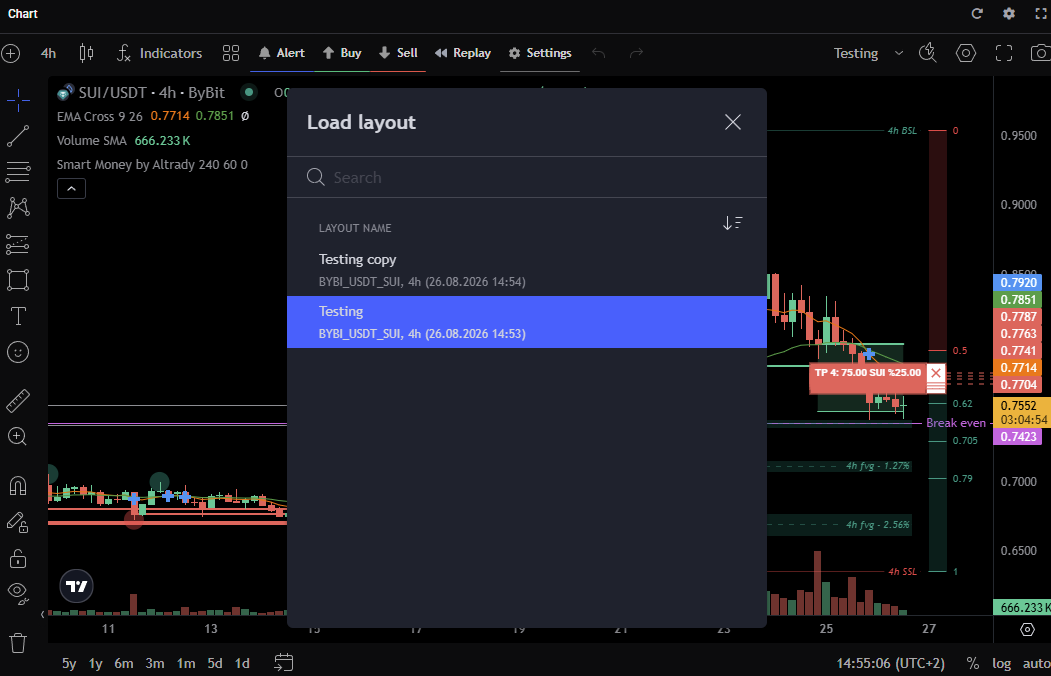
- Open the market and timeframe you want to work on.
- Open the same templates list and pick the template you saved.
- The chart takes on the saved setup right away.
It applies to the chart you already have open, it does not open a new tab, so check you are on the chart you meant before you apply it if you keep several open at once.
Your templates are stored on your account
Drawing templates, indicator templates and chart templates are saved on your Altrady account, not just in the browser or app you saved them from. Sign in on another computer and your templates are there. You do not need to rebuild your setups when you switch machines.
Still stuck?
If you cannot find a templates menu, or a saved template does not load the way you expect, reach out through the support chat inside Altrady and the team will walk through it with you.