
Connect Kraken
This guide walks you through connecting a Kraken account to Altrady using API keys, so Altrady can read your balances and place trades on your behalf.
You’ll need two things open at once: your Altrady account and your Kraken account. Keep both tabs open while you work through the steps below; you’ll be copying information from one to the other.
Not sure what an API key or a permission checkbox actually does? Check out API Keys Explained first.
A quick reassurance: Altrady never needs, and never asks for, withdrawal permission on any exchange. You are always in full control of your funds, and they never leave Kraken.
Before you trade Kraken Futures
Kraken Futures has a couple of things worth knowing — it’s one-way only, and leverage displays differently in Cross margin — see Trading Futures on Kraken at the end of this guide before your first futures trade.
Connecting a Kraken Spot account
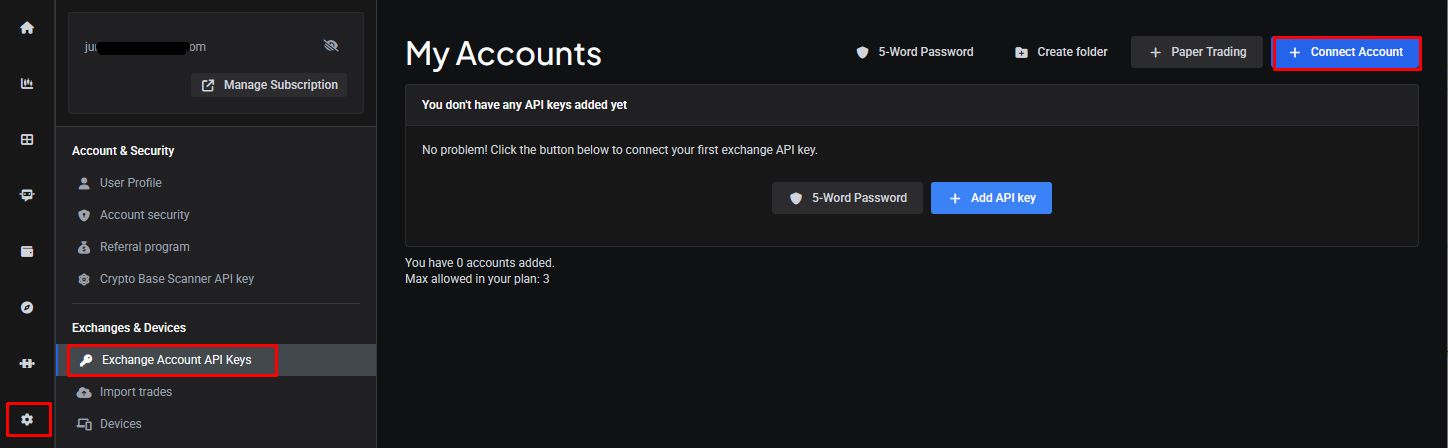
- Log in to Altrady and go to Settings > Exchange Account API keys.
- Click + Connect Account.
 🔍 Click the image to see a larger version
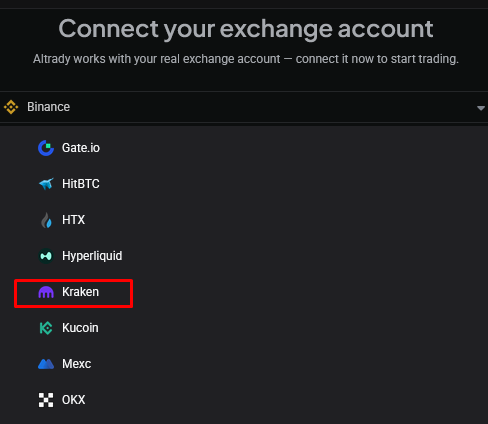
- Select Kraken from the dropdown list.
 🔍 Click the image to see a larger version
- Copy Altrady’s IP whitelist to your clipboard by clicking the Copy icon. Keep this Altrady tab open; you’ll need to paste this into Kraken in a moment.
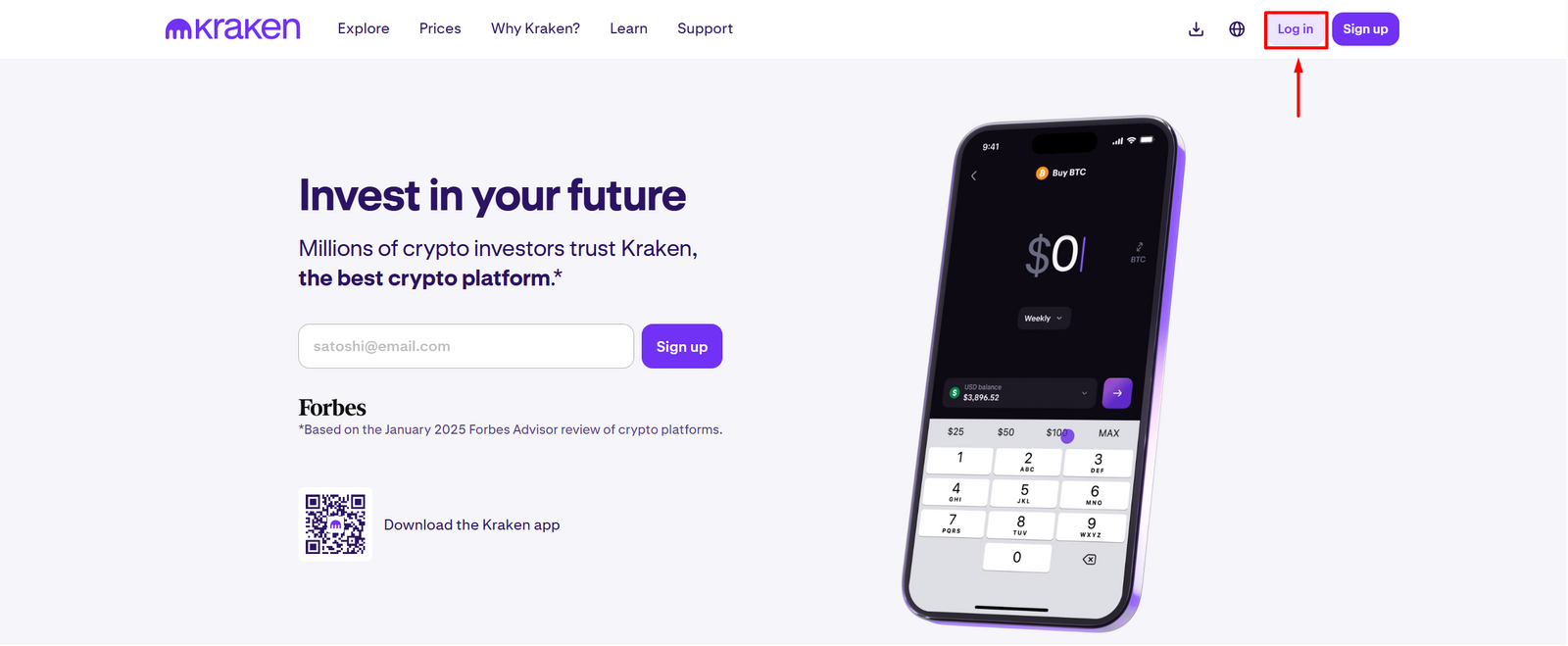
- Log in to your Kraken account.
 🔍 Click the image to see a larger version
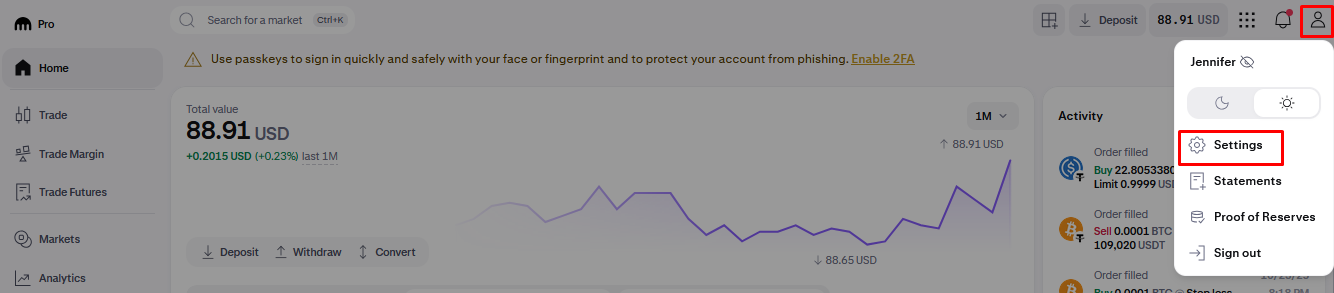
- Click the profile button in the navigation bar and select Security.
 🔍 Click the image to see a larger version
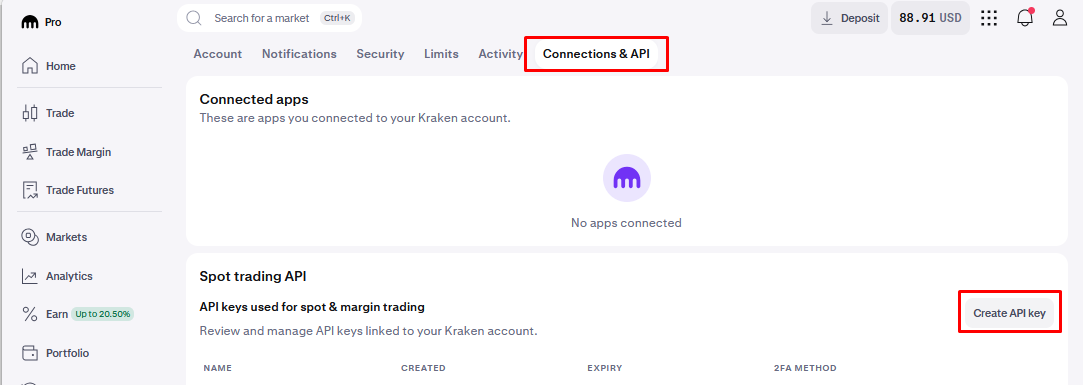
- Select the Connections & API tab, then click Create API Key under Spot Trading API.
 🔍 Click the image to see a larger version
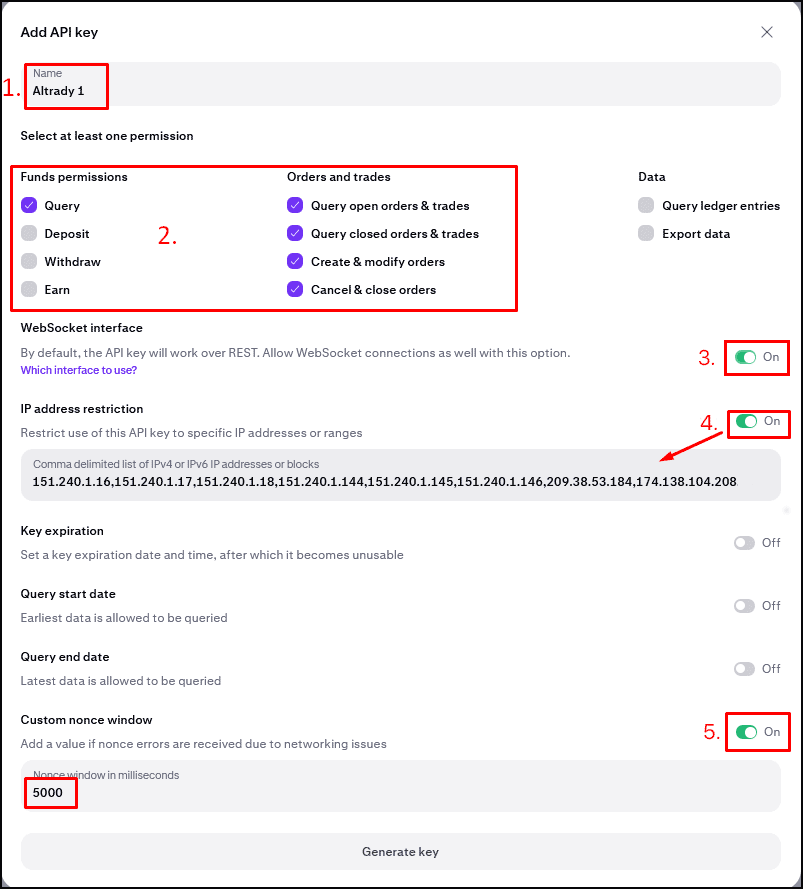
- On the key creation screen:
- Give the key a Name.
- Set the permissions as shown below.
- Enable Websocket interface.
- Enable IP address restriction, then paste Altrady’s IP whitelist (the one you copied in step 4) into the field.
- Enable Custom Nonce Window and set it to 5000.
- Optionally, set Key expiration, Query start date/time, and Query end date/time.
- Click Generate Key.
 🔍 Click the image to see a larger version
What’s a Nonce Window? It’s the time allowed for an order to be processed, in milliseconds. Setting it to 5000 (5 seconds) gives your orders enough time to process even during busy trading hours.
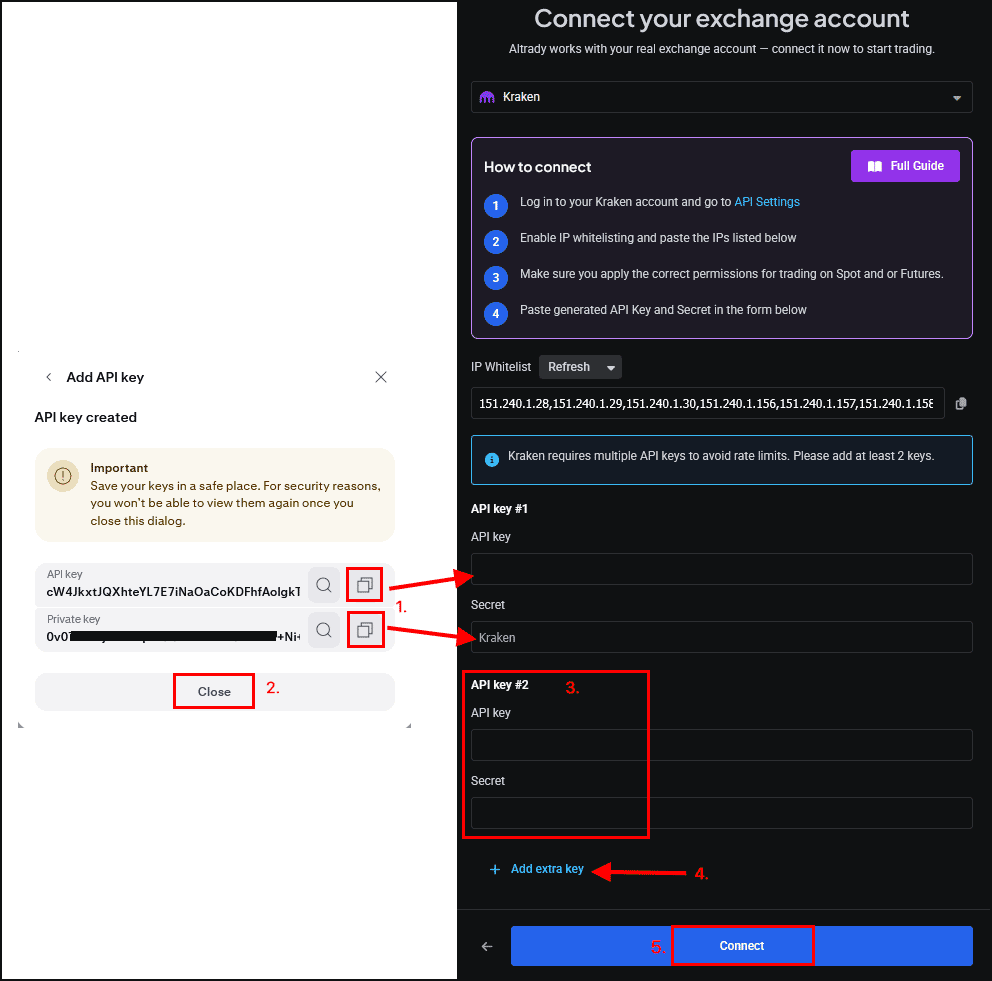
- Kraken will show you an API key and Secret Key (also called the Private Key).
- Paste both into Altrady.
- Close the API key window in Kraken.
- Create a second API key on Kraken using the exact same steps and the exact same IP whitelist. Having two keys lets Altrady place and cancel orders quickly without hitting Kraken’s rate limits; this matters when Altrady needs to send several instructions at once, like an entry with multiple exit orders, or a grid bot.
- You can add up to 10 API keys in total. If you ever see rate limit errors, add another one later by editing your Kraken account on the Exchange Account API keys page in Altrady and clicking ++ Add Extra Key.
- Click Connect.
 🔍 Click the image to see a larger version
- Click Next to continue connecting the account.
 🔍 Click the image to see a larger version
- Click Complete to finish.
 🔍 Click the image to see a larger version
That’s it: your Kraken Spot account is connected. If your balances don’t show up right away, give it a moment or refresh your balances from Altrady.
Connecting a Kraken Futures account
- Follow steps 1–6 from the Spot guide above (they’re the same up to logging into Kraken’s Security page).
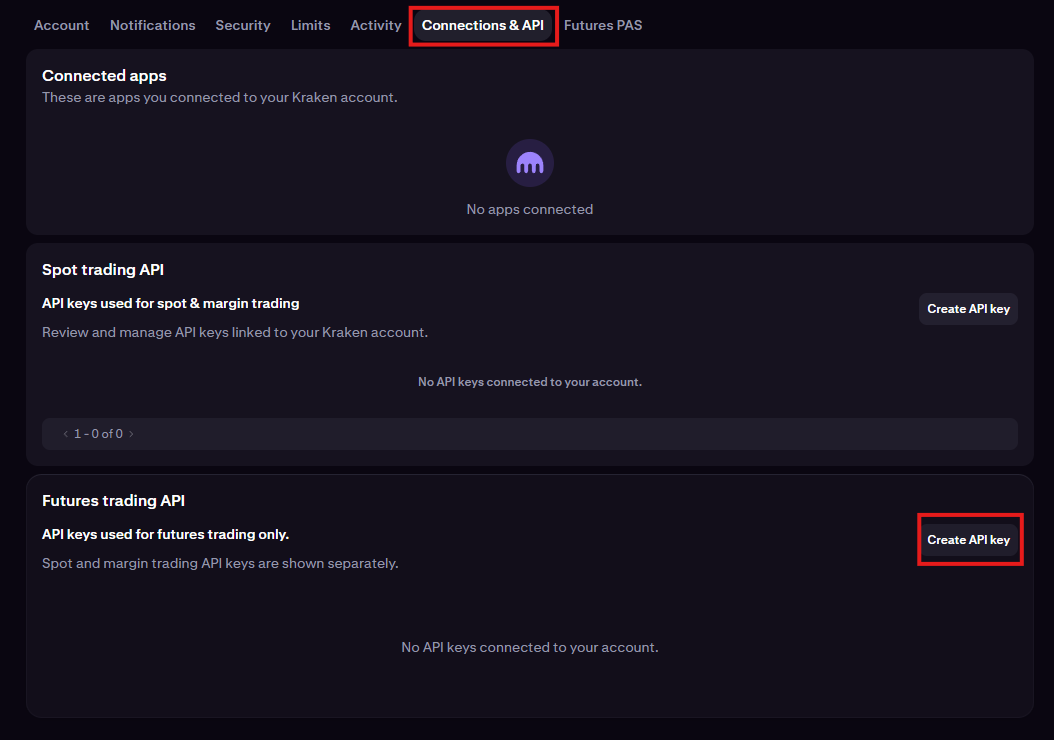
- Select the Connections & API tab, then click Create API Key under Futures Trading API.
 🔍 Click the image to see a larger version
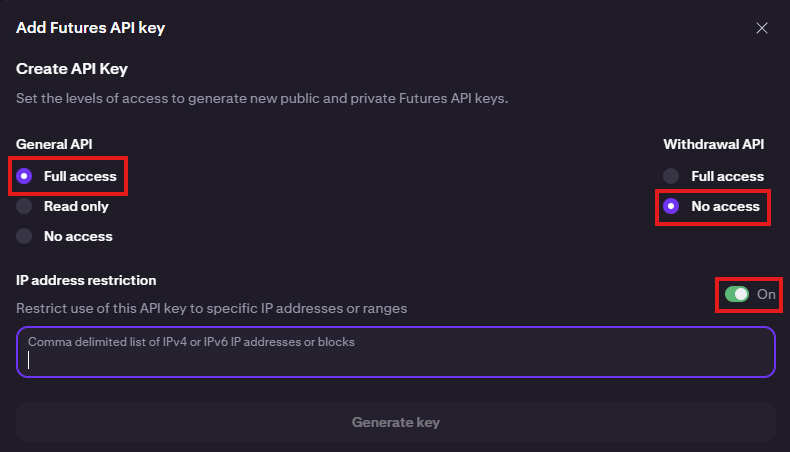
- Set General API permission to Full access and Withdrawal API permission to No access. Toggle on IP address restriction. Leave this window open and move to the next step.
 🔍 Click the image to see a larger version
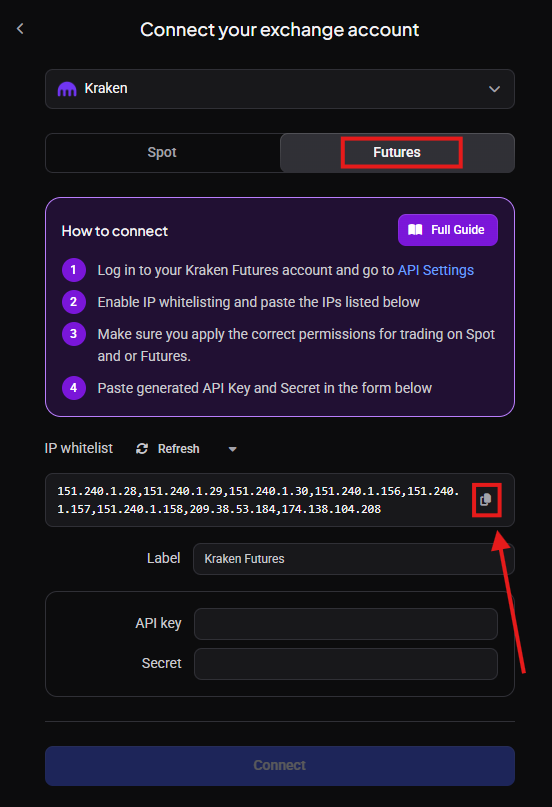
- Go back to Altrady, select Futures for the Kraken account, and copy the IP whitelist using the Copy button.
 🔍 Click the image to see a larger version
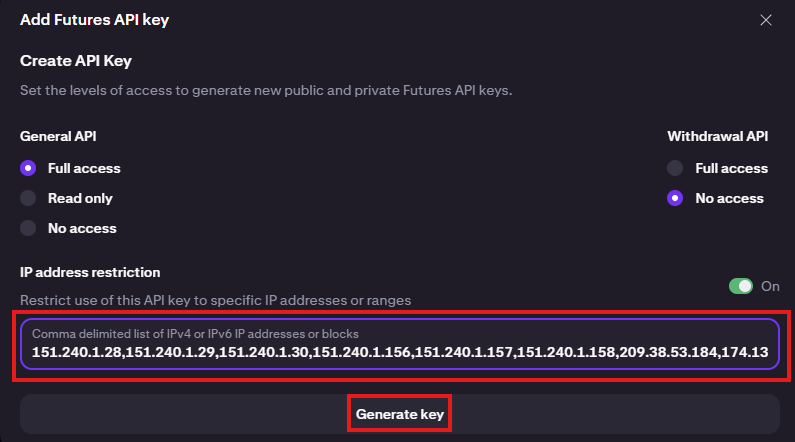
- Paste the IP whitelist into Kraken’s IP address restriction box and click Generate key.
 🔍 Click the image to see a larger version
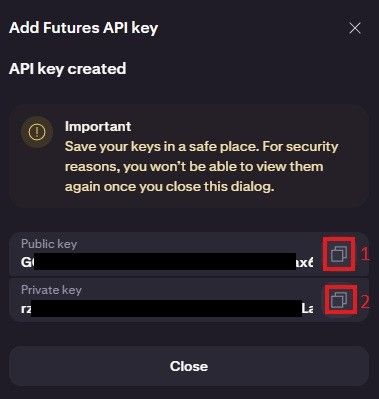
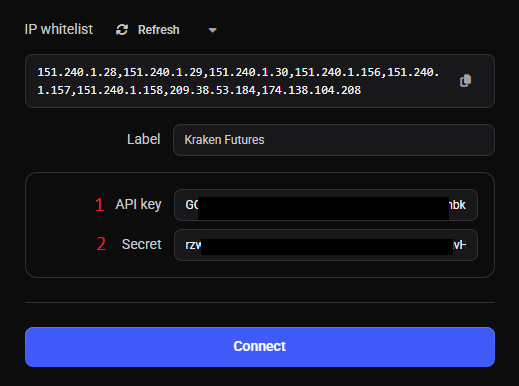
- Kraken will show you a Public key and Private key. Use the copy buttons to paste them into Altrady’s API key and Secret fields.
 🔍 Click the image to see a larger version
 🔍 Click the image to see a larger version
Once done, click Connect.
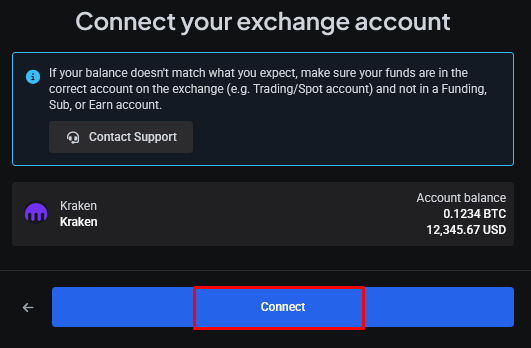
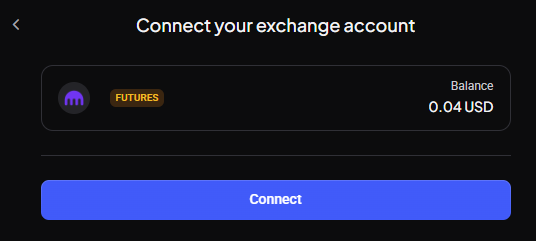
- Altrady should recognize your balance on the account. Click Connect to continue.
 🔍 Click the image to see a larger version
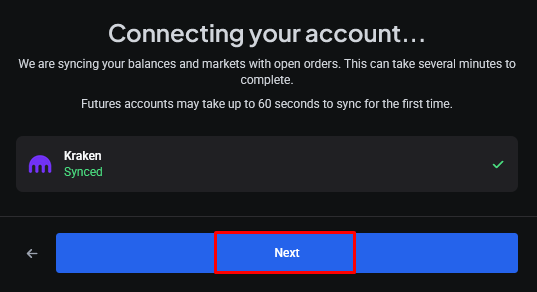
- All done! A green checkmark means the account connected successfully. Click Next to continue trading.
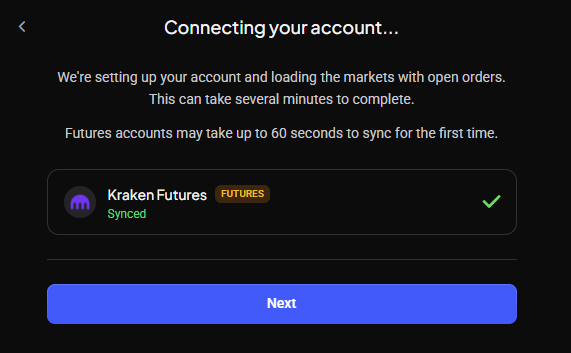 🔍 Click the image to see a larger version
Trading Futures on Kraken
Altrady supports Kraken USD-margined perpetual futures, in One-way mode only. Your Unified Wallet balance can be used as margin, and both Cross and Isolated margin are supported — up to 100x leverage (10x for EEA residents).
Cross margin shows effective leverage. In Cross margin, Kraken displays the position’s effective leverage — position size divided by your total account balance — not the leverage you selected when placing the order. Because your whole wallet backs the position, small positions often show below 1x (for example, a $5 position with $60 of collateral shows about 0.08x). That’s expected. The leverage you pick when ordering is only used to work out the required margin; it isn’t shown once the position is open.
Having trouble?
If your account won’t connect or your balances aren’t showing up, see Connection Problems.