
Connect Hyperliquid
Hyperliquid is a decentralized exchange (DEX), which works a little differently from exchanges like Binance or Bybit. There’s no central company holding your funds: trades happen directly on the blockchain, and you connect using a wallet instead of a traditional account.
Hyperliquid does not offer one-click sign-in with Altrady, so there is no Fast Connect option for this exchange yet; you’ll connect it using API keys, following the steps below. Because Hyperliquid uses wallet-based access rather than fixed servers, it also does not support IP whitelisting for API keys; that’s normal for this exchange, not a mistake on your end.
Altrady supports both Spot and Futures trading on Hyperliquid.
Before you trade Hyperliquid Futures
Hyperliquid Futures has a couple of essential setup points — see Trading Futures on Hyperliquid at the end of this guide before your first futures trade.
Before you start: get set up on Hyperliquid
You need a funded Hyperliquid account before you can connect it to Altrady. There are two ways to get one:
Option A: Connect a wallet
- Set up an external wallet (e.g. MetaMask or Rabby).
- Connect that wallet to Hyperliquid.
- Deposit funds into the wallet.
Option B: Log in with email
- Log in to Hyperliquid with your email address and verify it.
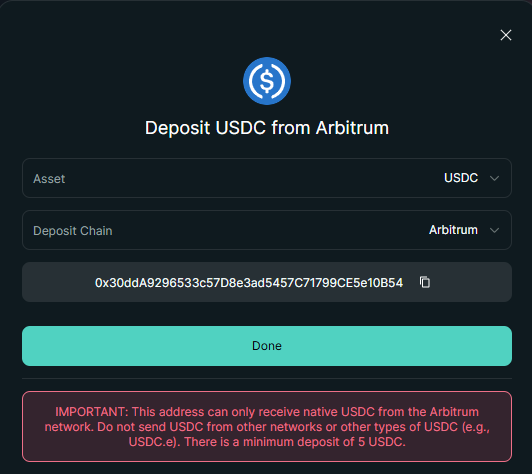
- On the trading terminal, click Deposit (top right).
- You’ll get a deposit address for USDC on the Arbitrum network. When you send USDC from wherever you’re sending it, make sure to select the Arbitrum network and use this address.
- Once your deposit arrives, you’ll see it on the Hyperliquid order form.
 🔍 Click the image to see a larger version
For detailed help with these first steps, Hyperliquid has its own guide: How to Start Trading on Hyperliquid.
Adding your Hyperliquid API key to Altrady
Once your Hyperliquid account is funded, follow these steps to connect it.
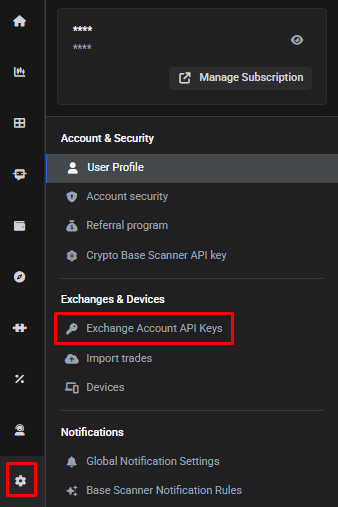
- In Altrady, go to Settings > Exchange Account API keys.
 🔍 Click the image to see a larger version
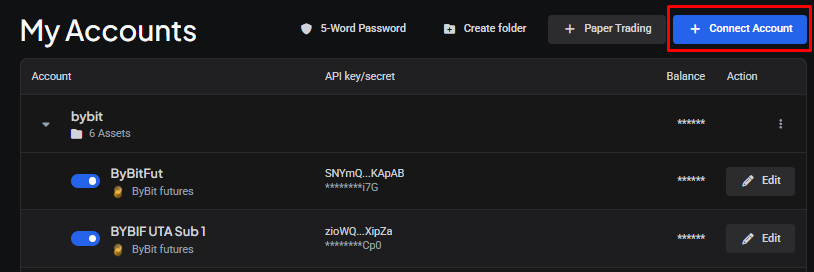
- Click + Connect Account.
 🔍 Click the image to see a larger version
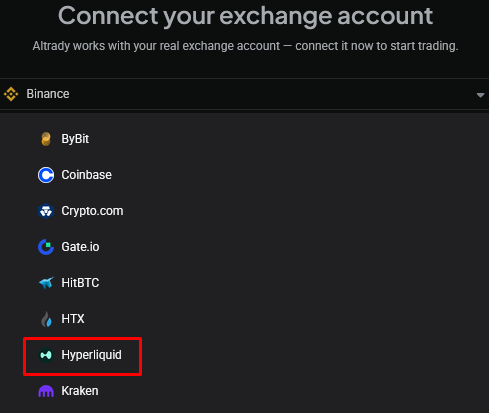
- From the dropdown list, select Hyperliquid.
 🔍 Click the image to see a larger version
- Altrady is now ready for you to add the API key, secret, and public key.
Altrady will usually create separate Spot and Futures accounts for you, unless you only have one trading account slot left; in that case you’ll be asked which one to link. You can delete a trading account at any time from this page (choose Edit, then the delete icon), but note that deleting it also permanently deletes its history.
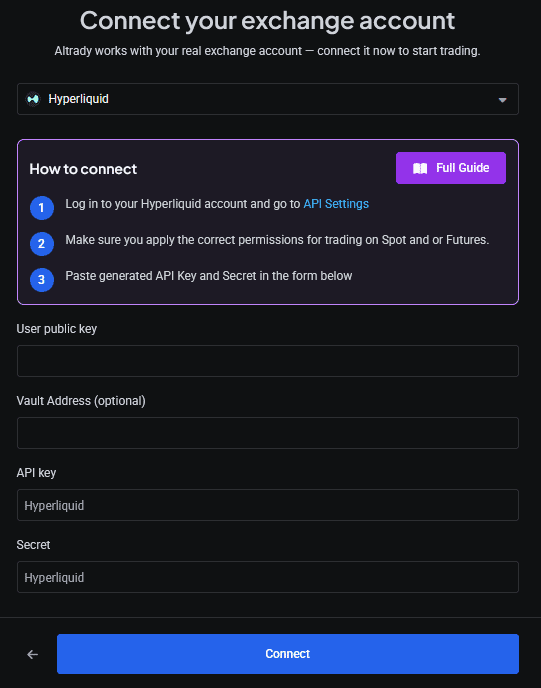 🔍 Click the image to see a larger version
- Now switch over to Hyperliquid: log in if you created an email login, or just make sure your wallet is connected.
Make sure Unified Account mode (or Manual) is enabled. Altrady does not currently support Hyperliquid’s Portfolio Margin mode.
With Unified Account, Hyperliquid uses a single balance for all your trading — just keep your funds in the Spot wallet and they’ll be available for Futures as well, with no need to transfer to a separate perp account.
If you’re using Manual mode, your Spot and Futures balances are separate. You can move funds between them from the Trade page on Hyperliquid whenever you need to:
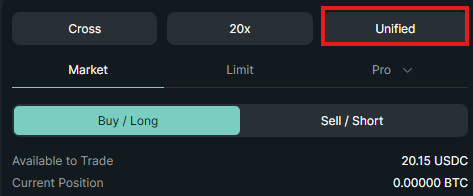 🔍 Click the image to see a larger version
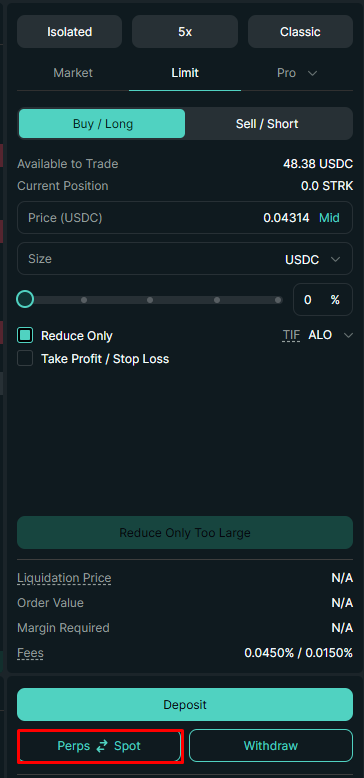 🔍 Click the image to see a larger version
- Click the account dropdown menu in the top-right of Hyperliquid, then click the copy button to copy your User Public Key.
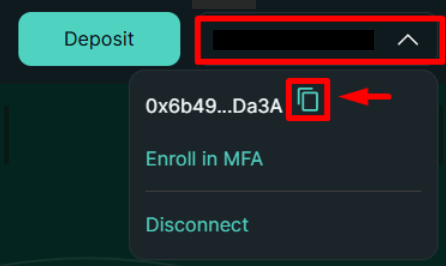 🔍 Click the image to see a larger version
- Paste that key into the User Public Key field in Altrady.
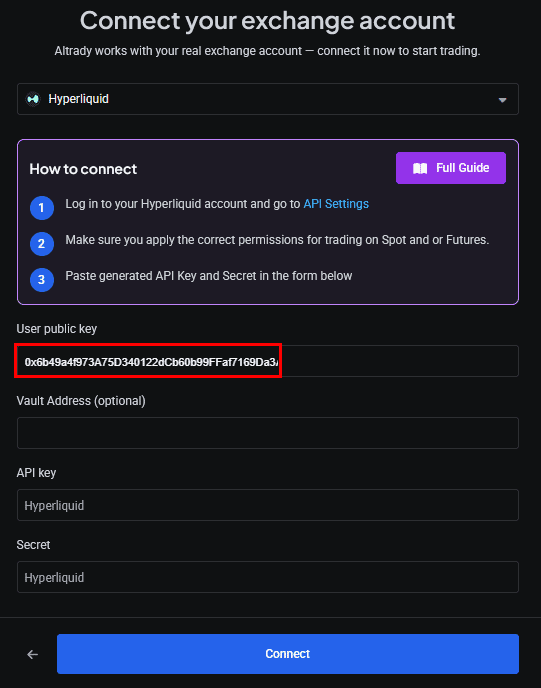 🔍 Click the image to see a larger version
- Back on Hyperliquid, hover over the More button to open a dropdown menu, then select API.
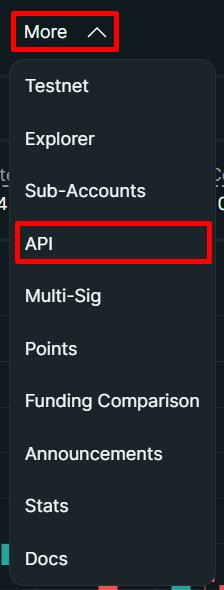 🔍 Click the image to see a larger version
- On the API page:
- Enter a name for this API wallet (anything you like, just for your own reference).
- Click Generate: this creates a unique API key address.
- Click Authorize API Wallet to continue.
 🔍 Click the image to see a larger version
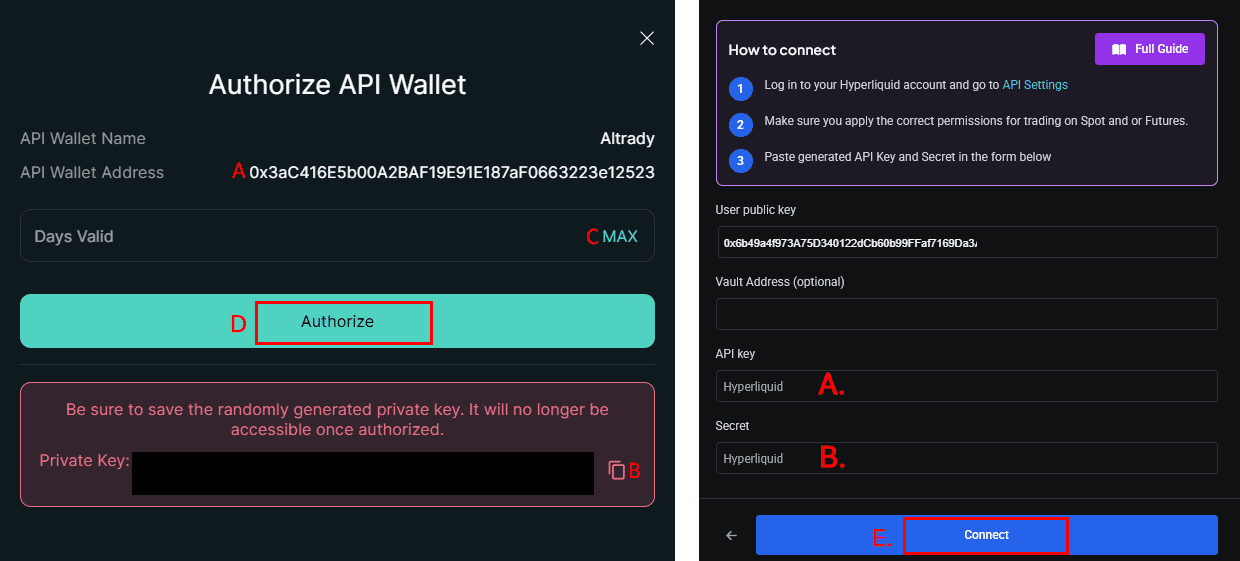
- In the window that opens next:
- Copy the API Wallet Address and paste it into the API Key field in Altrady.
- Click the copy button to copy the Private Key, and paste it into the Secret field in Altrady. The Private Key is only shown once, so don’t close this window until you’ve copied it.
- Set how many days the API key should stay valid for. Click Max to use the longest period available. The key expires automatically after this; see the section below on renewing it.
- Click Authorize on Hyperliquid to create the key. This step must be done before continuing in Altrady.
- Back in Altrady, click Connect and carry on below.
An API wallet like this can trade on your behalf, but it cannot move or withdraw funds from your account; withdrawals always require your main wallet or login, not the API key. So even if this key were ever exposed, your funds can’t be pulled out with it.
Important: the API wallet must be authorized on Hyperliquid before you save the account in Altrady. Clicking Save too early will cause an error.
 🔍 Click the image to see a larger version
- Once authorized, the API wallet will show up on the API page in Hyperliquid.
 🔍 Click the image to see a larger version
- Back in Altrady, click Connect to confirm. If you’re using Unified Account mode, both a Spot and a Futures account will appear.
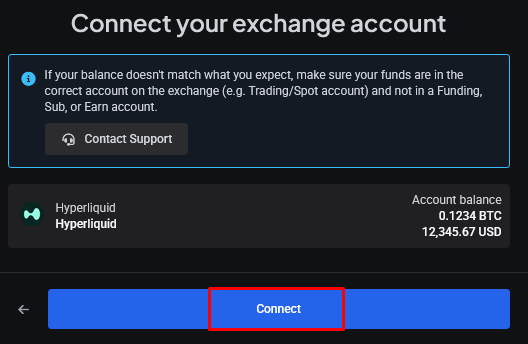 🔍 Click the image to see a larger version
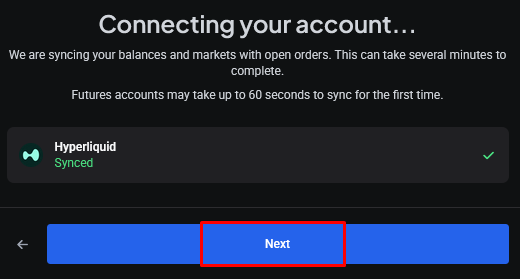
- Click Next to finish setting up the new account(s).
 🔍 Click the image to see a larger version
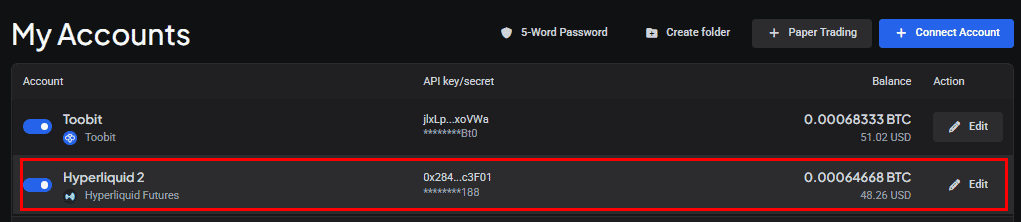
- Your new account(s) will now appear on the Accounts page.
 🔍 Click the image to see a larger version
- It can take a couple of minutes for your balance to show up in the Trading widget on the Trading Terminal.
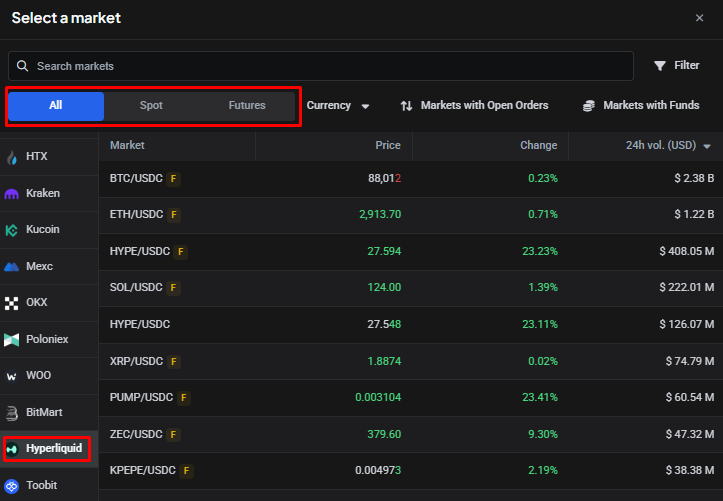
On the Trading Terminal, open the Markets widget (or click + next to the tabs at the top). Choose All, Spot, or Futures, then Hyperliquid from the list of exchanges, and pick a pair you hold funds for (i.e. USDC).
 🔍 Click the image to see a larger version
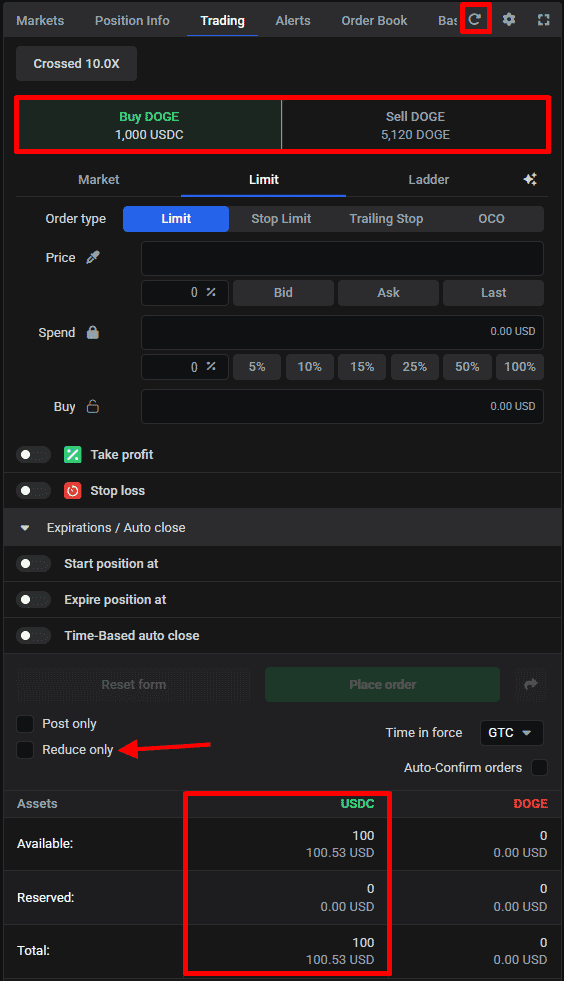
- In the Trading widget, your available balance for Long and Short positions is shown at the top. A few things to know:
- For a Spot market, this shows your actual wallet amount.
- For Futures, it shows the leveraged amount.
- Hyperliquid only offers one-way mode for Futures; there’s no hedge mode.
- To see your current open amount on a Futures pair, turn on Reduce-only at the bottom of the Trading widget. This shows the open amount instead, letting you close it fully by entering 100%.
- If the available balance shows zero, check whether Reduce-only is switched on by mistake; it should only be on when you’re closing a position.
- Smart orders set Take Profit and Stop Loss orders to Reduce-only automatically. For manual orders where you’re reducing or closing a position, turn Reduce-only on yourself to avoid over-trading.
- Your wallet balance for the quote currency is shown under Assets at the bottom of the widget (for Spot, the base currency balance shows here too).
- If your balance seems out of date, click the Resync arrow (top right) to refresh it from the exchange.
 🔍 Click the image to see a larger version
Keeping your connection working: API key expiry
Hyperliquid API keys last a maximum of 180 days. Before that period runs out, you’ll need to update your Trading Account in Altrady with a new API key and Secret, or trading will stop working.
You can check when your key expires on the API page in Hyperliquid, next to your API wallet, under Valid Until.
 🔍 Click the image to see a larger version
Hyperliquid doesn’t send you a reminder, and Altrady doesn’t know your key’s expiry date either, so it’s worth setting a calendar reminder for yourself a few days before it expires.
When it’s time to replace the key, edit the existing Hyperliquid trading account from the Exchange Account API keys page in Altrady; don’t create a new account or delete the old one unless it has no trade history, since that history would be lost.
Trading Futures on Hyperliquid
Altrady supports Hyperliquid USDC-margined perpetual futures, in One-way mode only, with a Unified Account enabled by default on the exchange. Hyperliquid’s TradFi pairs run through its XYZ sub-DEX, which has its own separate wallet.
Trading TradFi pairs like XYZ100 (advanced)
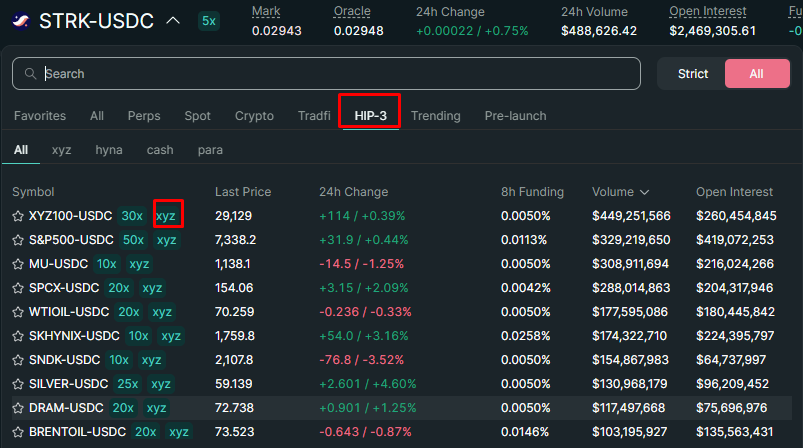
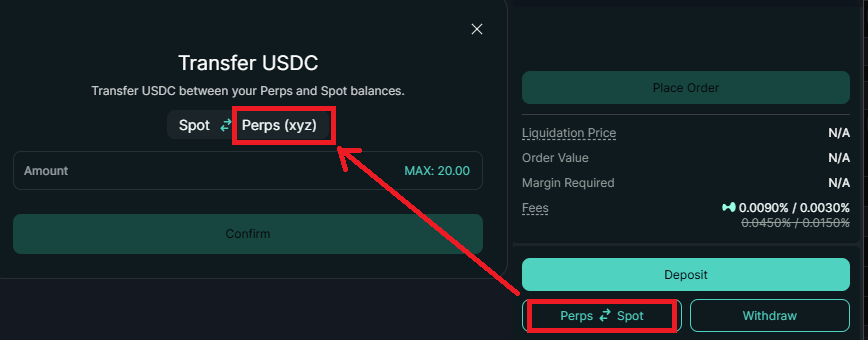
Hyperliquid also hosts other DEXes built on top of it, offering non-crypto “TradFi” pairs such as XYZ100. Altrady currently supports XYZ, the most liquid of these. These pairs use a separate wallet from your main account, so funds have to be moved over before you can trade them.
To enable this on Hyperliquid first:
- Go to the HIP-3 pairs tab and select an XYZ pair, such as XYZ100/USDC.
- Agree to the risk warning to enable trading on XYZ pairs.
- Transfer funds to the XYZ wallet.
- Place a small test order on an XYZ pair.
 🔍 Click the image to see a larger version
 🔍 Click the image to see a larger version
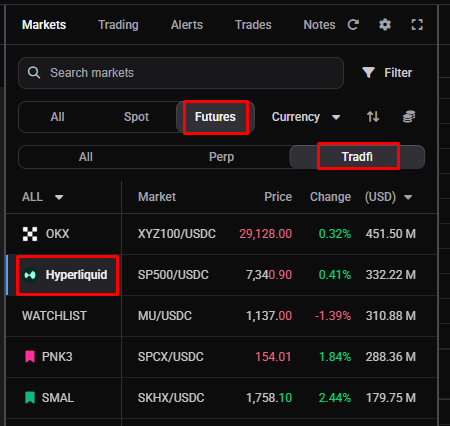
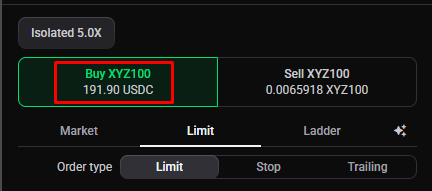
Then in Altrady, select a TradFi pair from the Markets widget; the available balance shown at the top will reflect the margin available for that pair, and it trades like any other pair from there.
 🔍 Click the image to see a larger version
 🔍 Click the image to see a larger version
Want to understand what each API field means before you get started? See API Keys Explained.
Having trouble? If your Hyperliquid account won’t connect or your balance isn’t showing, see Connection Problems.