
Connect Coinbase
Connecting your Coinbase Advanced Trade account lets you trade on Coinbase directly from Altrady, using all of Altrady’s tools. You’ll create an API key in Coinbase, then paste it into Altrady. It only takes a few minutes.
Good to know before you start:
- If you already connected an older Coinbase Pro account, don’t delete it and add a new one. Instead, edit that existing account in Altrady and swap in your new Coinbase Advanced Trade key and secret. Deleting the old account will delete your trading history.
- Coinbase Institutional accounts cannot be connected; Coinbase no longer allows this through their standard API.
- Altrady only ever asks for Trade permission. You will never be asked to enable withdrawal or transfer permissions, so your funds can’t leave Coinbase through this connection.
For background on what API keys are and why they’re safe to use, see API Keys Explained.
How to connect your Coinbase account
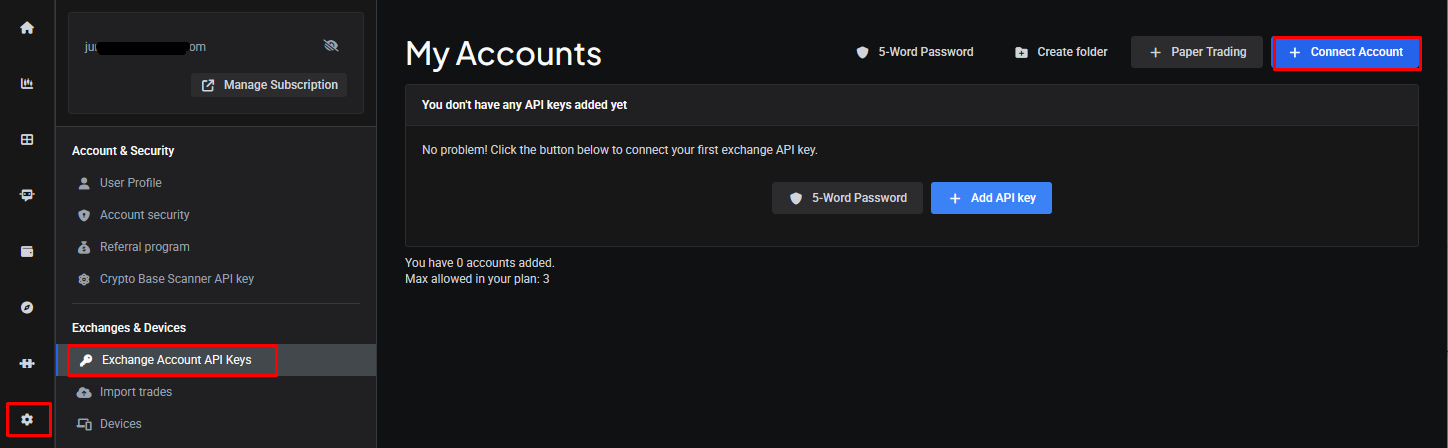
- Log into Altrady and go to Settings > Exchange Accounts API keys. Click + Connect Account.
 🔍 Click the image to see a larger version
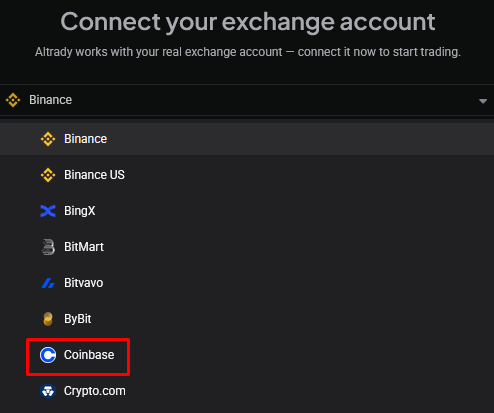
- From the dropdown list, select Coinbase.
 🔍 Click the image to see a larger version
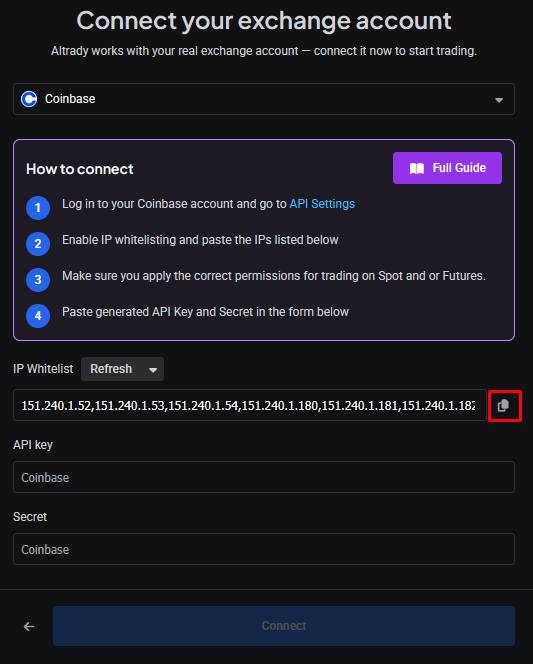
- Next to the IP whitelist, click the copy icon to copy Altrady’s IP whitelist to your clipboard. You’ll need to paste this into Coinbase in a moment.
 🔍 Click the image to see a larger version
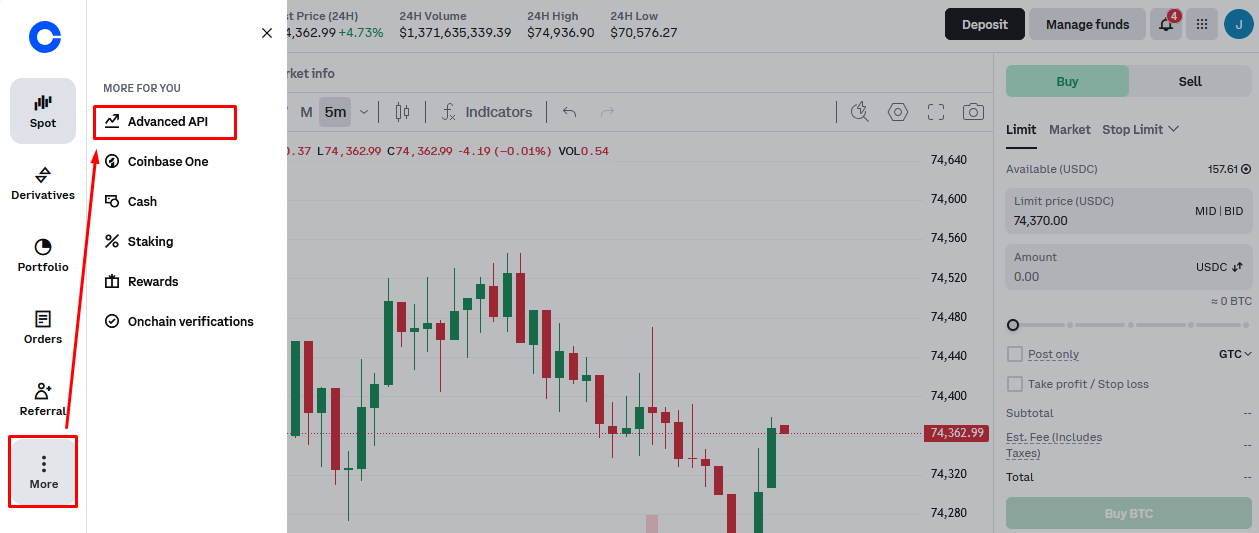
- Log into Coinbase. From the left-side menu, click More, then select Advanced API.
 🔍 Click the image to see a larger version
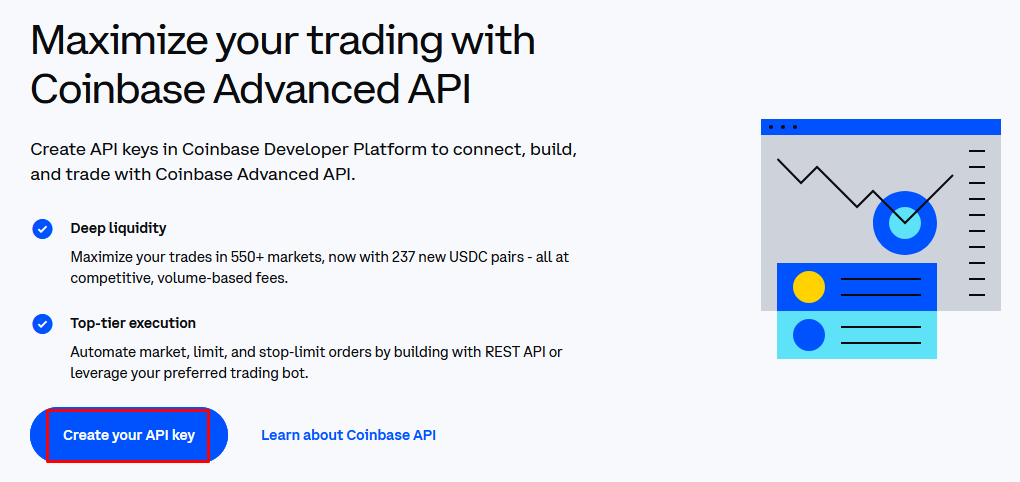
- Click Create your API Key.
 🔍 Click the image to see a larger version
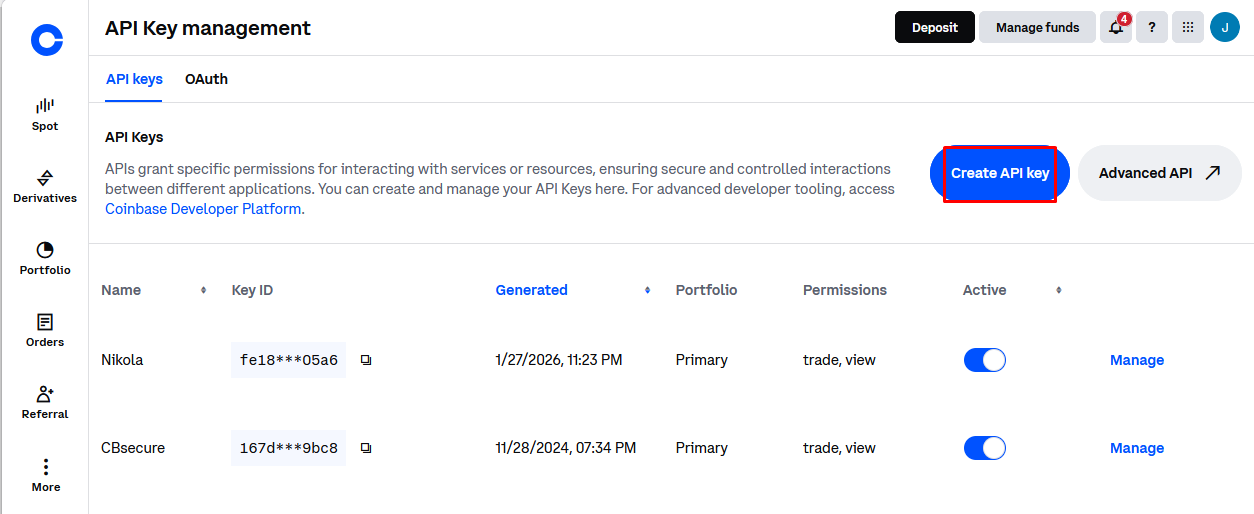
- Once you’re redirected, click Create API Key again.
 🔍 Click the image to see a larger version
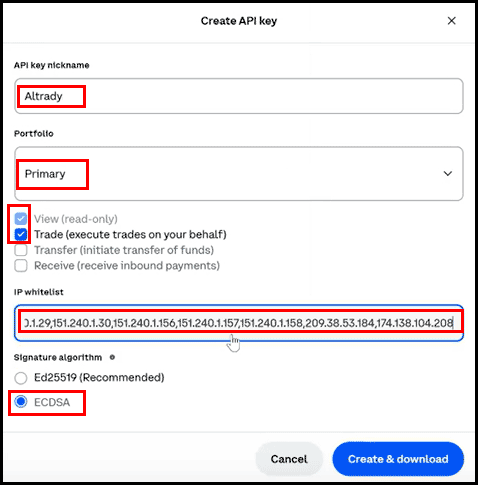
- Now fill in the key details:
- Enter a nickname for the API key.
- Select your portfolio.
- Enable the Trade permission.
- Paste the IP whitelist you copied from Altrady.
- Select ECDSA for Signature algorithm.
- Click Create & download.
 🔍 Click the image to see a larger version
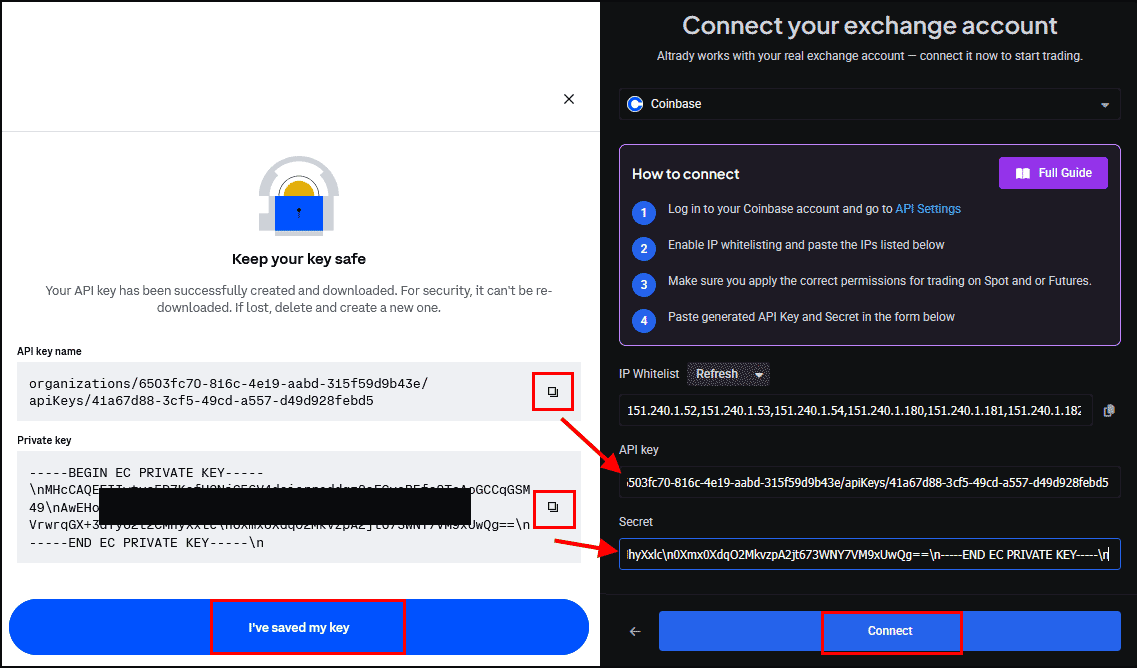
- Using the copy buttons in Coinbase, copy the API key and Secret, and paste them into the matching fields in Altrady. Don’t change or retype them, even if they look unusual. Then click I’ve saved my key in Coinbase, and click Connect in Altrady.
 🔍 Click the image to see a larger version
- In Altrady, click Connect.
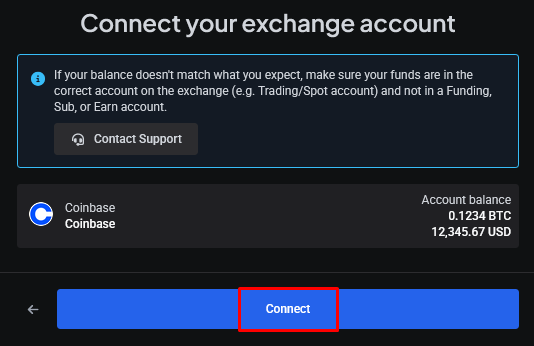 🔍 Click the image to see a larger version
- Click Next.
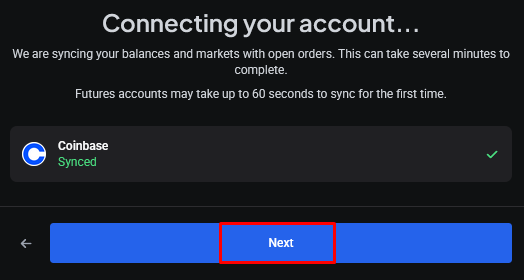 🔍 Click the image to see a larger version
- That’s it: your Coinbase account is connected. You’ll see it listed under Settings > Exchange Account API Keys.
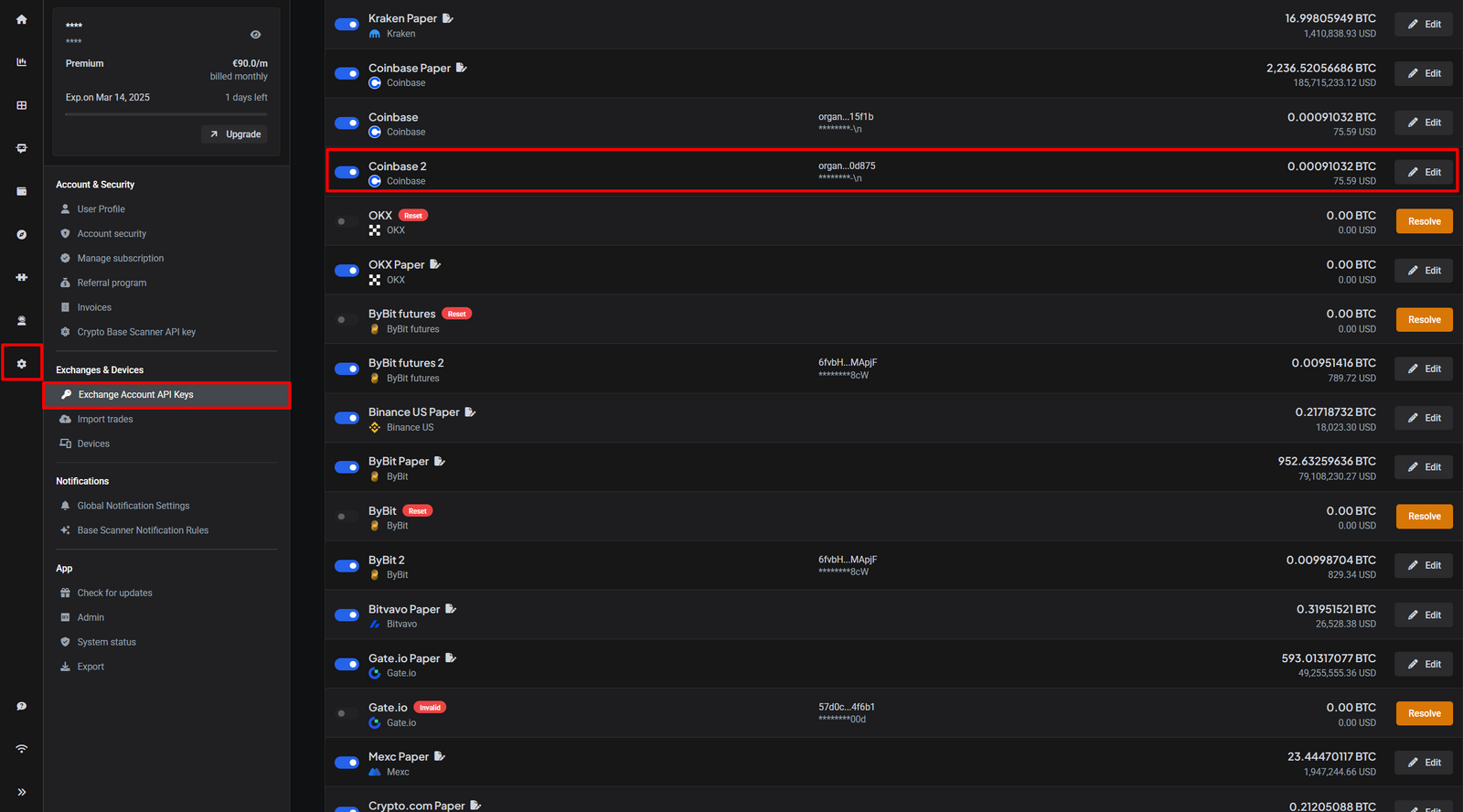 🔍 Click the image to see a larger version
Having trouble? If the connection doesn’t go through, see Connection Problems.