
Connect Bybit
Connecting your Bybit account lets Altrady see your balances and place trades on your behalf. You have two ways to do this: the fast, one-click way, or the manual way with API keys. We’ll walk you through both.
Bybit EU is supported as well. It uses the same API keys as the global Bybit exchange, and the only difference is which trading pairs are available. Fast Connect is not available for Bybit EU, so you’ll need to connect it manually with API keys (see Option 2 below).
Before you trade Bybit Futures
Bybit Futures has a couple of essential setup points, so read Trading Futures on Bybit at the end of this guide before your first futures trade.
Before you start
Altrady supports Bybit’s Unified Trading Account (UTA) for Spot (no margin) and Futures (USDT-perps only).
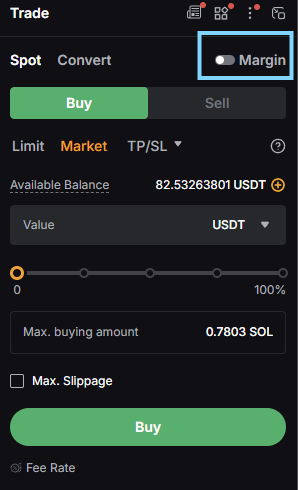
Bybit’s UTA lets you turn on margin trading for Spot, but Altrady does not support this. Make sure Spot Margin trading is turned off in Bybit. If it’s left on and a margined order is placed on the exchange, that order often can’t be edited in Altrady, your wallet balances may show as negative or incorrect, and margin fees won’t be shown.
Option 1: Fast Connect (recommended)
Fast Connect is the easiest way to link your Bybit account. It logs you into Bybit securely and automatically creates and configures the API key for you, with the correct permissions and Altrady’s IP whitelist already applied. You don’t need to copy or paste anything.
Fast Connect works with the global Bybit exchange only. If you’re on Bybit EU, skip to Option 2.
-
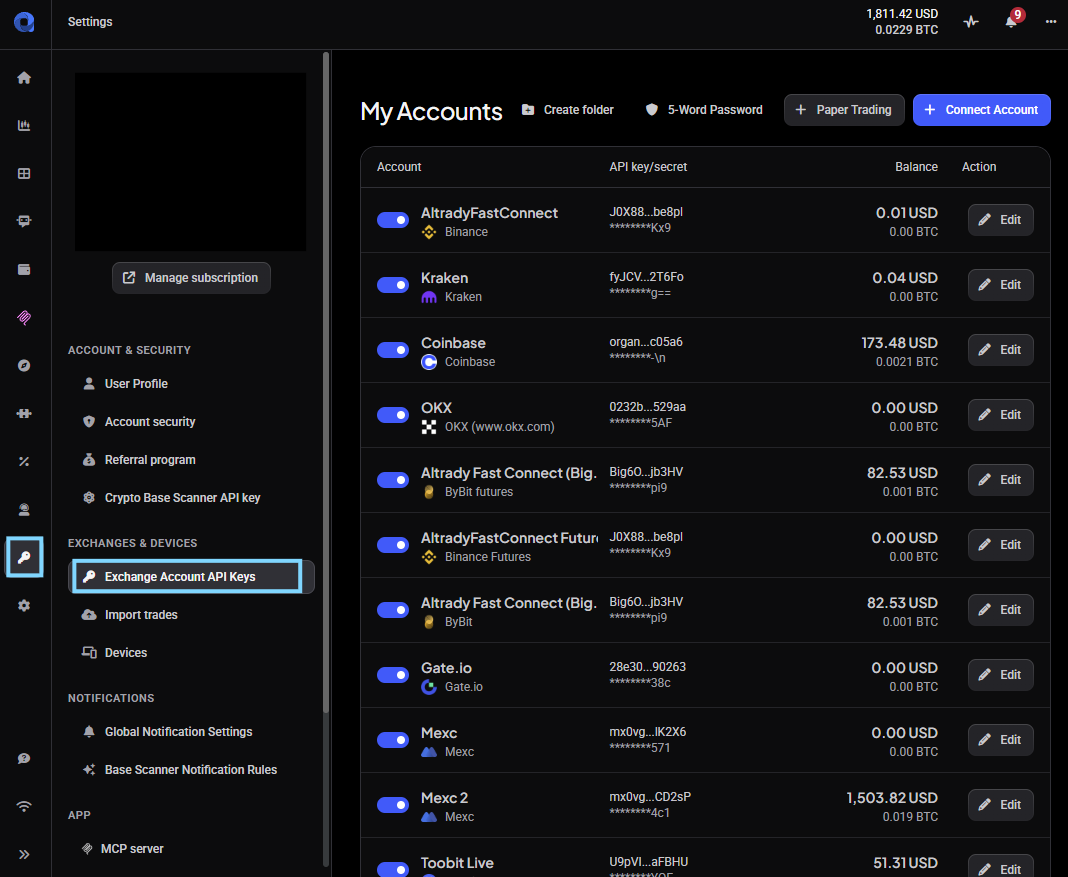
In Altrady, click Settings in the left side panel, then click Exchange Account API Keys.
 🔍 Click the image to see a larger version
-
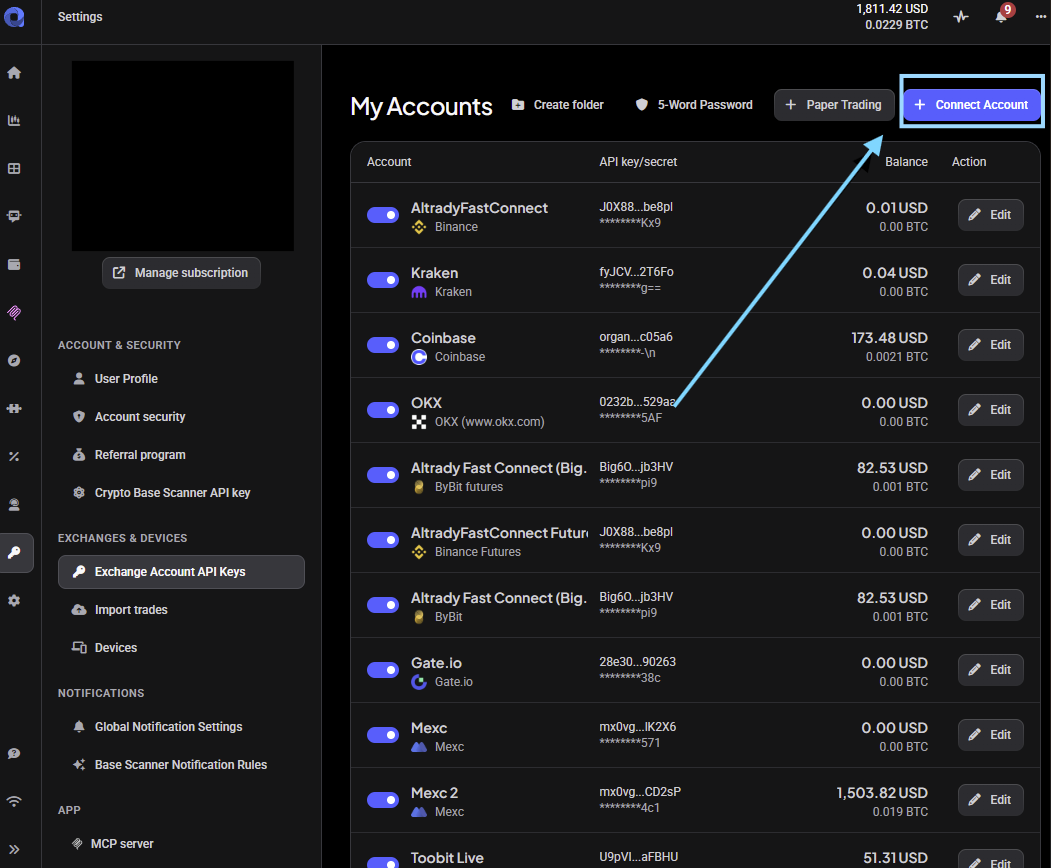
Click +Connect Account.
 🔍 Click the image to see a larger version
-
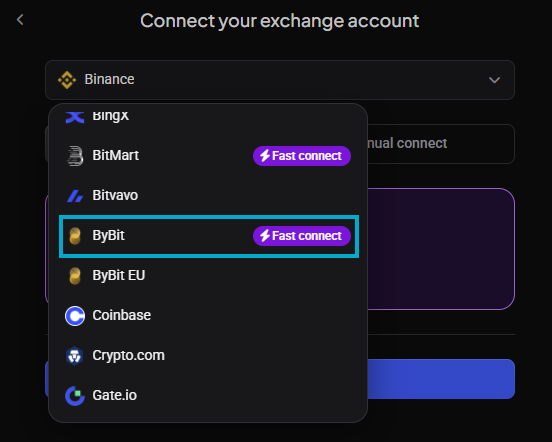
Select Bybit from the dropdown list.
 🔍 Click the image to see a larger version
-
Select Fast Connect, then click Connect. You’ll be redirected to the Bybit login page. If you’re already logged into Bybit in the same browser, you won’t need to log in again.
-
Log into your Bybit account (or sub-account).
-
Bybit will ask you to authorize creating the Fast Connect API key. Tick the box and click Confirm.
-
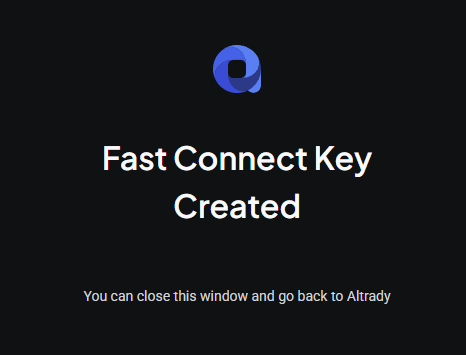
On the next screen, Bybit shows the permissions that will be enabled on the key. Click Confirm to create it. Altrady’s IP whitelist is applied automatically.
 🔍 Click the image to see a larger version
-
A Spot Trading Account is created in Altrady by default. If your Bybit account has Futures access, a Futures Trading Account is created too.
 🔍 Click the image to see a larger version
-
Once it’s done, you’ll see a success message in Altrady. Your new Bybit account(s) will appear on the Exchange Account API Keys page. You can rename them anytime by clicking Edit and changing the Account Label.
If your balance doesn’t show up right away, go to the Portfolio page and refresh, or use the circular refresh arrow in the trading widget.
Option 2: Manual Connection
Prefer to do it yourself? You can create the API key in Bybit and paste it into Altrady. This is also the way to connect Bybit EU.
-
Log into Bybit (main account or sub-account).
-
Make sure Spot Margin trading is disabled in Bybit.
 🔍 Click the image to see a larger version
-
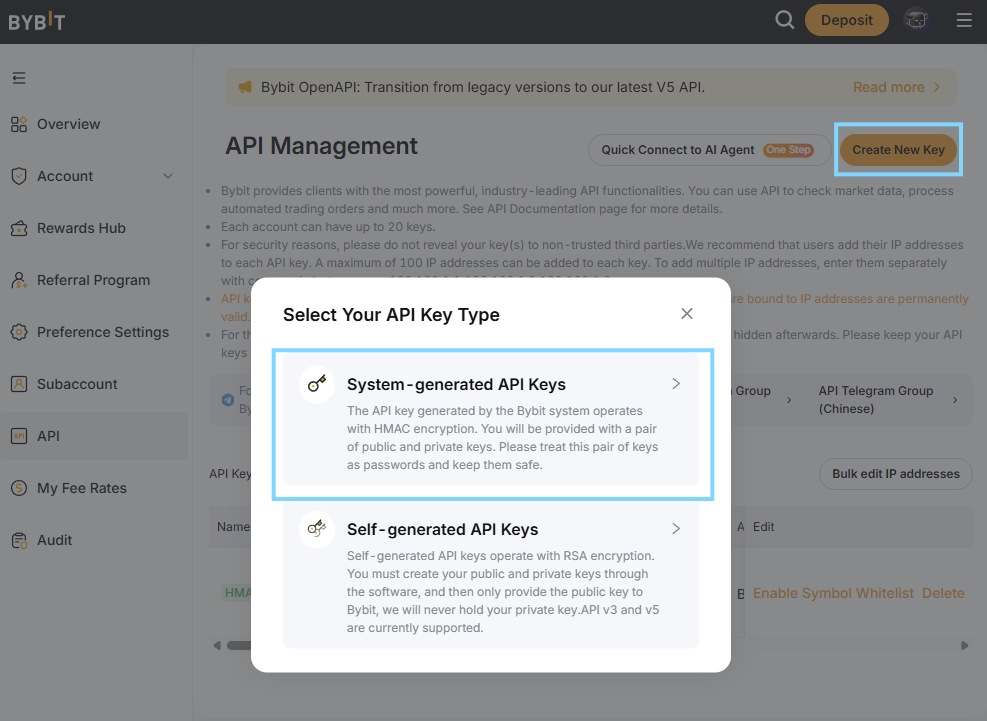
On Bybit’s API keys page, click Create New Key, then select System Generated as the API Key type.
 🔍 Click the image to see a larger version
-
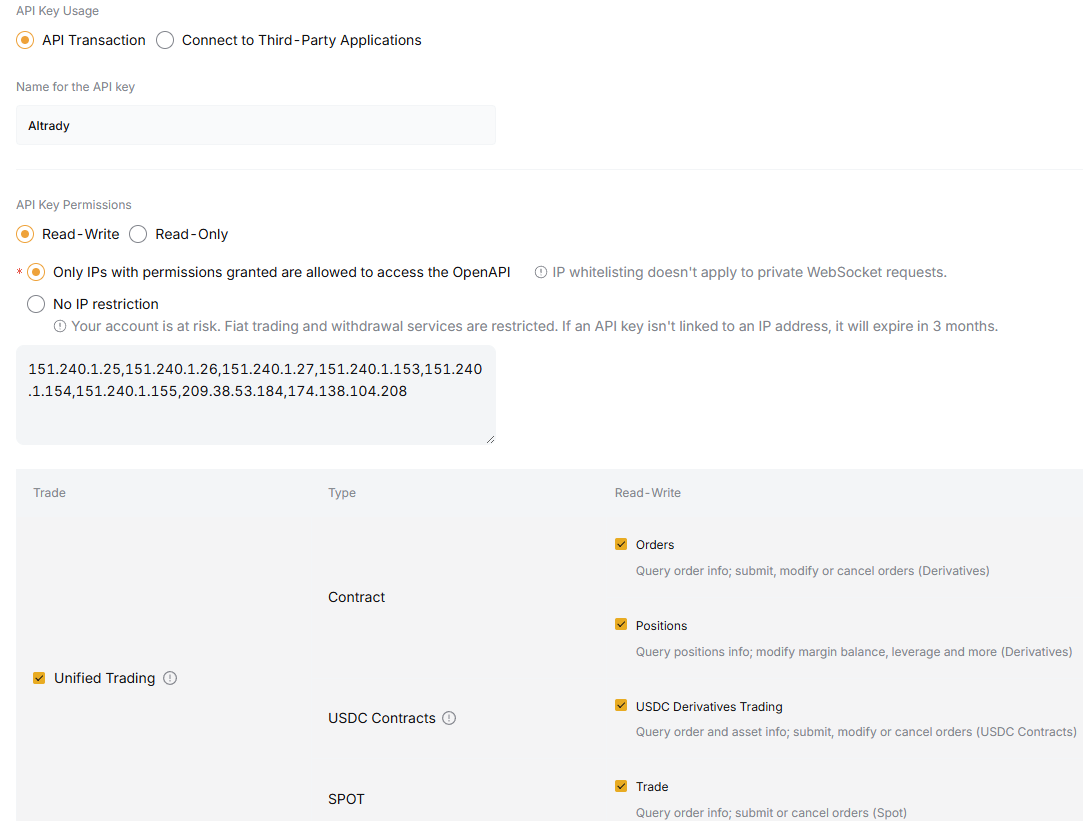
Choose API Transaction for API Key Usage and set the permissions to Read-Write for the new key. Enable Only IPs with permissions granted are allowed to access the OpenAPI and select Orders, Positions, USDC Derivatives Trading and Trade permissions below.
 🔍 Click the image to see a larger version
-
Give the key a label, then leave this window open and move over to Altrady.
-
In Altrady, go to Settings > Exchange Account API Keys, and click +Connect Account.
🔍 Click the image to see a larger version
-
Select Bybit or Bybit EU from the dropdown list.
-
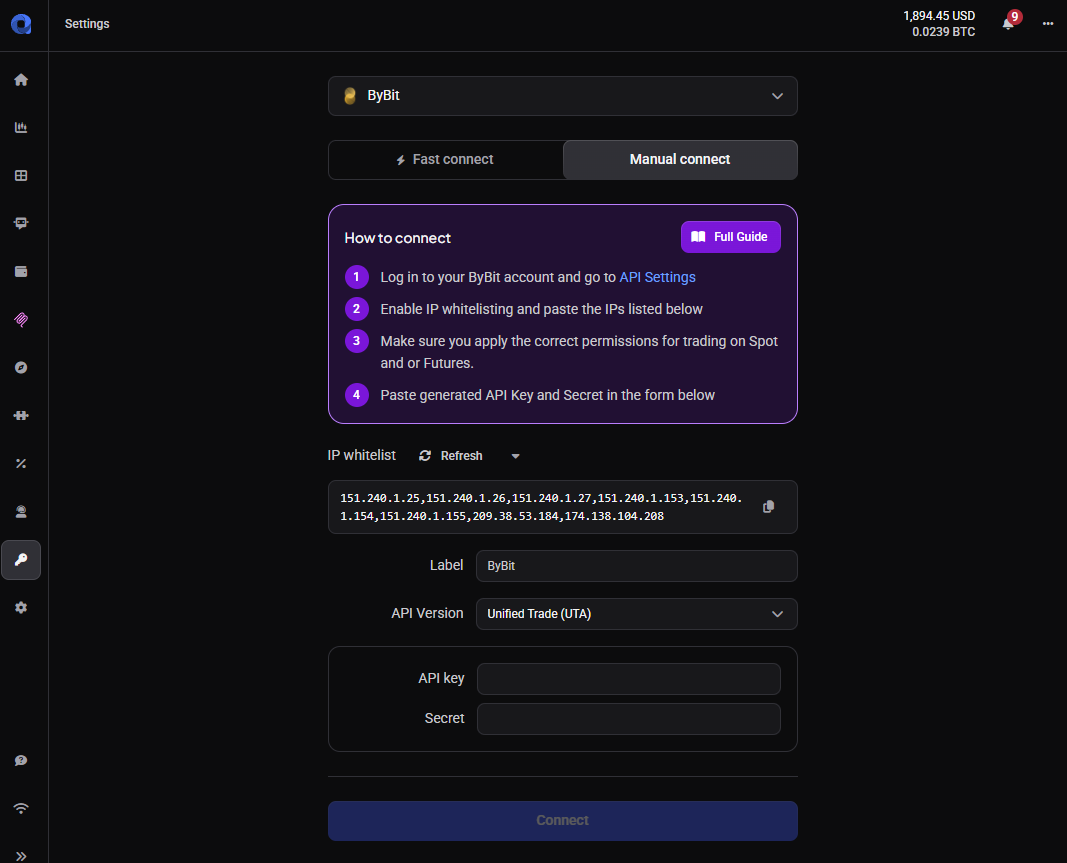
Select Manual Connect.
 🔍 Click the image to see a larger version
-
Set the API version to Unified Trade (UTA), and copy the IP whitelist back on the Bybit page.
-
Click Submit on Bybit then paste in the API key and Secret in Altrady. If your Bybit account has both Spot and Futures, Altrady will create a separate trading account for each.
-
Click Connect (for a new account) or Update (if you’re updating an existing one).
-
Click Connect again, then Next to finish setting up the account(s).
Your new Bybit account(s) will now appear on the Accounts page. If the balance isn’t visible right away, refresh it from the Portfolio page or the trading widget’s refresh arrow.
Altrady never asks for or needs withdrawal permission on your API key; only read and trade access. Never enable withdrawal permission on an exchange API key you connect to any trading tool.
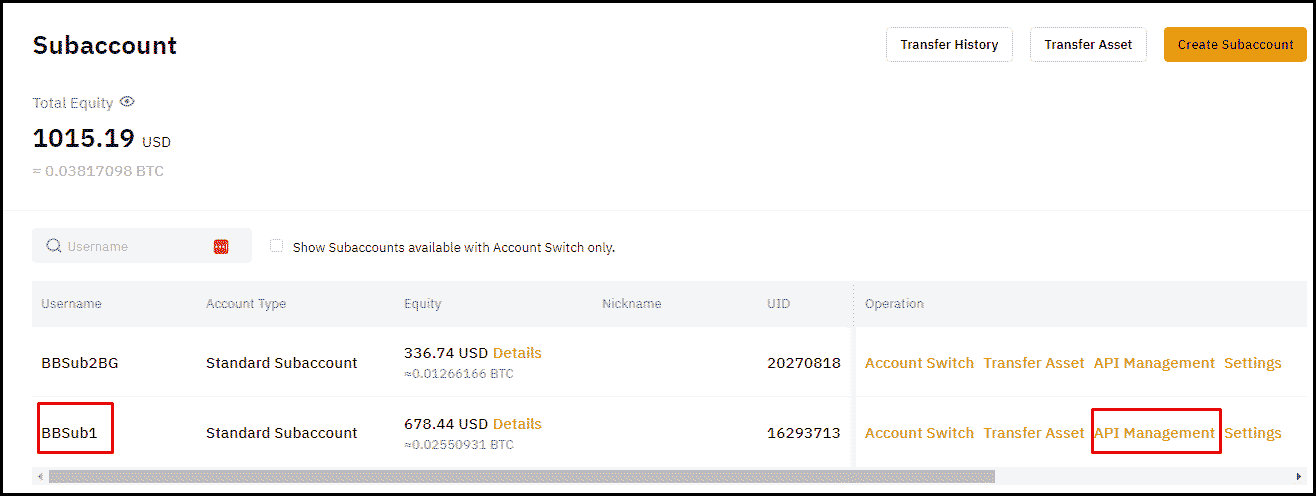
Connecting a sub-account
-
From the account dropdown, select the sub-account first.
-
Then select the API option from the account dropdown.
 🔍 Click the image to see a larger version
-
From here, follow the same steps as connecting a main account (Fast Connect or Manual Connection above).
A couple of notes
- With UTA, Spot trading works the same either way since margin trading is turned off.
- Bybit Futures is available for UTA accounts; just enable it on your Bybit account.
For more on how API keys work, see API Keys Explained.
Trading Futures on Bybit
Altrady supports Bybit USD-margined perpetual futures, in both Hedge mode and One-way mode. You can switch mode in Altrady or on Bybit, but only when all positions are closed. Bybit Unified Trading Accounts (UTA) are supported.
Having trouble?
If your account won’t connect or your balance isn’t showing, check out Connection Problems.