
Connect Bitvavo
Connecting your Bitvavo account lets Altrady see your balances and place trades for you, using a secure API key. It only takes a few minutes, and Altrady never needs, or asks for, withdrawal permission, so your funds always stay safe on Bitvavo.
Step 1: Create an API key on Bitvavo
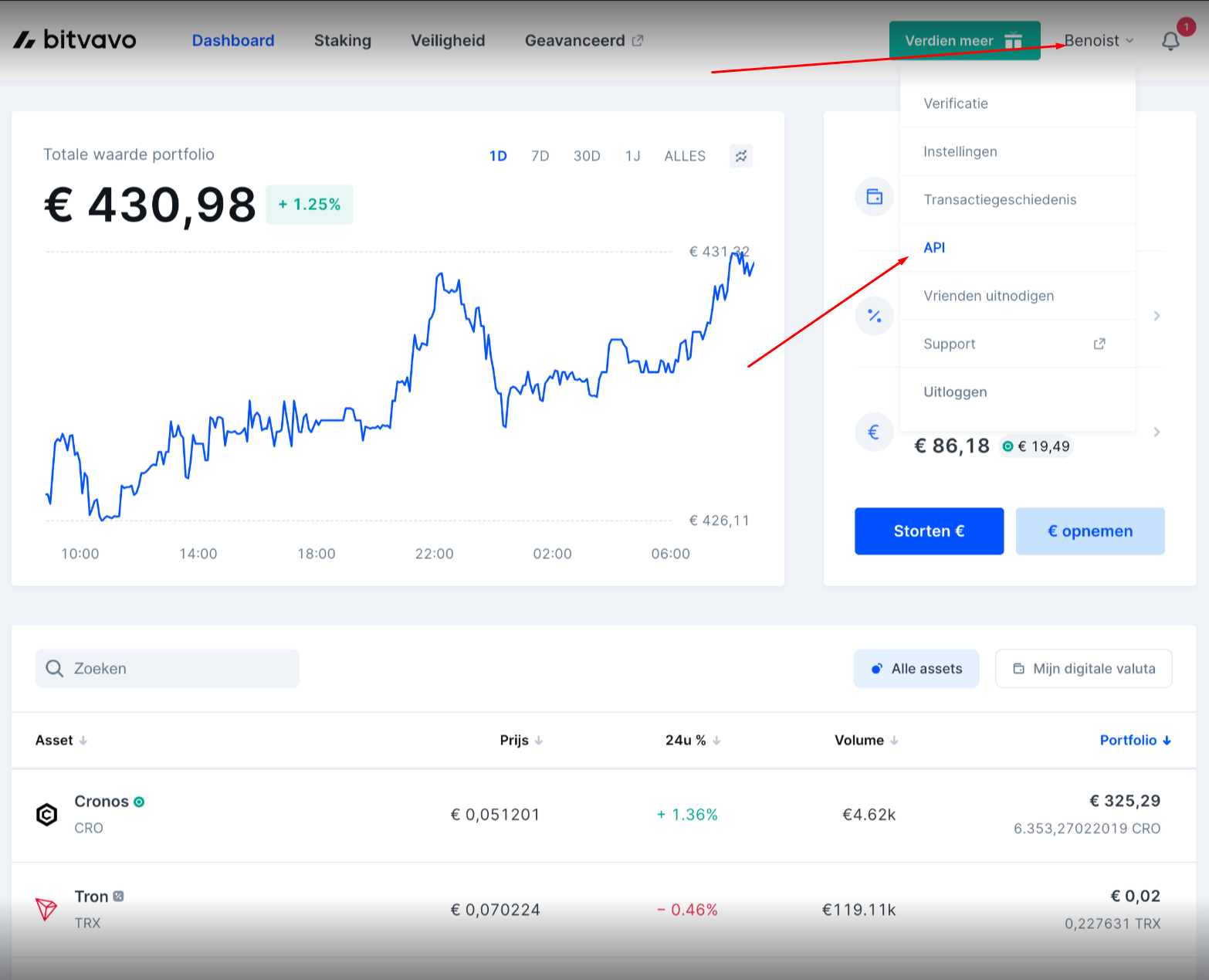
- Log in to Bitvavo.com and open the Account dropdown menu.
- Select API.
 🔍 Click the image to see a larger version
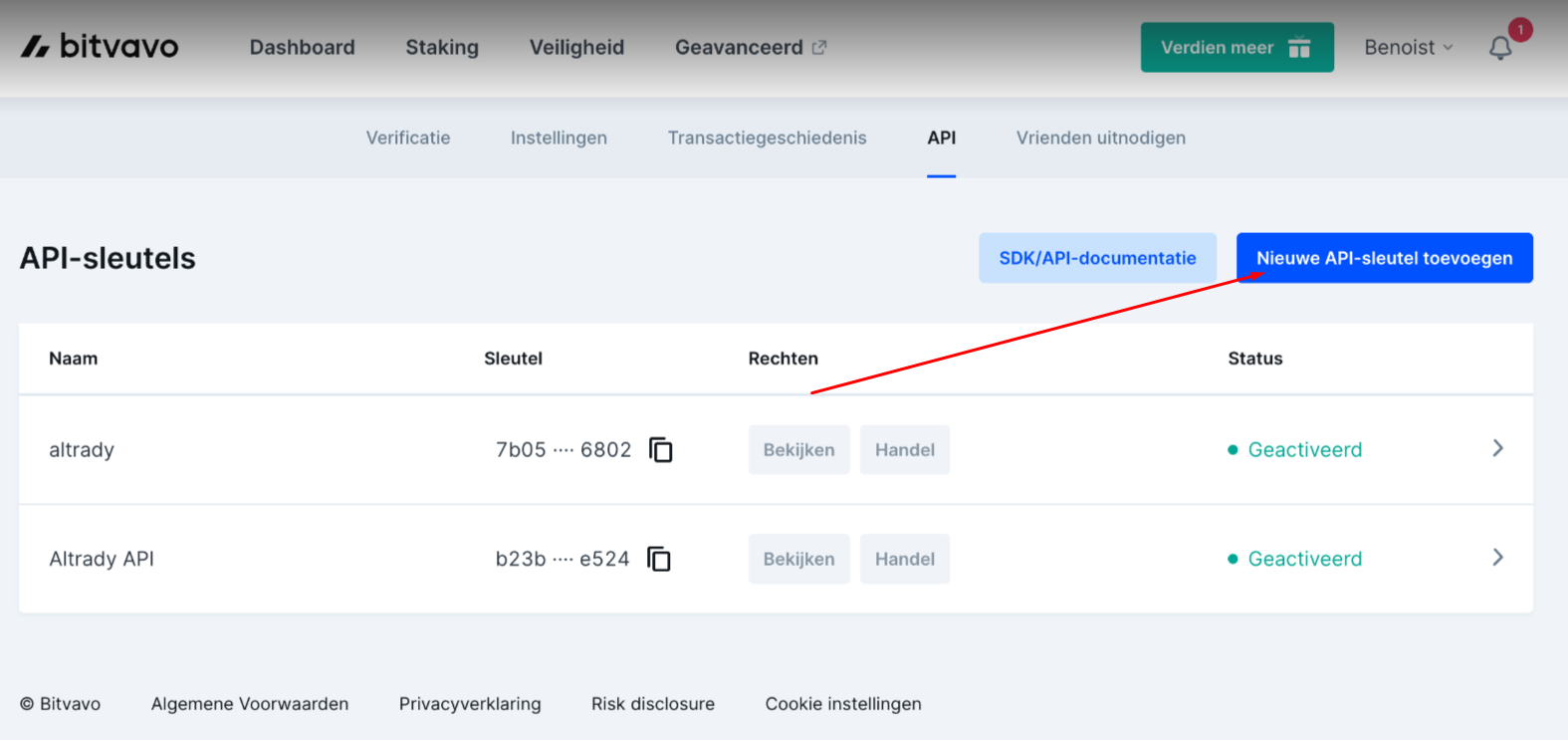
3. Click Request New API Key.
🔍 Click the image to see a larger version
3. Click Request New API Key.
 🔍 Click the image to see a larger version
4. Give your API key a label: anything that helps you recognize it later, such as “Altrady”.
🔍 Click the image to see a larger version
4. Give your API key a label: anything that helps you recognize it later, such as “Altrady”.
Step 2: Start the connection in Altrady
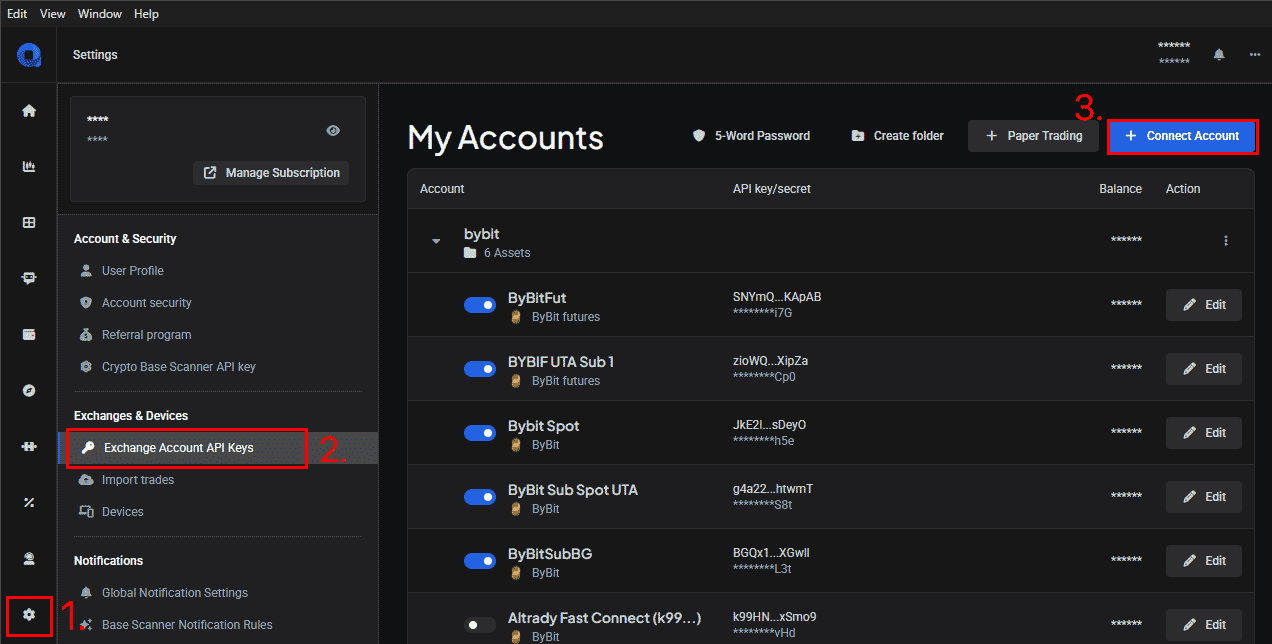
- Log in to Altrady and:
- Select Settings
- Select Exchange account API keys
- Click +Connect Account
 🔍 Click the image to see a larger version
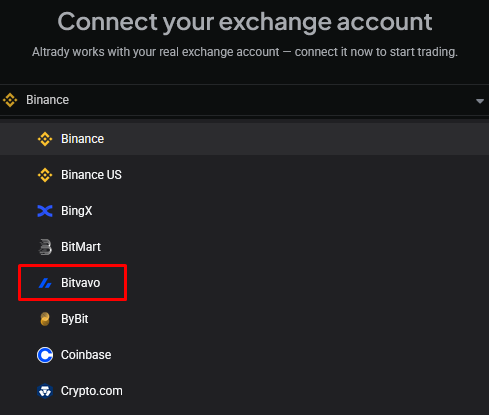
6. Select Bitvavo from the dropdown list of exchanges.
🔍 Click the image to see a larger version
6. Select Bitvavo from the dropdown list of exchanges.
 🔍 Click the image to see a larger version
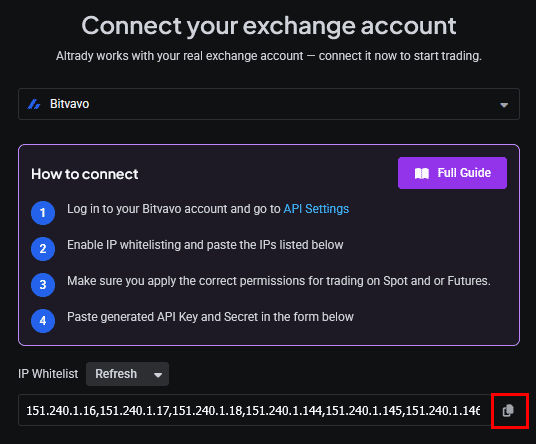
7. Click the Copy icon to copy Altrady’s IP whitelist to the clipboard. Keep this browser tab open; you’ll need it in the next step.
🔍 Click the image to see a larger version
7. Click the Copy icon to copy Altrady’s IP whitelist to the clipboard. Keep this browser tab open; you’ll need it in the next step.
 🔍 Click the image to see a larger version
## Step 3: Set permissions and IP whitelist on Bitvavo
🔍 Click the image to see a larger version
## Step 3: Set permissions and IP whitelist on Bitvavo
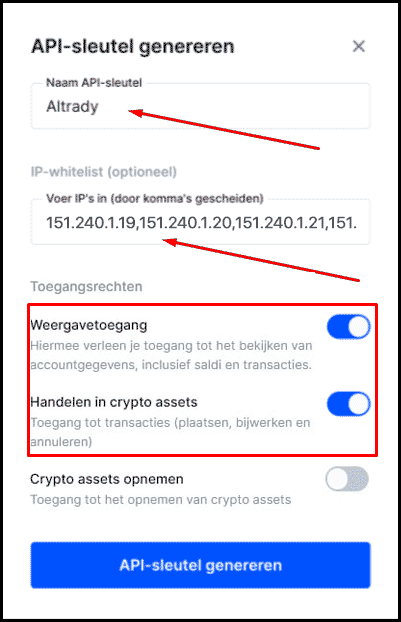
- Go back to the Bitvavo tab, set the permissions for your API key as shown on your screen, and paste in the IP whitelist you copied from Altrady.
Only tick the permissions Bitvavo shows on this screen for View and Trade access. Never enable a withdrawal permission for your Altrady API key; Altrady never needs it to work, and leaving it off keeps your funds safe even if a key were ever compromised.
 🔍 Click the image to see a larger version
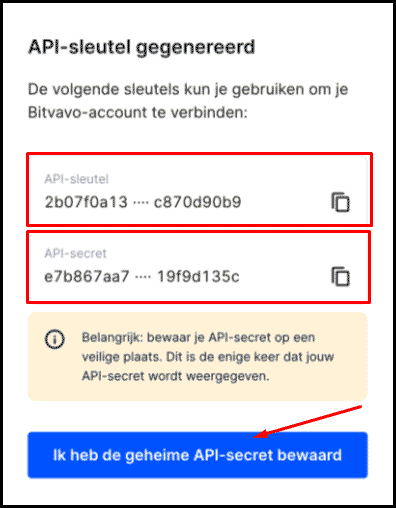
9. Your new API Key and Secret will be shown in a pop-up window.
🔍 Click the image to see a larger version
9. Your new API Key and Secret will be shown in a pop-up window.
 🔍 Click the image to see a larger version
## Step 4: Finish the connection in Altrady
🔍 Click the image to see a larger version
## Step 4: Finish the connection in Altrady
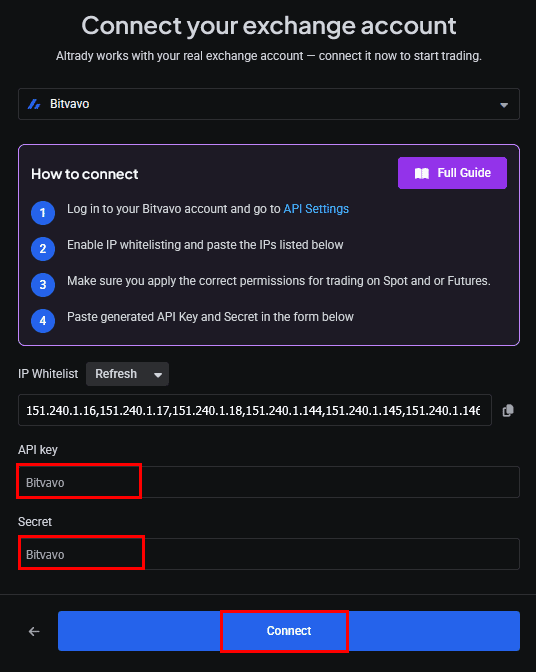
- Copy the API Key and Secret from Bitvavo into the matching fields in Altrady, then click Connect.
 🔍 Click the image to see a larger version
11. Click Connect.
🔍 Click the image to see a larger version
11. Click Connect.
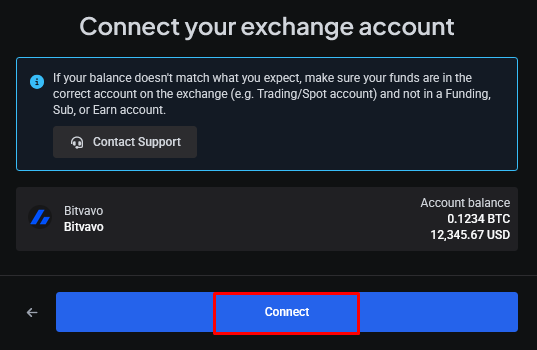 🔍 Click the image to see a larger version
12. Click Next.
🔍 Click the image to see a larger version
12. Click Next.
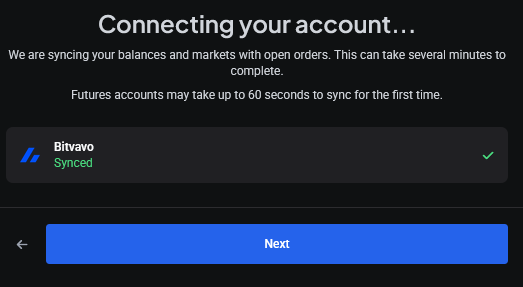 🔍 Click the image to see a larger version
## Step 5: Confirm and activate the key on Bitvavo
🔍 Click the image to see a larger version
## Step 5: Confirm and activate the key on Bitvavo
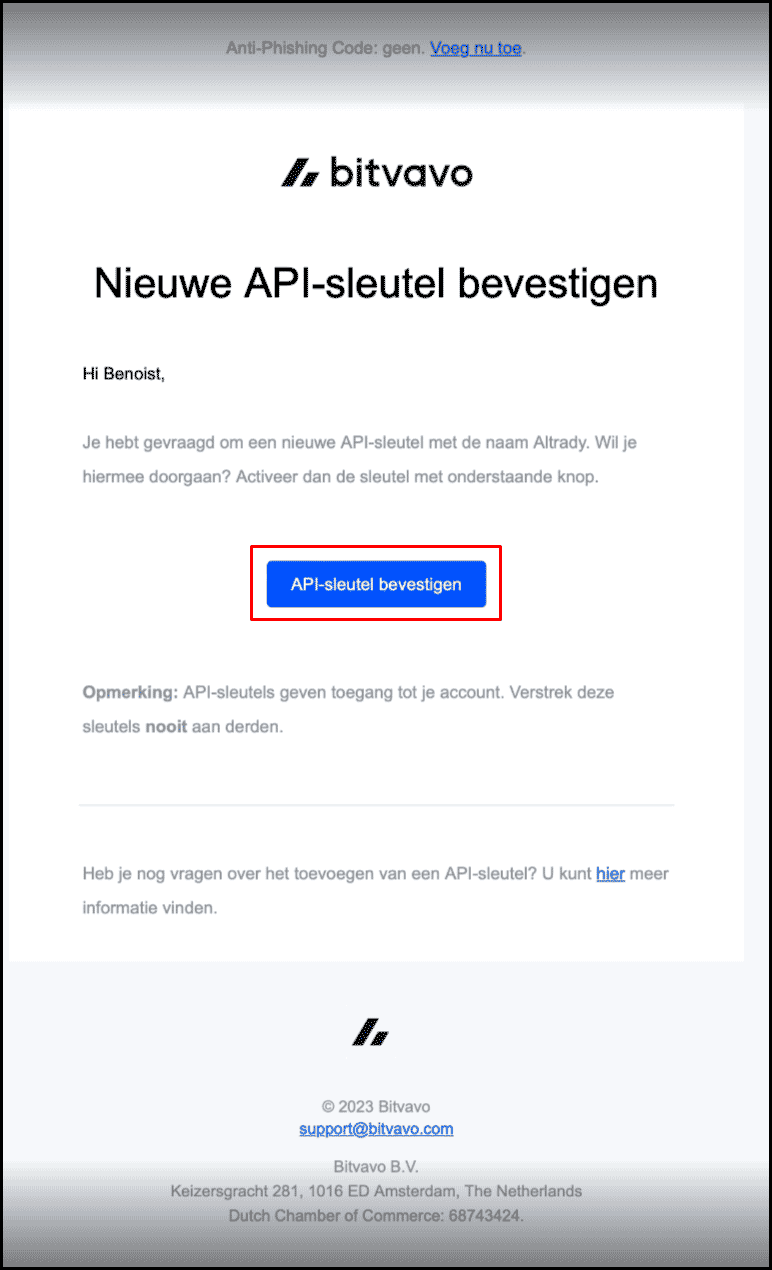
- Go back to Bitvavo and confirm the API key creation; you’ll also need to confirm this by clicking a link in an email Bitvavo sends you.
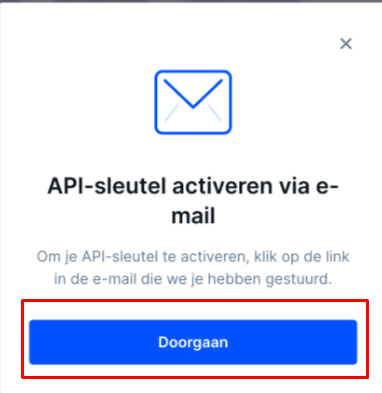 🔍 Click the image to see a larger version
14. Once created, you’ll need to activate the key in Bitvavo.
🔍 Click the image to see a larger version
14. Once created, you’ll need to activate the key in Bitvavo.
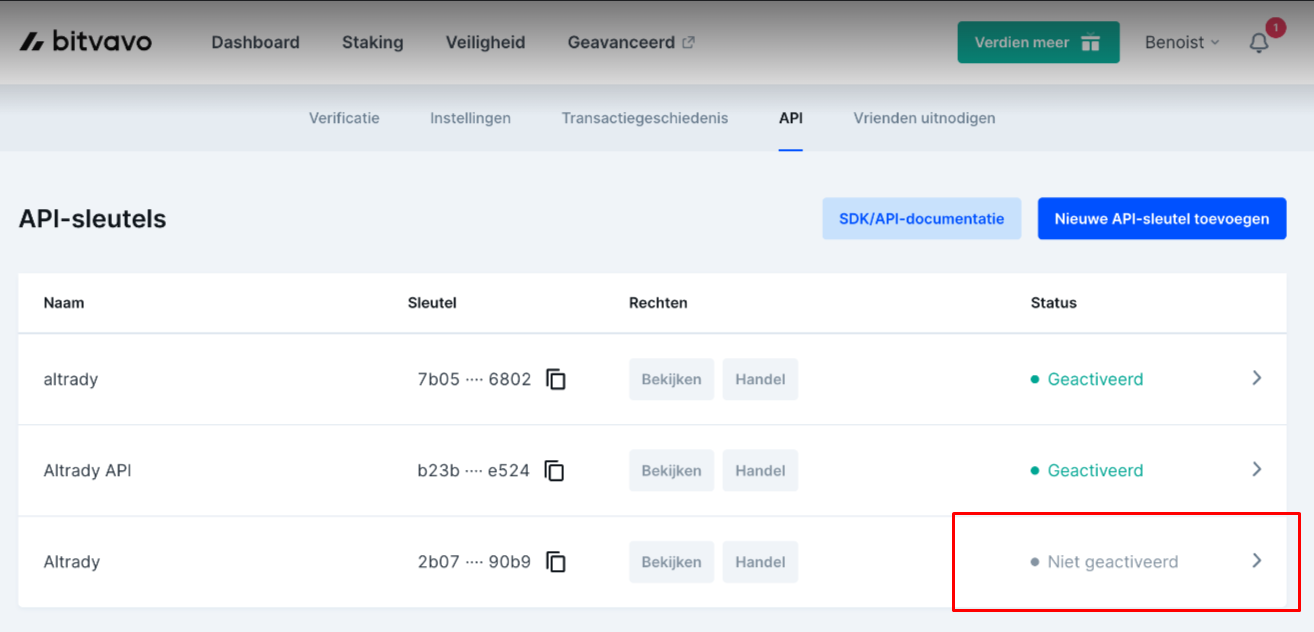 🔍 Click the image to see a larger version
 🔍 Click the image to see a larger version
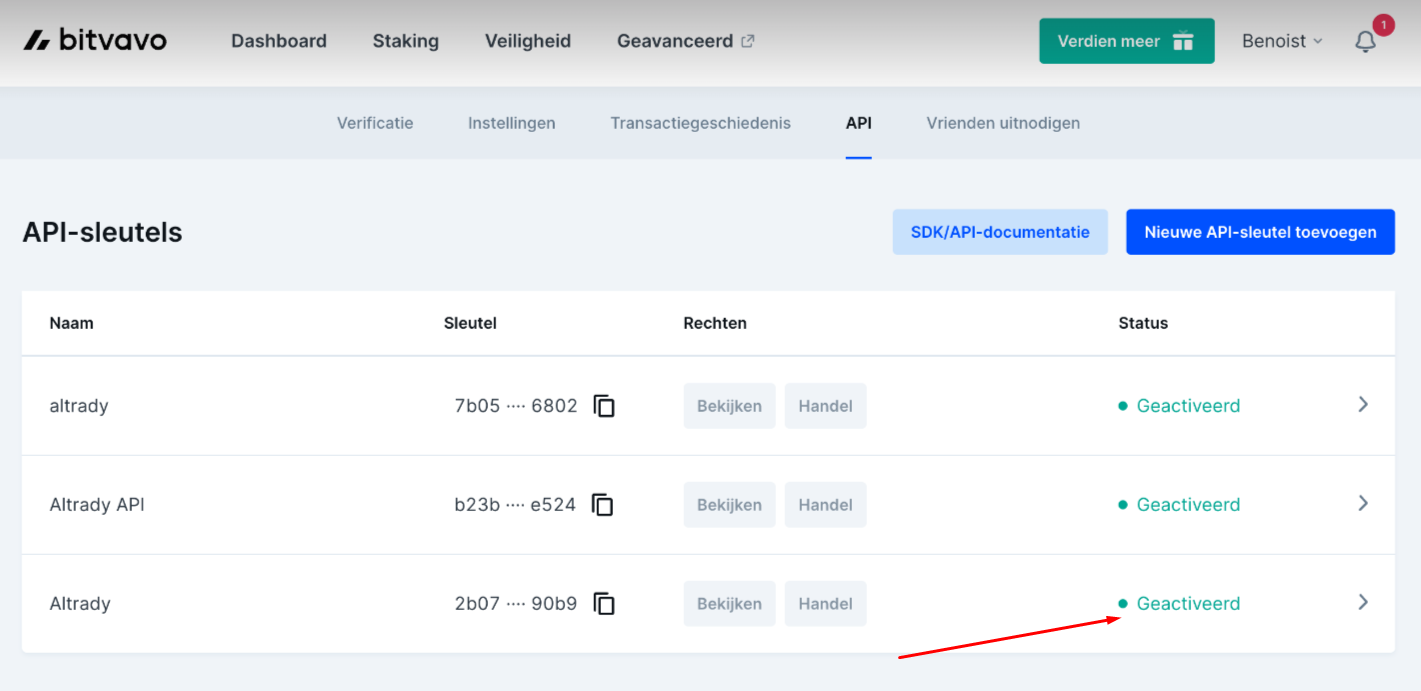
15. Your API key is now activated.
🔍 Click the image to see a larger version
15. Your API key is now activated.
 🔍 Click the image to see a larger version
That’s it: your Bitvavo account is connected. Your recent trade and order history is imported automatically using your API key. If you’re on a paid plan, you can also manually import older trade history from Settings > Exchange Import.
🔍 Click the image to see a larger version
That’s it: your Bitvavo account is connected. Your recent trade and order history is imported automatically using your API key. If you’re on a paid plan, you can also manually import older trade history from Settings > Exchange Import.
Replacing your API key later
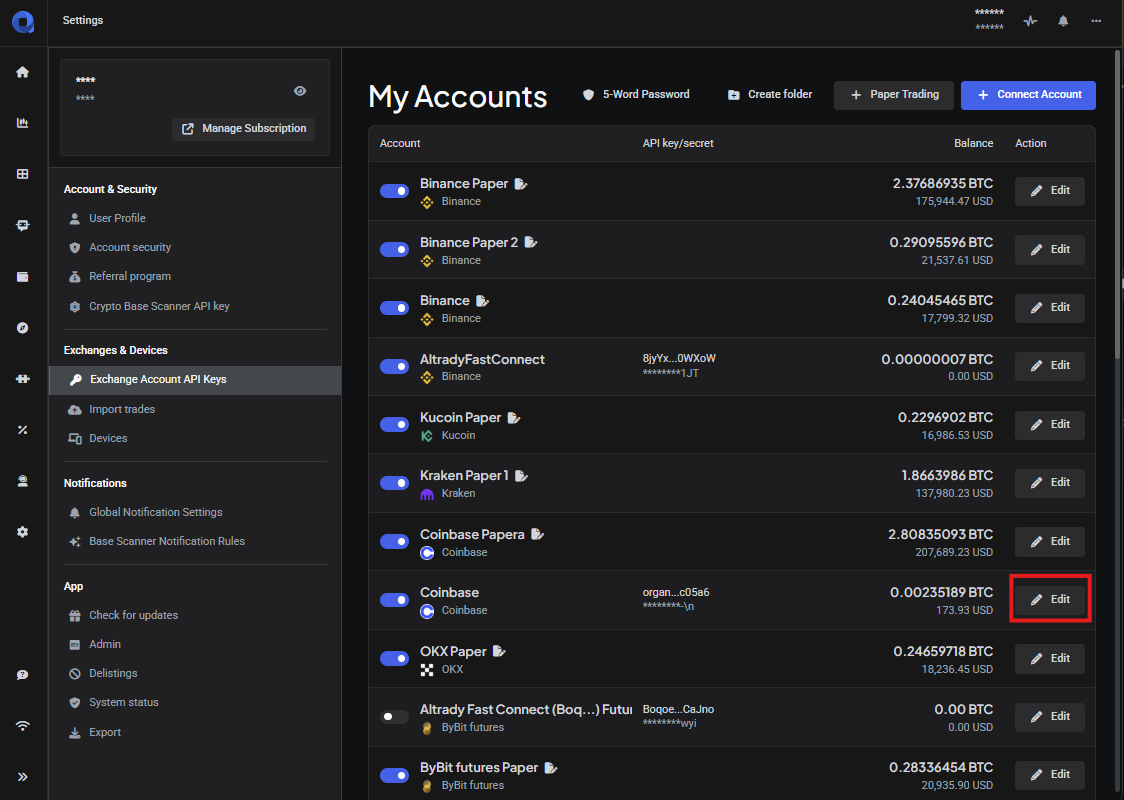
You can edit your connection details at any time using the edit icon next to your account.
Never delete your API key in Altrady: doing so permanently removes all of your trade, order, position, and portfolio history for that account. If you need a new key, edit the existing connection and replace the key and secret instead.
 🔍 Click the image to see a larger version
## Finding Bitvavo markets
🔍 Click the image to see a larger version
## Finding Bitvavo markets
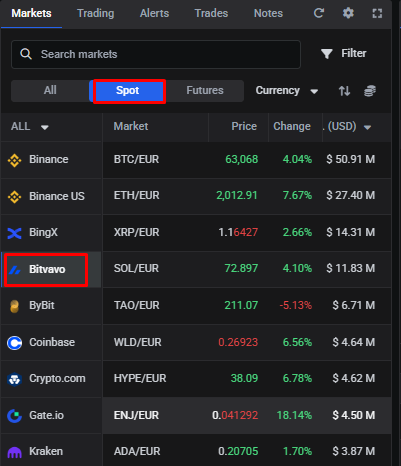
On the Trading Terminal, you’ll find Bitvavo pairs in the Markets widget. Filter by All or Spot, or click the arrow to the right of the market tabs at the top of the Trading Terminal to see the full list.
 🔍 Click the image to see a larger version
For more on what each API permission actually controls, see API Keys Explained.
🔍 Click the image to see a larger version
For more on what each API permission actually controls, see API Keys Explained.
Having trouble?
If your connection isn’t working as expected, check out Connection Problems for common fixes.