
Connect BingX
Connecting your BingX account to Altrady lets you trade Spot and Futures markets right from your Altrady dashboard. You’ll create an API key on BingX, then paste it into Altrady. It only takes a few minutes.
A quick note on safety: Altrady only needs permission to trade and view your balance. It never needs (and you should never grant) withdrawal permission. Your funds always stay on BingX; Altrady simply places and manages orders for you.
Before you trade BingX Futures
BingX Futures has a couple of essential setup points — see Trading Futures on BingX at the end of this guide before your first futures trade.
Step 1: Create an API key on BingX
- Log into your BingX account.
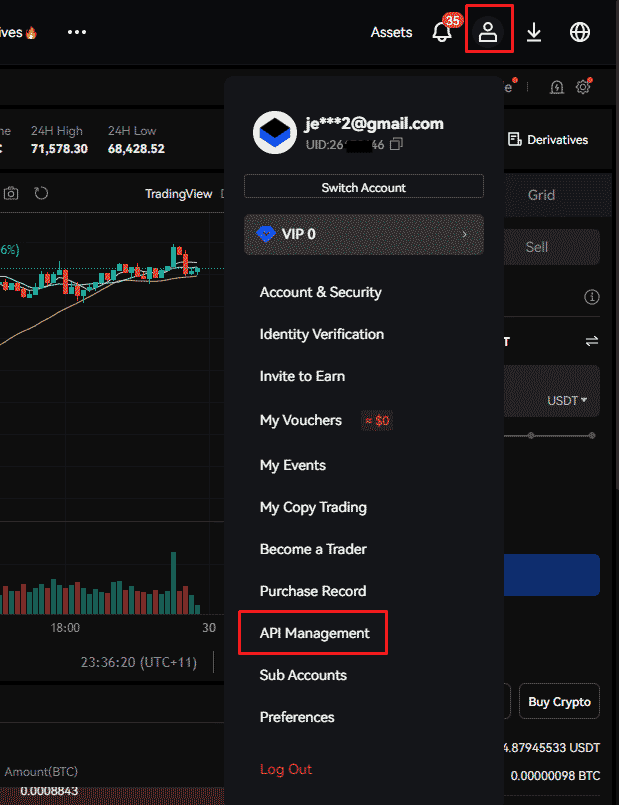
- Open the Account menu and select API Management.
 🔍 Click the image to see a larger version
Step 2: Set up the API key
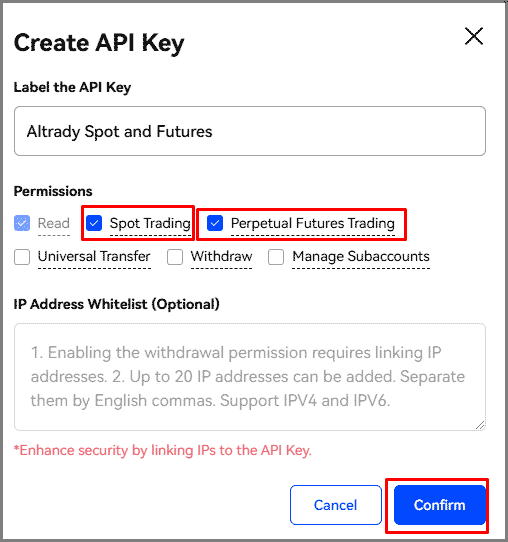
- Give the API key a name (anything you’ll recognize later).
- Enable Spot and/or Futures trading, depending on which you plan to use.
- If you trade a lot on both, it’s a good idea to create two separate API keys: one for Spot, one for Futures. This helps you avoid rate-limit errors from BingX.
- Click Confirm.
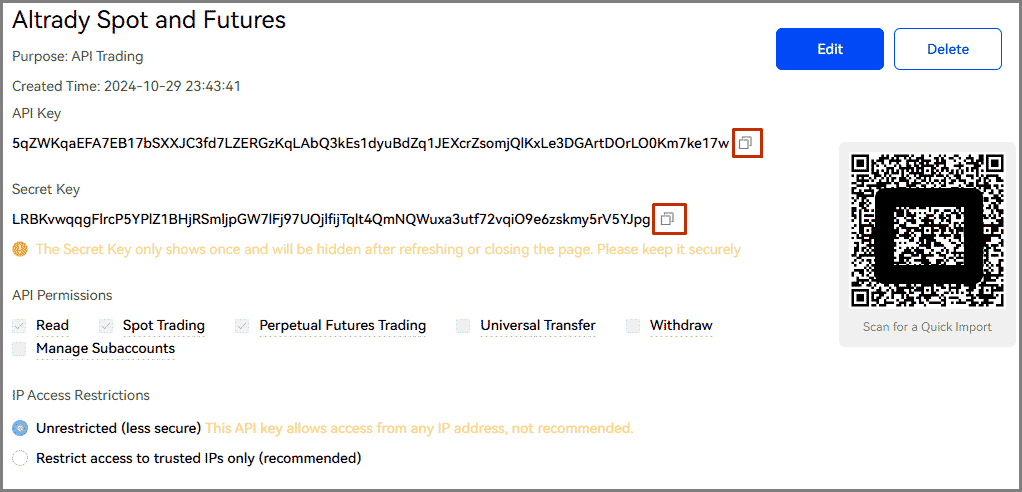
BingX will now show your API key and secret. Keep this page open; you’ll need both in the next step.
 🔍 Click the image to see a larger version
Step 3: Start the connection in Altrady
- Log into Altrady and go to Settings > Exchange Account API Keys.
- Click +Connect Account.
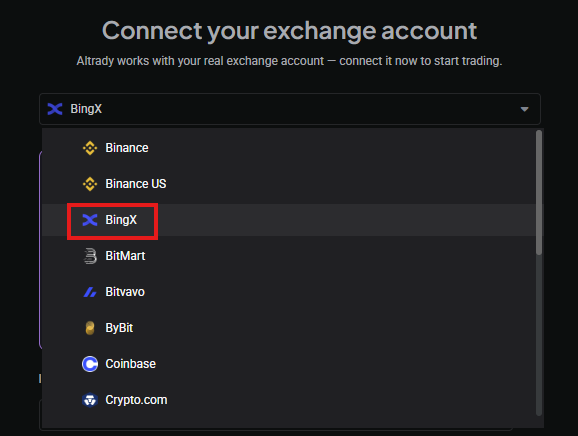
- Select BingX from the list of exchanges.
 🔍 Click the image to see a larger version
Step 4: Add your key and save
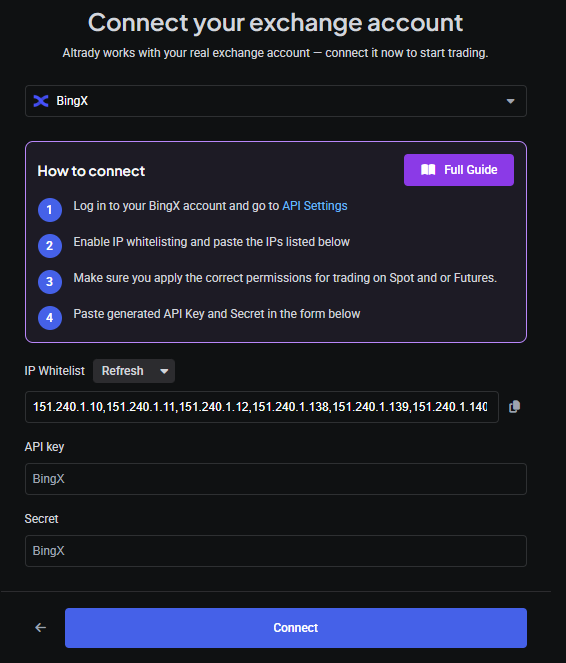
- Copy the API key from BingX and paste it into Altrady, then do the same for the secret.
- Give the new trading account a label of your choice.
- Select Spot and/or Futures. If you select both, Altrady will create two separate trading accounts: one for each.
- Click Save.
 🔍 Click the image to see a larger version
 🔍 Click the image to see a larger version
Step 5: You’re connected
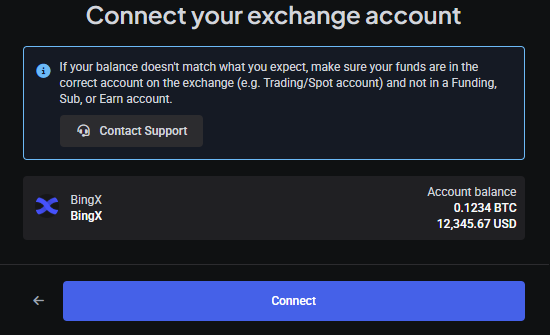
Your new BingX trading account(s) will appear in Altrady right away: Spot, Futures, or both, depending on what you selected.
 🔍 Click the image to see a larger version
Updating your key later
If you ever need to replace your API key or secret (for example, if you regenerate them on BingX), find the account in your list of API keys and click Edit to swap in the new pair.
 🔍 Click the image to see a larger version
Finding BingX markets
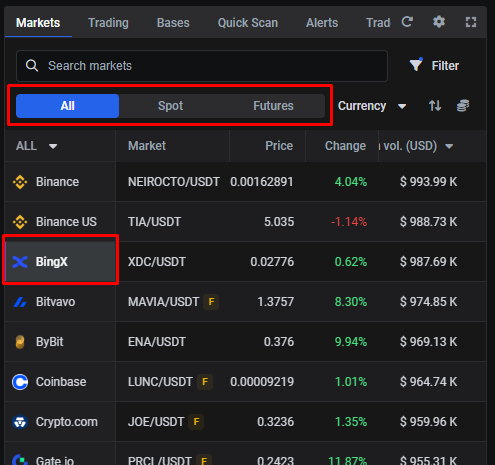
In the Markets widget, select BingX from the left-hand list, then filter by All, Spot, or Futures to find the market you want.
 🔍 Click the image to see a larger version
A couple of things to know about balances
- Balances usually show up within a few minutes of connecting.
- For Futures, your funds need to be in the USD-M Perpetual Futures account on BingX to appear in Altrady.
- For Spot, your funds need to be in the Spot trading account on BingX.
- Altrady currently only supports USD-M Perpetual Futures. Standard Futures and Coin-M Perpetual Futures are not supported yet.
Want to understand what each permission and field actually means? Check out API Keys Explained.
Trading Futures on BingX
Altrady supports BingX USDT-margined perpetual futures, in both One-way mode and Hedge mode (Hedge mode requires Altrady v4.5 or later). You can set the mode in Altrady or on BingX.
Having trouble?
If your BingX account won’t connect or your balances aren’t showing up, see Connection Problems for help.